
1. Introduction
The abxylute M4 is a compact, snap-on mobile gaming controller designed for on-the-go retro gaming and mobile gaming experiences. It offers broad compatibility with Android and iOS devices, featuring multiple connection modes and a portable design.
2. Safety Information
- Do not use the controller without a phone case, especially when using the magnetic ring, to prevent accidental drops.
- Avoid using the controller while lying down with the phone facing upwards, as the magnetic attachment may not be strong enough to prevent the phone from falling.
- Keep the device away from water and extreme temperatures.
- Do not attempt to disassemble or repair the device yourself. Contact support for assistance.
3. Package Contents
The abxylute M4 package includes the following items:
- abxylute M4 Controller
- Magnetic Ring
- Magnetic Sticker
- Wrist Strap
- User Manual

4. Setup Guide
The abxylute M4 controller is designed for easy setup. Follow these steps to get started:
4.1 Attaching the Controller to Your Phone
- For MagSafe-compatible phones (e.g., iPhone 12/13/14/15/16/17 series):
Attach the magnetic ring to your MagSafe-compatible phone case. The controller will then snap onto this magnetic ring. Power on the controller to begin playing.
- For non-MagSafe compatible phones (e.g., Android devices, iPhone 11/SE and earlier models):
It is recommended to attach the included magnetic sticker to your phone case. Then, attach the magnetic ring to the sticker. The controller will snap onto the magnetic ring. Power on the controller to begin playing.
Important Note:
- Always use a phone case when attaching the magnetic ring to prevent damage to your phone.
- Do not use the controller without a case to avoid accidental drops.


4.2 Powering On and Bluetooth Pairing
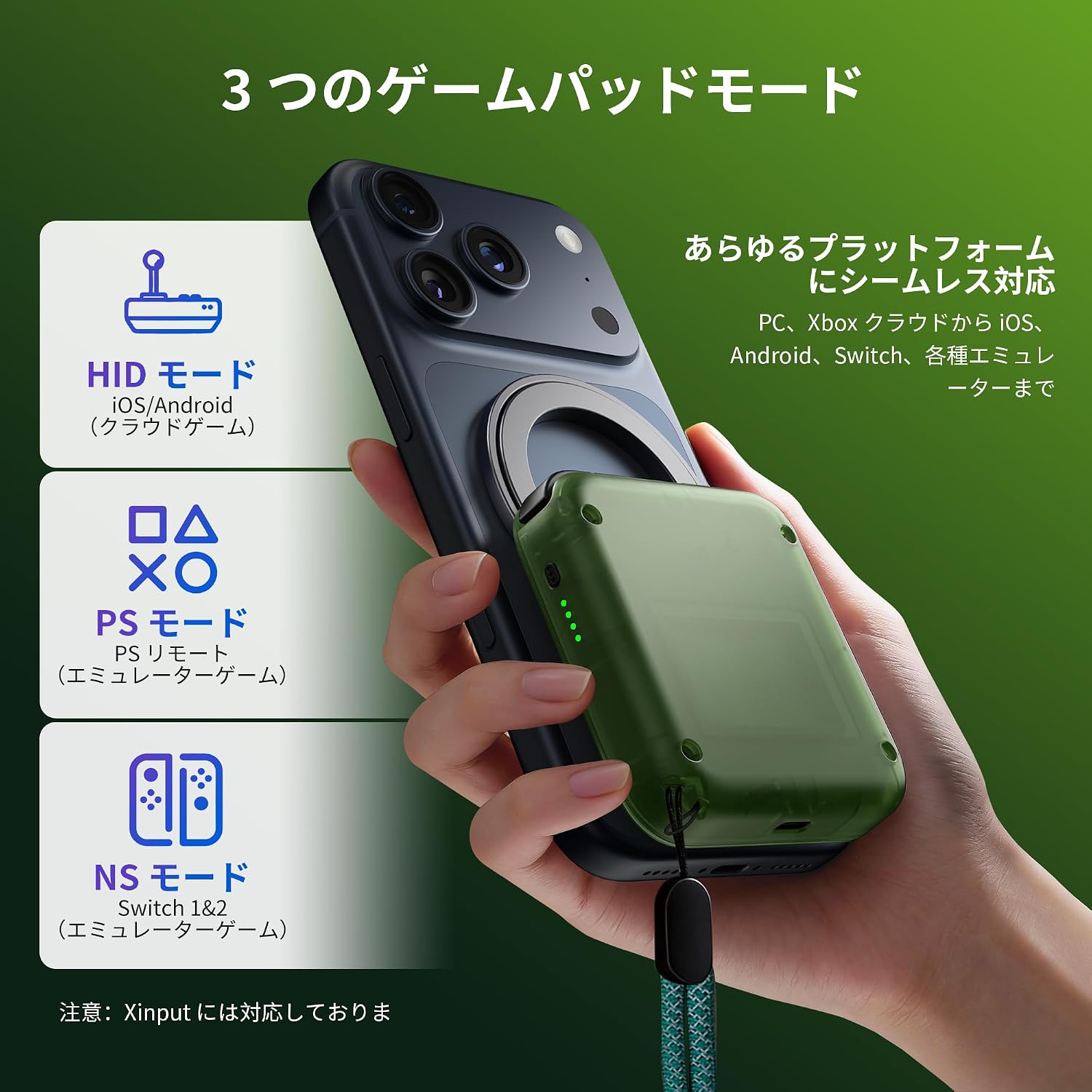
Once attached, simply power on the controller. It will automatically connect to your device via Bluetooth after the initial pairing. The controller supports HID, PS, and NS modes for seamless connection to various gaming platforms.
Video: Demonstrates the quick and easy snap-on attachment and power-on process of the abxylute M4 controller for instant mobile gaming.
5. Operating Modes
The abxylute M4 supports three distinct operating modes to ensure compatibility with a wide range of devices and games:
5.1 HID Mode
Usage: Primarily for Android local games and cloud gaming platforms.
- Press and hold the A button and the pairing button.
- Search for a Bluetooth device named "Gamepad".
- The 1st and 4th LED indicators will flash.

5.2 PS Mode
Usage: For Android and iOS Call of Duty Mobile (CODM) and PS Remote Play.
- Press and hold the B button and the pairing button.
- Search for a Bluetooth device named "Wireless Controller" or "DUALSHOCK 4 Wireless Controller".
- The 2nd and 3rd LED indicators will flash.

5.3 NS Mode
Usage: For various emulators (e.g., Delta, RetroArch, PPSSPP) on iOS and Android, and as a backup controller for Switch 1 & 2.
- Press and hold the pairing button.
- Search for a Bluetooth device named "Pro Controller".
- All four LED indicators will flash alternately.

6. Features and Compatibility
The abxylute M4 is designed for versatility and convenience:
- Ultra-Portable Design: Weighing only 56g, it's pocket-sized for gaming anywhere.
- Broad Compatibility: Supports Android devices, iPhones (MagSafe required for iPhone 12/13/14/15/16/17 series), and card-sized smartphones. Not compatible with foldable smartphones.
- Retro Gaming Focus: Optimized for retro emulators like Delta, RetroArch, and PPSSPP, supporting platforms such as 3DS, FC, SFC, SS, N64, GBA, GBC, and NDS.
- Dual Joystick Mode: Features flat analog sticks with a default circular mode for modern mobile games and a square mode for classic retro games.
- Long Battery Life: Enjoy up to 12 hours of continuous play.
- Multi-functional: Can also be used as a stable backup controller for PC, Switch 1, and Switch 2.


7. Specifications
| Feature | Detail |
|---|---|
| Product Model Number | M4 |
| Controller Weight | 56g |
| Dimensions | 74.8 x 69.5 x 15 mm |
| Number of Buttons | 18 |
| Supported OS | Android & iOS |
| Connection Method | Bluetooth |
| Recommended Use | Retro Games, Mobile Games, Cloud Gaming |
| Battery Life | Up to 12 hours |
| Origin | China |
8. Maintenance
- Clean the controller regularly with a soft, dry cloth.
- Avoid using harsh chemicals or abrasive materials.
- Store the controller in a cool, dry place when not in use.
- Ensure the magnetic surfaces are clean for optimal attachment strength.
9. Troubleshooting
9.1 Connection Issues
- Controller not pairing: Ensure the controller is charged and in the correct pairing mode (HID, PS, or NS) for your device. Check your phone's Bluetooth settings to ensure it's discoverable and try re-pairing.
- Unstable connection: Ensure there are no obstructions between the controller and your phone. Move closer to your device if experiencing interference.
9.2 Magnetic Attachment Issues
- Weak magnetic hold: Ensure the magnetic ring and sticker (if used) are properly aligned and securely attached to your phone case. Clean the magnetic surfaces to remove any dust or debris.
- Phone falling off: Always use a phone case. Avoid using the controller in orientations where gravity might overcome the magnetic force, such as lying down with the phone facing upwards.
9.3 Button/Joystick Unresponsiveness
- Buttons not responding: Check if the controller is fully charged. Restart the controller and your phone, then attempt to reconnect.
- Joystick drift or inaccuracy: Ensure the controller's firmware is up to date (check the abxylute official website or Discord for updates). If the issue persists, contact customer support.
10. Warranty and Support
All abxylute products come with a 1-year warranty. If you encounter any issues or have questions regarding usage, please refer to the following resources:
- Video Tutorials: The user manual includes a QR code that links to video tutorials for setup and operation.
- Official Discord Forum: Join the official abxylute Discord forum to connect with other players and get support.
- Contact Support: For further assistance, please contact abxylute customer support through their official channels.


