
1. Introduction
The ORICO 4-Bay 3.5-inch USB 3.0 HDD Enclosure (Model 9848U3) provides a robust and efficient solution for expanding your storage capacity. Designed for 3.5-inch SATA hard disk drives, this enclosure supports up to four drives, offering a total storage capacity of 88TB (with 22TB drives). Its aluminum alloy construction, integrated cooling fan, and high-speed USB 3.0 interface ensure reliable performance and efficient data management for various applications, including file backup, media storage, and data archiving.
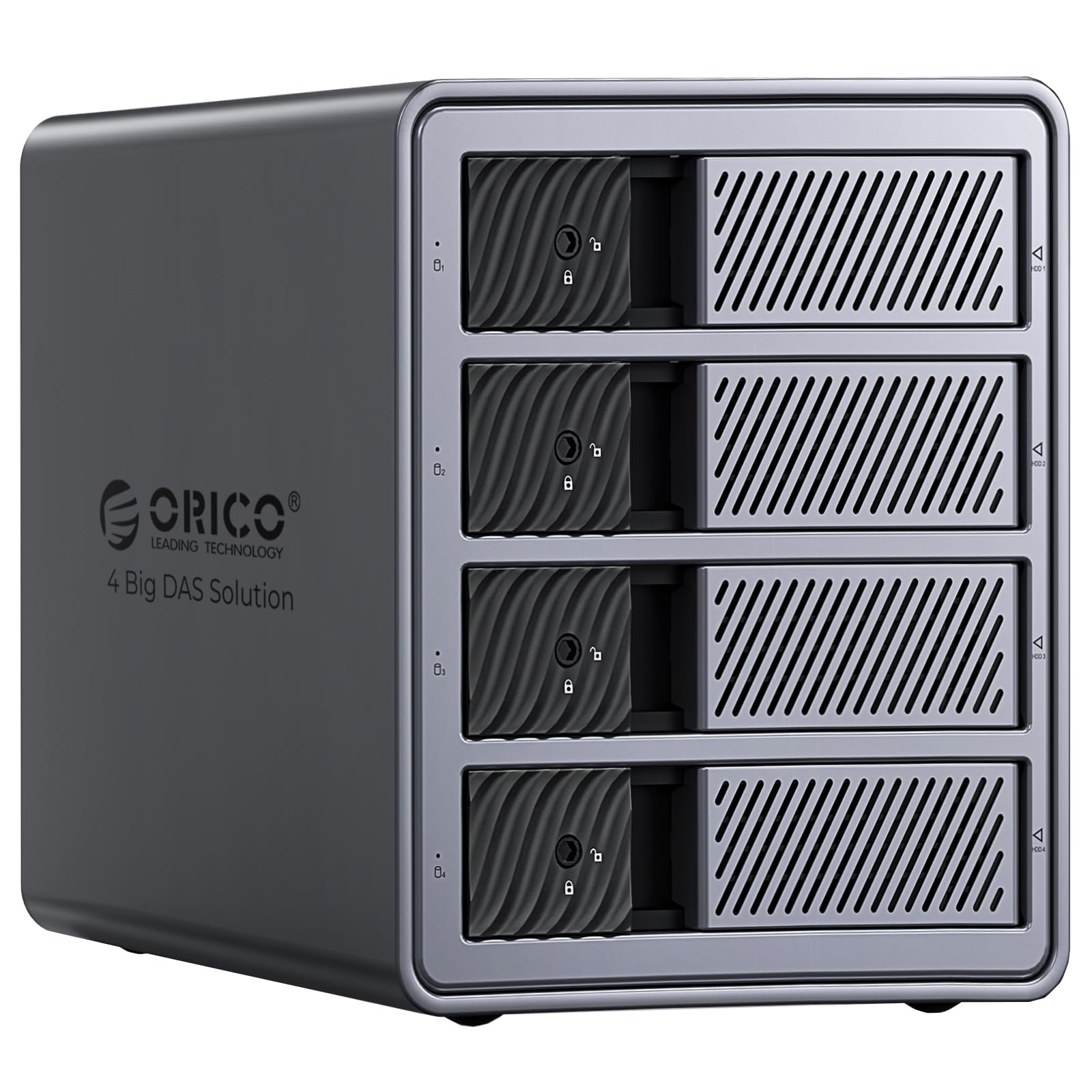
Image: The ORICO 4-Bay 3.5-inch USB 3.0 HDD Enclosure, Model 9848U3.
2. Package Contents
Please verify that all items are present in the package:
- 1x ORICO 4-Bay DAS Enclosure (Model 9848U3)
- 1x Power Cord
- 1x USB 3.0 Data Cable
- 2x Keys for Security Lock
- 1x User Manual (this document)

Image: Contents of the ORICO 9848U3 package, including the enclosure, cables, and keys.
3. Setup Instructions
3.1. Hard Drive Installation
- Ensure the enclosure is powered off and disconnected from your computer.
- Gently press the release button or slide the lock mechanism on the front panel to open a drive bay. The enclosure features a tool-free, push-pull design for easy installation.
- Slide a 3.5-inch SATA hard drive into the open bay until it is securely seated. No screws are required.
- Close the drive bay door. Use the provided key to lock the drive bay for added security, preventing accidental ejection.
- Repeat for additional hard drives (up to four).

Image: Illustrates the tool-free installation of a 3.5-inch HDD into the enclosure.

Image: Demonstrates the safety lock mechanism on the drive bays to prevent accidental removal.
3.2. Connecting to Computer
- Connect the power cord to the enclosure and then to a power outlet. The enclosure has a built-in 150W power supply.
- Connect one end of the USB 3.0 data cable to the USB 3.0 port on the enclosure.
- Connect the other end of the USB 3.0 data cable to an available USB 3.0 port on your computer.
- Power on the enclosure using the power switch located on the rear panel.
- Your operating system (Windows, macOS, Linux) should automatically detect the drives. For new drives, you may need to initialize and format them through your operating system's disk management utility before use.

Image: The rear panel of the ORICO 9848U3 showing the 150W built-in power supply and USB 3.0 port.
4. Operation
4.1. Data Transfer
The ORICO 9848U3 supports USB 3.0, offering data transfer speeds up to 5Gbps, with mechanical hard drives achieving up to 230 MB/s. Simply drag and drop files to and from the recognized drives in your operating system's file explorer.

Image: Depicts high-speed data transfer from the ORICO 9848U3 to a computer.
4.2. LED Indicators
Each drive bay is equipped with an LED indicator light. These lights provide real-time status updates for each hard drive, indicating power, activity, and potential errors.

Image: Close-up of the ORICO 9848U3 showing the LED indicators for each drive bay.
4.3. Intelligent Sleep Mode
To conserve energy and extend the lifespan of your hard drives, the enclosure features an intelligent sleep mode. If no activity is detected for 10 minutes, the drives will automatically enter sleep mode. They will wake up automatically upon data access.

Image: Illustrates the intelligent sleep mode feature, activating after 10 minutes of inactivity.
4.4. Compatibility
The ORICO 9848U3 is compatible with various operating systems, including Windows, macOS, and Linux. It supports a wide range of devices such as desktop computers, laptops, tablets, smartphones (with OTG support), and game consoles.

Image: Shows compatibility with Windows, macOS, Linux, and Android, as well as various devices like laptops, desktops, and tablets.
5. Maintenance
5.1. Cleaning
To maintain optimal performance, regularly clean the exterior of the enclosure with a soft, dry cloth. Avoid using liquid cleaners or solvents. Ensure the cooling fan vents are free from dust accumulation to prevent overheating.
5.2. Heat Dissipation
The enclosure features an aluminum alloy body, front and rear ventilation slots, and a built-in 80mm silent cooling fan to ensure efficient heat dissipation. For best performance, ensure adequate airflow around the unit and avoid blocking the vents.

Image: Diagram illustrating the efficient heat dissipation design with aluminum alloy shell, mesh airflow, and silent cooling fan.
6. Troubleshooting
| Problem | Possible Cause | Solution |
|---|---|---|
| Drives not detected by computer. |
|
|
| Slow data transfer speeds. |
|
|
| Enclosure powers off unexpectedly. |
|
|
7. Specifications
| Feature | Detail |
|---|---|
| Model | 9848U3 |
| Brand | ORICO |
| Supported Drives | 4 x 3.5-inch SATA HDDs |
| Max Single Drive Capacity | 22TB |
| Total Max Capacity | 88TB |
| Interface | USB 3.0 (5Gbps) |
| Transfer Speed | Up to 230 MB/s (mechanical HDD) |
| Power Supply | Built-in 150W |
| Cooling System | Aluminum alloy body, 80mm silent fan, ventilation slots |
| Compatibility | Windows, macOS, Linux |
| Security | Individual drive bay locks |
8. Warranty & Support
8.1. Warranty Information
This ORICO product comes with a 2-year warranty from the date of purchase. The warranty covers manufacturing defects and malfunctions under normal use. It does not cover damage caused by misuse, accidents, unauthorized modifications, or natural disasters.
Please retain your proof of purchase for warranty claims.
8.2. Technical Support
For technical assistance, troubleshooting, or warranty inquiries, please contact ORICO customer support through their official website or the retailer where you purchased the product. You can find more information and contact details on the ORICO Brand Store on Amazon.


