
Introduction
This manual provides instructions for the proper setup, operation, and maintenance of your Portronics ToadPlay Tennis Mini Wireless Bluetooth Mouse. Please read this manual thoroughly before use and retain it for future reference.
Package Contents
Verify that all items are present in the package:
- 1 x Portronics ToadPlay Tennis Mini Wireless Mouse
- 1 x USB Receiver (2.4GHz)
- 1 x USB Type-C Charging Cable
- 1 x User Documentation
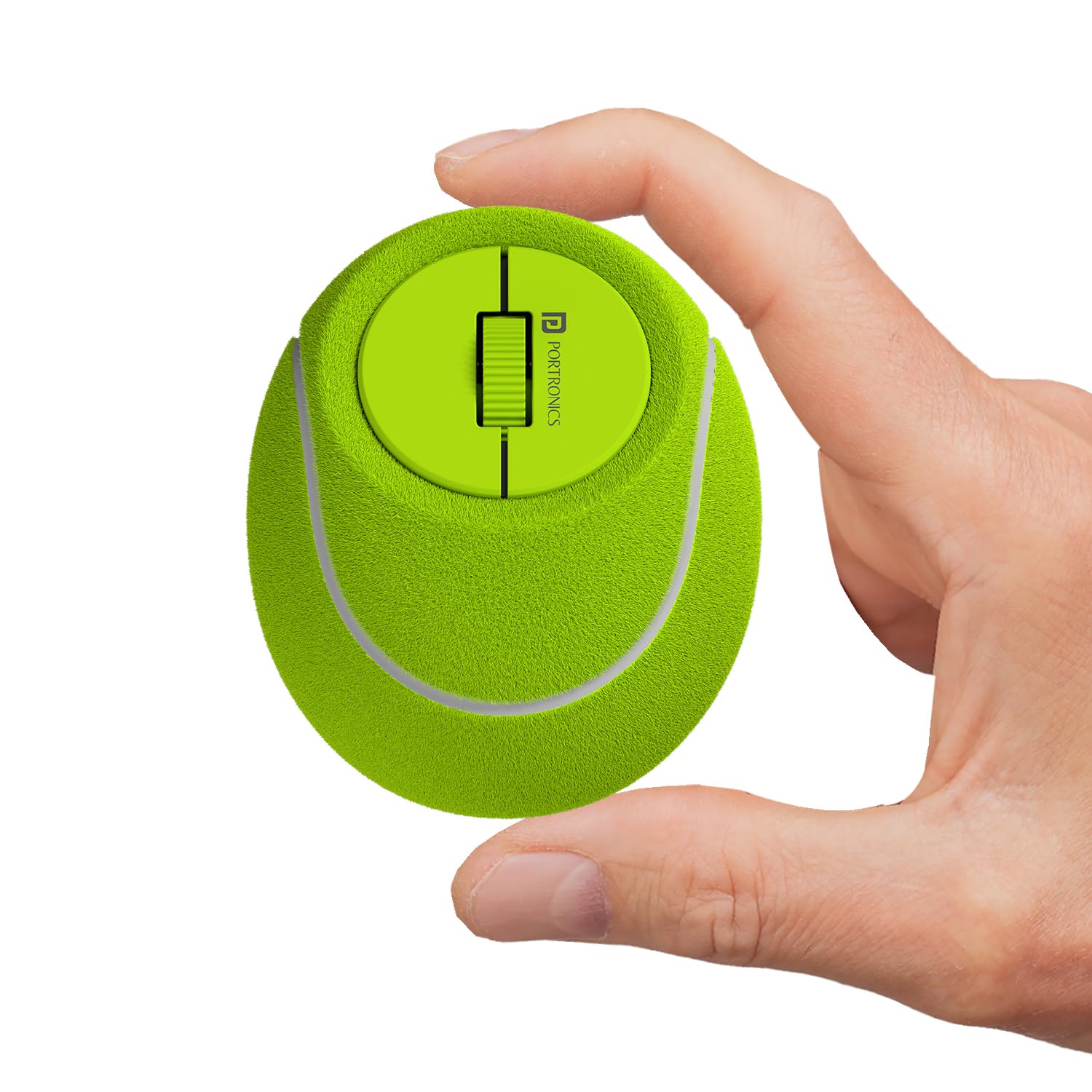
Image: The Portronics ToadPlay Tennis Mini Wireless Mouse, showing its compact design and the included USB receiver and charging cable.
Product Overview
Familiarize yourself with the mouse components:
- Left Click Button: Standard left-click function.
- Right Click Button: Standard right-click function.
- Scroll Wheel: For vertical scrolling and middle-click function.
- DPI Adjustment Button: Located near the scroll wheel, used to change cursor sensitivity.
- Power Switch: On the bottom of the mouse, to turn the device On/Off.
- Mode Switch Button: On the bottom, to switch between 2.4GHz and Bluetooth modes.
- USB Receiver Slot: On the bottom, for storing the 2.4GHz USB receiver.
- Type-C Charging Port: Located on the front of the mouse.
Setup
1. Charging the Mouse
Before first use, fully charge the mouse.
- Connect the supplied USB Type-C charging cable to the mouse's charging port.
- Connect the other end of the cable to a USB power source (e.g., computer USB port, USB wall adapter).
- The indicator light will show charging status and turn off when fully charged.
2. Connecting via 2.4GHz USB Receiver
- Locate the USB receiver stored in the mouse's bottom compartment.
- Insert the USB receiver into an available USB port on your computer or device.
- Turn on the mouse using the power switch on the bottom.
- Switch the mode button on the bottom of the mouse to 2.4GHz mode (usually indicated by a specific LED color or position).
- The mouse should automatically connect to your device.
3. Connecting via Bluetooth
- Turn on the mouse using the power switch on the bottom.
- Switch the mode button on the bottom of the mouse to Bluetooth mode. The indicator light will start blinking, indicating it's in pairing mode.
- On your device (laptop, tablet), go to Bluetooth settings.
- Search for new devices and select "Portronics ToadPlay Tennis" (or similar name) from the list.
- Once paired, the indicator light on the mouse will stop blinking and remain solid for a few seconds, then turn off.
- To pair with another device, repeat steps 1-5. The mouse supports multi-device pairing.
Operating Instructions
DPI Adjustment
The mouse features adjustable DPI settings up to 2400 for customized cursor sensitivity.
Press the DPI Adjustment Button (located near the scroll wheel) to cycle through different DPI levels. Each press will change the sensitivity, allowing you to find your preferred cursor speed.
Silent Clicking
The mouse is equipped with silent switch technology, ensuring quiet operation. This feature minimizes clicking noise, making it suitable for quiet environments like offices, libraries, or shared workspaces.
Maintenance
Cleaning
To clean the mouse, use a soft, dry cloth. For stubborn dirt, slightly dampen the cloth with water or a mild cleaning solution. Avoid using harsh chemicals or abrasive materials.
Battery Care
The mouse has a built-in rechargeable battery.
- Avoid exposing the mouse to extreme temperatures.
- Do not attempt to replace the battery yourself. Contact customer support if battery issues arise.
- Charge the mouse regularly to maintain battery health, even if not in frequent use.
Troubleshooting
- Mouse not responding:
- Ensure the mouse is turned on.
- Check battery level and charge if necessary.
- For 2.4GHz connection, ensure the USB receiver is properly inserted and the mouse is in 2.4GHz mode. Try a different USB port.
- For Bluetooth connection, ensure the mouse is in Bluetooth pairing mode and your device's Bluetooth is enabled. Re-pair the device if needed.
- Try restarting your computer/device.
- Cursor movement is erratic or slow:
- Clean the optical sensor on the bottom of the mouse.
- Adjust the DPI setting using the DPI button.
- Ensure you are using the mouse on a suitable surface.
- Cannot pair via Bluetooth:
- Ensure the mouse is in Bluetooth pairing mode (blinking indicator light).
- Delete any previous pairings of the mouse from your device's Bluetooth settings and try pairing again.
- Ensure your device supports Bluetooth connectivity.
Specifications
| Feature | Detail |
|---|---|
| Model Name | ToadPlay Tennis |
| Model Number | POR-3359 |
| Connectivity | Bluetooth 5.0, 2.4GHz RF (USB Receiver) |
| DPI Settings | Up to 2400 DPI (Adjustable) |
| Battery Type | Built-in Rechargeable (Type-C Charging) |
| Special Features | Silent Click Technology, Soft Silicone Material, Multi-Device Pair |
| Compatible Devices | Desktop, Laptop, Tablet |
| Dimensions (L x W) | 7L x 6W Centimeters |
| Weight | 85 Grams |
| Color | Green |
Warranty Information
This Portronics product comes with a 1 Year Warranty from the date of purchase. The warranty covers manufacturing defects.
For warranty claims or service, please retain your purchase receipt and contact Portronics customer support. The warranty does not cover damage caused by misuse, accidents, unauthorized modifications, or normal wear and tear.
Support
For any assistance, technical support, or inquiries regarding your Portronics ToadPlay Tennis Mini Wireless Mouse, please contact us:
- Email: help@portronics.com
- Phone/WhatsApp: +91 9555-245-245 (Available 10am - 6pm)
- Online Support: https://support.portronics.com
Manufacturer Address: First Floor Property No D 8 Upper Basement Sector 8 Noida Uttar Pradesh 201301, India.