
1. Introduction
The Bigme B10 is a 10.3-inch color e-paper tablet designed for a natural writing and reading experience. It combines the benefits of an e-reader with the versatility of an Android tablet, offering advanced features for productivity and creativity.
This manual provides essential information for setting up, operating, maintaining, and troubleshooting your Bigme B10 device. Please read it thoroughly to ensure proper usage and to maximize your device's potential.
2. What's in the Box
Upon unpacking your Bigme B10, verify that all the following items are included:
- Bigme B10 Color E-Paper Tablet
- Stylus Pen
- Protective Case
- Charging Cable
- Quick Start Guide
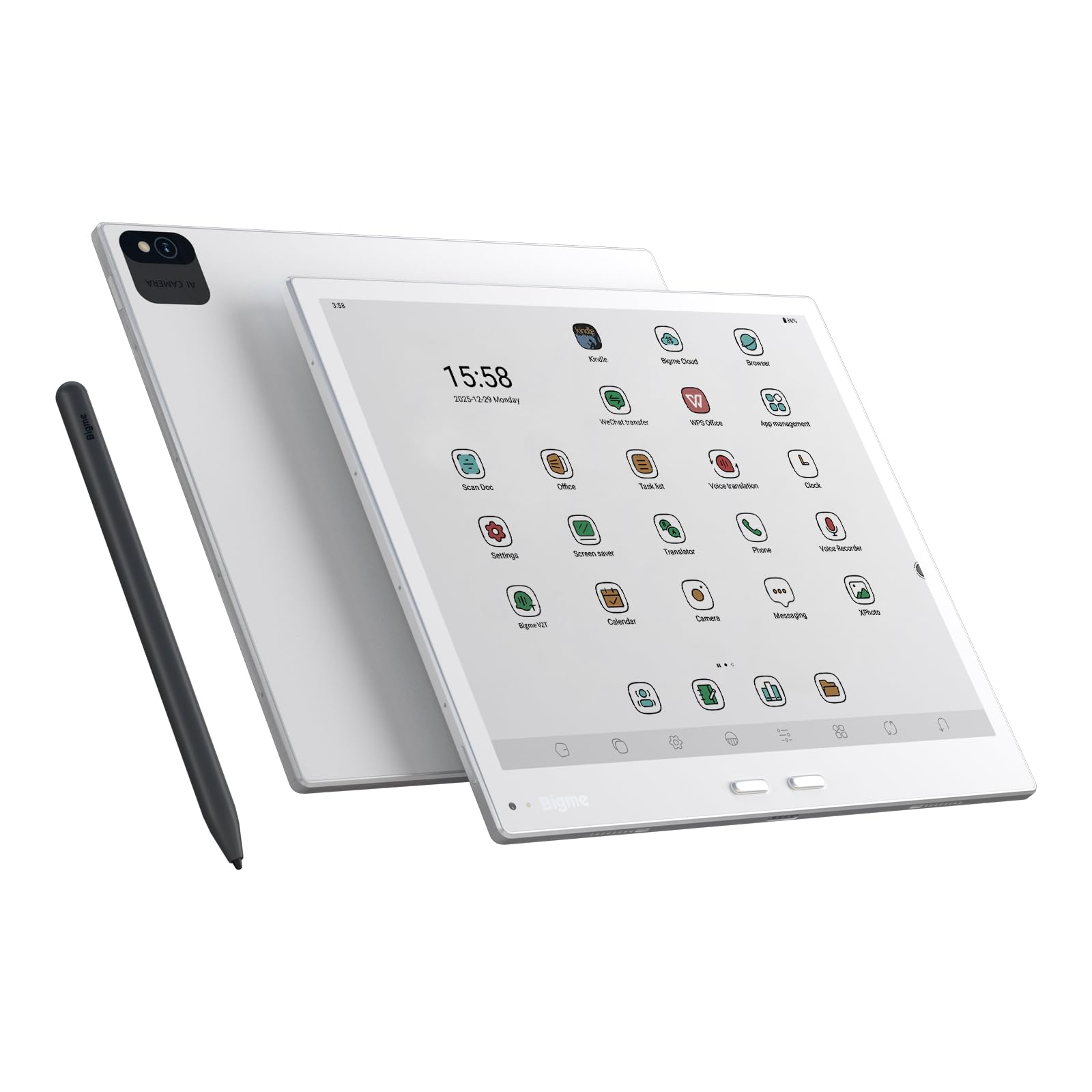
Image: Contents of the Bigme B10 package, showing the tablet, stylus, protective case, and charging cable.
3. Device Layout
Familiarize yourself with the physical components of your Bigme B10 tablet.
- Front Display: 10.3-inch Color E-paper screen.
- Power Button: Typically located on the side or top edge. Press and hold to power on/off, short press to sleep/wake.
- USB-C Port: For charging and data transfer.
- Speakers: Dual chamber speakers for audio output.
- Microphones: 8-mic array for voice input and noise cancellation.
- Cameras: Front (5MP) and Rear (20MP) cameras.
- Fingerprint Sensor: Integrated for secure unlocking.
- Stylus Attachment Area: Magnetic area for securing the stylus.
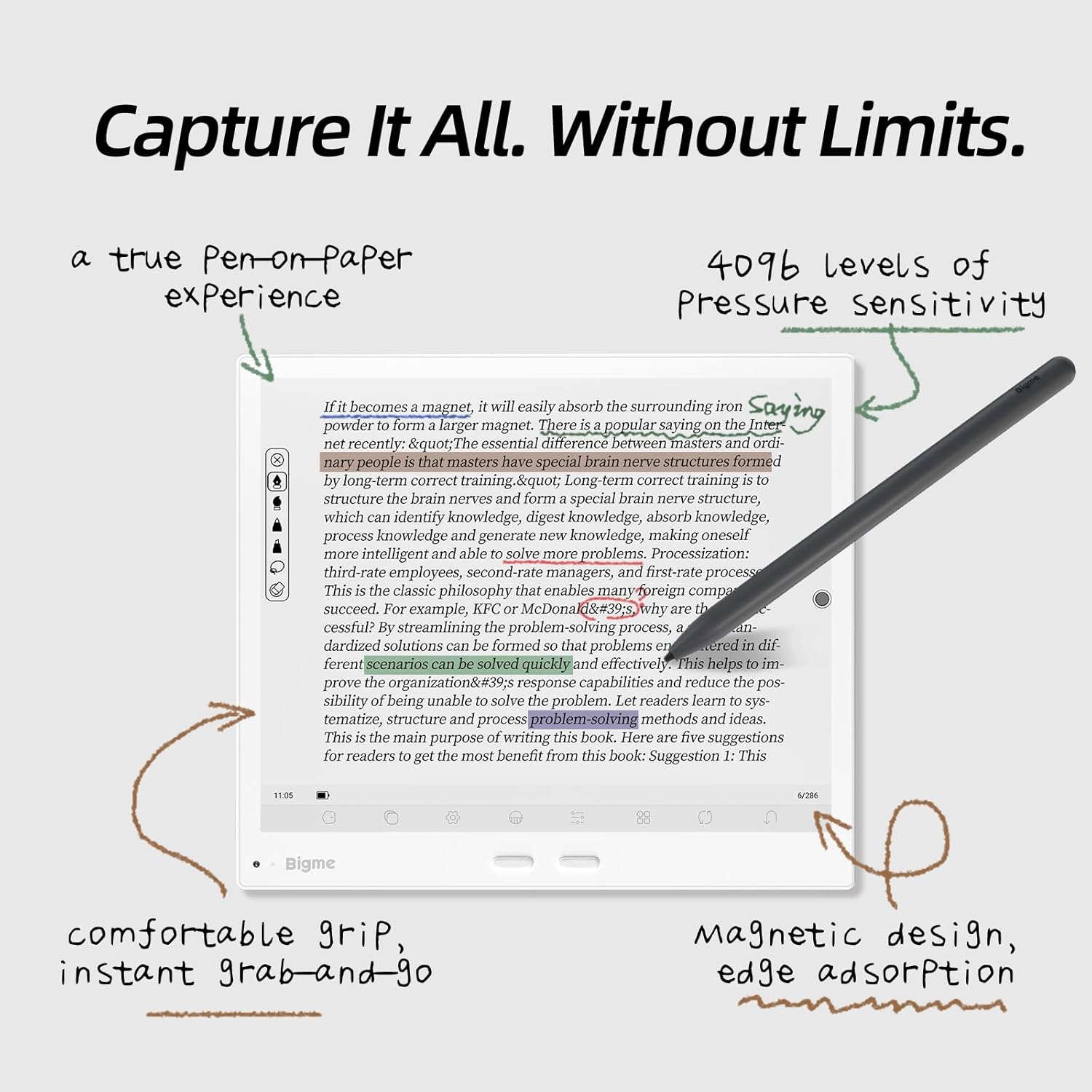
Image: Front view of the Bigme B10 tablet, showcasing the display and slim bezels.
4. Setup
4.1 Initial Charging
Before first use, fully charge your Bigme B10 tablet. Connect the provided USB-C cable to the tablet's USB-C port and the other end to a compatible power adapter (not always included) or a computer's USB port. The charging indicator will show the charging status.
4.2 Powering On/Off
- To Power On: Press and hold the Power button until the Bigme logo appears on the screen.
- To Power Off: Press and hold the Power button until a power-off menu appears. Select "Power Off."
- Sleep/Wake: Short press the Power button to put the device to sleep or wake it up.
4.3 Initial Configuration
Upon first power-on, the device will guide you through the initial setup process:
- Language Selection: Choose your preferred language.
- Wi-Fi Connection: Connect to a Wi-Fi network to enable internet access and download updates.
- Date and Time: Set the correct date and time, or allow network synchronization.
- Google Account (Optional): Sign in with your Google account to access the Google Play Store and other Google services.
- Security Settings: Configure screen lock (PIN, pattern, fingerprint).
4.4 Stylus Pairing
The included stylus is designed to work seamlessly with your Bigme B10. It typically connects automatically when brought near the screen. No manual Bluetooth pairing is usually required for basic functionality. Ensure the stylus is charged if it has a battery (refer to stylus-specific instructions if provided).

Image: Bigme B10 tablet shown with its accompanying stylus pen.
5. Operating Instructions
5.1 Basic Navigation
- Touchscreen: Navigate the interface by tapping, swiping, and pinching on the screen.
- Home Screen: Access your installed applications and widgets.
- Notification Panel: Swipe down from the top of the screen to access notifications and quick settings.
5.2 Stylus Usage
The stylus provides a precise and natural input method for your tablet.
- Writing and Drawing: Use the stylus in compatible applications for note-taking, sketching, and annotating documents. The screen supports 4096 levels of pressure sensitivity for varied line thickness.
- Annotation: Directly annotate PDFs and e-books.
- Erasing: Some styluses include an eraser function (e.g., a button or the opposite end of the pen).

Image: The Bigme B10 tablet demonstrating the stylus in use for writing and annotation, highlighting the pen-on-paper feel.
5.3 Reading Features
The Bigme B10 supports various e-book and document formats, including DOC, DOCX, EPUB, HTM, HTML, MOBI, PDF, and TXT.
- Opening Files: Access your documents through the file manager or dedicated reading applications.
- Adjusting Display: Customize font size, line spacing, and contrast for optimal reading comfort.
- Front Light: Adjust the integrated front light for reading in various lighting conditions.

Image: The Bigme B10 tablet showing various reading flow customization options for books and PDFs.
5.4 Note-taking and Productivity
Utilize the tablet's features for enhanced productivity:
- Dedicated Note Apps: Create and organize notes with various pen types, colors, and templates.
- AI Features: Leverage AI for text processing, meeting summaries, and voice-to-text transcription.
- Keyboard Cover (Optional): Enhance typing efficiency with an optional keyboard cover accessory.

Image: The Bigme B10 tablet displaying its meeting record feature with voice recording, noise cancellation, and AI-powered summary generation.
5.5 Connectivity
- Wi-Fi: Connect to wireless networks via Settings > Network & internet > Wi-Fi.
- 4G LTE: Insert a compatible SIM card (if supported by your model) for mobile data connectivity.
- Bluetooth: Pair with Bluetooth accessories like headphones or keyboards via Settings > Connected devices > Bluetooth.
- USB: Connect to a computer for file transfer or charging.

Image: A user interacting with the Bigme B10 tablet, illustrating its 4G global connectivity feature.
5.6 App Management
Running on Android 14 OS, the Bigme B10 allows installation of various applications.
- Installing Apps: Download and install applications from the pre-installed app store or Google Play Store (if configured).
- Uninstalling Apps: Long-press an app icon on the home screen or app drawer and select "Uninstall" or go to Settings > Apps.
6. Maintenance
- Cleaning: Use a soft, lint-free cloth to clean the screen and body. Avoid abrasive materials or harsh chemicals.
- Battery Care: To prolong battery life, avoid extreme temperatures. Charge the device regularly but avoid leaving it fully charged or fully discharged for extended periods.
- Software Updates: Keep your device's software updated to ensure optimal performance and security. Check for updates in Settings > System > System update.
- Storage: Regularly manage your 256GB internal storage. Delete unnecessary files or transfer them to external storage (up to 2TB expansion supported).
7. Troubleshooting
| Issue | Possible Solution |
|---|---|
| Device does not power on | Ensure the battery is charged. Connect to a power source for at least 30 minutes. If unresponsive, perform a forced restart (refer to Quick Start Guide for specific button combinations). |
| Screen is unresponsive | Restart the device. Ensure the screen is clean and dry. |
| Stylus not working | Ensure the stylus is within range and, if battery-powered, that it is charged. Check if the stylus tip is damaged. |
| Cannot connect to Wi-Fi | Verify Wi-Fi is enabled in settings. Check router connection. Restart both the tablet and the router. |
| Apps are slow or crashing | Close background applications. Clear app cache (Settings > Apps > [App Name] > Storage > Clear cache). Ensure sufficient storage space. Restart the device. |
8. Specifications
Key technical specifications for the Bigme B10 Color E-Paper Tablet:
- Model Name: GY-US-B10
- Display: 10.3 Inches, Color E-paper, Electronic Ink (1860 x 2480 Pixels B/W resolution)
- Processor: Octa-core
- RAM: 8GB
- Storage: 256GB (expandable up to 2TB via microSD card)
- Operating System: Android 14
- Battery: 6900mAh Lithium-Ion Polymer
- Connectivity: Bluetooth, USB, Wi-Fi, 4G LTE
- Cameras: 5MP Front, 20MP Rear
- Audio: Dual chamber speakers, 8-mic array
- Input: Touchscreen, Buttons, Stylus (4096 pressure levels)
- Supported File Formats: DOC, DOCX, EPUB, HTM, HTML, MOBI, PDF, TXT
- Dimensions: 8.87"L x 7.74"W x 0.24"Th
- Weight: 0.97 Pounds

Image: An overview of the Bigme B10 tablet, detailing its core specifications including the 10.3-inch Kaleido 3 ePaper display, Octa-core CPU, 8GB RAM, 256GB ROM, 6900mAh battery, and 4G connectivity.
9. Warranty and Support
9.1 Warranty Information
The Bigme B10 Color E-Paper Tablet comes with a 1-year limited warranty from the date of purchase. This warranty covers manufacturing defects under normal use. It does not cover damage caused by misuse, accidents, unauthorized modifications, or normal wear and tear.
Please retain your proof of purchase for warranty claims.
9.2 Customer Support
For technical assistance, warranty claims, or further inquiries, please contact Bigme customer support through the official website or the contact information provided in your Quick Start Guide.
You may also find additional resources, FAQs, and software updates on the official Bigme support page.


