
1. Important Safety Information
Please read all safety and operating instructions carefully before using this television. Keep these instructions for future reference. Always follow basic safety precautions to reduce the risk of fire, electric shock, and injury.
- Do not expose the TV to rain or moisture.
- Do not block ventilation openings.
- Do not place the TV on an unstable cart, stand, tripod, bracket, or table.
- Unplug the TV during lightning storms or when unused for long periods.
- Refer all servicing to qualified service personnel.
2. What's in the Box
Verify that all components are present before proceeding with the setup.
- VIBOX 50Z6UHDQ 50 Inch 4K QLED Smart TV
- Remote Control
- TV Stand (2 pieces)
- Warranty Card
- Power Cable
- User Manual (this document)
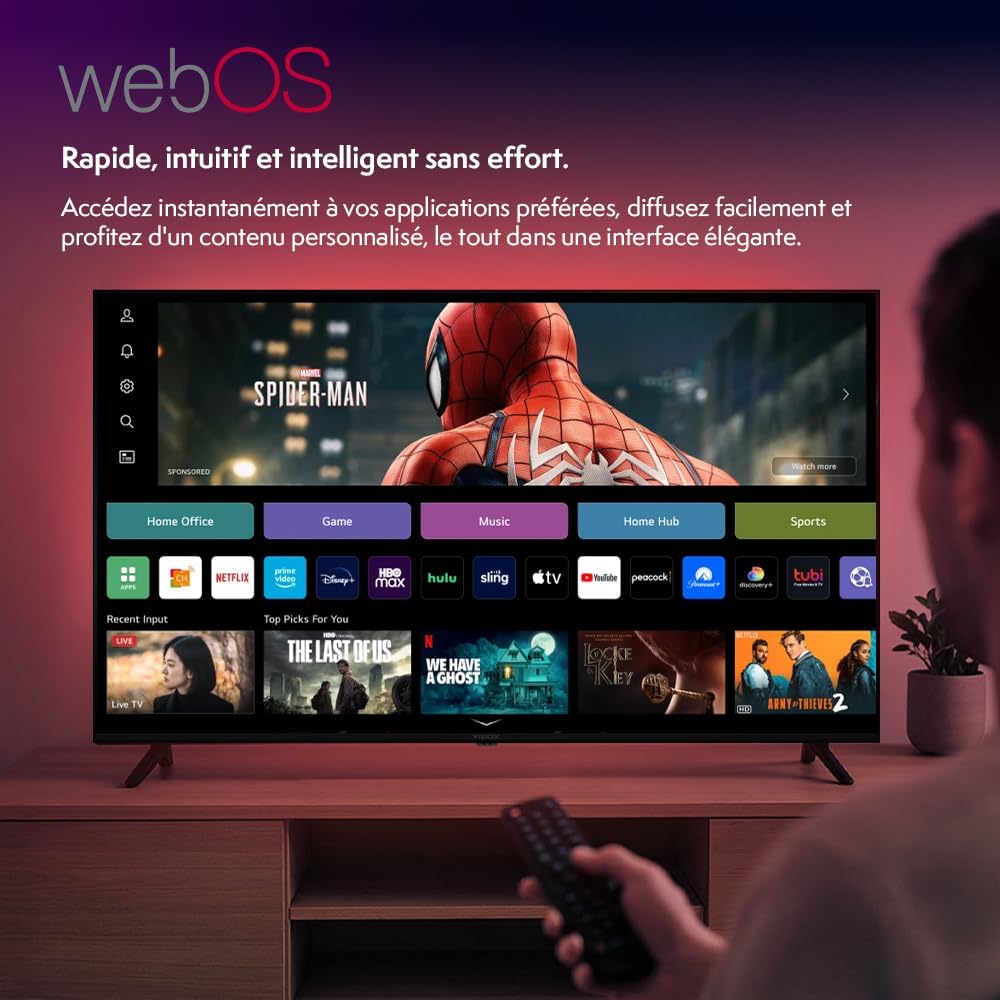
Image: The VIBOX 50Z6UHDQ television displayed on its included stand.
3. Setup
3.1 Installing the TV Stand
- Carefully place the TV face down on a soft, clean surface to prevent screen damage.
- Align each stand piece with the corresponding slots on the bottom of the TV.
- Secure the stands using the provided screws. Ensure they are firmly attached.

Image: A diagram illustrating the simple and practical steps for installing the TV stand.
3.2 Wall Mounting (Optional)
The VIBOX 50Z6UHDQ is compatible with standard VESA wall mounts (200 x 100 mm). Follow the instructions provided with your wall mount bracket. Ensure the wall can support the weight of the TV (7.5 kg) and the mount.

Image: A product demonstration showing a wall mount being attached and adjusted, highlighting its versatile compatibility features.
3.3 Connecting Devices
Connect your external devices to the appropriate ports on the back of the TV.
- HDMI: For Blu-ray players, game consoles, and set-top boxes. The TV has 3 HDMI ports.
- USB: For USB drives to play media files. The TV has 2 USB ports.
- Antenna/Cable: Connect an antenna or cable for DVB-T2 digital terrestrial television.
- Optical Audio Out: For connecting to external sound systems.
- Power: Connect the power cable to the TV and then to a wall outlet.

Image: The rear view of the VIBOX 50Z6UHDQ television, highlighting the various input and output ports for connecting external devices.
3.4 Initial Power On and Setup Wizard
- Plug the TV into a power outlet.
- Press the Power button on the remote control or on the TV.
- Follow the on-screen instructions to select your language, country, and connect to your Wi-Fi network.
- Perform a channel scan for DVB-T2 if applicable.
4. Operating the TV
4.1 Remote Control Functions
The VIBOX 50Z6UHDQ comes with a gesture-enabled remote control for intuitive navigation and quick access to streaming services.

Image: The remote control for the VIBOX Smart TV, featuring dedicated buttons for streaming services and gesture control capabilities.
- Power: Turns the TV on/off.
- Navigation Pad: Use to move through menus and select options.
- Back/Home: Returns to the previous screen or the WebOS home screen.
- Volume +/-: Adjusts the volume.
- Channel +/-: Changes TV channels.
- Streaming Buttons: Dedicated buttons for popular streaming applications (e.g., Netflix, Prime Video, Disney+, YouTube).
- Gesture Control: Move the remote to control an on-screen pointer for easier navigation.
4.2 WebOS Smart TV Interface
The TV runs on WebOS, providing a fast, intuitive, and intelligent user experience. Access your favorite applications, stream content, and enjoy personalized recommendations.

Image: The WebOS entertainment interface displayed on the television screen, showing various streaming content options and menus.

Image: A horizontal banner composition displaying logos and interfaces of streaming services including Disney+, Netflix, Prime Video, and YouTube.
4.3 Picture and Audio Settings
Optimize your viewing and listening experience.
- Picture Modes: Select from various preset picture modes (e.g., Standard, Vivid, Cinema, Game) or customize settings like brightness, contrast, color, and sharpness.
- 4K HDR: The TV supports 4K resolution and HDR10 for precise color reproduction, exquisite details, deeper blacks, and brighter highlights.

Image: A promotional banner showing a split screen comparison of 4K HDR content versus 1080p, highlighting enhanced color and detail.
- QLED Technology: Quantum Dot display technology enhances color vibrancy and realistic contrast.

Image: A diagram illustrating QLED technology, showing the display panel, color filter, quantum dot layer, and blue LED backlight.
- Sound Modes: Choose from various sound modes (e.g., Standard, Music, Movie) or adjust equalizer settings.
- Dolby Audio: Experience clear dialogue, rich details, and balanced volume for an immersive and consistent audio experience.

Image: A family watching television, with the Dolby Audio logo and text emphasizing clear sound and immersive experience.
4.4 Gaming Features
Enjoy stunning realism and exceptional clarity for gaming on PC or console with fluid frame rates and total immersion.

Image: A person playing a racing game on the VIBOX 4K QLED TV, highlighting the 4K gaming capabilities with vibrant graphics.
4.5 Screen Mirroring and AirPlay
Stream seamlessly from Apple or Android devices using integrated AirPlay and screen mirroring functions. Instantly share your favorite apps, videos, and more directly on your TV.
Image: A demonstration of screen mirroring and AirPlay, showing content from a smartphone being displayed on the television.
5. Maintenance
5.1 Cleaning the TV
- Always unplug the TV before cleaning.
- Use a soft, dry cloth to wipe the screen and cabinet.
- For stubborn marks, lightly dampen the cloth with water or a mild, non-abrasive screen cleaner. Never spray cleaner directly onto the screen.
- Avoid using alcohol, benzene, thinners, or other volatile substances.
5.2 Software Updates
The TV may receive software updates to improve performance and add new features. Ensure your TV is connected to the internet to receive automatic updates. You can also check for updates manually through the TV's settings menu.
6. Troubleshooting
If you encounter issues with your TV, refer to the following common solutions:
| Problem | Possible Solution |
|---|---|
| No power | Check if the power cable is securely plugged into the TV and the wall outlet. Try a different outlet. |
| No picture, but sound is present | Ensure the correct input source is selected. Check cable connections to external devices. |
| No sound, but picture is present | Check volume level and mute status. Verify audio output settings if using external speakers. |
| Remote control not working | Replace batteries. Ensure there are no obstructions between the remote and the TV. |
| Cannot connect to Wi-Fi | Check your router and modem. Restart the TV and your network equipment. Re-enter Wi-Fi password. |
| Picture quality issues (e.g., blurry, distorted) | Check the source resolution. Adjust picture settings. Ensure antenna/cable connection is secure. |
7. Specifications
Detailed technical specifications for the VIBOX 50Z6UHDQ Smart TV.
| Feature | Detail |
|---|---|
| Model Number | 50Z6UHDQ |
| Screen Size | 50 Inches |
| Display Technology | QLED |
| Resolution | 4K (3840 x 2160) |
| Refresh Rate | 60 Hz |
| HDR Support | HDR10 |
| Operating System | WebOS |
| Audio Format | Dolby Audio (5.1 channels) |
| HDMI Ports | 3 |
| USB Ports | 2 |
| Connectivity | Bluetooth, HDMI, Wi-Fi |
| VESA Mount Standard | 200 x 100 mm |
| Dimensions (D x W x H) | 24.2 x 111 x 70.8 cm |
| Weight | 7.5 Kilograms |
| Power Consumption (SDR) | 135 W / 1000h |
| Power Consumption (HDR) | 200 W / 1000h |
For more detailed energy information, please refer to the official EPREL database: https://eprel.ec.europa.eu/qr/2649554
8. Warranty and Support
8.1 Manufacturer's Warranty
This VIBOX television comes with a 2-year manufacturer's warranty. Please retain your proof of purchase for warranty claims. The warranty covers defects in materials and workmanship under normal use.
8.2 Customer Support
For technical assistance, troubleshooting, or warranty inquiries, please contact VIBOX customer support:
- Email: support@vibox.co.uk
- Website: www.vibox.co.uk
- Telephone: +441614258841
Please have your model number (50Z6UHDQ) and purchase date ready when contacting support.