
1. Introduction
This manual provides instructions for the CLABEL 3 Inch Thermal Label Printer and T27H Auto-Sensing 1D/2D/QR Code Scanner Kit. This integrated system is designed to streamline labeling and data entry tasks in various environments such as warehouses, retail stores, bakeries, and clothing shops. The kit includes a thermal printer capable of printing labels from 1 to 3.15 inches wide and a plug-and-play USB scanner for efficient barcode reading.
2. Product Components
- CLABEL 3 Inch Thermal Label Printer
- CLABEL T27H Auto-Sensing Barcode Scanner
- USB Connection Cables
- Power Adapter (for printer)
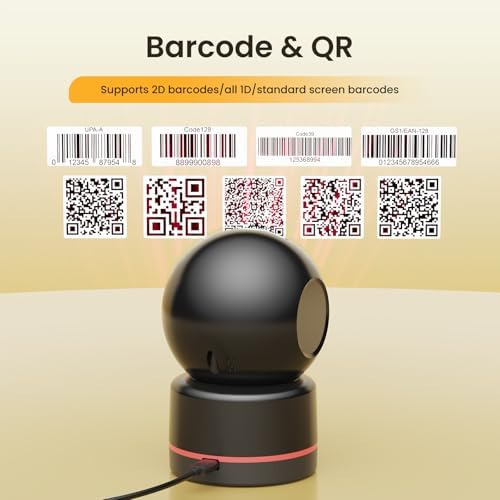
Image: Overview of the CLABEL 3 Inch Thermal Label Printer and Scanner Kit, showing both devices and their connections.
3. Setup Instructions
3.1 Printer Setup
- Unpack the Printer: Carefully remove the printer from its packaging.
- Connect Power: Plug the power adapter into the printer and then into a power outlet.
- Load Labels: Open the printer cover. Insert the thermal label roll with the printable side facing up. Ensure the labels are properly aligned with the guides. Close the cover. The printer supports label widths from 25mm to 80mm (1 to 3.15 inches).
- Connect to PC: Connect the printer to your computer using the provided USB cable.
3.2 Scanner Setup
- Unpack the Scanner: Remove the T27H scanner from its packaging.
- Connect to PC: Connect the scanner to your computer using its USB cable. The scanner is plug-and-play and does not require additional driver installation.

Image: The T27H scanner connected to a computer, illustrating its plug-and-play USB connectivity and adjustable design.
3.3 Software Installation
For label design and advanced printer functions, download and install the "clabel trade" application on your PC. This application provides templates and tools for creating QR codes, barcodes, tables, text, and icons.
4. Operating Instructions
4.1 Printer Operation
- Design Labels: Use the "clabel trade" application to design your labels. Select desired templates or create custom layouts.
- Print Labels: Once your design is complete, send the print job from the application to the CLABEL thermal printer. The printer features high-speed, ink-free printing.

Image: The CLABEL thermal printer in operation, demonstrating its high-speed printing capability of up to 150mm/s.
4.2 Scanner Operation
- Automatic Scanning: The T27H scanner features auto-sensing technology. Simply present a 1D, 2D, or QR code to the scanner, and it will automatically detect and read the code.
- Hands-Free Use: The scanner's adjustable angle allows for fixed-position, hands-free scanning, ideal for checkout counters or inventory stations.
- Compatibility: The scanner works with various systems including POS, computer, and inventory software.

Image: The T27H scanner demonstrating its ability to read various barcode types, including 1D and 2D codes.

Image: The T27H scanner in auto-sensing mode, automatically triggering when a barcode is presented without needing a button press.

Image: Examples of the T27H scanner's applications, including scanning products, verifying coupons, and use in logistics and warehousing.
5. Maintenance
5.1 Printer Maintenance
- Cleaning the Print Head: Regularly clean the thermal print head with an alcohol wipe to ensure optimal print quality. Ensure the printer is off and cool before cleaning.
- Dust Removal: Keep the printer free from dust and debris. Use a soft, dry cloth to wipe the exterior.
- Label Storage: Store thermal labels in a cool, dry place away from direct sunlight to prevent degradation.
5.2 Scanner Maintenance
- Cleaning the Scan Window: Use a soft, lint-free cloth to gently clean the scanner's window. Avoid abrasive materials that could scratch the surface.
- Cable Inspection: Periodically check the USB cable for any signs of wear or damage.
6. Troubleshooting
6.1 Common Printer Issues
- No Print Output:
- Ensure the printer is powered on and connected to the computer.
- Check if labels are loaded correctly and the cover is closed.
- Verify that the correct printer driver is selected in your application.
- Poor Print Quality:
- Clean the print head as described in the Maintenance section.
- Ensure you are using high-quality thermal labels.
- Adjust print density settings in the "clabel trade" application if available.
- Paper Jam:
- Turn off the printer and carefully open the cover.
- Gently remove any jammed labels.
- Reload labels, ensuring they are aligned properly.
6.2 Common Scanner Issues
- Scanner Not Responding:
- Ensure the USB cable is securely connected to both the scanner and the computer.
- Try connecting the scanner to a different USB port.
- Restart your computer.
- Unable to Read Barcodes:
- Ensure the barcode is clean, undamaged, and well-lit.
- Adjust the distance and angle between the scanner and the barcode.
- Clean the scanner's window.
- The scanner supports 1D, 2D, and QR codes. Verify the barcode type is supported.

Image: The T27H scanner's advanced decoding capabilities, showing its ability to read various imperfect barcodes including incomplete, damaged, colored, distorted, and blurred codes.
7. Specifications
| Feature | Specification |
|---|---|
| Brand | CLABEL |
| Connectivity Technology | USB |
| Printing Technology | Thermal |
| Color | Black |
| Printer Output | Monochrome |
| Maximum Media Size | 3 inch |
| Print Media | Thermal Paper |
| Sheet Size (Width) | 25-80 millimeters (1" to 3.15") |
| Hardware Interface | USB |
| Additional Printer Functions | Scan (via included scanner) |
| Scanner Type | Auto-Sensing 1D/2D/QR Code Scanner (T27H) |
8. Warranty and Support
8.1 Warranty Information
The CLABEL 3 Inch Label Printer and Scanner Kit comes with a 12-month warranty. This warranty covers manufacturing defects and quality issues. For warranty claims, please retain your proof of purchase.

Image: The T27H scanner with text indicating a 12-month warranty and professional service team support.
8.2 Customer Support
For technical assistance, troubleshooting, or any questions regarding your CLABEL product, please contact our customer support team. Refer to the contact information provided with your product packaging or visit the official CLABEL website for support resources.


