
1. Introduction
Thank you for choosing the MAGICRAVEN 17.3" 2K Wireless Portable Monitor. This device is designed to enhance your productivity and entertainment experience by providing a high-resolution, portable, and versatile display solution. Featuring a vibrant 2K QHD display, an integrated 8000mAh battery, and seamless wireless connectivity, this monitor offers flexibility for various applications, from business presentations to gaming and creative work.
This manual provides essential information on setting up, operating, and maintaining your portable monitor to ensure optimal performance and longevity.

Figure 1.1: Wireless connectivity in a dual-screen setup.
2. Setup and Connections
2.1 Package Contents
- MAGICRAVEN 17.3" 2K Wireless Portable Monitor
- USB-C to USB-C Cable
- HDMI to Mini HDMI Cable
- USB-A to USB-C Power Cable
- Power Adapter
- User Manual (this document)
2.2 Powering On/Off
To power on the monitor, press and hold the power button for 3 seconds. The power indicator light will illuminate. To power off, press and hold the power button again for 3 seconds until the screen turns off.
2.3 Charging the Battery
The monitor features an integrated 8000mAh battery. Connect the provided USB-C power cable to the monitor's USB-C port and the power adapter. Plug the adapter into a wall outlet. The battery indicator will show charging status. A full charge takes approximately 2 hours and provides up to 3.5 hours of usage.

Figure 2.1: Battery specifications and charging information.
2.4 Wired Connections
The monitor supports various wired connections for maximum compatibility:
- USB-C (Full-featured): Connect a single USB-C cable from your compatible laptop, smartphone, or tablet to the monitor's full-featured USB-C port for both video signal and power delivery. This enables 2K resolution.
- HDMI: Use the provided HDMI to Mini HDMI cable to connect to devices with an HDMI output (e.g., game consoles, PCs). Connect a separate USB-C power cable for power. This enables 2K resolution.
- USB-A (for power): Use the USB-A to USB-C cable to provide power to the monitor from a USB-A port on your device or a power adapter.
2.5 Wireless Connections (Miracast/AirPlay)
The monitor supports wireless display mirroring and extension via Miracast (for Windows/Android) and AirPlay (for Apple devices). This allows for a cable-free setup, even without traditional Wi-Fi networks.
- Activate Wireless Mode: On the monitor, navigate to the input source menu and select the wireless option.
- Connect from your device:
- For Windows (Miracast): On your Windows laptop, press Windows Key + K or go to Settings > System > Display > Connect to a wireless display. Select the MAGICRAVEN monitor from the list.
- For Apple (AirPlay): On your iPhone/iPad/Mac, open the Control Center (iOS) or Display Settings (macOS) and select Screen Mirroring or AirPlay Display. Choose the MAGICRAVEN monitor.
- For Android (Miracast): On your Android phone/tablet, look for options like Smart View, Screen Cast, Wireless Display, or MirrorShare in your quick settings or display settings. Select the MAGICRAVEN monitor.
- Resolution Note: When connected wirelessly, the display resolution will be 1080P. 2K resolution is only available via wired USB-C or HDMI connections.
- Content Restriction: Due to copyright restrictions, streaming content from services like Canal+, Netflix, and Prime Video is not supported via wireless connection.

Figure 2.2: Wireless connectivity via Miracast and AirPlay.
3. Operating the Monitor
3.1 On-Screen Display (OSD) Menu
The OSD menu allows you to adjust various display settings. Use the control buttons on the side of the monitor to navigate and select options.
- Menu Button: Press to open the OSD menu.
- Up/Down Buttons: Navigate through menu options or adjust values.
- Enter Button: Confirm selection.
- Exit Button: Exit the current menu or OSD.
Common OSD settings include brightness, contrast, color temperature, input source selection, and aspect ratio.
3.2 Display Modes (Landscape/Portrait)
The monitor supports both landscape and portrait orientations.
- Automatic Rotation (Phone Only): When connected to a compatible smartphone, the monitor can automatically switch between landscape and portrait modes based on gravity detection. Simply rotate the monitor to change orientation. Note: This feature is not compatible with Google Pixel phones.
- Manual Rotation (Laptops/PCs): For laptops and PCs, you must manually adjust the display orientation in your operating system's display settings.
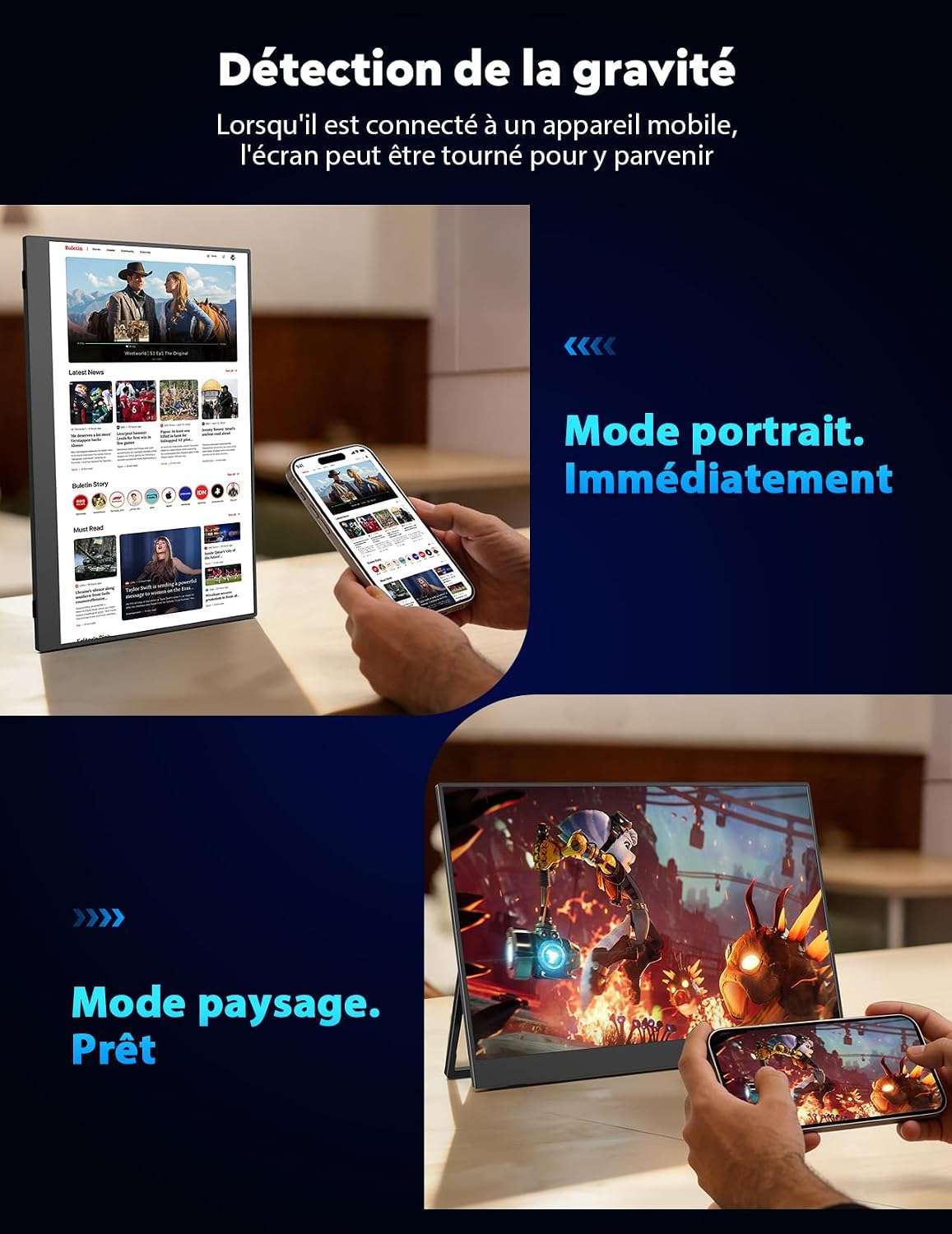
Figure 3.1: Automatic gravity detection for display rotation with phones.
3.3 Audio Output
The monitor includes integrated speakers for audio output. You can also connect external headphones or speakers via the 3.5mm audio jack for a private listening experience.
4. Maintenance
4.1 Cleaning the Monitor
To clean the screen, gently wipe it with a soft, lint-free cloth. For stubborn marks, lightly dampen the cloth with water or a screen-specific cleaning solution. Avoid using harsh chemicals, abrasive cleaners, or spraying liquid directly onto the screen.
4.2 Storage
When not in use, store the monitor in a cool, dry place, away from direct sunlight and extreme temperatures. Use the protective sleeve or packaging to prevent scratches and damage during transport or storage.
4.3 VESA Mounting
The monitor is VESA compatible (75mm, M4 x 4mm), allowing for flexible mounting options with compatible VESA arms or stands.

Figure 4.1: Slim design and VESA mounting options.
5. Troubleshooting
If you encounter issues with your MAGICRAVEN portable monitor, please refer to the following common troubleshooting steps:
- No Display/Black Screen:
- Ensure the monitor is powered on and fully charged or connected to a power source.
- Check all cable connections (USB-C, HDMI) to ensure they are secure and correctly inserted.
- Verify that your source device (laptop, phone) is outputting a video signal. Try connecting to another display if possible.
- Select the correct input source on the monitor's OSD menu.
- No Wireless Connection:
- Ensure the monitor is in wireless mode.
- Check that your source device's wireless display feature (Miracast/AirPlay) is enabled and searching for devices.
- Move the monitor closer to the source device to improve signal strength.
- Restart both the monitor and the source device.
- Low Resolution (Wireless):
- Wireless connections support a maximum of 1080P resolution. For 2K resolution, use a wired USB-C or HDMI connection.
- No Audio:
- Check the volume settings on both the monitor and your source device.
- Ensure the correct audio output device is selected on your source device.
- If using wired headphones/speakers, ensure they are properly connected to the 3.5mm jack.
- Auto-Rotation Not Working:
- Automatic rotation is only supported for compatible smartphones and is not available for laptops/PCs.
- Ensure your phone is not a Google Pixel model, as they are not compatible with this feature.
- For laptops/PCs, adjust orientation manually in your operating system's display settings.
6. Specifications
| Feature | Specification |
|---|---|
| Brand | MAGICRAVEN |
| Model Number | 17.3" |
| Screen Size | 17.3 Inches |
| Resolution | 2560 x 1440 (QHD 1440p) |
| Aspect Ratio | 16:9 |
| Refresh Rate | 60 Hz |
| Contrast Ratio | 1200:1 |
| Viewing Angle | 178 Degrees |
| Screen Surface | Matte |
| Display Technology | LCD |
| Special Features | Portable, WiFi, FreeSync |
| Connectivity | 1x HDMI, 2x USB Type-C (full-featured), 1x 3.5mm Audio Out |
| Battery | 8000mAh Lithium-polymer (included) |
| Item Weight | 1.2 Kilograms |
| Item Dimensions (L x W x H) | 46 x 3 x 32 cm (approximate, based on P x L x H) |
| Compatible Devices | Game Console, Computer, Laptop, Smartphone |
| Color | Black |
7. Warranty and Support
7.1 Manufacturer's Warranty
The MAGICRAVEN 17.3" 2K Wireless Portable Monitor comes with a 3-year manufacturer warranty. This warranty covers defects in materials and workmanship under normal use. Please retain your proof of purchase for warranty claims.
For specific warranty terms and conditions, please refer to the warranty card included with your product or contact MAGICRAVEN customer support.
7.2 Customer Support
For technical assistance, troubleshooting, or warranty inquiries, please contact MAGICRAVEN customer support. Our team is dedicated to providing prompt and professional assistance.
- Online Support: Visit the official MAGICRAVEN website for FAQs, driver downloads, and contact information.
- Email Support: Refer to your product packaging or the official website for the customer support email address.
Please have your product model number (17.3") and purchase date ready when contacting support.
