
1. Introduction
The Zapco Z-OTG-BT C is a high-resolution audio converter designed to enhance your audio experience by converting digital audio signals to high-quality analog and digital outputs. This device supports various input and output formats, ensuring compatibility with a wide range of audio systems. It features a high-performance DAC and OP-amp for superior sound reproduction.
2. Safety Information
Please read and understand all safety instructions before operating this device. Retain this manual for future reference.
- Power Supply: Use only the specified DC 9-16V power supply. Using an incorrect power adapter may damage the device and void the warranty.
- Moisture: Do not expose the device to water, moisture, or extreme humidity. This can cause electric shock or fire.
- Ventilation: Ensure adequate ventilation around the unit. Do not block ventilation openings. Overheating can lead to malfunction.
- Placement: Place the device on a stable, flat surface. Avoid placing it near heat sources or in direct sunlight.
- Servicing: Do not attempt to open or service the unit yourself. Refer all servicing to qualified personnel.
- Cleaning: Disconnect power before cleaning. Use a soft, dry cloth. Do not use liquid or aerosol cleaners.
3. Package Contents
Verify that all items are present in the package:
- Zapco Z-OTG-BT C Audio Converter Unit
- Power Adapter (DC 9-16V)
- User Manual (this document)
4. Setup
Follow these steps to set up your Zapco Z-OTG-BT C audio converter:
- Connect Audio Source: Connect your digital audio source device (e.g., smartphone, tablet, computer) to the OTG input port on the Zapco Z-OTG-BT C. This input supports 192KHz/32bit audio and also supports a charging function for the connected device.
- Connect Audio Output: Choose your desired audio output method:
- RCA Outputs: Connect the Left and Right RCA outputs (1.5V RMS) to your amplifier or receiver's analog audio inputs.
- Digital Outputs (Optical/Coaxial): Connect either the Optical or Coaxial digital output to a compatible digital input on your external DAC or amplifier. These outputs support 48/96/192KHz digital inputs.
- Connect Power: Connect the provided power adapter to the DC 9-16V power input on the Zapco Z-OTG-BT C, then plug the adapter into a suitable power outlet.
- Power On: The device will power on automatically once connected to power. Ensure all connections are secure before playing audio.
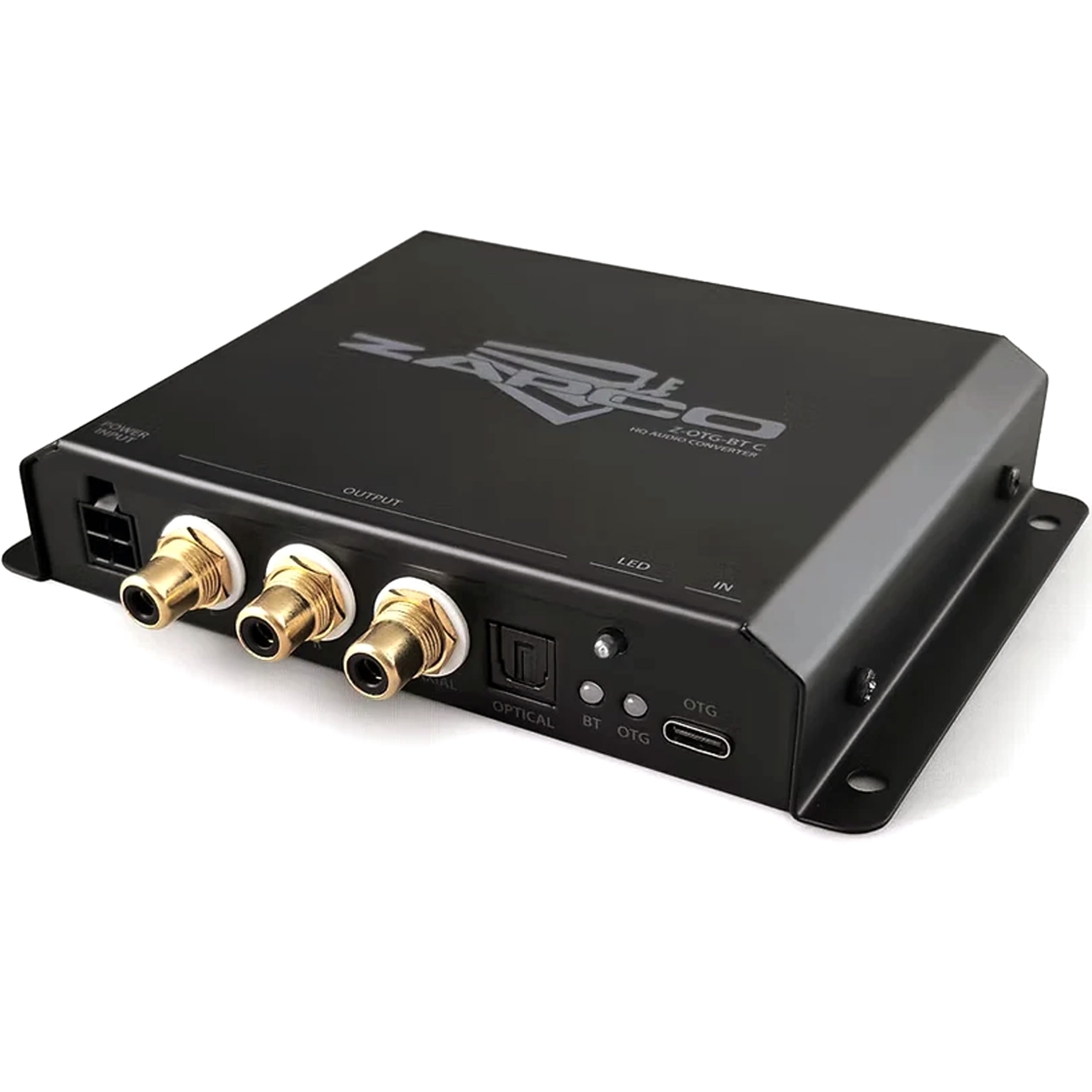
Image 1: Front view of the Zapco Z-OTG-BT C Hi-Res HQ Audio Converter, showing its various input and output ports.
5. Operating
Once the Zapco Z-OTG-BT C is set up and powered on, it operates automatically:
- Ensure your audio source device is playing audio.
- The Z-OTG-BT C will convert the incoming digital audio signal from the OTG input to the selected analog (RCA) or digital (Optical/Coaxial) outputs.
- Adjust the volume on your connected amplifier or receiver. The Z-OTG-BT C does not have its own volume control.
6. Maintenance
Proper maintenance ensures the longevity and optimal performance of your device:
- Cleaning: Use a soft, dry, lint-free cloth to clean the exterior of the unit. Do not use abrasive cleaners, solvents, or chemical sprays.
- Storage: If storing the device for an extended period, disconnect it from power and store it in a cool, dry place away from direct sunlight and extreme temperatures.
- Cable Management: Ensure all cables are routed neatly and are not under strain or bent sharply, which can damage them over time.
7. Troubleshooting
If you encounter issues with your Zapco Z-OTG-BT C, refer to the following troubleshooting guide:
| Problem | Possible Cause | Solution |
|---|---|---|
| No audio output |
|
|
| Poor audio quality / Distortion |
|
|
| Device not recognized by source (OTG) |
|
|
8. Specifications
Detailed technical specifications for the Zapco Z-OTG-BT C:
- Type: Audio Converter
- Model: Z-OTG-BT C
- OTG Input: 192KHz/32bit (Supports Charging function)
- OP-Amp: JRC 5532 (High Performance Low-Noise Dual OP)
- DAC: TI PCM5102A 384KHz/32bit
- Digital Outputs: Optical and Coaxial (for connection with 48/96/192KHz Digital Inputs)
- RCA Outputs: Left + Right (1.5V RMS)
- Power Supply: DC 9-16V
- Minimum Supply Voltage: 9 volts_of_direct_current
- Maximum Supply Voltage: 16 volts_of_direct_current
- Interface Type: Coaxial, Optical, RCA
- Number of Channels: 2
- Audio Output Mode: Stereo
- Unit Dimensions (mm): 140 x 23 x 96
- Item Weight: 3 pounds
9. Warranty
The Zapco Z-OTG-BT C Hi-Res HQ Audio Converter comes with a 1 Year Warranty from the date of purchase. This warranty covers manufacturing defects and malfunctions under normal use. It does not cover damage caused by misuse, accidents, unauthorized modifications, or improper installation. Please retain your proof of purchase for warranty claims.
10. Support
For technical assistance, warranty claims, or further inquiries regarding your Zapco Z-OTG-BT C, please contact Zapco customer support through their official website or the retailer from whom you purchased the product. Please have your model number (Z-OTG-BT C) and proof of purchase ready when contacting support.
