
Introduction
This manual provides detailed instructions for the HP K500F Wireless Gaming Keyboard. It covers setup, operation, maintenance, troubleshooting, and product specifications to ensure optimal use of your device. Please read this manual thoroughly before using the keyboard.

Image: The HP K500F keyboard showcasing its tri-mode wireless capability, multimedia knob, and RGB backlighting.
Product Overview
The HP K500F is a versatile 98-key compact membrane keyboard designed for various computing environments. It features tri-mode connectivity, dynamic RGB backlighting, and a dedicated volume knob for enhanced user experience.
Key Features:
- Tri-Mode Wireless Connectivity: Supports Bluetooth 5.0, 2.4GHz wireless (via USB dongle), and USB-C wired modes.
- RGB Backlit with Side Light Bar: Customizable dynamic RGB backlighting with adjustable breathing effects and a stylish side light strip.
- 3000mAh Rechargeable Battery: Built-in high-capacity battery for extended use.
- 98-Key Compact Layout: Space-saving design with an integrated number pad and a dedicated multimedia volume control knob.
- Retro Round Keycaps & Ergonomic Comfort: ABS round keycaps and dual-stage adjustable feet for comfortable typing angles.
- Compatibility: Compatible with WINDOWS series, MACOS, and other operating systems.

Image: The HP K500F keyboard in Gradient Pink, highlighting its compact layout and design.
Setup Instructions
1. Initial Charging
Before first use, fully charge the keyboard. Connect the included 1.5m USB-C to USB-A cable to the keyboard's USB-C port and the other end to a computer's USB port. Important: Only charge via a computer USB port. Do NOT use wall adapters, power banks, or fast chargers to prevent damage to the battery.
2. Connecting the Keyboard
The HP K500F supports three connection modes:
2.1. 2.4GHz Wireless Mode
- Locate the 2.4GHz USB dongle, usually stored in a compartment on the keyboard.
- Plug the USB dongle into an available USB port on your computer.
- Set the mode selector switch on the keyboard to the 2.4GHz position. The keyboard will automatically connect.
2.2. Bluetooth 5.0 Mode
- Set the mode selector switch on the keyboard to the Bluetooth position.
- On your device (computer, tablet, etc.), enable Bluetooth and search for new devices.
- Select "HP K500F" from the list of available devices to pair.
2.3. USB-C Wired Mode
- Connect the included USB-C to USB-A cable from the keyboard's USB-C port to a USB port on your computer.
- Set the mode selector switch on the keyboard to the wired (USB-C) position. The keyboard will function as a wired device.
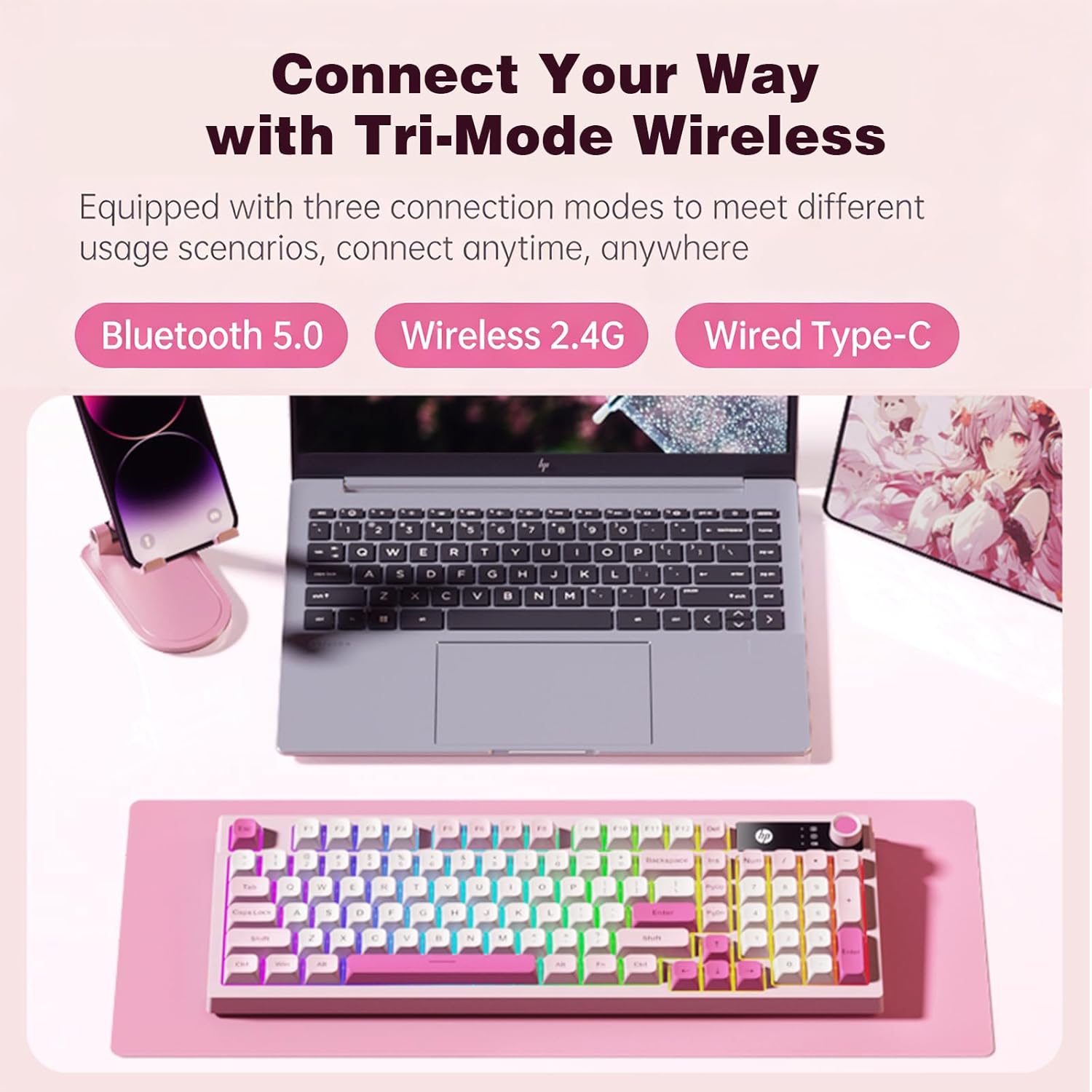
Image: The HP K500F keyboard demonstrating its tri-mode wireless connectivity options with various devices.
Operating Instructions
1. Multimedia Volume Knob
The dedicated volume knob allows for quick audio adjustments:
- Rotate Right: Increase volume.
- Rotate Left: Decrease volume.
- Press: Mute/Unmute audio.

Image: A close-up illustrating the functions of the multimedia volume knob: rotate right to increase, rotate left to decrease, and press to mute.
2. RGB Backlighting Control
The keyboard features dynamic RGB backlighting and a side light bar. Specific key combinations (often Fn + arrow keys or dedicated light keys) are used to:
- Change lighting modes (e.g., breathing, static, wave).
- Adjust brightness levels.
- Change lighting speed.
Refer to the quick start guide included with your keyboard for exact key combinations for lighting control.

Image: The HP K500F keyboard displaying its vibrant rainbow LED backlighting across the keys.
3. Adjustable Feet
The keyboard is equipped with dual-stage adjustable feet on the underside. These allow you to customize the typing angle to reduce wrist strain and improve ergonomic comfort during extended use. Simply flip out the desired stage of the feet to adjust the tilt.

Image: A view of the HP K500F keyboard's underside, illustrating the two stages of its adjustable tilt legs for ergonomic positioning.
Maintenance
1. Cleaning
To clean your keyboard, gently wipe the surface with a soft, damp cloth. For deeper cleaning, use compressed air to remove debris from between the keycaps. Avoid using harsh chemicals or abrasive materials, as these can damage the keyboard's finish and components.
2. Battery Care
To prolong battery life and ensure safety:
- Always charge the keyboard using the provided USB-C cable connected to a computer's USB port.
- Do not use third-party wall adapters, power banks, or fast chargers.
- Avoid exposing the keyboard to extreme temperatures or direct sunlight.
- If storing the keyboard for an extended period, ensure it is partially charged (around 50%) to prevent deep discharge.
Troubleshooting
1. Keyboard Not Responding
- Check Battery: Ensure the keyboard is charged. Connect it to a computer's USB port for charging.
- Check Connection Mode: Verify the mode selector switch is set to the correct position (2.4GHz, Bluetooth, or Wired) for your intended connection.
- 2.4GHz: Ensure the USB dongle is securely plugged into the computer. Try a different USB port.
- Bluetooth: Re-pair the keyboard with your device. Ensure Bluetooth is enabled on your device.
- Wired: Ensure the USB-C cable is securely connected to both the keyboard and the computer. Try a different USB port or cable.
2. RGB Backlighting Not Working
- Check Brightness: The backlight might be turned off or set to the lowest brightness. Use the designated key combinations (refer to quick start guide) to adjust brightness.
- Battery Level: Low battery can sometimes affect lighting functionality. Charge the keyboard fully.
3. Keys Not Registering or Double Typing
- Clean Keys: Dust or debris under the keycaps can cause issues. Use compressed air to clean around the affected keys.
- Restart Connection: Disconnect and reconnect the keyboard (either by unplugging the dongle/cable or turning Bluetooth off/on).
- Test on Another Device: If possible, test the keyboard on a different computer or device to determine if the issue is with the keyboard or the original device.
Specifications
| Brand | HP |
| Model Number | K500F |
| Color | Gradient Pink |
| Keyboard Type | Membrane keyboard |
| Connectivity | Tri-Mode (Bluetooth 5.0, 2.4GHz Wireless, USB-C Wired) |
| Key Count | 98 keys (compact layout with integrated number pad) |
| Backlight | RGB with adjustable breathing effects and side light bar |
| Battery | 3000mAh rechargeable (charge via computer USB port only) |
| Keycap Material | ABS plastic |
| Body Material | ABS plastic |
| Cable Length | 1.5m USB-C to USB-A (included) |
| Adjustable Feet | Dual-stage for ergonomic typing angles |
| Compatibility | WINDOWS series/MACOS/etc |
| Dimensions (L x W x H) | 15.98" x 1.5" x 5.55" |
Warranty and Support
1. Warranty Information
The HP K500F Wireless Gaming Keyboard comes with a 30-day warranty from the date of purchase. This warranty covers manufacturing defects under normal use. It does not cover damage caused by misuse, accidents, unauthorized modifications, or improper charging practices.
2. Customer Support
For technical assistance, warranty claims, or further inquiries, please contact HP customer support through their official website or the contact information provided with your purchase documentation. Please have your model number (K500F) and proof of purchase ready when contacting support.


