
1. Introduction
This manual provides essential information for setting up, operating, and maintaining your HP OmniDesk Desktop Computer PC. This system is equipped with an AMD Ryzen 7 8700G processor, 32GB DDR5 RAM, AMD Radeon 780M Graphics, and runs on Windows 11 Pro. It is designed for efficient performance across various tasks, from everyday computing to gaming and creative projects.
Please read this manual thoroughly before using your new computer to ensure proper operation and to take full advantage of its features.
2. What's in the Box
Verify that all items are present in the packaging:
- HP OmniDesk Desktop PC
- Wired Keyboard
- Wired Mouse
- Power Cable
- Bonus Docking Station Set:
- 1x 7-in-1 Docking Station with 1TB Storage
- 1x 32GB MicroSD Card with Adapter
- 1x Type-C Data Cable
- 1x 3-in-1 Charging Cable
- 1x Suede Cleaning Cloth

Figure 2.1: Included Bonus Docking Station Set and Accessories
3. Setup
3.1 Physical Connection
- Place the PC: Position the HP OmniDesk Desktop PC on a stable, flat surface with adequate ventilation.
- Connect Peripherals:
- Connect the wired keyboard and mouse to the available USB ports on the PC.
- Connect your monitor(s) to the DisplayPort 1.4 or HDMI port(s) on the rear of the PC.
- Connect Power: Plug the power cable into the PC's power input and then into a grounded electrical outlet.
- Network Connection: For a wired connection, connect an Ethernet cable to the RJ-45 port on the rear of the PC. For wireless, refer to section 3.3.

Figure 3.1: Front Ports and Slots

Figure 3.2: Rear Ports and Slots
3.2 Initial Power-On and Windows 11 Pro Setup
- Press the power button on the front of the PC.
- Follow the on-screen instructions to complete the initial setup of Windows 11 Pro. This includes selecting your region, language, creating a user account, and accepting the license agreement.
3.3 Wi-Fi 6 and Bluetooth 5.4 Connectivity
Your HP OmniDesk PC supports Wi-Fi 6 (802.11ax) and Bluetooth 5.4 for wireless connectivity.
- Wi-Fi: During Windows setup or via the Windows Settings (Start > Settings > Network & internet > Wi-Fi), select your desired network and enter the password.
- Bluetooth: To pair Bluetooth devices, go to Windows Settings (Start > Settings > Bluetooth & devices), ensure Bluetooth is enabled, and select 'Add device'.

Figure 3.3: Wireless Connectivity Features
4. Operating
4.1 Power On/Off and Restart
- Power On: Press the power button on the front of the PC.
- Shut Down: Click the Start button, then Power > Shut down.
- Restart: Click the Start button, then Power > Restart.
4.2 Utilizing Microsoft Copilot
Your PC includes a dedicated Copilot key for quick access to Microsoft Copilot, an AI-powered assistant. Press the Copilot key on your keyboard or click the Copilot icon on the taskbar to launch it. Copilot can assist with various tasks, answer questions, and provide support.
4.3 Using the Docking Station
The included 7-in-1 docking station expands your PC's connectivity and storage. Connect the docking station to a USB-C port on your PC. It provides additional ports (HDMI, USB, SD/TF card reader) and 1TB of extra storage. Refer to the docking station's specific instructions for detailed usage.
4.4 Performance and Applications
The AMD Ryzen 7 8700G processor and AMD Radeon 780M Graphics provide robust performance for a variety of applications:
- Multitasking: The 32GB DDR5 RAM ensures smooth operation when running multiple applications simultaneously.
- Gaming & Multimedia: The integrated AMD Radeon 780M Graphics delivers high-quality visuals suitable for casual gaming, video playback, and creative tasks.
- Productivity: The system is optimized for office applications, design software, and customer service tools.
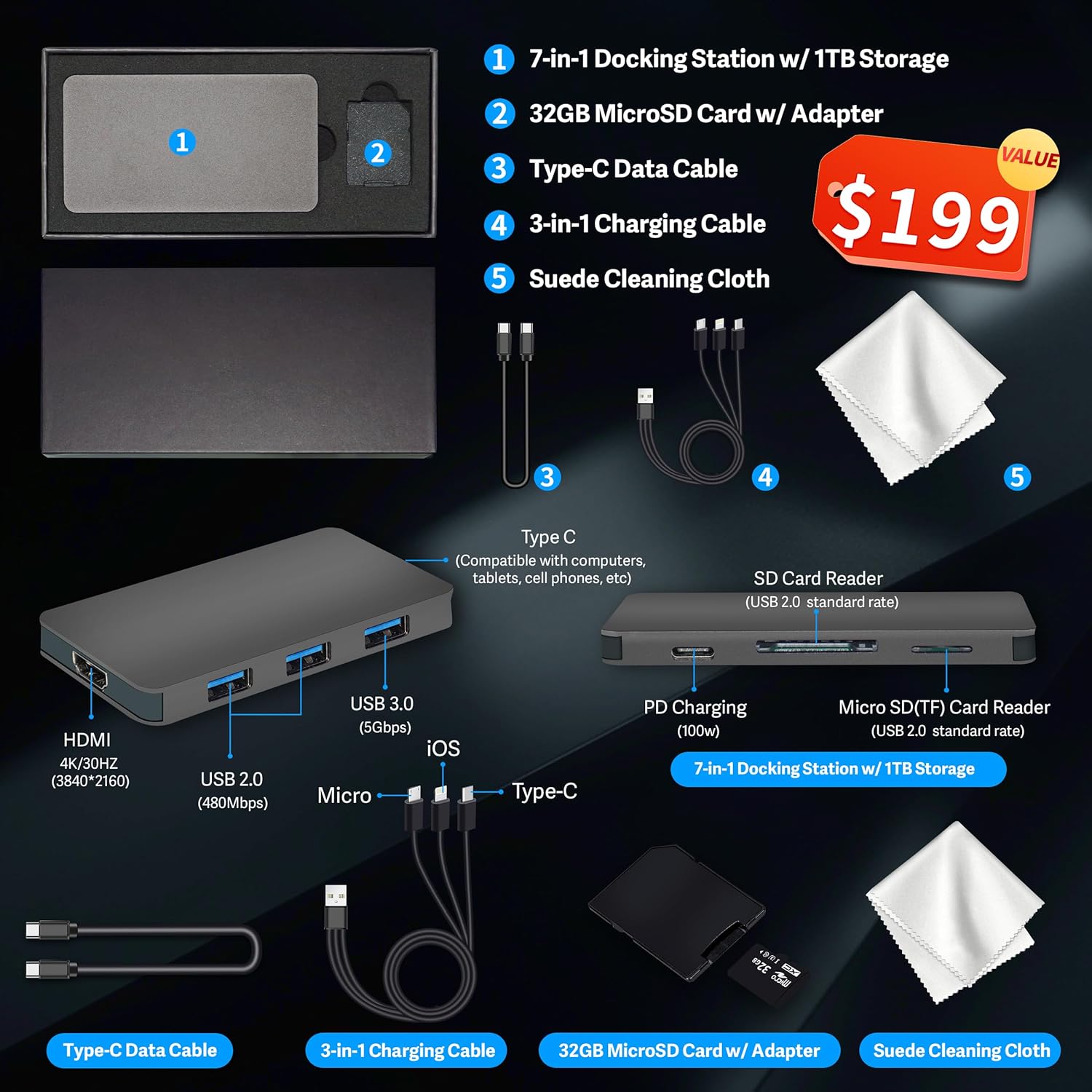
Figure 4.1: Desktop PC in a productive environment

Figure 4.2: Applicable Scenarios for the HP OmniDesk PC
5. Maintenance
- Cleaning: Use a soft, dry cloth to clean the exterior of the PC. Avoid liquid cleaners directly on components.
- Ventilation: Ensure that the PC's ventilation openings are not blocked to prevent overheating.
- Software Updates: Regularly check for and install Windows updates and driver updates to maintain system performance and security.
- Data Backup: Periodically back up important data to an external drive or cloud storage to prevent data loss.
6. Troubleshooting
If you encounter issues with your HP OmniDesk PC, consider the following:
- No Power: Ensure the power cable is securely connected to both the PC and the electrical outlet. Test the outlet with another device.
- No Display: Check that the monitor is powered on and correctly connected to the PC's DisplayPort or HDMI port. Try a different cable or monitor if available.
- Peripheral Not Working: Ensure the keyboard, mouse, or other peripherals are properly connected to the correct ports. Try connecting them to a different USB port.
- Slow Performance: Close unnecessary applications. Check for background processes consuming high resources (Task Manager). Ensure sufficient free storage space.
- Internet Connectivity Issues: Verify your Wi-Fi connection or Ethernet cable. Restart your router/modem. Run Windows Network Troubleshooter.
For more complex issues, refer to the HP support website or contact customer service.
7. Specifications
| Feature | Specification |
|---|---|
| Model Name | HP OmniDesk Desktop |
| Processor | AMD Ryzen 7 8700G (up to 5.1 GHz, 8 Cores) |
| Graphics | AMD Radeon 780M (Integrated) |
| RAM | 32GB DDR5 SDRAM (5200 MHz) |
| Storage | 1TB PCIe SSD (Internal) + 1TB (Docking Station) |
| Operating System | Windows 11 Pro |
| Wireless Connectivity | Wi-Fi 6 (802.11ax), Bluetooth 5.4 |
| Front Ports | Headphone/microphone combo, USB Type-A 5Gbps, USB Type-A 10Gbps, USB Type-C 5Gbps, USB Type-C 10Gbps |
| Rear Ports | DisplayPort 1.4, HDMI, 4x USB 2.0 Type A, Ethernet RJ-45 Port |
| Dimensions (W x D x H) | 6.10 x 13.27 x 12.40 inches |
| Weight | 12.72 lbs |
| Included Peripherals | Wired Keyboard, Wired Mouse |

Figure 7.1: Processor and Graphics Overview

Figure 7.2: Dimensions and Weight
8. Warranty and Support
Your HP OmniDesk Desktop PC comes with a standard manufacturer's warranty. Please refer to the warranty card included with your product or visit the official HP support website for detailed warranty terms and conditions.
For technical assistance, driver downloads, or further support, please visit the official HP support website or contact HP customer service directly. Have your product's serial number ready when contacting support.
HP Support Website: support.hp.com


