
Introduction
This user guide provides essential information for the HP OfficeJet Pro 8125e printer. It covers initial setup, connecting to networks, performing print, scan, and copy functions, routine maintenance, and troubleshooting common issues. Follow these instructions to ensure optimal performance and longevity of your device.
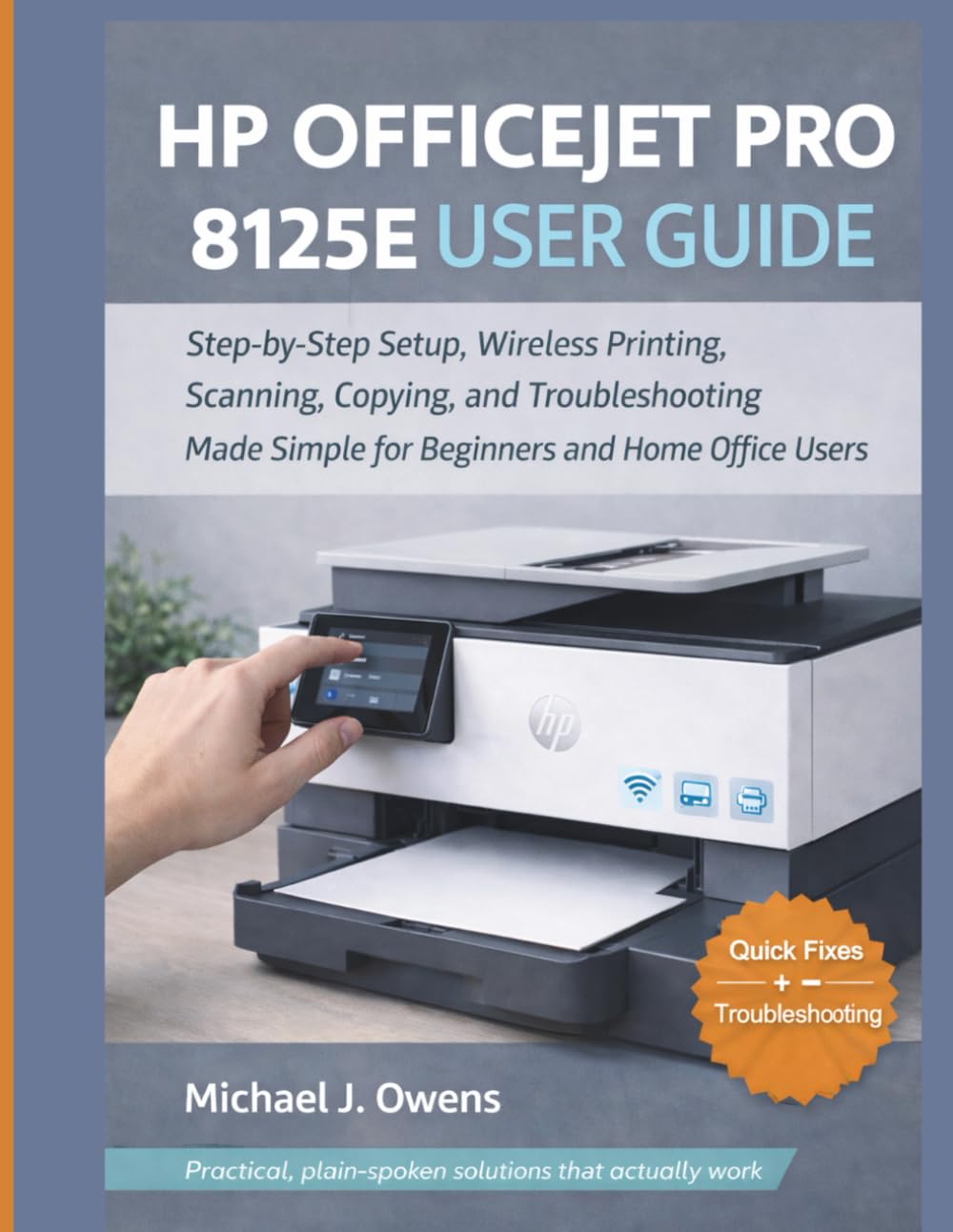
Image: Front cover of the HP OfficeJet Pro 8125e User Guide. This image represents the manual itself, designed to assist users with their printer.
1. Setup
1.1 Unboxing and Initial Power-On
- Carefully remove the printer from its packaging.
- Remove all protective tapes and packing materials from the exterior and interior of the printer.
- Connect the power cord to the printer and then to a wall outlet.
- Press the power button to turn on the printer.
- Follow the on-screen prompts on the printer's control panel to select your language and region.
1.2 Installing Ink Cartridges
- Open the ink cartridge access door.
- Wait for the print carriage to move to the center.
- Unpack the new ink cartridges.
- Insert each cartridge into its corresponding slot, ensuring it clicks into place.
- Close the ink cartridge access door.
1.3 Loading Paper
- Pull out the input tray.
- Adjust the paper guides to the correct paper size.
- Load a stack of plain white paper into the tray, print side down.
- Push the input tray back into the printer.
- Confirm paper type and size on the printer's control panel if prompted.
1.4 Connecting to Wi-Fi
- On the printer's control panel, navigate to the Wireless Setup Wizard.
- Select your Wi-Fi network from the list of available networks.
- Enter the Wi-Fi password (WPA key) when prompted.
- Confirm the connection. The wireless light on the printer should turn solid blue.
1.5 Driver Installation
For Windows and Mac computers, download the latest drivers and HP Smart software from the official HP support website. Follow the on-screen instructions during installation.
2. Operating the Printer
2.1 Printing Documents
- From a Computer: Open the document, select "Print," choose your HP OfficeJet Pro 8125e, and adjust settings as needed before printing.
- From Mobile Devices (HP Smart App): Install the HP Smart app, add your printer, and use the app to print photos or documents directly from your smartphone or tablet.
- Email Print: If enabled, send documents to your printer's unique email address.
2.2 Scanning Documents
- Place the document face down on the scanner glass or face up in the Automatic Document Feeder (ADF).
- On the printer's control panel or via the HP Smart app/software on your computer, select "Scan."
- Choose scan settings (e.g., color, resolution, destination).
- Initiate the scan.
2.3 Copying Documents
- Place the original document on the scanner glass or in the ADF.
- On the printer's control panel, select "Copy."
- Adjust settings such as number of copies, color/black & white, and size.
- Press the "Start Copy" button.
3. Maintenance
3.1 Cleaning the Print Heads
If print quality degrades (streaks, faded colors), perform a print head cleaning from the printer's control panel or the HP Smart software. This process uses ink, so only perform it when necessary.
3.2 Replacing Ink Cartridges
When an ink cartridge is low or empty, the printer will notify you. Follow the steps in Section 1.2 to replace cartridges. Use genuine HP ink cartridges for best results.
3.3 General Cleaning
Wipe the exterior of the printer with a soft, damp, lint-free cloth. Clean the scanner glass regularly with a glass cleaner applied to a cloth (not directly to the glass) to prevent smudges from affecting scan quality.
4. Troubleshooting
| Problem | Solution |
|---|---|
| Printer Offline Message |
|
| Paper Jams |
|
| Poor Print Quality |
|
| HP Smart App Issues |
|
5. Specifications
Note: The following specifications are typical for the HP OfficeJet Pro 8125e printer. For precise details, refer to the official HP product page or documentation.
- Functions: Print, Copy, Scan, Fax (optional, depending on region/model)
- Print Technology: HP Thermal Inkjet
- Print Speed (Black): Up to 22 ppm (ISO)
- Print Speed (Color): Up to 18 ppm (ISO)
- Print Resolution (Best): Up to 4800 x 1200 optimized dpi color
- Scan Resolution (Optical): Up to 1200 dpi
- Connectivity: Wi-Fi 802.11a/b/g/n, Ethernet, USB 2.0
- Paper Handling: 250-sheet input tray, 60-sheet output tray, 35-sheet ADF
- Duplex Printing: Automatic (standard)
- Display: Color touchscreen
6. Warranty and Support
For warranty information, please refer to the documentation included with your printer or visit the official HP support website. HP provides various support resources, including online FAQs, driver downloads, and contact options for technical assistance.
Image: Back cover of the HP OfficeJet Pro 8125e User Guide. This image provides additional information and ISBN details for the manual.


