
1. Introduction
This manual provides essential information for setting up, operating, maintaining, and troubleshooting your new iBUYPOWER Slate Gaming PC, model SBI7N5701. This high-performance desktop is designed for gaming and content creation, featuring an Intel Core Ultra 7 265F processor, NVIDIA GeForce RTX 5070 12GB graphics card, 32GB DDR5 5200MHz RAM, and a 1TB NVMe SSD. It comes pre-installed with Windows 11 Home and includes a gaming keyboard and mouse.
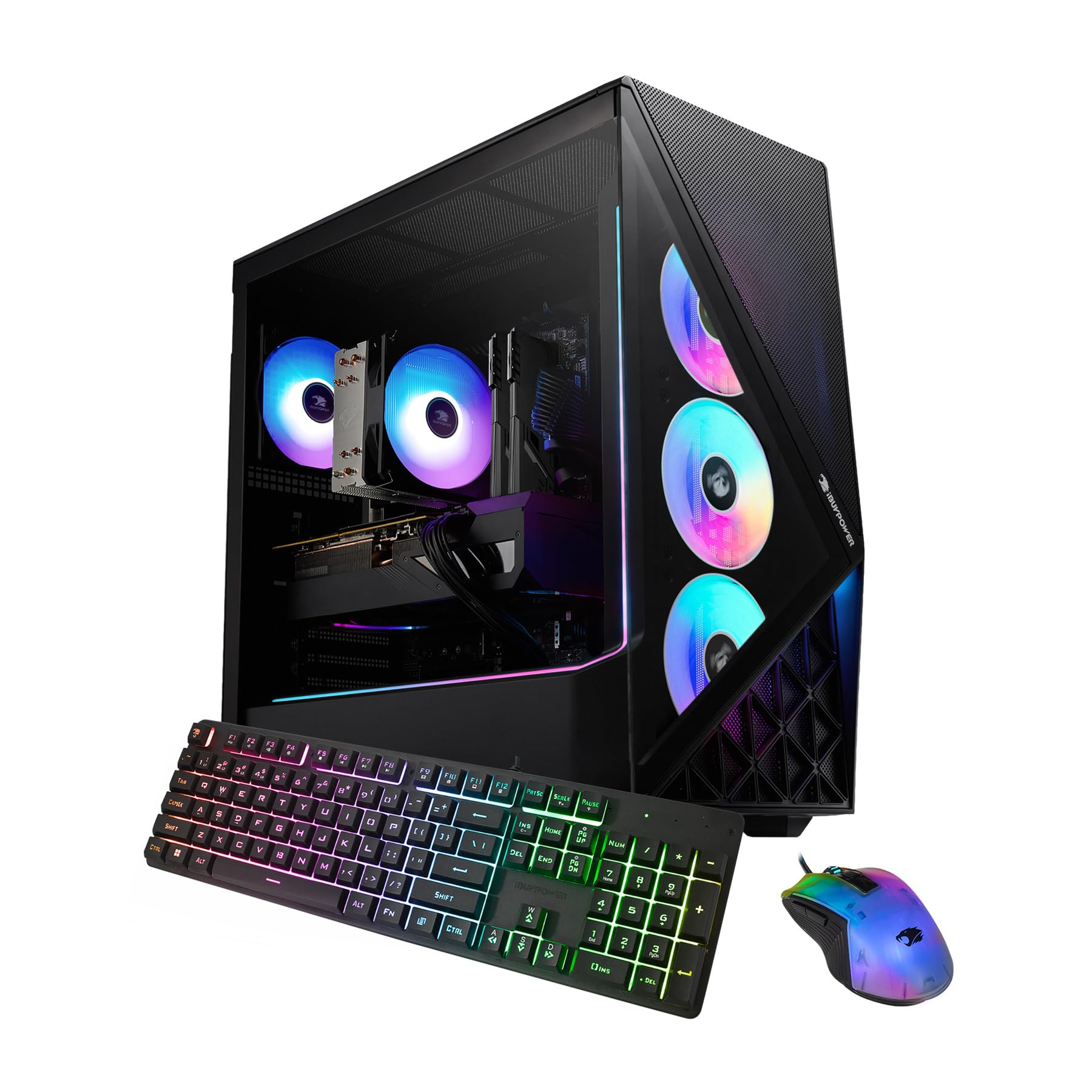
Image: The iBUYPOWER Slate Gaming PC SBI7N5701, showcasing its internal components and RGB lighting through a tempered glass side panel.
2. Setup Guide
2.1 Unboxing
Carefully remove the PC and all accessories from the packaging. Ensure all components listed in the packing slip are present. Retain packaging for future transport or warranty claims.
2.2 Connecting Peripherals
Before connecting, ensure the PC is placed on a stable surface with adequate ventilation. The included gaming keyboard and mouse are ready for connection.
- Monitor: Connect your monitor to one of the graphics card (NVIDIA GeForce RTX 5070) ports using an HDMI or DisplayPort cable. It is crucial to connect to the dedicated graphics card ports, not the motherboard's video outputs.
- Keyboard and Mouse: Connect the included gaming keyboard and mouse to any available USB ports on the rear of the PC.
- Power: Connect the power cable to the PC's power supply unit (PSU) input and then to a grounded wall outlet or surge protector. Ensure the PSU's power switch (located at the rear) is in the 'OFF' position before connecting, then switch to 'ON' after all connections are made.
- Network: For a wired internet connection, connect an Ethernet cable to the RJ-45 network port. For wireless internet, the PC is Wi-Fi Ready and will prompt you to connect during the initial Windows setup.
- Audio: Connect speakers or headphones to the appropriate audio output jacks on the rear or front of the PC.

Image: An internal view of the iBUYPOWER Slate Gaming PC, displaying the motherboard, CPU cooler, RAM modules, and the graphics card, illustrating the component layout.
2.3 First Boot-Up
After connecting all peripherals and power, press the power button located on the top front of the PC. The system will boot into Windows 11 Home. Follow the on-screen instructions to complete the initial Windows setup, including language, region, network connection, and user account creation.
3. Operating Instructions
3.1 Power On/Off
- Power On: Press the power button once.
- Shut Down: Click the Windows Start button, then Power, and select "Shut down." Always use this method to properly shut down the PC to prevent data loss or system corruption.
- Restart: Click the Windows Start button, then Power, and select "Restart."
3.2 Windows 11 Home
Your PC comes with Windows 11 Home pre-installed. Familiarize yourself with the operating system's interface, settings, and features. Regular updates are recommended for security and performance.
3.3 Gaming and Performance
The iBUYPOWER Slate Gaming PC is optimized for high-performance gaming. Ensure adequate ventilation around the PC to maintain optimal temperatures during extended gaming sessions. Keep graphics drivers updated for the best gaming experience.

Image: Front view of the iBUYPOWER Slate Gaming PC, highlighting the three RGB fans behind the mesh panel.
3.4 RGB Lighting Control
Your PC features 16-color RGB lighting for the case and fans. Control software for RGB lighting may be pre-installed or available for download from the iBUYPOWER website. Refer to the software's instructions for customizing lighting effects and synchronization.
4. Maintenance
4.1 Cleaning
- Exterior: Use a soft, dry cloth to wipe down the exterior surfaces. For the tempered glass side panel, a microfiber cloth and a mild, non-abrasive glass cleaner can be used.
- Dust: Periodically clean dust from the PC's interior, especially from fans and heatsinks, using compressed air. Ensure the PC is powered off and unplugged from the wall outlet before opening the case.

Image: Close-up view of the perforated mesh panels on the iBUYPOWER Slate Gaming PC, designed to improve cooling performance.
4.2 Airflow and Ventilation
Ensure the PC is placed in an area with good airflow. Do not block the ventilation openings on the front, top, rear, or bottom of the case. The case features mesh panels and multiple RGB fans to optimize cooling and prevent overheating.

Image: The tempered glass side panel of the iBUYPOWER Slate Gaming PC, offering a clear view of the internal components and lighting.
4.3 Software Updates
Regularly update Windows 11, graphics drivers (NVIDIA), and other system drivers to ensure optimal performance, stability, and security. These updates often include performance enhancements, bug fixes, and new features.
5. Troubleshooting
This section addresses common issues you might encounter. For more complex problems, please refer to the customer support section.
5.1 No Power
- Check if the power cable is securely connected to both the PC's PSU and the wall outlet.
- Ensure the power switch on the PSU (located at the rear of the PC) is in the 'ON' position.
- Test the wall outlet with another device to confirm it has power.
- If using a surge protector or power strip, ensure it is switched on and functioning correctly.
5.2 No Display on Monitor
- Verify that the monitor is powered on and the correct input source (e.g., HDMI 1, DisplayPort) is selected.
- Ensure the video cable (HDMI or DisplayPort) is securely connected to the graphics card on the PC and to the monitor. Confirm it is connected to the dedicated graphics card ports, not the motherboard's ports.
- Try a different video cable or monitor if available to rule out faulty hardware.
- Restart the PC.
5.3 System Slowdown or Freezes
- Close unnecessary background applications and browser tabs.
- Check for overheating. Ensure all case fans are spinning, and the PC's vents are clear of obstructions.
- Run a system scan for malware or viruses using your preferred antivirus software.
- Ensure Windows and all device drivers (especially graphics drivers) are up to date.
- Check disk usage in Task Manager; high disk usage can indicate a problem.
6. Specifications
| Component | Detail |
|---|---|
| Model Number | SBI7N5701 |
| Operating System | Windows 11 Home |
| CPU Model | Intel Core Ultra 7 265F |
| CPU Speed | 2.4 GHz (Base), up to 5.3 GHz (Max Boost) |
| Graphics Card | NVIDIA GeForce RTX 5070 12GB GDDR7 |
| RAM | 32GB DDR5 5200MHz (16GB x 2) |
| Storage | 1TB NVMe SSD |
| Connectivity | 6 x USB 3.1, 1 x RJ-45 Ethernet (10/100/1000), HDMI, DisplayPort, Audio Jacks, Bluetooth, Wi-Fi (802.11AC) |
| Dimensions (LxWxH) | 19.5 x 8.7 x 19.3 inches |
| Case Features | Tempered Glass RGB Gaming Case, Perforated Mesh Panels, 16 Color RGB Lighting, Four aRGB Fans |
| Included Peripherals | iBUYPOWER Gaming Keyboard & RGB Gaming Mouse |
7. Warranty Information
This iBUYPOWER Slate Gaming PC SBI7N5701 comes with a 1 Year Manufacturer Warranty. Please retain your proof of purchase for warranty claims. For detailed terms and conditions, including coverage and service procedures, refer to the warranty documentation included with your product or visit the official iBUYPOWER website.
8. Customer Support
If you encounter any issues not covered in this manual, require technical assistance, or have questions about your product, please contact iBUYPOWER customer support. You can find contact information, frequently asked questions (FAQs), and additional resources on the official iBUYPOWER website.
Online Resources: Visit the iBUYPOWER Support Page for drivers, manuals, troubleshooting guides, and contact options.