
1. Introduction
This manual provides essential information for the setup, operation, maintenance, and troubleshooting of your iBUYPOWER Element Gaming PC, model EXBA7N5702. Please read these instructions carefully before using your new computer.
2. Package Contents
Verify that all items listed below are included in your package. If any items are missing or damaged, please contact iBUYPOWER support.
- iBUYPOWER Element Gaming Desktop PC (Model EXBA7N5702)
- Wired RGB Gaming Keyboard
- Wired RGB Gaming Mouse
- Power Cable
- Extra SATA Cable
- Wi-Fi Antenna
- User Manuals and Documentation

Figure 2.1: Included accessories with the iBUYPOWER Element Gaming PC.
3. Setup Guide
3.1 Unpacking and Placement
- Carefully remove the PC and all accessories from the packaging.
- Place the PC on a stable, flat surface with adequate ventilation around all sides. Avoid placing it directly against a wall or in an enclosed space.
3.2 Connecting Peripherals
Connect your monitor, keyboard, mouse, and other devices to the appropriate ports on the PC. Refer to the image below for front I/O port locations.

Figure 3.1: Front I/O Ports for easy access.
- Monitor: Connect your monitor to the graphics card (NVIDIA GeForce RTX 5070) ports (HDMI or DisplayPort). Do not connect to motherboard video outputs if a dedicated graphics card is installed.
- Keyboard and Mouse: Connect the included iBUYPOWER gaming keyboard and mouse to any available USB ports.
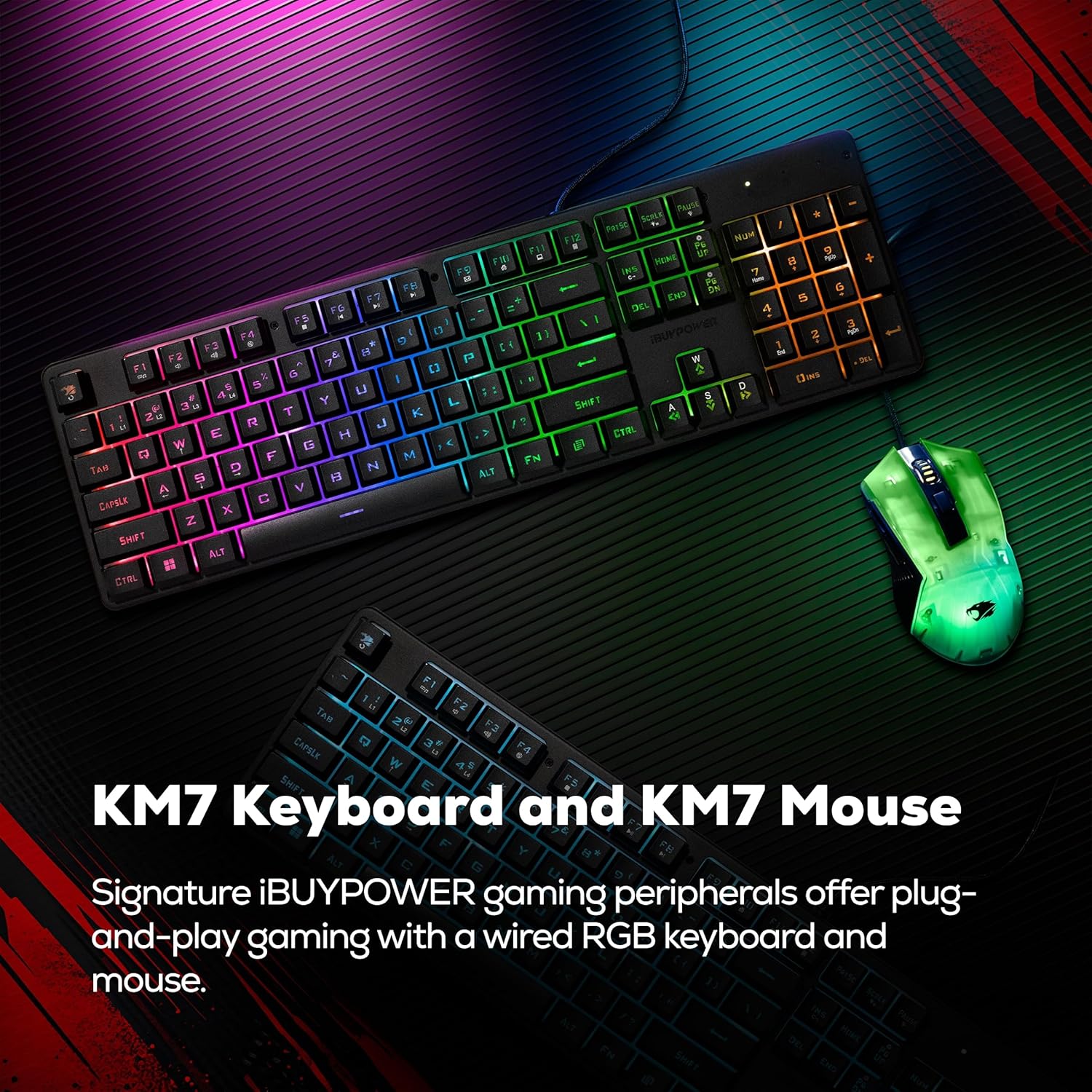
Figure 3.2: Included iBUYPOWER KM7 Keyboard and Mouse.
- Power: Connect the power cable to the power supply unit (PSU) at the rear of the PC, then plug it into a wall outlet.
- Network: For wired internet, connect an Ethernet cable to the RJ-45 port. For wireless internet, attach the included Wi-Fi antenna to the designated ports on the rear of the PC.
3.3 Initial Power-On
- Ensure all connections are secure.
- Press the power button located on the PC case. The system will boot up.
- Follow the on-screen instructions to complete the Windows 11 Home setup process.
4. Operating Instructions
4.1 Powering On and Off
- Power On: Press the power button on the front of the PC.
- Power Off: Click the Start button in Windows, then select Power > Shut down. Avoid directly unplugging the PC or holding the power button for extended periods unless necessary.

Figure 4.1: RGB Corner Power Button.
4.2 Windows 11 Home
Your PC comes pre-installed with Windows 11 Home. Familiarize yourself with the operating system's interface and features for optimal use.

Figure 4.2: Windows 11 Home interface.
4.3 RGB Lighting Control
The iBUYPOWER Element PC features addressable RGB light strips along the main edges of the case and RGB fans. Control and customize these lighting effects using the pre-installed software or physical buttons on the case, if available.

Figure 4.3: RGB Edge Integrations on the PC case.
5. Maintenance
Regular maintenance helps ensure the longevity and optimal performance of your PC.
- Dust Management: Periodically clean dust from the PC's exterior and ventilation areas using compressed air or a soft brush. Ensure the PC is powered off and unplugged before cleaning.
- Software Updates: Keep your Windows operating system, graphics drivers, and other software up to date to ensure security and performance.
- Cooling System: The PC is equipped with an iBUYPOWER AC5 Tower Air Cooler. Ensure that the cooler's fan and heatsink remain free of dust buildup to maintain efficient cooling.

Figure 5.1: iBUYPOWER AC5 Tower Air Cooler.
6. Troubleshooting
If you encounter issues with your PC, try the following basic troubleshooting steps:
- No Power: Ensure the power cable is securely connected to both the PC and the wall outlet. Check if the power supply switch on the back of the PC is in the 'On' position.
- No Display: Verify that the monitor is powered on and correctly connected to the graphics card's video output. Try a different video cable or monitor if possible.
- Peripherals Not Working: Ensure the keyboard and mouse are properly connected to USB ports. Try different USB ports.
- System Freezes/Crashes: Restart the PC. Ensure all drivers and Windows updates are current. Monitor system temperatures.
If these steps do not resolve the issue, please refer to the support section for further assistance.
7. Specifications
The iBUYPOWER Element Gaming PC EXBA7N5702 is configured with the following hardware components:

Figure 7.1: Key specifications of the iBUYPOWER Element Gaming PC.
| Component | Specification |
|---|---|
| Model Number | EXBA7N5702 |
| Operating System | Windows 11 Home |
| CPU | AMD Ryzen 7 9700F (3.8 GHz base, up to 5.5 GHz boost) |
| Graphics Card | NVIDIA GeForce RTX 5070 12GB GDDR7 |
| RAM | 32GB DDR5 5200MHz (2 x 16GB) |
| Storage | 1TB NVMe SSD |
| Connectivity | Wi-Fi (802.11AC), Bluetooth, Ethernet (10/100/1000), USB (6 x USB 3.1, 4 x other USB), HDMI |
| Cooling | iBUYPOWER AC5 Tower Air Cooler |
| Dimensions (H x W x D) | 19.72 x 9.84 x 18.19 inches (501 x 250 x 462 mm) |

Figure 7.2: PC Case Dimensions.
7.1 Internal Components Overview
The system is built with carefully selected components to ensure performance and reliability. The internal layout is optimized for airflow and component compatibility, supporting various GPU lengths, PSU sizes, and air cooler heights.

Figure 7.3: Internal view of the iBUYPOWER Element Gaming PC.

Figure 7.4: PC Form and Function, showing component compatibility.
8. Warranty Information
Your iBUYPOWER Element Gaming PC EXBA7N5702 is covered by a 1-Year Manufacturer Warranty. This warranty covers defects in materials and workmanship under normal use. For specific terms and conditions, please refer to the warranty documentation included with your product or visit the official iBUYPOWER website.
9. Support
For technical assistance, warranty claims, or further inquiries, please contact iBUYPOWER customer support. Have your product model number (EXBA7N5702) and purchase information ready when contacting support.
You can find contact information and additional resources on the official iBUYPOWER website.

Figure 9.1: iBUYPOWER's commitment to quality and service.


