
1. Introduction
This manual provides detailed instructions for the installation, operation, and maintenance of your Leadfan Car Radio, Model SW600B-N1. This unit is specifically designed to enhance your driving experience with advanced multimedia and navigation features.
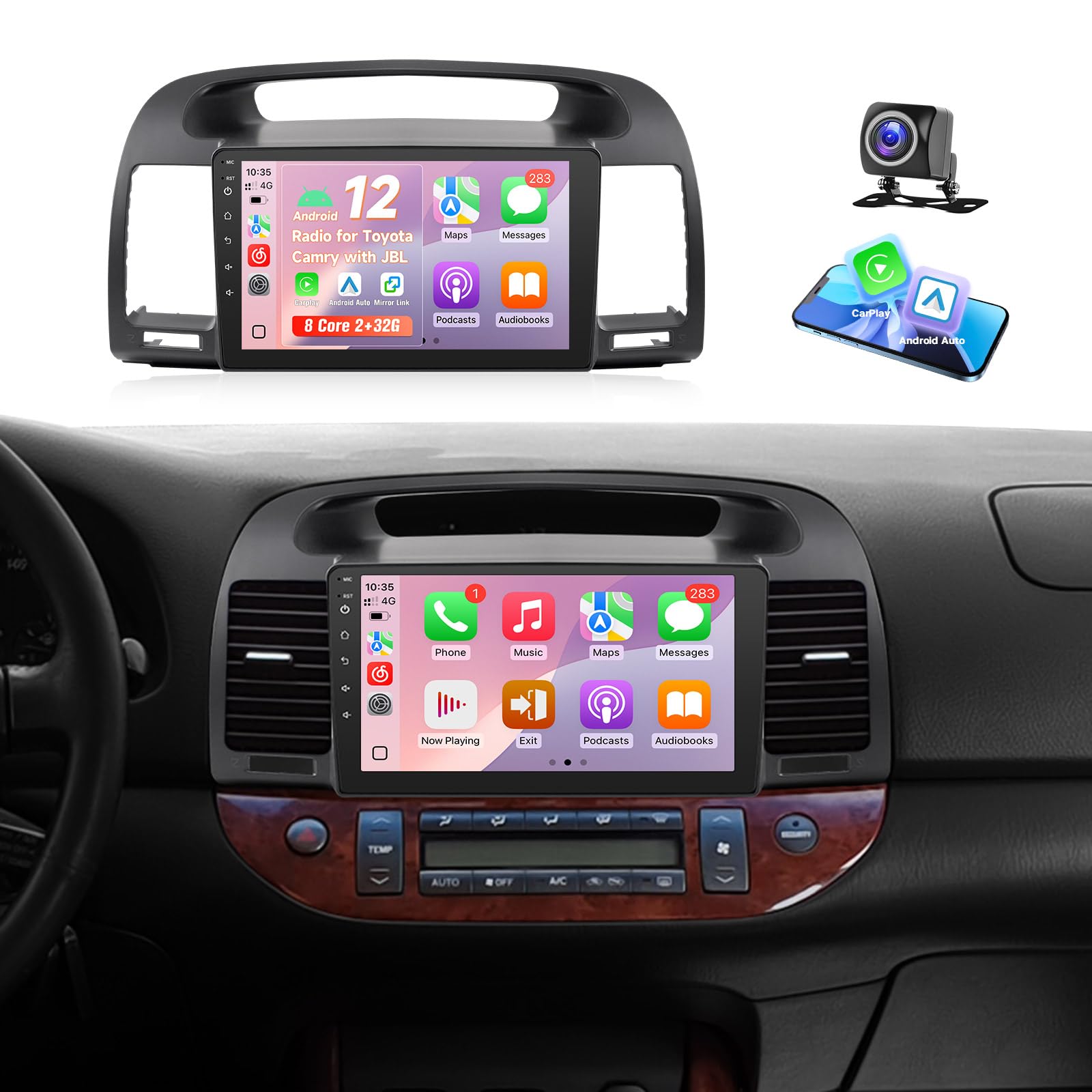
The car radio features a 9-inch IPS HD display, runs on an Android 12 system with an 8-Core processor, and includes 2GB RAM and 32GB ROM for powerful and stable performance. Key functionalities include Wireless/Wired CarPlay and Android Auto, Voice Control, Bluetooth 5.1 for hands-free calls and music, FM Radio, GPS Navigation, and Wi-Fi Connectivity.
2. Compatibility & Installation Notes
This Leadfan car radio is compatible with Toyota Camry models manufactured between 2002 and 2006, specifically those equipped with the JBL Premium Audio System. It includes a plug-and-play wiring harness for simplified installation.
Important Note:
- This unit is not compatible with Toyota Camry models that have a large factory screen.
- This unit is not compatible with low-end models (Model A) that do not feature the JBL system.
- Always confirm the shape and size of your vehicle's center console before installation.
This image illustrates the specific center console configurations for Toyota Camry models from 2002 to 2006. It clearly indicates which versions are compatible with the Leadfan car radio, specifically those equipped with the JBL Premium Audio System, and which are not, such as low-end models or those with large factory screens.
3. What's in the Box
Please ensure all the following components are present in your package:
- 9-inch IPS Touchscreen Android Radio Headunit
- Radio Frame Accessories
- All Necessary Wiring Harness
- Backup Camera
- Instruction Manual
- GPS Antenna
- Bluetooth Antenna
- Microphone (MIC)
- USB Cables (x2)
- RCA Cable

This image provides the physical dimensions of the 9-inch IPS touchscreen head unit and a comprehensive wiring diagram. It labels all necessary connection points for power, USB, GPS antenna, Bluetooth antenna, backup camera, and other audio/video inputs/outputs, crucial for proper installation.
4. Setup
Installation should ideally be performed by a qualified professional. Refer to the included wiring harness and diagrams for specific connections.
- Power Connection: Connect the main power harness to your vehicle's wiring. Ensure all connections are secure.
- Antenna Connections: Connect the GPS antenna and Bluetooth antenna to their respective ports on the head unit. Position the GPS antenna in a location with a clear view of the sky for optimal signal reception.
- USB Connections: Connect the provided USB cables to the USB ports on the head unit. These can be routed to a convenient location in your vehicle for connecting smartphones or USB drives.
- Backup Camera Connection: Connect the backup camera cable to the designated input on the head unit. Ensure the camera's power and ground wires are correctly connected to the vehicle's reverse light circuit for automatic activation.
- Crucial Note for Bluetooth/Wi-Fi: The white plug in the wiring harness must be securely connected to the radio. Failure to do so will result in Bluetooth and Wi-Fi functionalities being unavailable.
- Mounting: Securely mount the head unit into the dashboard using the provided radio frame accessories.
5. Operating Instructions
5.1 User Interface and Basic Controls
The unit features a 9-inch IPS HD touchscreen running on Android 12. Navigate through menus and applications by touching the screen. The interface supports multiple theme switching and split-screen functionality.
5.2 Wireless CarPlay & Android Auto
Connect your iPhone or Android smartphone wirelessly or via USB to access Apple CarPlay or Android Auto. This allows for seamless integration of your phone's navigation, music, messages, and other apps directly on the car radio screen. Supports voice control for hands-free operation.

This image demonstrates the user interfaces for Apple CarPlay, Android Auto, and Mirror Link functionalities. It shows how smartphone applications for navigation, music, and communication are integrated and displayed on the car radio's screen, providing a seamless connection between your phone and the head unit.
5.3 Mirror Link Function
Mirror your phone's screen (iOS/Android) onto the car radio display. This allows you to view and interact with your phone's content, such as apps, videos, and photos, on the larger screen.
5.4 GPS Navigation
The unit comes with built-in GPS navigation, supporting both online and offline maps. Connect to Wi-Fi or a mobile hotspot to receive real-time traffic updates and weather information. You can also download offline maps for navigation without an internet connection.
This image shows the GPS navigation interface on the car radio, featuring a detailed map with real-time traffic updates and route suggestions. It highlights the ease of searching for destinations and planning routes directly from the unit's display.
5.5 Bluetooth 5.1
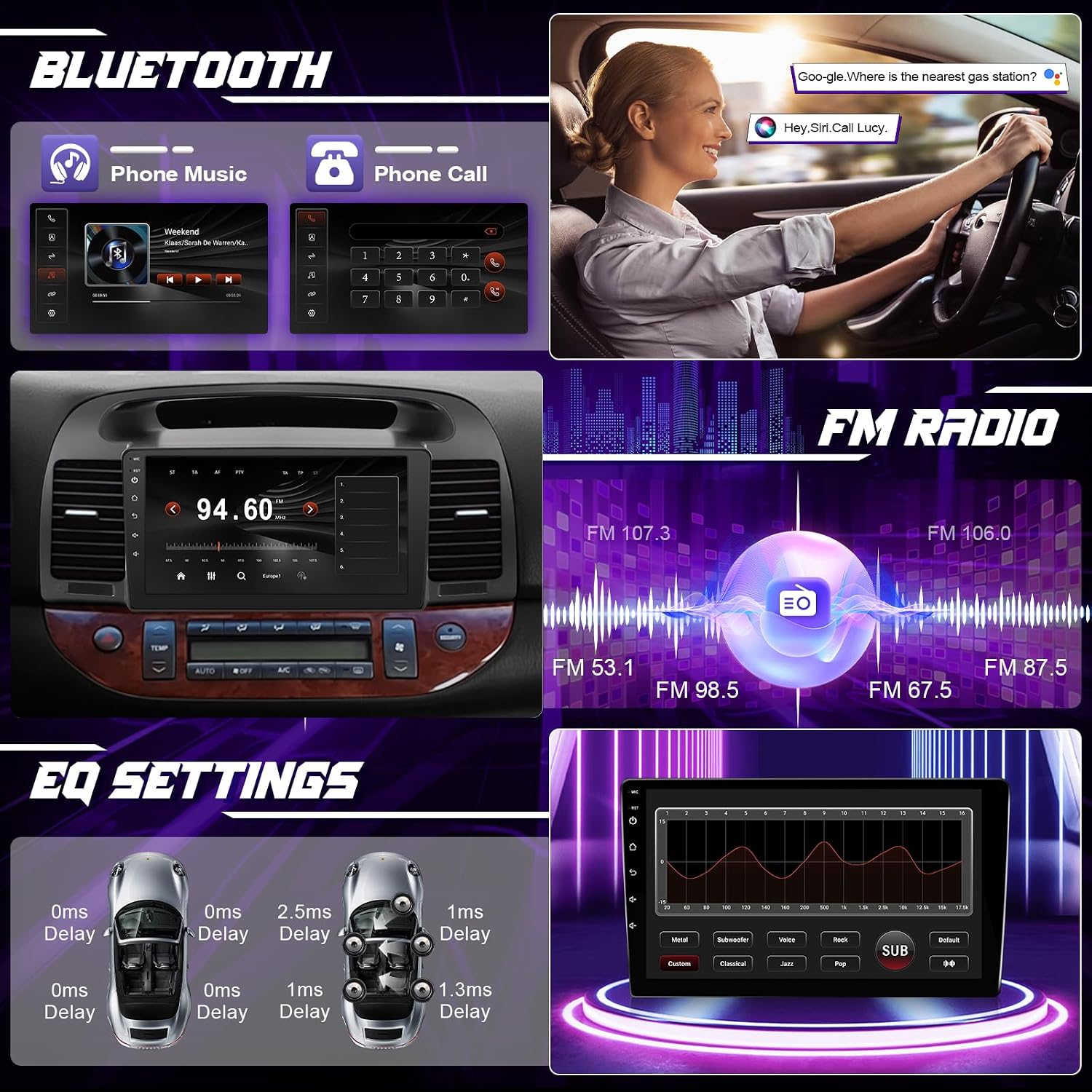
Utilize Bluetooth 5.1 for stable and high-quality audio streaming and hands-free calling. Pair your smartphone to make and receive calls, and play music directly from your device.
This image illustrates the Bluetooth functionality, displaying both the music playback screen when connected to a phone and the hands-free calling interface, including a dial pad and call management options.
5.6 FM Radio & Audio EQ
The built-in FM radio allows you to tune into your favorite stations. The unit also features an advanced audio equalizer (EQ) to customize sound output. Choose from preset modes (rock, pop, jazz, classical) or create your own custom sound profile.

This image presents the FM radio tuner interface, allowing users to select radio stations. It also includes a visual representation of the audio equalizer (EQ) settings, demonstrating how sound profiles can be customized for optimal listening experience.
5.7 Split-Screen Functionality
The split-screen feature allows you to run two applications simultaneously on the display. For example, you can have navigation open on one side and music playback on the other.
5.8 Steering Wheel Control (SWC)
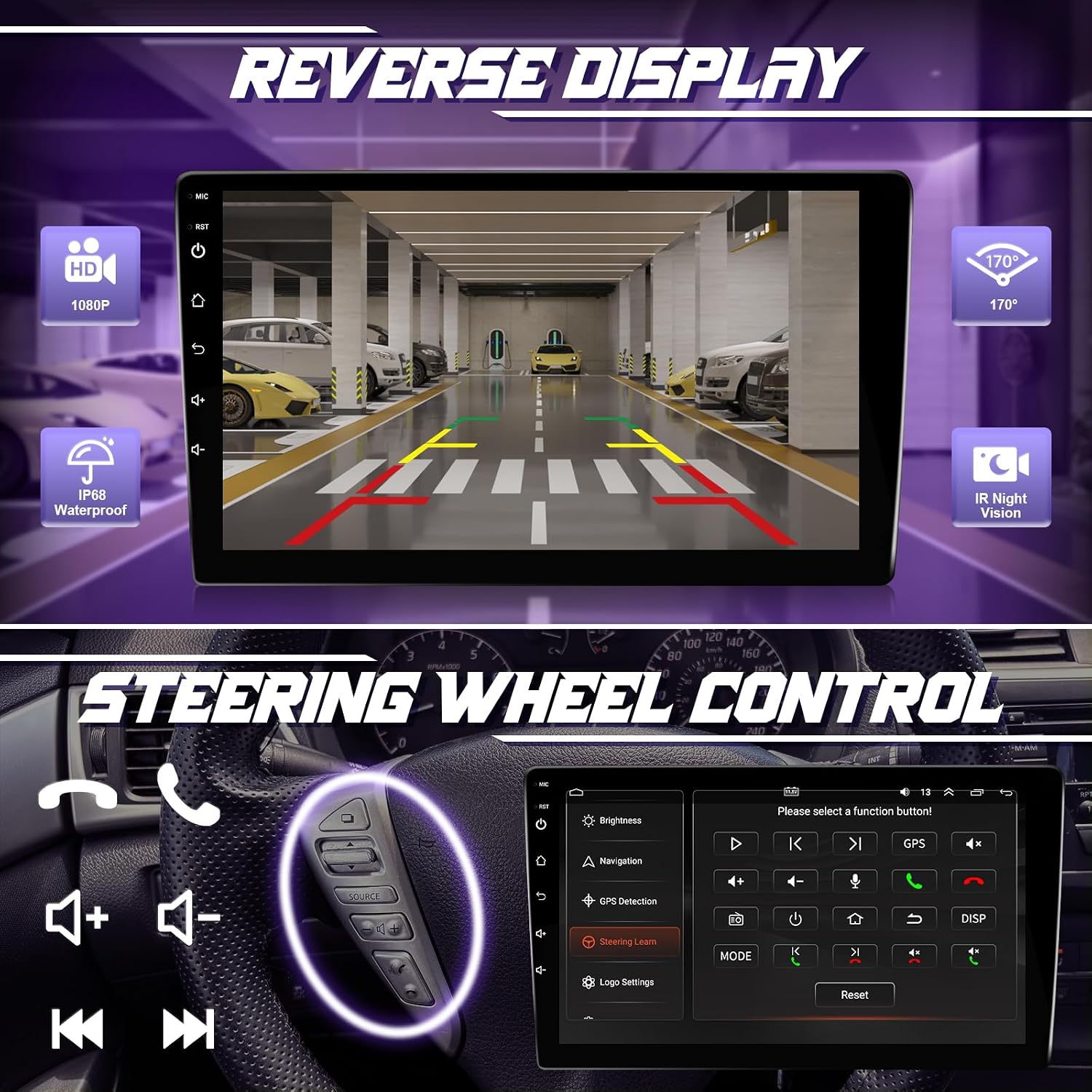
The unit supports your vehicle's existing steering wheel controls. This allows you to adjust volume, skip tracks, and answer calls without taking your hands off the steering wheel, enhancing safety and convenience.
5.9 Backup Camera
The included wide-angle backup camera with night vision provides clear rear visuals. When the vehicle is shifted into reverse, the radio player will automatically display the camera feed, assisting with parking and maneuvering.

This image displays two key features: the clear, wide-angle view from the backup camera shown on the radio screen, complete with parking guidelines, and an illustration of how the steering wheel controls can be used to manage the radio's functions without diverting attention from the road.
6. Specifications
| Feature | Specification |
|---|---|
| Brand | Leadfan |
| Model Number | SW600B-N1 |
| Screen Size | 9 inches |
| Display Type | IPS HD Touchscreen |
| Operating System | Android 12 |
| Processor | 8-Core |
| Memory (RAM) | 2GB |
| Storage (ROM) | 32GB |
| Connectivity | Wireless/Wired CarPlay, Android Auto, Mirrorlink, Bluetooth 5.1, Wi-Fi, USB |
| Navigation | Built-in GPS (online/offline maps) |
| Special Features | FM Radio, EQ Audio, Split-Screen, Backup Camera Support, Steering Wheel Control, Voice Control |
7. Maintenance
To ensure the longevity and optimal performance of your car radio, follow these maintenance guidelines:
- Cleaning: Use a soft, dry cloth to clean the screen and exterior. For stubborn smudges, a slightly damp cloth with a mild, non-abrasive cleaner can be used. Avoid harsh chemicals or abrasive materials.
- Software Updates: Periodically check for available software updates via the unit's Wi-Fi connection. Keeping the software updated ensures you have the latest features and performance improvements.
- Temperature: Avoid exposing the unit to extreme temperatures for extended periods.
- Connections: Ensure all cables and connections remain secure. Loose connections can lead to intermittent functionality.
8. Troubleshooting
If you encounter issues with your Leadfan car radio, refer to the following common troubleshooting steps:
- Unit Not Powering On:
- Check all power connections, including the main harness and fuse.
- Ensure the vehicle's ignition is on.
- No Bluetooth or Wi-Fi Functionality:
- Verify that the white plug in the wiring harness is securely connected to the radio. This connection is essential for these features.
- Ensure Bluetooth and Wi-Fi are enabled in the unit's settings.
- Touchscreen Unresponsive:
- Restart the unit by turning off the vehicle's ignition and then restarting it.
- Ensure the screen is clean and free from debris.
- GPS Signal Issues:
- Ensure the GPS antenna is properly connected and positioned in a location with a clear view of the sky.
- Check GPS settings within the unit.
- Sound Distortion or No Audio:
- Check speaker wire connections.
- Verify volume levels and EQ settings.
- Ensure the JBL system is correctly integrated via the wiring harness.
For further assistance, please refer to the detailed troubleshooting section in the full product manual or contact customer support.
9. Warranty and Support
For warranty information, please refer to the documentation provided with your purchase or contact Leadfan customer service. If you require technical support or have questions regarding your car radio, please reach out to Leadfan directly.
When contacting support, please have your product model number (SW600B-N1) and vehicle details (make, model, year, and whether it has a JBL system) ready to assist in a quicker resolution.


