
1. Setup
1.1 What's in the Box
Your Relndoo P30 Android Tablet package includes the following items:
- 10.1-inch Relndoo Android Tablet
- Bluetooth Keyboard
- Wireless Mouse
- Stylus Pen
- Green Foldable Protective Case
- Screen Protector (pre-applied)
- Charging Head (Adapter)
- USB-C Charger Cable
- User Manual

Image: All components included in the Relndoo P30 Tablet package.
1.2 Initial Charging
Before first use, fully charge your tablet. Connect the provided USB-C cable to the tablet's USB Type-C port and the charging head, then plug it into a power outlet. The 8000mAh battery provides extended usage time.

Image: The Relndoo P30 Tablet being charged via its USB-C port, highlighting the 8000mAh battery.
1.3 Powering On and Basic Setup
To power on the tablet, press and hold the power button located on the side until the Relndoo logo appears. Follow the on-screen instructions to select your preferred language, connect to a Wi-Fi network, and set up your Google account. This tablet runs on the latest Android 16 system.
Video: This video demonstrates the steps to change the system language on your Relndoo P30 tablet, a common initial setup step.
2. Operating Your Tablet
2.1 User Interface and Navigation
The Relndoo P30 tablet features an intuitive Android 16 operating system, designed for smooth navigation and enhanced privacy controls. Its octa-core processor ensures responsive performance for all your tasks, from gaming to multitasking.
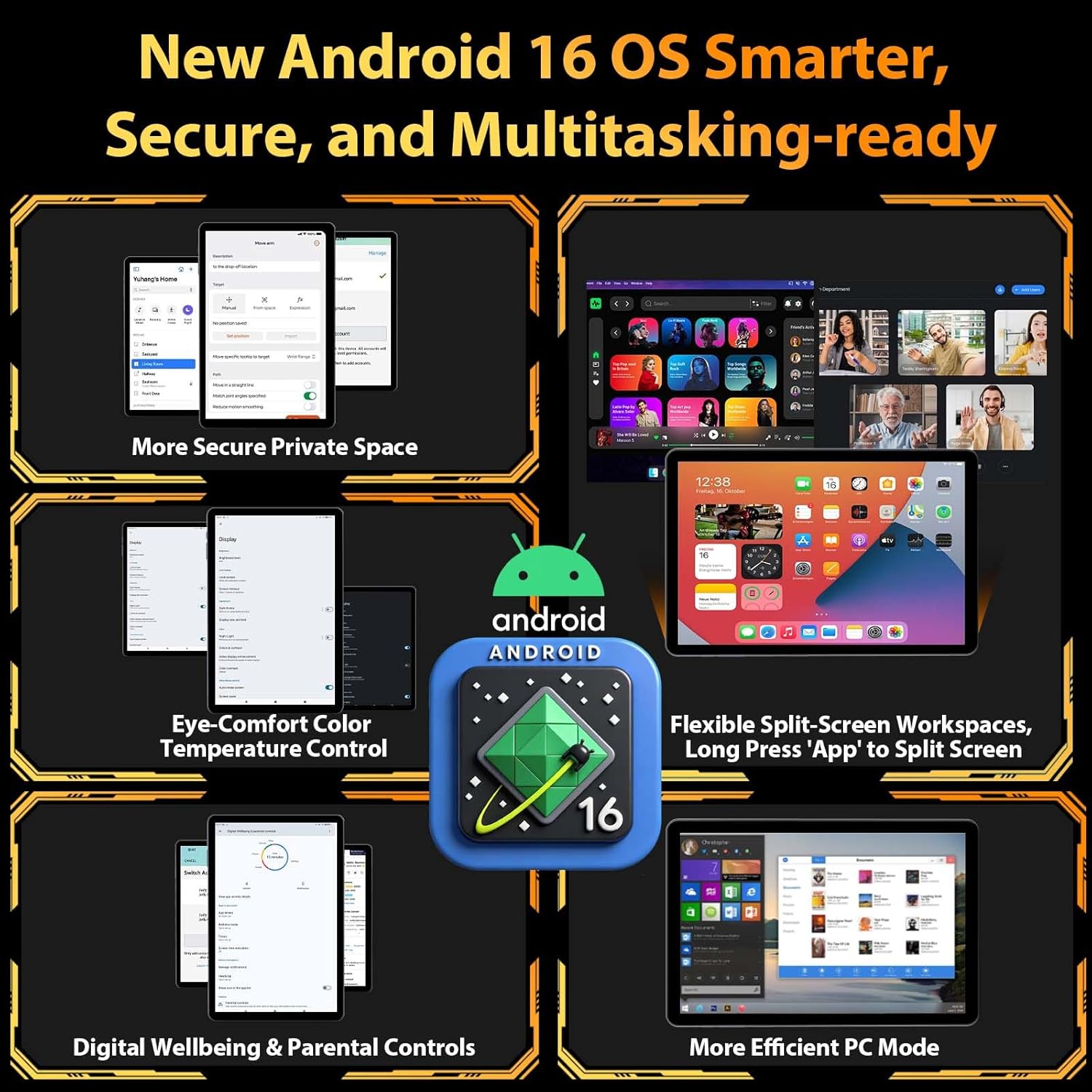
Image: Overview of the Android 16 operating system features, including enhanced security and multitasking capabilities.
2.2 App Management and Storage
With GMS certification, your tablet provides full access to Google Play Store, allowing you to download millions of apps. The tablet comes with 256GB of internal storage (ROM) and supports up to 2TB of expandable storage, complemented by 26GB of RAM (4GB physical + 22GB virtual) for seamless multitasking.
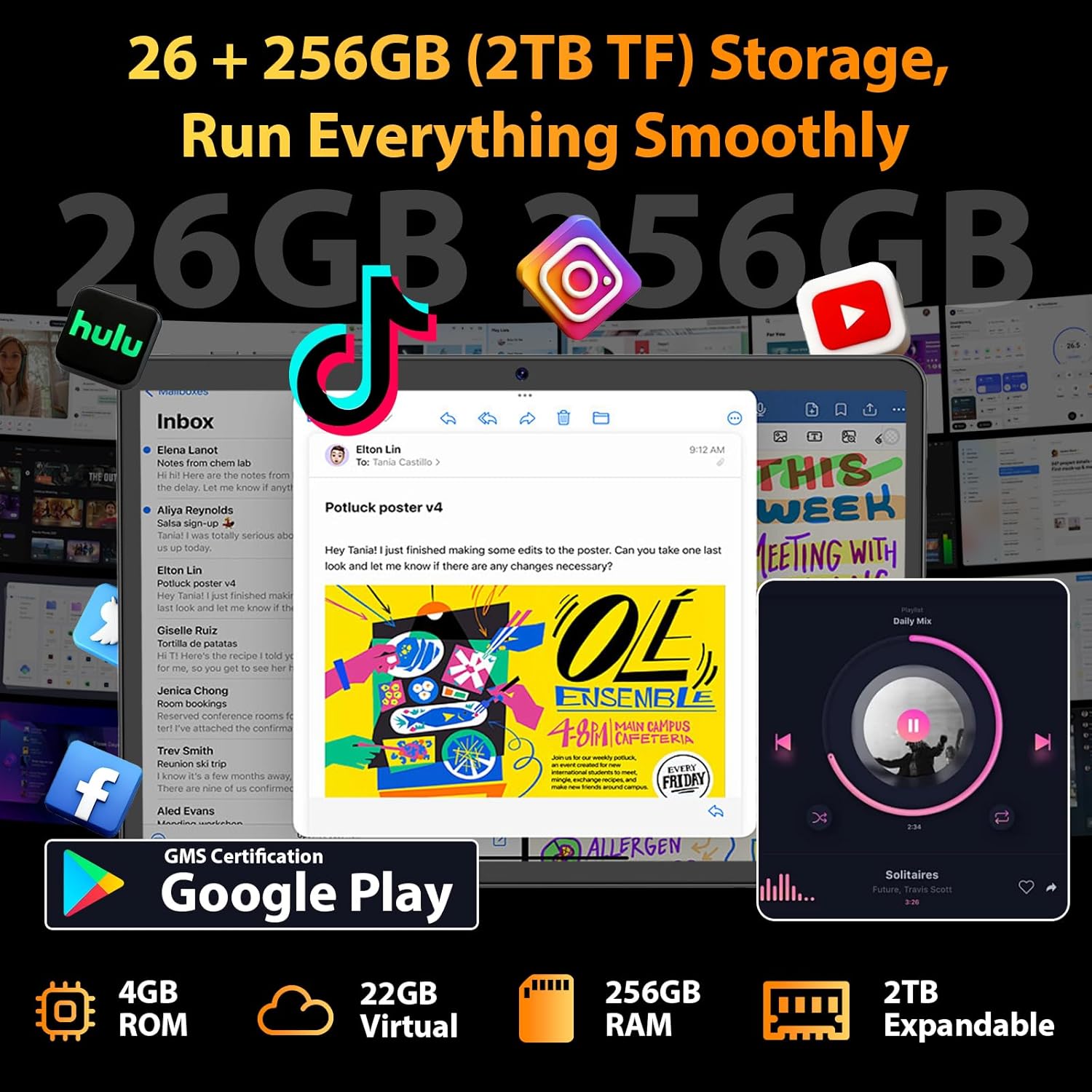
Image: The tablet screen showing various applications and storage specifications.
2.3 Split-Screen Functionality
Enhance your productivity by using the split-screen feature to run two applications simultaneously. This allows for efficient multitasking, such as taking notes while watching a video or browsing the web while chatting.
Video: This video demonstrates how to use the app split-screen feature on your Relndoo P30 tablet for improved multitasking.
2.4 Camera Features
Capture moments with the tablet's 13MP auto-focus rear camera and 5MP front camera, suitable for crisp photos and clear video calls. The tablet also supports precision face unlocking for quick and secure access.

Image: Details of the tablet's 5MP front and 13MP rear cameras, along with its slim profile.
2.5 Connectivity
The Relndoo P30 supports high-speed 2.4G/5G Wi-Fi and Bluetooth 5.0 for stable wireless connections. Integrated GPS allows for precise positioning and navigation. The casting function enables screen sharing with other devices on the same network.
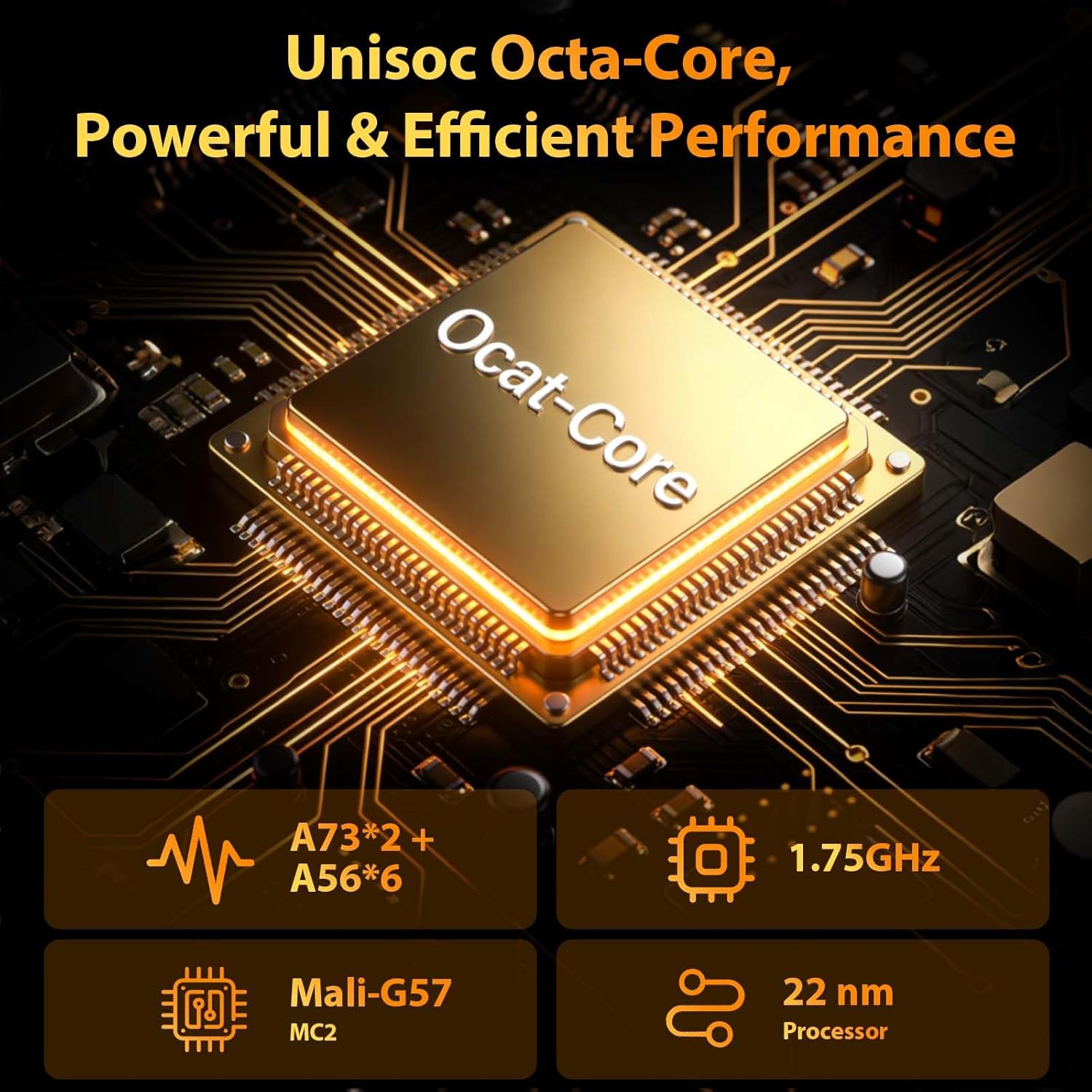
Image: Visual representation of the tablet's dual-band Wi-Fi, Bluetooth 5.0, and GPS capabilities.
2.6 Gemini AI Integration
The tablet is seamlessly integrated with Google's advanced Gemini AI, acting as an intelligent companion. It can assist with tasks such as email translation, report analysis, scheduling, planning, brainstorming, and explaining complex topics.

Image: Overview of the Gemini AI's functionalities on the tablet.
2.7 2-in-1 Tablet Mode
Transform your tablet into a portable workstation with the included Bluetooth keyboard, wireless mouse, and stylus. This allows for an efficient PC-level experience, ideal for work, study, and entertainment.

Image: A user demonstrating the tablet's 2-in-1 functionality with keyboard and mouse.
3. Maintenance
3.1 Battery Management
To maximize the lifespan of your 8000mAh battery, avoid extreme temperatures and fully discharge and recharge the battery periodically. Use only the provided charger or a compatible USB-C charger.
3.2 Storage Optimization
Regularly manage your 256GB internal storage. You can expand storage up to 2TB using a microSD card. To free up space and improve performance, clear app cache and data:
- Go to Settings.
- Select Apps.
- Choose the app you want to manage.
- Tap Storage & cache.
- Select Clear cache or Clear storage (this will delete app data).
3.3 System Updates
Keep your tablet's software up-to-date to ensure optimal performance, security, and access to new features. System updates are released periodically.
- Go to Settings.
- Scroll down and select System.
- Tap System updates.
- The tablet will check for available updates. Follow the on-screen prompts to download and install any updates.
Video: This video guides you through the steps to upgrade your system version on the Relndoo P30 tablet.
4. Troubleshooting
If you encounter issues with your Relndoo P30 tablet, refer to the solutions below. For persistent problems, contact customer support.
4.1 Wi-Fi Connectivity Issues
If your tablet is having trouble connecting to Wi-Fi or frequently drops the connection:
- Ensure Wi-Fi is enabled in Settings > Network & internet > Internet.
- Restart your Wi-Fi router and the tablet.
- Forget the network and reconnect by re-entering the password.
- Check if other devices can connect to the same Wi-Fi network.
Video: This video provides steps to troubleshoot Wi-Fi connection issues on your Relndoo P30 tablet.
4.2 App Permissions and Functionality
If an app, such as the camera, is not functioning correctly or cannot access necessary features, you may need to adjust its permissions.
- Go to Settings.
- Select Apps.
- Choose the problematic app.
- Tap Permissions and ensure all necessary permissions are granted.
Video: This video demonstrates how to enable camera permissions through system settings on your Relndoo P30 tablet.
4.3 Slow Performance
If your tablet is running slowly:
- Close unnecessary background applications.
- Clear app caches regularly (see Section 3.2).
- Ensure you have sufficient free storage space.
- Restart the tablet.
4.4 Factory Reset (Last Resort)
If other troubleshooting steps fail, a factory reset can resolve many software issues. Warning: This will erase all data on your tablet. Back up important data before proceeding.
- Go to Settings.
- Scroll down and select System.
- Tap Reset options.
- Select Erase all data (factory reset) and confirm.
5. Specifications
| Feature | Specification |
|---|---|
| Brand | Relndoo |
| Model Name | P30 |
| Operating System | Android 16 |
| Processor Brand | AMD (Octa-Core) |
| RAM Memory Installed | 26GB (4GB physical + 22GB virtual) |
| Memory Storage Capacity | 256GB (expandable to 2TB) |
| Screen Size | 10.1 Inches |
| Display Resolution Maximum | 1280x800 Pixels |
| Display Refresh Rate | 90Hz |
| Battery Capacity | 8000mAh |
| Battery Average Life | 12 Hours |
| Wireless Technology | Bluetooth 5.0, Wi-Fi (2.4G/5G) |
| Cellular Technology | 5G (Note: This refers to Wi-Fi 5Ghz band, not cellular 5G network connectivity) |
| Front Camera | 5MP |
| Rear Camera | 13MP |
| Color | Green |
| Item Dimensions (L x W x Thickness) | 10.7"L x 7.5"W x 2.5"Th |
6. Warranty and Support
6.1 Warranty Information
Your Relndoo P30 Tablet comes with a 2-year warranty, ensuring peace of mind regarding manufacturing defects and performance issues. Additionally, a 30-day return policy is available for eligible purchases.
6.2 Customer Support
For any questions, technical assistance, or warranty claims, please contact our customer support team:
- Via Amazon: Go to your Amazon Account > Order History > Select your Relndoo P30 Tablet order > Click 'Contact Seller'.
- Via Email: Refer to the official email address listed in your product packaging or on the Relndoo brand store page.
Our support team aims to respond to all inquiries within 24 hours, including weekends.