
Introduction
This manual provides detailed instructions for the installation, operation, and maintenance of your Loddery Android 13 Car Radio multimedia system. This unit is specifically designed for Citroën Berlingo 2 models manufactured between 2008 and 2019. It features a 10.1-inch touchscreen, Android 13 operating system, 4GB RAM, 64GB ROM, wireless CarPlay, Android Auto, GPS navigation, Mirror Link, Steering Wheel Control (SWC), DAB+ support, and FM radio. Please read this manual thoroughly before installation and use to ensure proper functionality and safety.
Setup and Installation
Before beginning installation, ensure your vehicle's ignition is off and the battery is disconnected. Professional installation is recommended.
Package Contents
Verify that all components are present in your package:

Image: Overview of the Loddery Car Radio package contents. This includes the main head unit, power cable, RCA input/output cables, two USB cables, camera input cable, GPS antenna, the instruction manual, and fixed mounting brackets.
- Main Head Unit (10.1-inch screen)
- Power Cable
- RCA Input/Output Cables
- 2 USB Cables
- Camera Input Cable
- GPS Antenna
- Instruction Manual
- Fixed Brackets
Wiring Diagrams
Follow these diagrams carefully for correct electrical connections.
Backup Camera Wiring
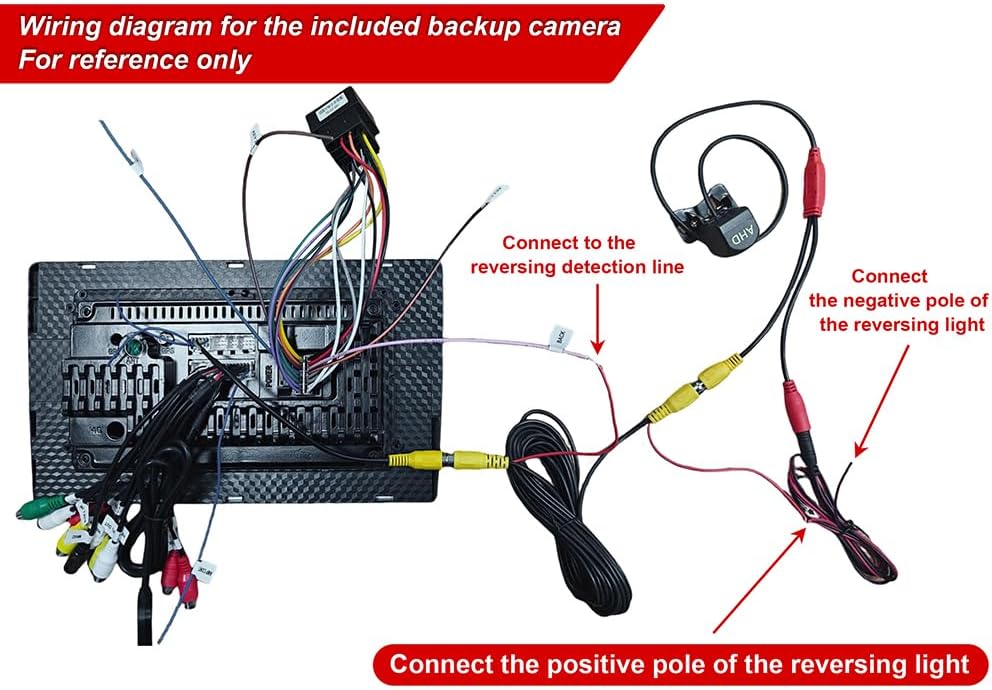
Image: Wiring diagram for the backup camera. Connect the camera's video output to the unit's camera input. The camera's power should be connected to the vehicle's reversing light circuit: the positive pole to the positive reversing light, and the negative pole to the negative reversing light. The reversing detection line from the head unit should also connect to the reversing light's positive pole.
Power Cord Wiring

Image: Detailed wiring diagram for the main power harness. Each pin is labeled with its function, including Ground (GND), Accessory (ACC), Reverse (Back), Steering Wheel Control (Key1, Key2), speaker outputs (FR+, FR-, FL+, FL-, RL+, RL-, RR+, RR-), illumination (ILL), antenna power (ANT Power), and battery positive (B+). Ensure each wire is connected to its corresponding function in your vehicle's wiring harness.
Initial Power On
After completing all wiring, reconnect the vehicle battery. Turn on the ignition. The unit should power on automatically. If not, press the power button on the unit. Follow any on-screen prompts for initial setup.
Operating Instructions
CarPlay and Android Auto
The unit supports both wireless and wired CarPlay and Android Auto. Connect your smartphone via USB or Bluetooth/Wi-Fi to access navigation, music, calls, and messages through the car radio interface.

Image: This image illustrates the user interfaces for both CarPlay (left) and Android Auto (right) on the car radio's display. It shows how users can interact with their smartphone's features, such as making calls, playing music, and navigating, using voice commands or the touchscreen. Both wireless and wired connections via Wi-Fi and USB are supported.
Mirror Link Function
Mirror Link allows you to project your smartphone screen onto the car radio display. iOS devices support one-way projection, while Android devices support two-way control. This feature is useful for displaying navigation apps or playing videos from your phone.

Image: This image demonstrates the Mirror Link feature, where a smartphone's display is mirrored onto the car radio screen. It also shows the split-screen capability, allowing users to run two applications simultaneously, such as navigation and a music player, enhancing multitasking while driving.
GPS Navigation and Wi-Fi Hotspot
The unit has a built-in GPS module supporting both online and offline navigation. Connect to Wi-Fi via a hotspot to download offline maps or use online navigation services like Google Maps. Wi-Fi connectivity also enables browsing the internet and downloading apps.

Image: This image displays the GPS navigation interface, showing a map with a route. Below, it illustrates the Wi-Fi Hotspot functionality, allowing the car radio to connect to the internet and access various applications like web browsers, social media, and streaming services, similar to a smartphone.
Bluetooth and FM Radio
Utilize the integrated Bluetooth for hands-free calling (A2DP) and wireless music streaming. The FM radio provides access to local stations, traffic updates, and news broadcasts.

Image: This image shows the Bluetooth interface for hands-free calling and music playback, displaying call information and song details. Below, it presents the FM radio interface, allowing users to tune into various frequencies and save presets for their favorite stations.
Steering Wheel Control (SWC) and Rear View Camera
The unit supports existing steering wheel controls, allowing you to manage audio and other functions without taking your hands off the wheel. When connected, an external rear view camera (AHD 720P compatible) will automatically display its feed when the vehicle is in reverse, enhancing parking safety.

Image: This image illustrates the functionality of a rear view camera, showing a clear, wide-angle, and night-vision enabled display when reversing. It also depicts a hand interacting with the steering wheel controls, demonstrating how these controls can be used to manage the car radio's functions, such as navigation and volume, without diverting attention from the road.
Split Screen Function
The split-screen feature allows you to run two applications simultaneously on the 10.1-inch display, for example, using navigation while listening to music or viewing a video.
Maintenance
To ensure the longevity and optimal performance of your car radio, follow these maintenance guidelines:
- Screen Cleaning: Use a soft, lint-free cloth to gently wipe the touchscreen. For stubborn smudges, slightly dampen the cloth with water or a screen-safe cleaner. Avoid harsh chemicals or abrasive materials.
- Software Updates: Periodically check for available software updates through the unit's settings menu. Keeping the software updated ensures optimal performance, security, and access to new features.
- Cable Connections: Ensure all cables are securely connected. Loose connections can lead to intermittent issues with audio, video, or power.
- Environmental Conditions: Avoid exposing the unit to extreme temperatures, direct sunlight for prolonged periods, or excessive moisture.
Troubleshooting
If you encounter issues with your car radio, refer to the following common problems and solutions:
- No Power:
- Check all power cable connections (B+, ACC, GND).
- Verify the vehicle's fuse for the radio is intact.
- Ensure the vehicle battery is properly connected and charged.
- No Sound:
- Check speaker wiring connections.
- Ensure volume is not muted or set to minimum.
- Verify audio output settings in the system menu.
- GPS Not Working/Inaccurate:
- Ensure the GPS antenna is properly installed and has a clear view of the sky.
- Check GPS settings in the unit.
- If using online maps, ensure Wi-Fi is connected and stable.
- Bluetooth Connection Issues:
- Ensure Bluetooth is enabled on both the car radio and your smartphone.
- Delete previous pairings and try pairing again.
- Restart both devices.
- Rear View Camera Not Displaying:
- Check the camera's power and video input connections.
- Ensure the reverse detection wire is correctly connected to the vehicle's reverse light circuit.
- Verify camera settings in the unit.
Specifications
| System | Android 13.0 |
| Screen Size | 10.1 inches |
| Memory (RAM + ROM) | 4GB RAM + 64GB ROM |
| Output Power | 4 x 45 W |
| Steering Wheel Controls | Supported |
| Radio | FM (DAB+ supported with optional accessory) |
| Video Output | Yes |
| External Microphone | Supported |
| Split Screen | Yes |
| GPS | Built-in module, supports offline and online maps |
| Wi-Fi | Yes (Hotspot supported) |
| Processor | Quad-core |
| Compatibility | Citroën Berlingo 2 (2008-2019) |
| Connectivity | Bluetooth, USB, Wi-Fi |
| Control Method | Application, Touch, Voice |
| Model Number | YMQYILI-QJ0645X-UN35-HWC-09 |
Warranty and Support
For warranty information, please refer to the documentation provided at the time of purchase or contact your retailer. If you require technical support or have questions not covered in this manual, please contact Loddery customer service through the contact information provided with your product or on the official Loddery website.