
1. Introduction
The Blindsmart Matter Smart Home Hub M1 Pro is a multi-protocol smart home gateway designed to unify your smart devices. It functions as a Matter Controller, Thread Border Router, Tuya Zigbee Hub, and Smart IR Hub. This device enables seamless integration with major Matter ecosystems such as Apple Home, Google Home, and SmartThings, providing centralized control over your smart home environment.

Image 1.1: The Blindsmart Matter Smart Home Hub M1 Pro, showcasing its compact design and external antenna.
2. What's in the Box
Verify that all components are present in the packaging before proceeding with the setup.
- M1 Pro Hub
- Network data cable (500mm)
- Type-C power cord (1000mm) with US adapter
- User Manual
- Card needle (for reset)

Image 2.1: Diagram illustrating the contents of the M1 Pro Hub package, including the hub, cables, adapter, and manual.
3. Setup Instructions
3.1 Initial Connection
- Connect the M1 Pro Hub to your router using the provided network data cable. A wired connection is required for the initial setup.
- Connect the Type-C power cord to the hub and plug the adapter into a power outlet.
- Wait for the indicator light on the hub to show a stable status, indicating it is ready for configuration.
3.2 App Installation and Configuration
- Download the Aqara Home app from your device's app store.
- Open the Aqara Home app and follow the on-screen instructions to add the M1 Pro Hub.
- During the setup process, you will be prompted to enter your Wi-Fi credentials. After successful configuration, the hub can operate wirelessly by unplugging the Ethernet cable.

Image 3.1: Illustration of the M1 Pro Hub's dual-band Wi-Fi and Ethernet connectivity, showing automatic switching to Wi-Fi when Ethernet is disconnected.
3.3 Adding Sub-Devices
Once the M1 Pro Hub is set up, you can begin adding Zigbee, Thread, and IR devices.
- In the Aqara Home app, navigate to the device addition section.
- Follow the specific pairing instructions for each type of sub-device (Zigbee, Thread, or IR).
- For Matter-enabled devices, the M1 Pro acts as a Matter bridge, allowing them to connect to compatible Matter ecosystems.

Image 3.2: Workflow for adding sub-devices and sharing with third-party platforms like Google Home, HomeKit, SmartThings, and Home Assistant.
4. Operating Instructions
4.1 Multi-Protocol Control
The M1 Pro Hub consolidates control for Zigbee, Thread, and infrared devices. Through its Matter bridge capabilities, it connects these devices to various Matter ecosystems, allowing you to manage them from a single interface like Apple Home, Google Home, or SmartThings.

Image 4.1: Diagram showing how the M1 Pro Hub supports Matter WiFi/Thread sub-devices connecting to the Tuya Smart APP, acting as a Matter Border Router.
4.2 Smart IR Blaster
The built-in 360° IR blaster allows you to control infrared appliances such as air conditioners and televisions. The hub features six high-power IR emitters for broad coverage. These IR devices can be exposed to your preferred voice assistants and smart home apps via Matter, though specific functionality may vary by platform.

Image 4.2: Visual representation of the M1 Pro Hub's IR control capabilities, showing its 360° coverage and six IR emitters controlling various appliances.
4.3 Local Automations
The M1 Pro Hub supports local execution of scenes and rules, ensuring that your automations continue to function even if your internet connection is lost. It also supports cross-gateway automations if multiple M1 Pro hubs are on the same network. Device lists and automation rules are stored onboard, enhancing privacy and reliability.

Image 4.3: Screenshots of the M1 Pro Hub interface within Tuya, Home Assistant, Google Home, HomeKit, and SmartThings applications.
5. Maintenance
5.1 Cleaning
To clean the M1 Pro Hub, use a soft, dry cloth. Avoid using liquid cleaners or aerosols, as these can damage the device.
5.2 Optimal Placement
For best performance, place the M1 Pro Hub approximately 6 to 19 feet (1.8 to 5.8 meters) from your Wi-Fi router. Ensure it is placed on a stable surface and away from direct heat sources or excessive moisture.
5.3 Firmware Updates
Periodically check the Aqara Home app for available firmware updates. Keeping your hub's firmware up-to-date ensures optimal performance, security, and access to new features.
6. Troubleshooting
6.1 Connectivity Issues
- Hub not connecting to network: Ensure the Ethernet cable is securely connected for initial setup. If using Wi-Fi, verify your Wi-Fi credentials in the app and that the hub is within range of your router.
- Intermittent connection: Try repositioning the hub closer to your router. Ensure there are no major obstructions (e.g., thick walls, large metal objects) between the hub and your router or sub-devices.
6.2 Device Pairing Failures
- Sub-device not found: Ensure the sub-device is in pairing mode and within range of the M1 Pro Hub. Check the sub-device's manual for specific pairing instructions.
- Zigbee/Thread device issues: Verify that the M1 Pro Hub's Zigbee/Thread radio is active and not experiencing interference.
6.3 Automations Not Running
- Automations offline: The M1 Pro Hub supports local automations, so they should run even without internet. If not, check the hub's power and network connection.
- Gateway failure: If an M1 Pro gateway fails, simply add a new one to the network. All devices and automations are designed to be instantly restored without re-pairing.
6.4 Resetting the Hub
If you encounter persistent issues, you may need to reset the hub. Locate the reset button (often a small pinhole) and use the provided card needle to press and hold it for approximately 5-10 seconds until the indicator light changes, signaling a reset.
7. Specifications
| Product Name | Zemismart Matter Thread Zigbee Hub |
| Product Model | M1 Pro |
| Wireless Protocols | Wi-Fi / Zigbee / Thread |
| WiFi Type | Dual-band 2.4GHz & 5GHz Wi-Fi |
| Ethernet LAN | 100M adaptive / 1 * RJ45 network port |
| Zigbee | High-performance Silicon Labs chipdelivers stable connectivity and achieves exceptional RF performance with an external metal antenna. |
| IR | 6 * Infrared emitter tube |
| Indicator Light | 1 * network indicator light, 1 * status indicator light |
| Charging Port | Type-C |
| RTC Real-Time Clock Chip | Built-in RTC and coin battery support precise execution of local time-based tasks. |
| Working Temperature | 0–45°C |
| Storage Temperature | -10–60°C |
| Working Humidity | 10%–90% RH (non-condensing) |
| Input | 5V 2A |
| Type | EU/AU/US (By country selection) |
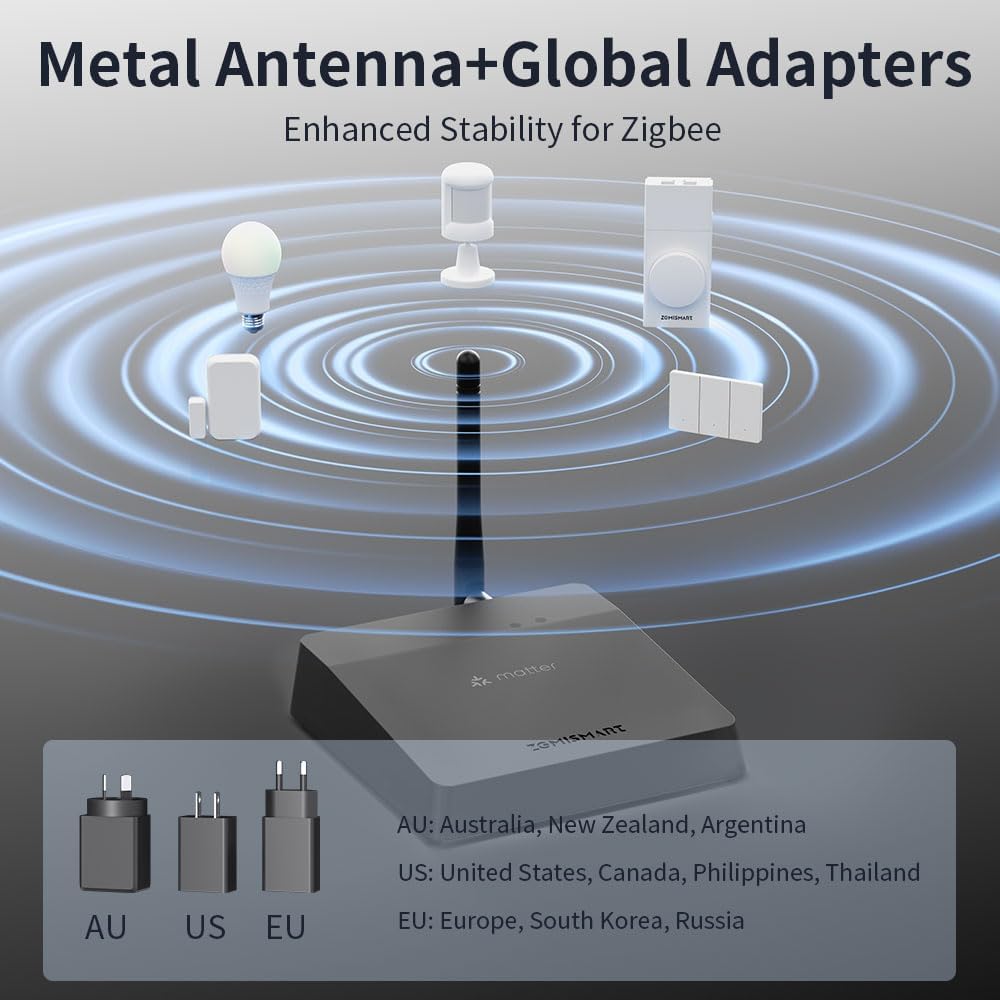
Image 7.1: The M1 Pro Hub featuring its metal antenna for enhanced Zigbee stability and illustrating various global power adapters (AU, US, EU).
8. Warranty & Support
For warranty information and technical support, please refer to the documentation provided with your purchase or contact Blindsmart customer service. Details can typically be found on the manufacturer's official website or through your retailer.