
1. Product Overview
The Edifier CC300 is a professional Bluetooth 6.0 communicator headset designed for reliable and high-quality audio communication in various professional environments. It features AI-enhanced dual-microphone noise filtering, a 30mm dynamic driver for clear sound, and multiple connectivity options for versatile use.
2. Package Contents
- Edifier CC300 Headset
- USB-C Dongle
- USB-A to USB-C Charging Cable
- User Manual
3. Product Features
The Edifier CC300 headset is engineered for comfort and performance, featuring a lightweight design and a flexible microphone arm.

Figure 3.1: Edifier CC300 Headset with included USB-C dongle and charging cable.

Figure 3.2: Side view of the Edifier CC300 Headset with the microphone arm extended.

Figure 3.3: The microphone arm can rotate 240 degrees for flexible positioning on either the left or right side.
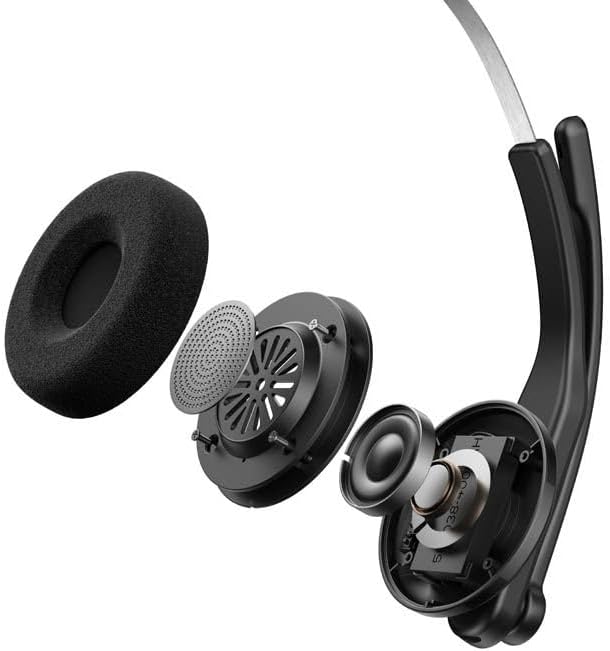
Figure 3.4: Exploded view showing the internal components of the earcup, including the 30mm dynamic driver.
4. Setup
4.1 Initial Charging
Before first use, fully charge the headset using the provided USB-A to USB-C cable. Connect the USB-C end to the headset and the USB-A end to a power source (e.g., computer USB port or wall adapter). The charging indicator light will show the charging status.
4.2 Powering On/Off
- To Power On: Press and hold the Power button until the indicator light illuminates.
- To Power Off: Press and hold the Power button until the indicator light turns off.
4.3 Wearing the Headset
Adjust the headband for a comfortable fit. The microphone arm can be rotated 240 degrees to be positioned on either the left or right side of your face. Position the microphone approximately 2-3 cm from your mouth for optimal voice pickup.
5. Operating Instructions
The Edifier CC300 features intuitive controls for managing calls and audio playback.

Figure 5.1: Diagram illustrating the control buttons and their functions on the Edifier CC300 Headset.
5.1 Button Functions
| Action | Function |
|---|---|
| Press and hold (Power Button) | Power On/Off |
| Press 1x (Mute Button) | Activate/Deactivate Mute (during calls) |
| Press 1x (Volume Up) | Increase Volume |
| Press and hold (Volume Up) | Next Track |
| Press and hold (Volume Down) | Decrease Volume |
| Press 1x (Volume Down) | Previous Track |
| Press 1x (Call Button) | Play/Pause Audio; Answer/End Call |
| Press and hold (Call Button) | Reject Call |
| Press 2x (Call Button) | Redial Last Number |
6. Connectivity Options
The Edifier CC300 offers three versatile connection methods:
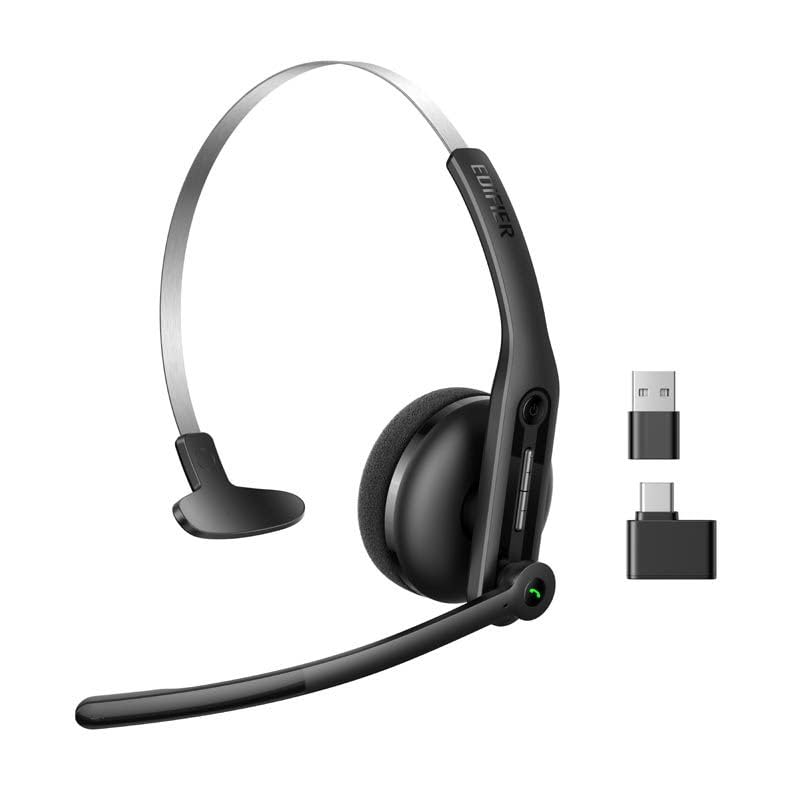
Figure 6.1: Visual representation of the three connectivity options: Bluetooth, USB-C dongle, and wired USB-A.
6.1 Bluetooth Connection
- Ensure the headset is powered on and in pairing mode (indicator light flashing).
- On your device (smartphone, laptop), enable Bluetooth and search for "EDIFIER CC300".
- Select the headset to pair. Once connected, the indicator light will turn solid blue.
6.2 USB-C Dongle Connection
- Plug the provided USB-C dongle into an available USB-C port on your computer.
- Power on the headset. It will automatically connect to the dongle for a stable, low-latency connection.
6.3 Wired USB-A Connection
- Connect the headset to your computer using the provided USB-A to USB-C cable.
- The headset will function as a wired audio device, providing zero interference.
7. Battery and Charging
The CC300 headset is designed for extended use with a long-lasting battery.
- Battery Life: Up to 72 hours for audio playback, or 36 hours for talk time.
- Charging Time: Approximately 1.5 hours for a full charge.
- Charging Indicator: Refer to the LED indicator on the headset for charging status.
To charge, connect the headset to a power source using the USB-A to USB-C cable.
8. Maintenance
- Cleaning: Use a soft, dry cloth to clean the headset. Do not use liquid cleaners or aerosols.
- Storage: Store the headset in a cool, dry place away from direct sunlight and extreme temperatures.
- Avoid Moisture: Keep the headset away from water and high humidity to prevent damage.
- Handle with Care: Avoid dropping or subjecting the headset to strong impacts.
9. Troubleshooting
9.1 No Sound or Poor Audio Quality
- Ensure the headset is powered on and properly connected (Bluetooth, dongle, or wired).
- Check the volume levels on both the headset and your connected device.
- If using Bluetooth, ensure the headset is within range of your device.
- Try restarting both the headset and your connected device.
9.2 Microphone Not Working
- Ensure the microphone is not muted (check the mute button).
- Verify that the headset is selected as the input device in your computer's or device's sound settings.
- Ensure the microphone arm is positioned correctly near your mouth.
9.3 Headset Not Pairing via Bluetooth
- Ensure the headset is in pairing mode (indicator light flashing).
- Turn off Bluetooth on other nearby devices to avoid interference.
- Forget the device from your device's Bluetooth list and try pairing again.
10. Specifications
| Feature | Detail |
|---|---|
| Brand | Edifier |
| Model Name | CC300 |
| Color | Black |
| Connectivity Technology | Wireless (Bluetooth), Wired (USB-A), USB-C Dongle |
| Bluetooth Version | 6.0 |
| Bluetooth Protocols | A2DP, AVRCP, HFP |
| Audio Codec | SBC |
| Driver Type | 30mm Dynamic Driver |
| Frequency Response | 20Hz - 20KHz |
| Sound Pressure Level | 94 ± 3dB(A) |
| Battery Capacity | 400mAh |
| Music Playback Time | Approx. 72 hours |
| Talk Time | Approx. 36 hours |
| Charging Time | Approx. 1.5 hours |
| Power Input | 5V/500mAh |
| Weight | 70 Grams |
| Special Features | AI-enhanced Dual-Mic Noise Cancellation |
| Compatible Devices | Mobile Phones, Desktops, Laptops |
11. Warranty and Support
11.1 Warranty Information
The Edifier CC300 Headset comes with a 1-year warranty from the date of purchase, covering manufacturing defects. Please retain your proof of purchase for warranty claims. The warranty does not cover damage caused by misuse, accidents, unauthorized modifications, or normal wear and tear.
11.2 Customer Support
For technical assistance, troubleshooting, or warranty inquiries, please contact Edifier customer support through their official website or the contact information provided with your product packaging. You may also visit the Edifier Store on Amazon for more information.


