
Introduction
The Diofox M8 is an advanced Android-powered MP3 player designed for portable entertainment. Featuring 80GB of storage, Bluetooth, and Wi-Fi connectivity, it supports a wide range of audio and video formats and allows access to various applications. This manual provides essential information for setting up, operating, maintaining, and troubleshooting your device.
What's in the Box
Please check the package contents to ensure all items are present:
- Diofox Android MP3 Player (Black)
- 64GB MicroSD Card (pre-installed)
- USB-C Charging Cable
- Wired Earphones
- Screen Protector
- Protective Silicone Case
- User Manual (this document)
Setup
1. Charging the Device
Before first use, fully charge your Diofox M8 player. Connect the provided USB-C cable to the device's charging port and the other end to a USB power adapter (not included) or a computer's USB port. The charging indicator will show the charging status.

Image: The Diofox M8 MP3 Player, illustrating its sleek design and the USB-C charging port.
2. Powering On/Off
- To Power On: Press and hold the Power button on the side of the device until the screen lights up.
- To Power Off: Press and hold the Power button, then select 'Power Off' from the options that appear on the screen.
3. Inserting/Expanding Storage (MicroSD Card)
Your device comes with a 64GB MicroSD card pre-installed, providing 80GB total storage (16GB internal + 64GB external). You can expand storage up to 1TB by replacing the MicroSD card.
- Locate the MicroSD card slot on the side of the device.
- Gently push the existing card to eject it, or insert a new card with the gold contacts facing down until it clicks into place.

Image: The Diofox M8 display indicating 80GB storage capacity, with icons for RAM, ROM, and MicroSD card.
4. Connecting to Wi-Fi
Wi-Fi connectivity allows you to download apps, stream music, and access online content.
- From the home screen, swipe down from the top to open the Quick Settings panel.
- Tap the Wi-Fi icon to turn it on.
- Go to Settings > Network & internet > Wi-Fi.
- Select your desired Wi-Fi network from the list and enter the password if prompted.
5. Pairing Bluetooth Devices
Connect wireless headphones, speakers, or other Bluetooth accessories for a cable-free experience.
- Ensure the Bluetooth device you wish to pair is in pairing mode.
- On your Diofox M8, swipe down from the top to open Quick Settings and tap the Bluetooth icon to turn it on.
- Go to Settings > Connected devices > Pair new device.
- Select your Bluetooth device from the list and follow any on-screen prompts to complete pairing.

Image: The Diofox M8 display with Bluetooth and Wi-Fi icons, indicating active wireless connections.
Operating Instructions
1. Basic Navigation
The Diofox M8 features a 4-inch IPS touch screen for intuitive control.
- Tap: Select an item or open an app.
- Swipe: Scroll through lists or switch between screens.
- Pinch-to-Zoom: Zoom in or out on images or web pages.
- Back Button: Located at the bottom of the screen, returns to the previous screen.
- Home Button: Located at the bottom of the screen, returns to the home screen.
2. Playing Music and Videos
The device supports various audio and video formats including MP3, FLAC, WAV, AAC, RM, RMVB, FLV, MP4, DAT, MKV, MPG, MOV, and TS.
- Open the 'Music' or 'Video' app from the home screen.
- Browse your stored files by artist, album, genre, or folder.
- Tap on a file to begin playback.
- Use the on-screen controls for play/pause, skip, volume adjustment, and repeat/shuffle functions.

Image: The Diofox M8 screen showing a music playback interface with album art and controls.
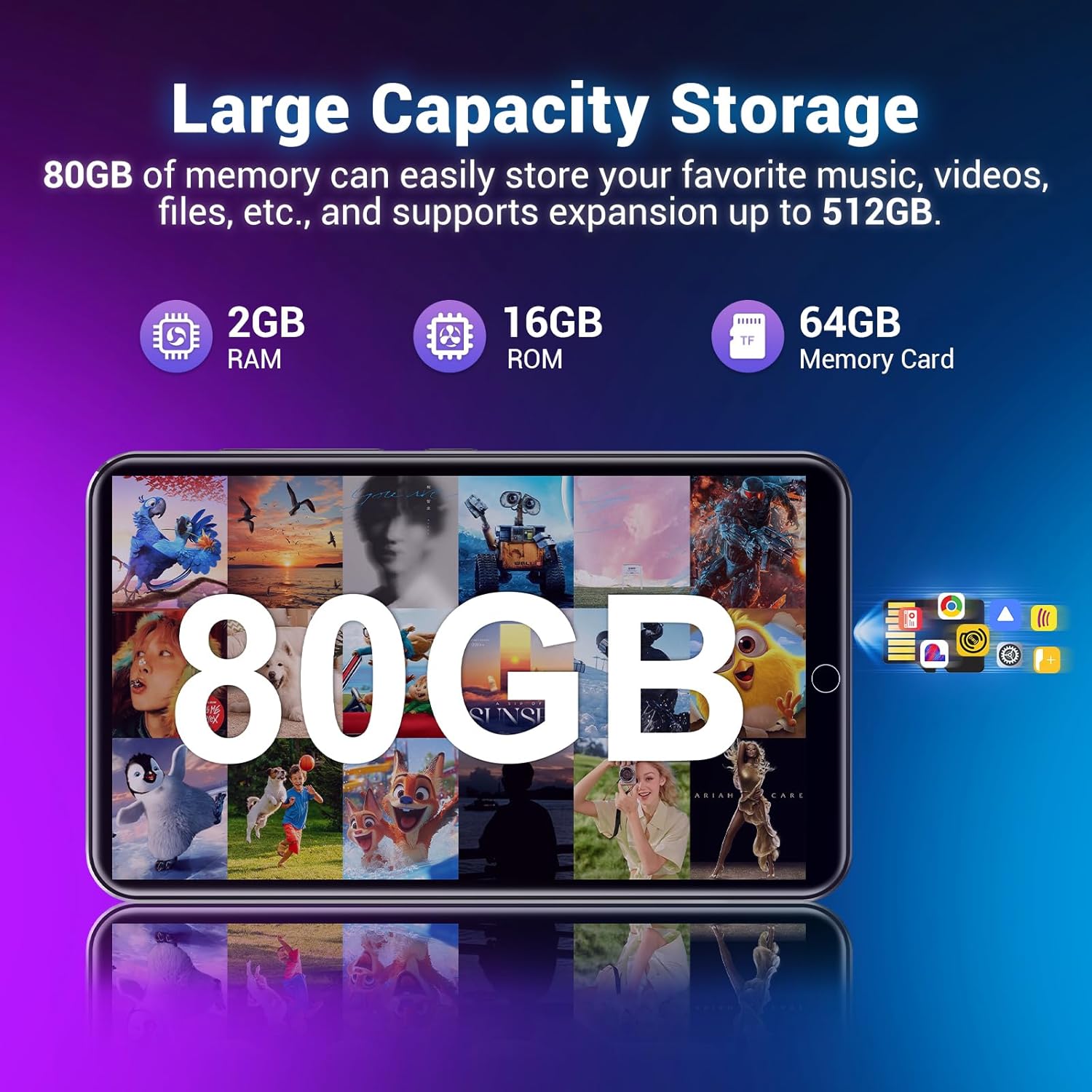
Image: The Diofox M8 screen displaying a high-definition video, demonstrating its video playback capabilities.
3. Downloading and Using Apps
The Diofox M8 runs on Android 9.0, allowing you to download and use various applications.
- Ensure your device is connected to Wi-Fi.
- Access the app store (e.g., Google Play Store or a pre-installed alternative) from the home screen.
- Search for desired apps like Spotify Kids, Audible, Pandora, Amazon Music, or Libby.
- Follow the on-screen instructions to download and install apps.
- Once installed, tap the app icon to launch it.

Image: The Diofox M8 home screen displaying a grid of application icons, including popular streaming services.
4. Transferring Files
You can transfer music, videos, and other files to your Diofox M8 from a computer.
- Connect your Diofox M8 to a computer using the provided USB-C cable.
- On the device, swipe down from the top of the screen to open the notification panel.
- Tap the 'USB charging this device' notification and select 'File transfer' (MTP).
- Your device will appear as a removable drive on your computer. You can now drag and drop files to the appropriate folders (e.g., 'Music', 'Videos').
Maintenance
1. Cleaning the Device
To keep your Diofox M8 in optimal condition:
- Use a soft, lint-free cloth to wipe the screen and body.
- Avoid using harsh chemicals, abrasive cleaners, or aerosol sprays.
- Do not allow moisture to enter openings.
2. Battery Care
The device has a 2000mAh battery, offering up to 50 hours of music playback or 9 hours of video. To prolong battery life:
- Avoid extreme temperatures.
- Do not leave the device fully discharged for extended periods.
- Charge the device regularly, but avoid overcharging.

Image: The Diofox M8 displaying battery life statistics, highlighting its 2000mAh capacity and usage hours.
3. Software Updates
Periodically check for software updates to ensure optimal performance and access to new features.
- Connect to Wi-Fi.
- Go to Settings > System > System update.
- Follow the on-screen instructions to download and install any available updates.
Troubleshooting
| Problem | Solution |
|---|---|
| Device does not power on. | Ensure the battery is charged. Connect to a charger for at least 30 minutes. If unresponsive, perform a hard reset by holding the power button for 10-15 seconds. |
| Cannot connect to Wi-Fi. | Check if Wi-Fi is enabled in settings. Verify the Wi-Fi password. Restart the device and your Wi-Fi router. |
| Bluetooth device not pairing. | Ensure the Bluetooth device is in pairing mode and within range. Turn Bluetooth off and on again on the Diofox M8. Forget and re-pair the device if previously connected. |
| Apps are slow or crashing. | Close background apps. Clear app cache (Settings > Apps > [App Name] > Storage > Clear cache). Ensure sufficient storage space is available. Restart the device. |
| Cannot transfer files to/from computer. | Ensure the USB connection mode is set to 'File transfer' (MTP) on the device. Try a different USB port or cable. |
| Poor sound quality. | Check headphone connection or Bluetooth pairing. Test with different headphones. Ensure audio files are not corrupted. |
Specifications
| Feature | Detail |
|---|---|
| Brand | Diofox |
| Model Name | M8 |
| Operating System | Android 9.0 |
| Memory Storage Capacity | 80 GB (16GB internal + 64GB MicroSD pre-installed) |
| Expandable Storage | Up to 1TB via Micro SD card |
| Connectivity Technology | Aux, Bluetooth 4.2, USB-C, Wi-Fi |
| Screen Size | 4 Inches IPS Touch Screen |
| Display Technology | LCD |
| Battery Capacity | 2000mAh |
| Battery Life (Approx.) | 50 hours (music playback), 9 hours (video playback) |
| Supported Audio Formats | MP3, FLAC, WAV, AAC, OGG, WMA, APE |
| Supported Video Formats | RM, RMVB, FLV, MP4, DAT, MKV, MPG, MOV, TS |
| Item Weight | 200 Grams |
| Item Dimensions (D x W x H) | 0.3"D x 1.98"W x 2.49"H |
| Special Feature | Built-In Camera |
Warranty and Support
Warranty Information
The Diofox M8 MP3 Player comes with a 2-year warranty. Please retain your proof of purchase for warranty claims.
Customer Support
For technical assistance, troubleshooting beyond this manual, or warranty inquiries, please contact Diofox customer support through the retailer's platform or visit the official Diofox website for contact details.
