
Introduction
This manual provides detailed instructions for the safe and effective operation of your Yixinxin HXUP008BU02 Underwater Digital Camera. Please read this manual thoroughly before using the camera to ensure proper function and to prevent damage.
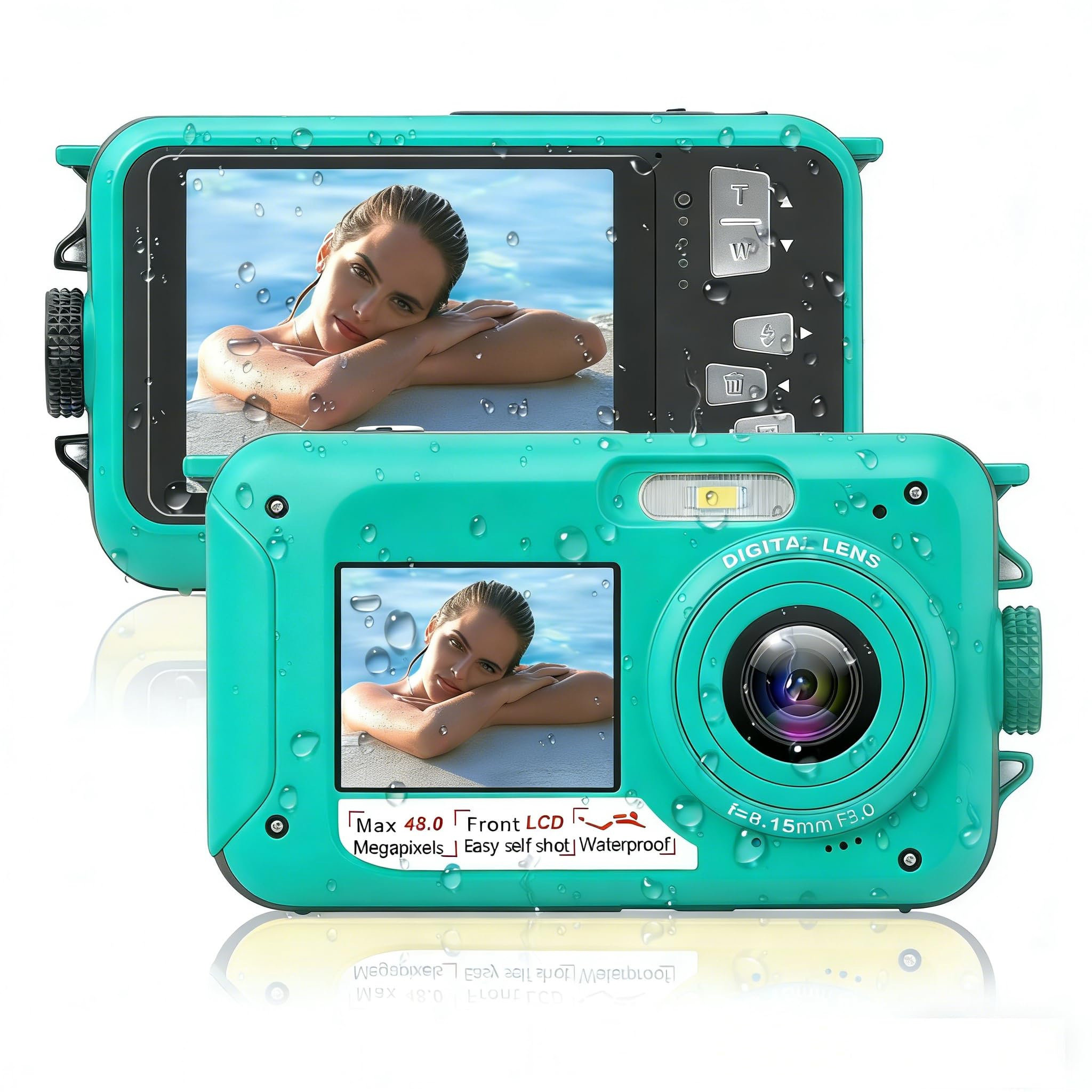
Figure 1: Yixinxin HXUP008BU02 Underwater Digital Camera. This image displays the camera's front, highlighting its dual screens and lens, designed for both standard and selfie photography.
Safety Information
- Ensure the battery compartment is securely sealed before submerging the camera in water.
- Do not exceed the maximum water depth of 11 feet (3.3 meters) or the maximum submersion time of one hour per use.
- Avoid exposing the camera to extreme temperatures or direct sunlight for extended periods.
- Use only the specified battery type and charger.
- Keep the camera away from strong magnetic fields.
- Clean the camera with a soft, damp cloth. Do not use harsh chemicals.
Package Contents
Verify that all items are present in the package:
- 1 x Digital Camera (Yixinxin HXUP008BU02)
- 1 x Lithium-ion Battery (1250 mAh)
- 1 x User Manual (this document)
- 1 x USB Cable
- 1 x Camera Bag
- 1 x 32 GB Memory Card
Camera Overview
Familiarize yourself with the camera's components and controls.
(Note: Specific diagrams or images of camera buttons and ports would be included here if available.)
- Front Screen: 1.8-inch LCD for selfies.
- Rear Screen: 2.7-inch LCD for general viewing and menu navigation.
- Lens: Main camera lens.
- Flash: Built-in flash for low-light conditions.
- Shutter Button: To capture photos or start/stop video recording.
- Power Button: To turn the camera on or off.
- Mode Button: To switch between photo and video modes.
- Navigation Buttons: For menu navigation and zoom control.
- Battery Compartment: Located at the bottom/side, houses the battery and memory card slot.
- USB Port: For charging and data transfer.
Setup
1. Battery Installation and Charging
- Locate the battery compartment door. This door is designed to be tight for waterproofing.
- Open the battery compartment door carefully. Refer to the diagram below for assistance.
- Insert the provided lithium-ion battery (1250 mAh) into the compartment, ensuring correct polarity.
- Close the battery compartment door firmly until it clicks, ensuring a watertight seal.
- Connect the camera to a power source using the supplied USB cable for charging. The charging indicator will illuminate.
- Charging is complete when the indicator light changes or turns off.
Figure 2: Battery Compartment Access. This image illustrates the method for opening the battery compartment, which is designed to be tight for waterproofing purposes.
2. Memory Card Installation
- With the battery compartment open, locate the memory card slot.
- Insert the provided 32GB micro SD card into the slot until it clicks into place. The camera supports micro SD cards up to 128GB.
- Close the battery compartment door securely.
3. Waterproofing Seal Check
Before each underwater use, inspect the rubber seal around the battery and memory card compartment for any dirt, hair, or damage. A clean and intact seal is crucial for preventing water leakage.
Operating Instructions
1. Power On/Off
- To power on, press and hold the Power Button.
- To power off, press and hold the Power Button again.
- The camera features an auto power-off function (Off/60s/180s/300s) to conserve battery. Adjust this setting in the camera menu.
2. Mode Selection
Press the Mode Button to switch between Photo mode and Video recording mode.
3. Taking Photos
- Ensure the camera is in Photo mode.
- Frame your shot using the rear 2.7-inch LCD screen.
- Press the Shutter Button halfway to allow the autofocus to engage.
- Press the Shutter Button fully to capture the image. The camera supports up to 56.0 MP image resolution.
4. Recording Videos
- Switch the camera to Video recording mode.
- Press the Shutter Button to start recording. A timer or indicator will appear on the screen.
- Press the Shutter Button again to stop recording.
- Video resolutions supported include 4K, FHD 2.7K, FHD 1920x1080, HD 1280x720P, VGA, and QVGA.
5. Dual Screen Operation (Selfie Mode)
To use the front 1.8-inch screen for selfies, activate the dual-screen function (usually via a dedicated button or menu option). This allows you to frame yourself while holding the camera forward.
6. Underwater Use
- Ensure the battery and memory card compartments are completely sealed before submersion.
- The camera is waterproof up to 11 feet (3.3 meters) for a maximum of one hour per use.
- After underwater use, rinse the camera with fresh water and dry it thoroughly before opening any compartments.
7. Camera Settings
Access the camera's menu to adjust various settings:
- Anti-shake: Electronic Image Stabilization can be enabled for smoother footage.
- Self-timer: Set a delay of 2s, 5s, or 10s before a photo is taken.
- ISO: Adjust sensitivity (Automatic, 100, 200, 400) for different lighting conditions.
- Flash: Options include Off, Automatic Flash, and Mandatory Flash.
- Continuous Shooting: Enable for capturing multiple photos in quick succession.
8. Connecting to a Computer
Use the provided USB cable to connect the camera to your computer. The camera will appear as a removable disk, allowing you to transfer photos and videos.
Maintenance
- Cleaning: Wipe the camera body with a soft, lint-free cloth. For stubborn dirt, slightly dampen the cloth with water. Do not use solvents or abrasive cleaners.
- Lens Care: Use a lens cleaning cloth or brush to gently remove dust and smudges from the lens. Avoid touching the lens surface with your fingers.
- Waterproofing Seals: Regularly inspect the rubber seals for any signs of wear, cracks, or foreign particles. Replace damaged seals immediately to maintain waterproofing.
- Storage: Store the camera in a cool, dry place away from direct sunlight and high humidity. Remove the battery if storing for extended periods.
Troubleshooting
| Problem | Possible Cause | Solution |
|---|---|---|
| Camera does not power on. | Battery is depleted or incorrectly installed. | Charge the battery fully. Ensure the battery is inserted with correct polarity. |
| Cannot take photos/record videos. | Memory card is full, not inserted, or corrupted. | Check memory card status. Delete unnecessary files or replace the card. Ensure card is inserted correctly. |
| Images/videos are blurry. | Lens is dirty, anti-shake is off, or lighting is poor. | Clean the lens. Enable anti-shake. Use flash or improve lighting conditions. |
| Water leakage after underwater use. | Battery compartment not sealed properly or seal is damaged. | Ensure compartment door is firmly closed before submersion. Inspect and replace damaged seals. |
| Camera freezes or becomes unresponsive. | Software glitch or low battery. | Remove and reinsert the battery to reset the camera. Ensure battery is charged. |
Specifications
| Feature | Detail |
|---|---|
| Water Resistance | 11 feet (3.3 meters) for one hour per time |
| Maximum Pixels | 56.0 MP |
| Image Formats | JPEG |
| Video Resolution | 4K, FHD 2.7K, FHD 1920x1080, HD 1280x720P, VGA, QVGA |
| Video Format | AVI |
| Dual Screen | Rear: 2.7 inches; Front: 1.8 inches |
| Auto Power Off | Off/60 seconds/180 seconds/300 seconds |
| Anti-shake | Electronic Image Stabilization |
| Focal Length | 1 meter - infinity |
| Self-timer | 2s, 5s, 10s delay |
| Battery Capacity | 1250 mAh Lithium-ion |
| Built-in Memory/RAM | No (supports micro SD up to 128GB) |
| ISO | Automatic, 100, 200, 400 |
| Aperture | F/3.0 |
| Continuous Shooting | Supported |
| Flash Lights Range | <1.5 meters |
| Dimensions | 105 x 63.5 x 24.6 mm |
| Optical Zoom | 16.0x (Digital Zoom) |
| Sensor Technology | CMOS |
| Effective Still Resolution | 64 Megapixels |
| Screen Size | 2.8 inches (combined) |
| Connectivity | USB |
| Memory Storage Capacity | 32 GB (included card) |
Warranty Information
This product is covered by a standard manufacturer's warranty. Please refer to the warranty card included in your package or contact customer support for specific details regarding warranty terms and conditions.
Customer Support
For technical assistance, troubleshooting, or service inquiries, please contact your retailer or the manufacturer's customer support. Contact information can typically be found on the product packaging or the manufacturer's official website.