
Introduction
The Linkifun Wireless CarPlay & Android Auto Adapter provides a seamless wireless connection for your smartphone to your car's infotainment system. This 2-in-1 adapter supports both Apple CarPlay (iOS 10+) and Android Auto (Android 11+), offering hands-free convenience for navigation, music, and communication while driving. Its plug-and-play design ensures easy setup and fast auto-reconnection.
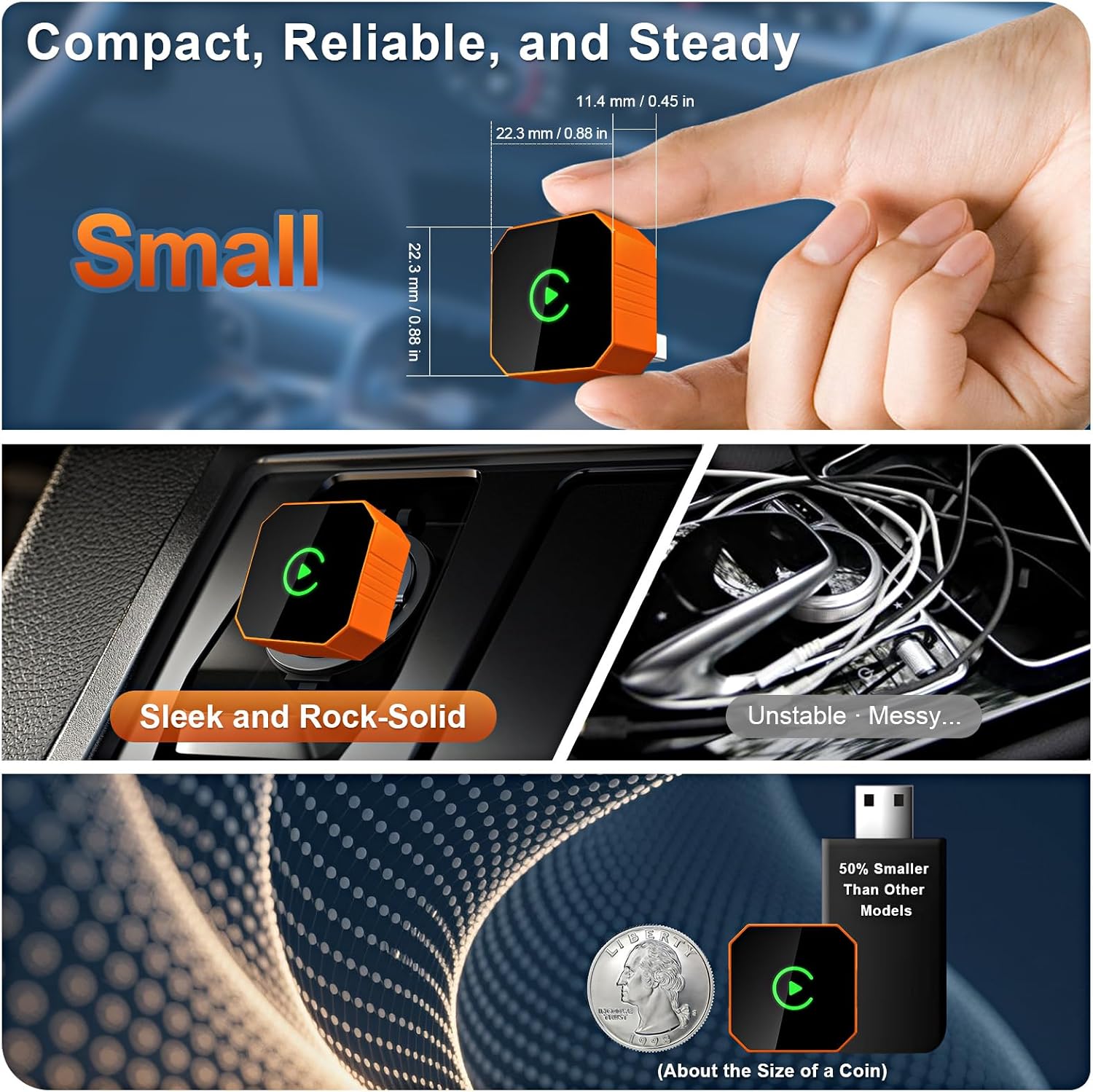
Image: Car dashboard display showing the CarPlay interface with navigation, music, and phone call options, demonstrating the 2-in-1 wireless functionality.
Setup Instructions
Follow these steps to connect your Linkifun Wireless Adapter to your vehicle:
- Plug In the Adapter: Connect the Linkifun adapter into your car's USB-A or USB-C port. Ensure your car supports factory-wired CarPlay or Android Auto.
- Enable Wi-Fi: On your car's infotainment screen, navigate to the Wi-Fi settings. Connect to the network named "SmartBox-9996".
- Turn on Bluetooth & Pair: On your smartphone, enable Bluetooth and search for available devices. Select "SmartBox-9996" from the list. Confirm the pairing code displayed on both your phone and car screen, then tap "Pair".
- Connect to CarPlay/Android Auto: Once paired, a prompt to "Connect to CarPlay" or "Connect to Android Auto" will appear. Tap "Connect" to initiate the wireless connection.
The adapter is designed for quick and easy setup, and will automatically reconnect to your device within seconds after the initial pairing when you start your car.

Image: Four-step visual guide for connecting the wireless adapter: 1. Plug into USB/Type-C port, 2. Enable Wi-Fi and connect to 'SmartBox-9996', 3. Turn on Bluetooth and pair, 4. Tap 'Connect' to start CarPlay.
Operating Instructions
Once connected, the Linkifun adapter provides a stable, low-latency connection, allowing you to use your smartphone's features directly on your car's display.
Key Features:
- Navigation: Access your preferred navigation apps (e.g., Apple Maps, Google Maps) for real-time directions.
- Music & Media: Stream music, podcasts, and audiobooks from your favorite apps.
- Communication: Make calls, send messages, and access your contacts using voice commands or the car's interface.
- Voice Assistant: Utilize your phone's voice assistant (Siri or Google Assistant) for hands-free control.
Control Methods:
The adapter fully supports your car's original control mechanisms:
- Touch Screen Control: Interact directly with the car's display.
- OEM Control Knob: Use your vehicle's factory control knob for navigation.
- Steering Wheel Control: Manage audio, calls, and other functions using your steering wheel buttons.
- Voice Assistant Control: Activate Siri or Google Assistant for voice commands.

Image: Car dashboard showing CarPlay interface with navigation and music, alongside images of a hand using a touch screen, an OEM control knob, and steering wheel controls, illustrating full support for original vehicle controls.
Compatibility
The Linkifun Wireless Adapter is designed for broad compatibility with both smartphones and vehicles.
- Smartphone Compatibility: Supports iPhones running iOS 10 or later, and Android devices with Android 11 or later.
- Vehicle Compatibility: Compatible with a wide range of vehicles (over 800 models) that are equipped with factory-wired CarPlay or Android Auto.
For detailed compatibility lists, please refer to the official resources:
- Apple CarPlay Compatible Models: https://www.apple.com/ios/carplay/available-models
- Android Auto Compatible Vehicles: https://www.android.com/auto/compatibility/#compatibility-vehicles

Image: The Linkifun wireless adapter shown next to various smartphone models and a collage of car brand logos, indicating wide compatibility with iOS 10+, Android 11+, and over 800 vehicle models.
Troubleshooting
If you encounter issues with your Linkifun Wireless Adapter, consider the following solutions:
- No Connection:
- Ensure your car has factory-wired CarPlay or Android Auto.
- Verify the adapter is securely plugged into the USB port.
- Check that Wi-Fi and Bluetooth are enabled on your phone and connected to "SmartBox-9996".
- Restart your car's infotainment system and your smartphone.
- Intermittent Connection/Lag:
- Ensure there are no other devices interfering with Wi-Fi or Bluetooth signals.
- Update your smartphone's operating system to the latest version.
- Try a different USB port in your vehicle, if available.
- Auto-Reconnect Failure:
- Ensure your phone's Bluetooth and Wi-Fi remain active when you start the car.
- Remove and re-pair the device from your phone's Bluetooth settings and the car's Wi-Fi settings.
Specifications
| Feature | Description |
|---|---|
| Brand | Linkifun |
| Model Number | B0GR14XZ8Q |
| Connectivity Technology | Wireless (Wi-Fi & Bluetooth 5.2) |
| Controller Type | iOS, Android |
| Special Features | Plug & Play, Fast Auto-Reconnect, Stable Connection, Compact Design, Portable |
| Compatible Devices | Smartphones (iOS 10+, Android 11+) |
| Connector Type | USB Type-C |
| Color | Orange |
| Unit Count | 1.0 Count |

Image: The Linkifun wireless adapter shown in a hand, next to a US quarter coin for size comparison, and installed discreetly in a car's console, highlighting its compact and sleek design.
Warranty and Support
The Linkifun Wireless CarPlay & Android Auto Adapter comes with a 1-Year Warranty from the date of purchase, covering manufacturing defects.
For technical support, warranty claims, or further assistance, please contact Linkifun customer service through the retailer's platform or visit the official Linkifun website for contact information.