
Introduction
The iRobot Roomba 115 Combo is an advanced 2-in-1 robot vacuum and mop designed to provide comprehensive floor cleaning. This device combines powerful vacuuming with effective mopping in a single pass, utilizing ClearView LiDAR navigation for efficient coverage. The included AutoEmpty Base offers the convenience of automatic dust disposal for up to 90 days, minimizing manual intervention. This manual provides essential information for setting up, operating, maintaining, and troubleshooting your Roomba 115 Combo.
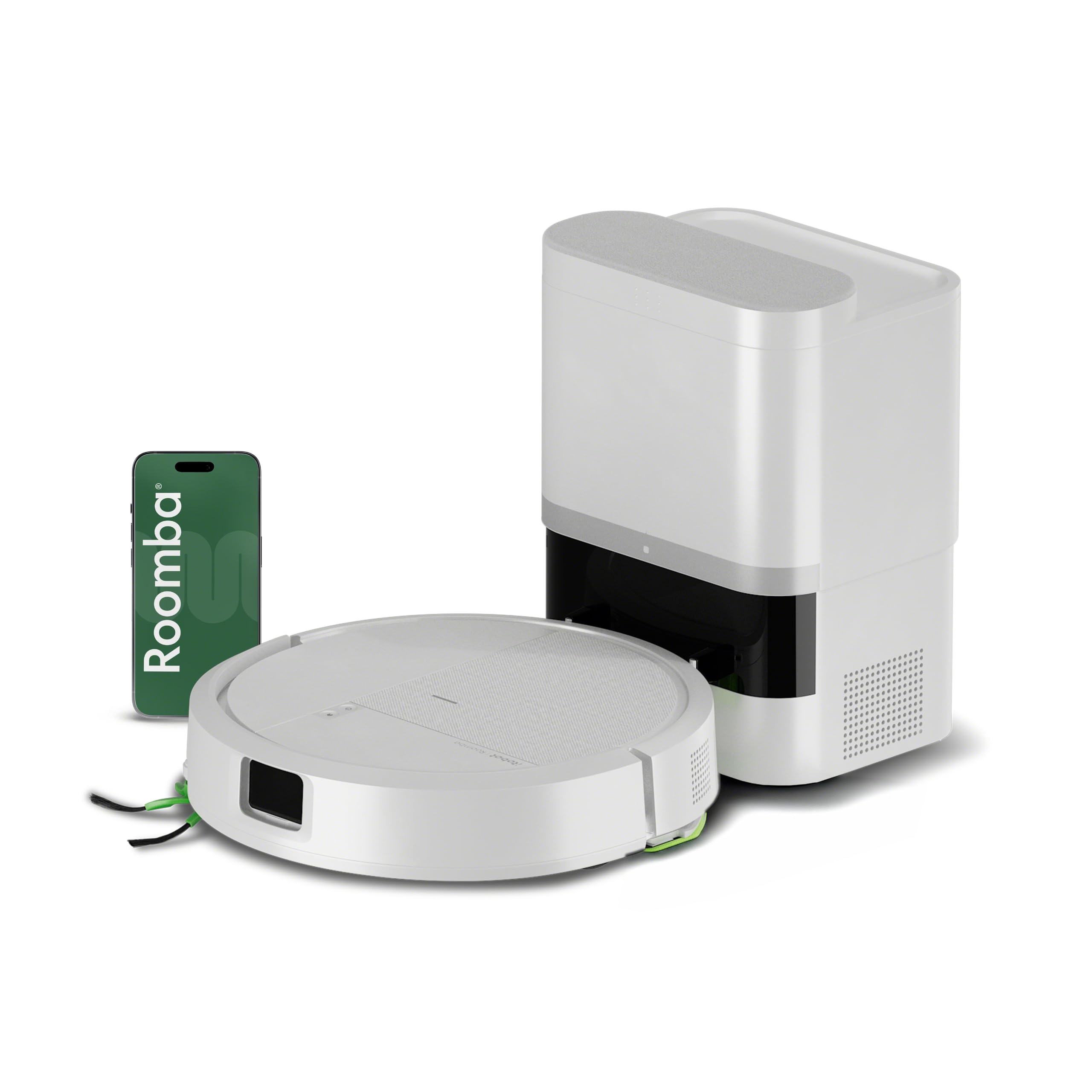
Image: The iRobot Roomba 115 Combo robot vacuum and mop positioned next to its AutoEmpty base.
What's in the Box
Verify that all components are present in the packaging before proceeding with setup.
- iRobot Roomba 115 Combo Robot
- AutoEmpty Base
- Charging Adapter
- Battery (pre-installed or separate)
- Side Brushes
- Filter (pre-installed or separate)
- Mop Pad

Image: Front view of the Roomba 115 Combo robot, showing its sleek design.
Setup
- Unpack and Place the AutoEmpty Base: Choose a location for the AutoEmpty Base that is against a wall, on a level surface, and free from obstacles. Ensure there is adequate space around the base for the robot to dock easily.
- Charge the Robot: Place the Roomba 115 Combo onto the AutoEmpty Base. Ensure the charging contacts on the robot align with those on the base. The robot will begin charging automatically. Allow it to fully charge before its first use.
- Install Side Brushes and Mop Pad: Attach the side brushes by pressing them firmly into place. Secure the mop pad to the designated area on the robot's underside.
- Download the iRobot Home App: Download the iRobot Home app from your device's app store.
- Connect to Wi-Fi: Follow the in-app instructions to connect your Roomba 115 Combo to your home's 2.4 GHz Wi-Fi network. This enables smart features, scheduling, and remote control.
- Initial Mapping: Once connected, the robot will perform an initial mapping run of your home. This helps it learn the layout for efficient cleaning paths. Ensure doors are open to all areas you wish to map.

Image: The Roomba 115 Combo robot using LiDAR technology to map its surroundings, indicated by green light patterns on the floor.
Operating Instructions
Starting a Cleaning Cycle
You can initiate a cleaning cycle using one of the following methods:
- iRobot Home App: Use the app to start, pause, or stop cleaning, set schedules, and customize cleaning preferences.
- Voice Control: If connected to compatible devices (Alexa, Google Assistant, Siri), use voice commands to start cleaning.
- Robot Button: Press the CLEAN button on the robot to start a standard cleaning cycle.
Vacuuming and Mopping
The Roomba 115 Combo performs both vacuuming and mopping simultaneously. The 15,000 Pa suction power effectively picks up debris and fine dust, while the microfiber mop pad cleans light stains and footprints.

Image: An illustration of the robot's underside, highlighting the vacuum suction path and the attached mop pad for simultaneous cleaning.
Customizing Cleaning
- SmartScrub: Activate SmartScrub mode via the app for a deeper clean, scrubbing 2 times more thoroughly on tough spots.
- Cleaning Passes: Choose between 1 or 2 cleaning passes for different levels of dirt.
- Suction Power: Select from 4 levels of suction power to match your cleaning needs.
- Water Flow: Adjust 3 levels of water flow for mopping, suitable for various floor types.
- No-Mop Zones: Use the app to define "No-Mop Zones" to prevent the robot from mopping carpets or other areas you wish to keep dry.
- Spot Cleaning: For localized spills or dirt, use the spot cleaning function to target specific areas.

Image: The robot approaching a carpeted area, with a red light indicating a defined "No-Mop Zone" to prevent it from mopping.

Image: The robot cleaning up muddy paw prints on a tiled floor, demonstrating its spot cleaning capability.
Maintenance
Regular maintenance ensures optimal performance and extends the lifespan of your Roomba 115 Combo.
- AutoEmpty Base Bag Replacement: The AutoEmpty Base can hold up to 90 days of dirt and debris. Replace the AllergenLock bag when full. The bag seals upon removal to prevent dust clouds.
- Mop Pad Cleaning: Wash the microfiber mop pad as needed after each mopping cycle. It is reusable.
- Filter Replacement: Replace the robot's filter every 3 to 6 months, or more frequently if you have pets or allergies.
- Side Brush Replacement: Replace the side brushes every 3 to 6 months to ensure effective edge and corner cleaning.
- Cleaning Sensors and Charging Contacts: Periodically wipe the robot's sensors and charging contacts with a clean, dry cloth to maintain proper functionality.
- Cleaning Main Brushes: Remove and clean the main brushes regularly to prevent hair and debris entanglement.

Image: The AutoEmpty base with a transparent view of the dust bag, showing accumulated debris, indicating it's time for replacement.

Image: The robot positioned in a corner, demonstrating its ability to clean edges and tight spaces with its side brush.
Troubleshooting
If you encounter issues with your Roomba 115 Combo, refer to the following common solutions:
| Problem | Possible Cause / Solution |
|---|---|
| Robot not connecting to Wi-Fi | Ensure your router is broadcasting a 2.4 GHz network. Restart your router and the robot. Follow the app's connection guide carefully. |
| Robot getting stuck or moving erratically | Clear obstacles, loose cables, and thick rugs from the cleaning path. Clean the robot's sensors. Ensure the wheels are free of debris. |
| Reduced battery life | Ensure the robot is fully charged before each cycle. Battery performance can degrade over time; consider replacing the battery if significantly reduced. |
| Poor cleaning performance | Check and clean the main brushes, side brushes, and filter. Replace worn-out components. Ensure the mop pad is clean and properly attached. |
| Robot not returning to base | Ensure the AutoEmpty Base is plugged in and free of obstructions. The robot needs a clear path to return. Clean charging contacts on both the robot and base. |
For further assistance, consult the iRobot Home app or contact iRobot customer support.
Specifications
| Feature | Detail |
|---|---|
| Brand | iRobot |
| Model Name | 115 AE (Roomba 115 Combo) |
| Model Number | Y454240 |
| Dimensions (L x W x H) | 21.3 x 30.3 x 29.3 cm (approximate for robot and base) |
| Suction Power | 15,000 Pascales (Pa) |
| Battery Composition | Lithium Ion |
| Power Source | Electric Cord (for AutoEmpty Base) |
| Control Type | App Control, Button Control, Voice Control |
| Compatible Devices | Amazon Echo, Google Home, Siri, Smartphones, Tablets |
| Surface Recommendation | Hard floors, Carpets (vacuuming), Hard floors (mopping) |
| Special Features | Anti-fall, Simultaneous Vacuum & Mop, Auto-empty, Self-sealing Dust Bag, Variable Suction Control, App/Voice Control, Zone Exclusion, Wet/Dry Cleaning, Corner Cleaning, Selective Room Cleaning, Smart Mapping, LiDAR Navigation, Programmable, Dirt Detection Sensor, Continuous Suction |
Warranty and Support
iRobot provides customer support for its products. For warranty claims, service, or replacements, it is essential that your product was acquired from authorized distributors. iRobot does not certify the quality or authenticity of products purchased from unauthorized distributors on Amazon and will only cover warranty claims, provide service, or offer replacements for products acquired from authorized distributors.
For technical assistance, troubleshooting, or to inquire about warranty details, please contact iRobot customer support directly. You can typically find contact information within the iRobot Home app or on the official iRobot website.


