
1. Introduction
The AIYIMA H4 is a high-fidelity portable DAC (Digital-to-Analog Converter) and headphone amplifier designed to elevate your audio experience. It integrates a premium ES9039Q2M DAC chip, supporting high-resolution audio playback up to 768kHz/32bit PCM and DSD512. With its dual 3.5mm single-ended and 4.4mm balanced headphone outputs, the H4 delivers powerful and clear sound, capable of driving a wide range of headphones.
This manual provides essential information for setting up, operating, and maintaining your AIYIMA H4 to ensure optimal performance and longevity.
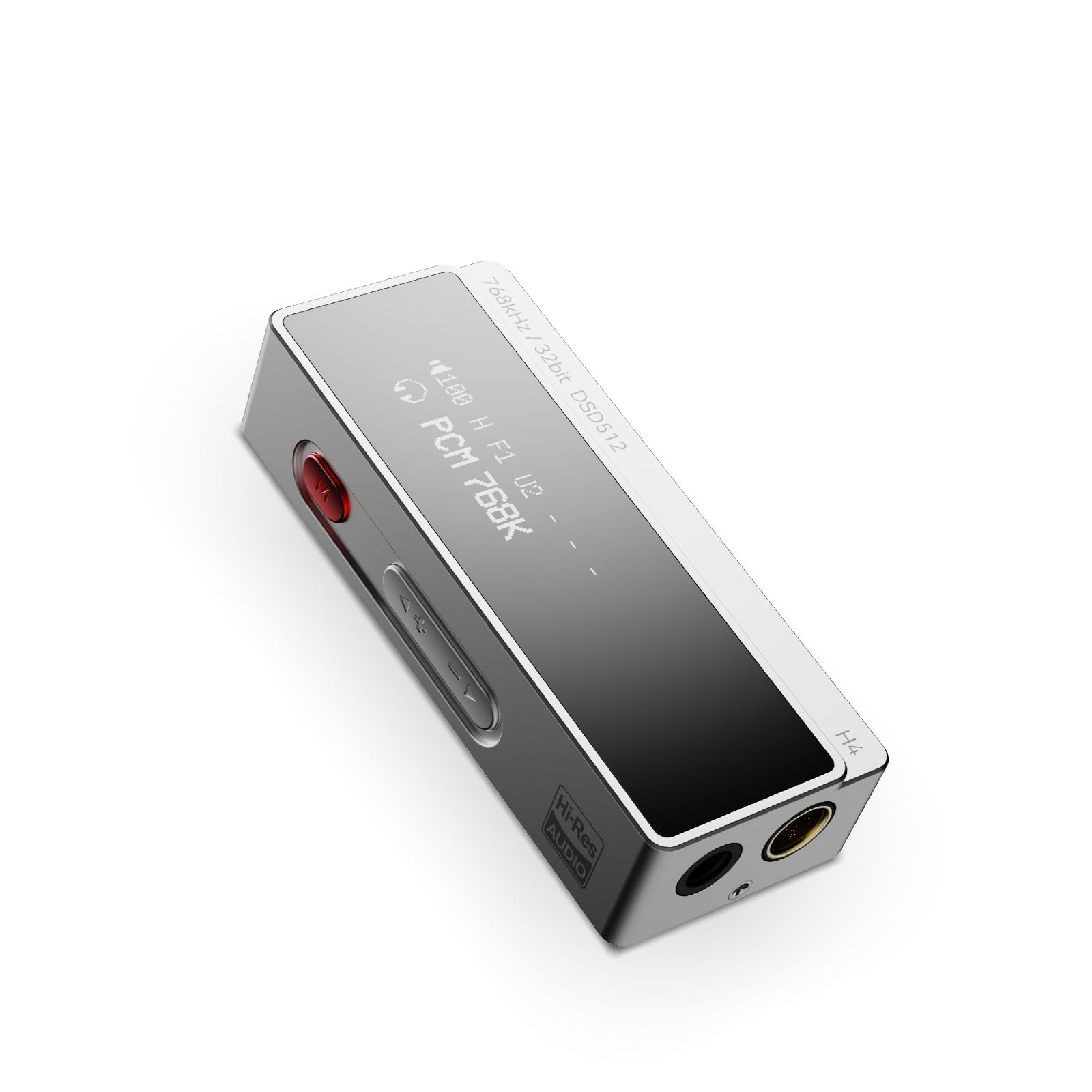
Figure 1: AIYIMA H4 Portable DAC Headphone Amplifier
2. Package Contents
Please check the package for the following items:
- AIYIMA H4 Unit x 1
- Instruction Manual x 1
- USB Type-C to C Cable x 1
- USB A to Type-C Adapter x 1

Figure 2: AIYIMA H4 Package Contents
3. Product Overview
The AIYIMA H4 features a compact design with essential controls and connectivity options.
3.1. Component Identification

Figure 3: Labeled Diagram of AIYIMA H4 Components
- Display: 0.91-inch OLED screen showing current settings and audio information.
- USB Type-C Input: For connecting to source devices and power.
- Menu Button (Red): Used to access and navigate the device settings menu.
- Volume Buttons (+/-): Adjusts the output volume. Also used for navigation in menu.
- 4.4mm Balanced Headphone Output: For balanced headphone connections.
- 3.5mm Single-ended Headphone Output: For standard single-ended headphone connections. This port also supports S/PDIF output.
3.2. Key Features
- ES9039Q2M DAC Chip: High-performance DAC for superior audio decoding.
- High-Resolution Audio: Supports up to 768kHz/32bit PCM and DSD512.
- Dual Headphone Outputs: 3.5mm single-ended and 4.4mm balanced outputs.
- Powerful Output: Balanced output delivers up to 240mW into 32Ω.
- 8 Digital Filters: Customizable PCM digital filter modes for varied sound profiles.
- 2-Stage Gain: High/Low gain settings to match different headphone impedances.
- Compact and Lightweight: Weighs approximately 22.5g for portability.

Figure 4: ES9039Q2M DAC Chip

Figure 5: Dual Headphone Output Ports
4. Setup
The AIYIMA H4 is designed for plug-and-play compatibility with various devices.
4.1. Connecting to a Source Device
- Identify the USB port on your source device (smartphone, tablet, computer).
- Use the provided USB Type-C to C cable or USB A to Type-C adapter to connect the AIYIMA H4 to your source device.
- The H4 will power on automatically once connected to a compatible USB power source.
- Connect your headphones to either the 3.5mm single-ended or 4.4mm balanced output port on the H4.
The H4 is compatible with macOS, iPadOS, iOS, Android, and Windows operating systems. For Windows versions prior to Windows 10, driver installation may be required. Please refer to the AIYIMA official website for driver downloads if necessary.

Figure 6: Connecting H4 to a Smartphone

Figure 7: Connecting H4 to a Laptop

Figure 8: Multi-platform Compatibility
5. Operating Instructions
The AIYIMA H4 offers intuitive controls for audio playback and settings adjustments.
5.1. Power On/Off
The device powers on automatically when connected to a USB power source. Disconnect the USB cable to power off the unit.
5.2. Volume Control
Use the + and - buttons on the side of the device to adjust the volume. The H4 features a 100-step precision volume control.
5.3. Menu Navigation and Settings
Press the red Menu button to enter the settings menu. Use the + and - buttons to navigate through the options and change values. Press the Menu button again to confirm a selection or exit a sub-menu.

Figure 9: H4 Display and Menu Options
Available Menu Options:
- Gain Mode: Select between High and Low gain settings. High gain is suitable for high-impedance or low-sensitivity headphones, while Low gain is for more sensitive headphones.
- Filter Mode: Choose from 8 different PCM digital filter modes to fine-tune the sound characteristics. Note: Digital filter modes are only active during PCM decoding and do not apply to DSD decoding.
- Performance Mode: Adjust performance settings (specific options may vary, refer to on-screen display).
- Output Type: Configure the output behavior.
- S/PDIF Mode: Enable or disable S/PDIF output via the 3.5mm port.
- Volume Control Mode: Adjust how volume is controlled.
- HID Mode: Human Interface Device mode settings.
- Display Brightness: Adjust the brightness of the OLED display.
- Display Inversion: Invert the display colors.
6. Specifications
Detailed technical specifications for the AIYIMA H4.
| Feature | Specification |
|---|---|
| Brand | AIYIMA |
| Model | H4 |
| DAC Chip | ESS ES9039Q2M |
| Max PCM Support | 768kHz/32bit |
| Max DSD Support | DSD512 |
| Headphone Outputs | 3.5mm Single-ended, 4.4mm Balanced |
| Balanced Output Power | 240mW @ 32Ω |
| Interface Type | USB |
| Display | 0.91-inch OLED |
| Volume Control | 100-step precision |
| Digital Filters | 8 types (for PCM decoding only) |
| Gain Settings | 2-stage (High/Low) |
| Weight | Approx. 22.5g |
| Country of Origin | China |

Figure 10: AIYIMA H4 Lightweight Design
7. Maintenance
Proper care and maintenance will ensure the longevity and performance of your AIYIMA H4.
- Cleaning: Use a soft, dry, lint-free cloth to clean the device. Avoid using abrasive cleaners, solvents, or chemical sprays.
- Storage: Store the H4 in a cool, dry place away from direct sunlight and extreme temperatures.
- Handling: Avoid dropping the device or subjecting it to strong impacts. Do not attempt to disassemble or modify the unit, as this will void the warranty.
- Moisture: Keep the device away from water and high humidity.
8. Troubleshooting
If you encounter any issues with your AIYIMA H4, please refer to the following troubleshooting guide:
8.1. No Sound Output
- Ensure the H4 is properly connected to your source device and receiving power.
- Check that your headphones are securely plugged into the correct output port (3.5mm or 4.4mm).
- Verify the volume level on both the H4 and your source device. Increase the volume gradually.
- Confirm that the audio output settings on your source device are configured to use the AIYIMA H4 as the primary audio device.
- Try using a different USB cable or adapter.
8.2. Distorted or Poor Sound Quality
- Check the audio file quality and ensure it is not corrupted.
- Experiment with different digital filter modes in the H4's menu to see if it improves sound.
- Adjust the gain setting (High/Low) to match your headphones. Using too high a gain for sensitive headphones can cause distortion.
- Ensure the volume is not set too high, which can lead to clipping and distortion.
- Test with different headphones to rule out headphone issues.
8.3. Device Not Recognized by Computer
- For Windows 10 and older operating systems, ensure that the necessary drivers are installed. Drivers can typically be found on the AIYIMA official website.
- Try connecting the H4 to a different USB port on your computer.
- Restart your computer and reconnect the H4.
- Ensure the USB cable is not damaged.
9. Warranty and Support
The AIYIMA H4 comes with a 24-month warranty from the date of purchase. This warranty covers manufacturing defects and malfunctions under normal use.
For warranty claims, technical support, or any inquiries, please contact your retailer or visit the official AIYIMA website for customer service. Please retain your proof of purchase for warranty validation.
