
Introduction
This instruction manual provides essential information for the proper setup, operation, and maintenance of your eMylo RTH11 Indoor Outdoor Thermometer Hygrometer. Please read this manual thoroughly before using the device to ensure optimal performance and longevity.
Product Overview
The eMylo RTH11 is a waterproof wireless hygrometer sensor designed to monitor temperature and humidity both indoors and outdoors. It requires pairing with an eMylo WiFi Thermometer Gateway (models WS06 or WS01, sold separately) to function as a full-featured thermo-hygrometer. Once connected, it offers a monitoring range of up to 492 feet in open areas.
Key features include:
- IP65 Waterproof & Dustproof: Suitable for various environments, including rainy conditions.
- High Accuracy: Provides readings with an accuracy of ±5%RH and ±0.5°C / 0.9°F.
- Multi-Sensor Support: The main unit can connect to up to 9 additional sensors, monitoring up to 10 locations simultaneously.
- Smart Alerts: Receive instant push notifications via the Smart Life/Tuya App for out-of-range temperature/humidity and low battery.
- Voice Control: Compatible with Amazon Alexa and Google Assistant for hands-free queries.
- Smart Scene Linkage: Create automated scenes with other Tuya-compatible devices.
- Data Storage & Export: Free remote access to hourly, daily, monthly, and yearly historical data, with export options for up to 1 year of records.
- Long-Lasting Power: Ultra-low power consumption for prolonged use, up to 1 year on replaceable batteries.
Setup
1. Unboxing and Component Check
Carefully unpack the contents and ensure all items are present:
- eMylo RTH11 Sensor
- Batteries (if included in your package)
- User Manual
Note: This RTH11 sensor requires an eMylo WiFi Thermometer Gateway (WS06 or WS01) to function. The gateway is not included with this sensor and must be purchased separately. The sensor cannot be used independently or with third-party gateways.
2. Battery Installation
- Open the battery compartment cover on the back of the RTH11 sensor.
- Insert the provided batteries, ensuring correct polarity (+/-).
- Close the battery compartment cover securely.
3. App Installation and Pairing
To utilize the full features of your eMylo RTH11 sensor, you need to connect it to an eMylo WiFi Thermometer Gateway and the Smart Life/Tuya App.
- Download the App: Download and install the "Smart Life" or "Tuya Smart" app from your smartphone's app store.
- Add Gateway: If you haven't already, add your eMylo WiFi Thermometer Gateway (WS06 or WS01) to the app following its specific instructions. Ensure the gateway is connected to a 2.4GHz Wi-Fi network.
- Add Sensor: In the Smart Life/Tuya App, navigate to the gateway's interface and select the option to add a sub-device or sensor.
- Pairing Mode: Press and hold the reset button on the RTH11 sensor for approximately 5 seconds until the indicator light flashes, indicating it's in pairing mode.
- Confirm Pairing: The app should detect the new sensor. Follow the on-screen prompts to confirm and add the sensor.
Video Description: This video tutorial demonstrates how to connect the eMylo RTH11 sensor to the Smart Life app, including steps for adding the device, setting up alarms, calibrating temperature and humidity, switching temperature units, and viewing historical data.
Operating Instructions
1. Display Overview
The main unit's LED display shows real-time temperature and humidity readings from connected sensors, along with the current date, time, and basic weather information. You can view readings from up to 10 sensors.

Image Description: The eMylo RTH11 sensor and its main display unit are shown, highlighting the accurate temperature and humidity sensitivity. The display shows current readings, while a baby sleeps peacefully in the background, emphasizing its suitability for nurseries.
2. Temperature Unit Switch (°C/°F)
To switch between Celsius and Fahrenheit:
- Via App: Go to the "Settings" section of the Smart Life/Tuya App for your Smart Weather Station. Locate the "Temperature Unit" option and select your preferred unit.
- Via Device: Briefly press the reset button on the main unit once. The temperature unit on the display will switch.
3. Time Format Switch (12-hour/24-hour)
To switch between 12-hour and 24-hour time formats, double-click the reset button on the main unit.
4. Viewing Sensor Data
- On Main Unit: Click the touch button on the main unit to cycle through and view the temperature and humidity readings from each connected sensor.
- On App: The Smart Life/Tuya App provides a comprehensive overview of all connected sensors, displaying their current temperature and humidity.
5. Smart Alerts
Set personalized temperature and humidity thresholds in the Smart Life/Tuya App to receive instant push alerts when readings fall outside your specified range. You can also enable low battery alerts.

Image Description: A smartphone displays the 'Smart Alerts' feature of the eMylo app, allowing users to set minimum and maximum thresholds for temperature and humidity. This ensures users are notified if conditions exceed or fall below desired levels.
6. Data Storage & Export
The app stores historical temperature and humidity data. You can view records by hour, day, month, or year. Up to one year of historical data can be exported for detailed analysis.

Image Description: A smartphone screen shows graphs of historical temperature and humidity data, with options to view by day, month, or year. An 'Export' button is visible, indicating the ability to download this data for further analysis.
7. Voice Control
Integrate with Amazon Alexa or Google Assistant to query real-time temperature and humidity data using voice commands.

Image Description: The image illustrates the voice command compatibility of the eMylo RTH11 sensor with smart assistants like Amazon Alexa and Google Home. Text bubbles show example queries such as "Alexa, what's the humidity in the bathroom?" and the corresponding response, "It's currently 70%."
8. Smart Scene Linkage
Create automated smart scenes within the Smart Life/Tuya App. For example, link your sensor to a smart IR remote to automatically adjust an AC or humidifier based on temperature and humidity readings.

Image Description: This diagram demonstrates 'Smart Home Life' integration, where the eMylo sensor links with other Tuya smart devices, such as a Smart IR Remote Controller. It shows an air conditioner turning on if the temperature is over 86°F and a humidifier activating if humidity is below 40%, illustrating automated environmental control.
Maintenance
1. Battery Replacement
When the app or main unit indicates a low battery, replace the batteries in the RTH11 sensor promptly to ensure continuous monitoring. Follow the battery installation steps outlined in the Setup section.
2. Cleaning
Wipe the sensor and main unit with a soft, dry cloth. Do not use abrasive cleaners or immerse the devices in water. Ensure the sensor's vents are clear of dust and debris for accurate readings.
3. Placement
For outdoor sensors, place them in a location that avoids direct sunlight and heavy rain to prolong battery life and ensure accurate readings. Ensure the sensor is within the wireless range of the gateway and that there are no major obstacles impeding the signal.

Image Description: The eMylo RTH11 sensor is shown hanging from a tree branch outdoors during rainfall, with water droplets visible on its surface. The text overlay highlights its 'IP65 Waterproof & Dustproof' feature, indicating its durability in outdoor conditions.

Image Description: This image, titled 'Usage Compatibility Reminder', displays a multi-story house with several eMylo RTH11 sensors placed in different rooms and outdoors. It visually explains that the sensor must pair with an eMylo WiFi Thermometer Gateway (WS06 or WS01) and cannot be used independently or with third-party gateways, supporting only 2.4GHz WiFi.
Video Description: This video demonstrates the unboxing of the eMylo RTH11 sensor, showing the main unit and three wireless sensors. It illustrates battery installation, the main unit's display of temperature and humidity, and examples of outdoor and indoor sensor placement in various locations like a porch and a baby's room.
Troubleshooting
- Sensor not connecting to Gateway/App:
- Ensure the sensor has fresh batteries and is correctly installed.
- Verify the eMylo WiFi Thermometer Gateway is powered on and connected to a 2.4GHz Wi-Fi network.
- Make sure the sensor is within the effective wireless range of the gateway (up to 492ft without obstacles).
- Repeat the pairing process as described in the Setup section.
- Inaccurate Temperature/Humidity Readings:
- Check the sensor's placement; avoid direct sunlight, heat sources, or areas with extreme drafts.
- Ensure the sensor's vents are not blocked.
- Use the calibration feature in the Smart Life/Tuya App settings to fine-tune readings if necessary.
- App Alerts Not Working:
- Verify that alert switches are enabled in the app's alarm settings.
- Check that your smartphone's notification settings allow alerts from the Smart Life/Tuya App.
- Ensure the sensor and gateway have a stable internet connection.
- No Historical Data in App:
- Confirm that the gateway and sensor maintain a continuous connection. Data logging requires an active connection.
- Check the app's data storage settings.
Specifications
| Feature | Specification |
|---|---|
| Model | RTH11 |
| Brand | eMylo |
| Waterproof Rating | IP65 |
| Humidity Accuracy | ±5%RH |
| Temperature Accuracy | ±0.5°C / 0.9°F |
| Operating Humidity | 0% to 100% |
| Upper Temperature Rating | 140 Degrees Fahrenheit |
| Wireless Protocol | WiFi + BLE + RF433 |
| Battery Type | Alkaline |
| Item Length | 3 Inches |
| Included Components | Battery |
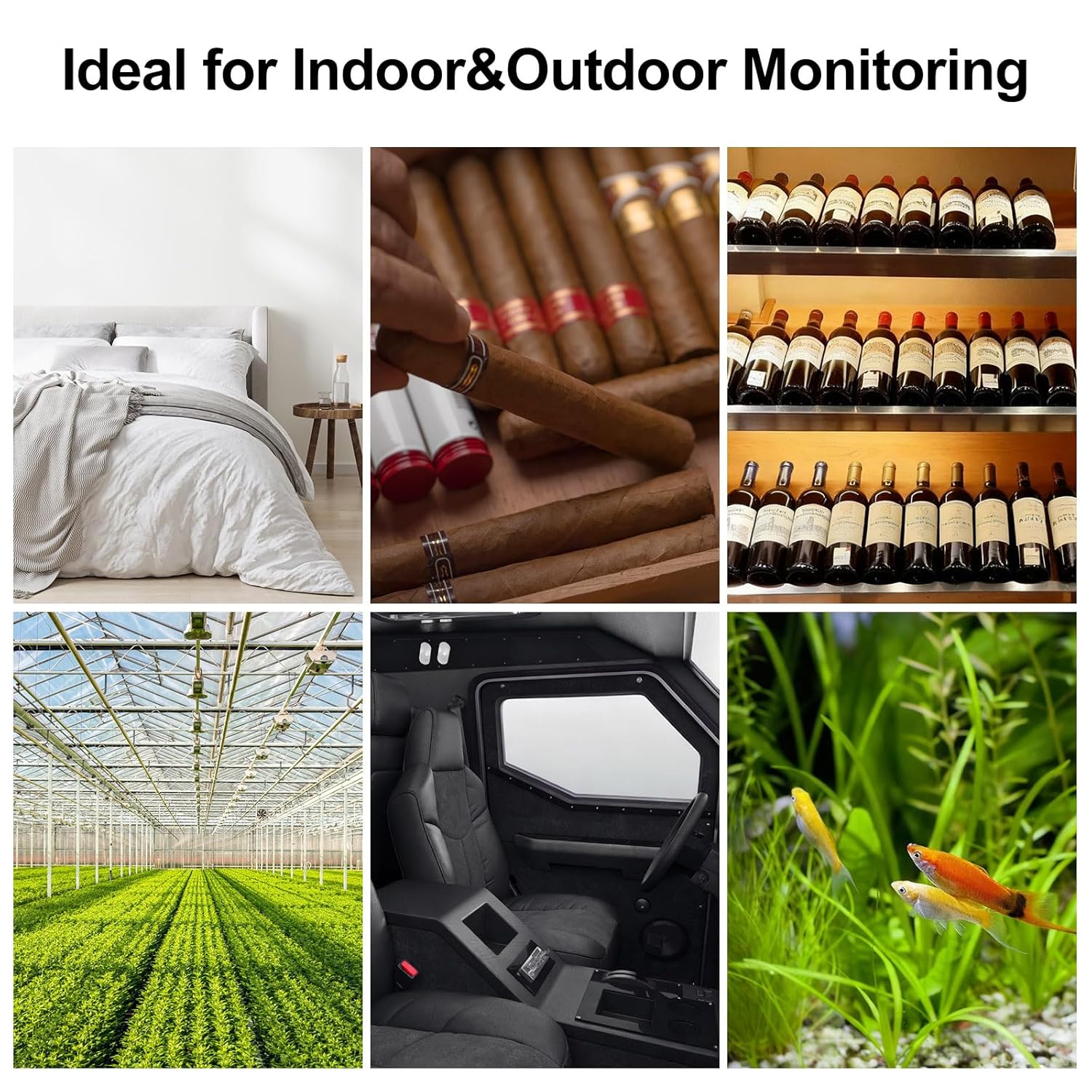
Image Description: This image, titled 'Ideal for Indoor & Outdoor Monitoring', presents a collage of six different environments where the eMylo RTH11 sensor can be effectively used. These include a bedroom, a cigar humidor, a wine cellar, a greenhouse, the interior of a vehicle, and an aquarium, showcasing its versatility.
Warranty and Support
Warranty: Please refer to the manufacturer's official website or product packaging for specific warranty details and terms.
Support: For technical assistance, troubleshooting, or any product-related inquiries, please contact eMylo customer service through their official channels. Contact information can typically be found on the product packaging or the eMylo official website.
