
1. Introduction
This manual provides comprehensive instructions for the safe and efficient operation of your Eyoyo 2D Bluetooth Back Clip Barcode Scanner, Model EY-032. This versatile device is designed for fast and reliable scanning of both 1D and 2D barcodes from various surfaces, including paper and digital screens. It features multiple connectivity options and a convenient back-clip design for integration with smartphones, making it suitable for inventory management, library systems, and other data collection tasks.
2. Package Contents
Verify that all items are present in the package:
- Eyoyo 2D Bluetooth Back Clip Barcode Scanner (Model EY-032)
- 2.4G USB Dongle
- USB Charging Cable
- User Manual
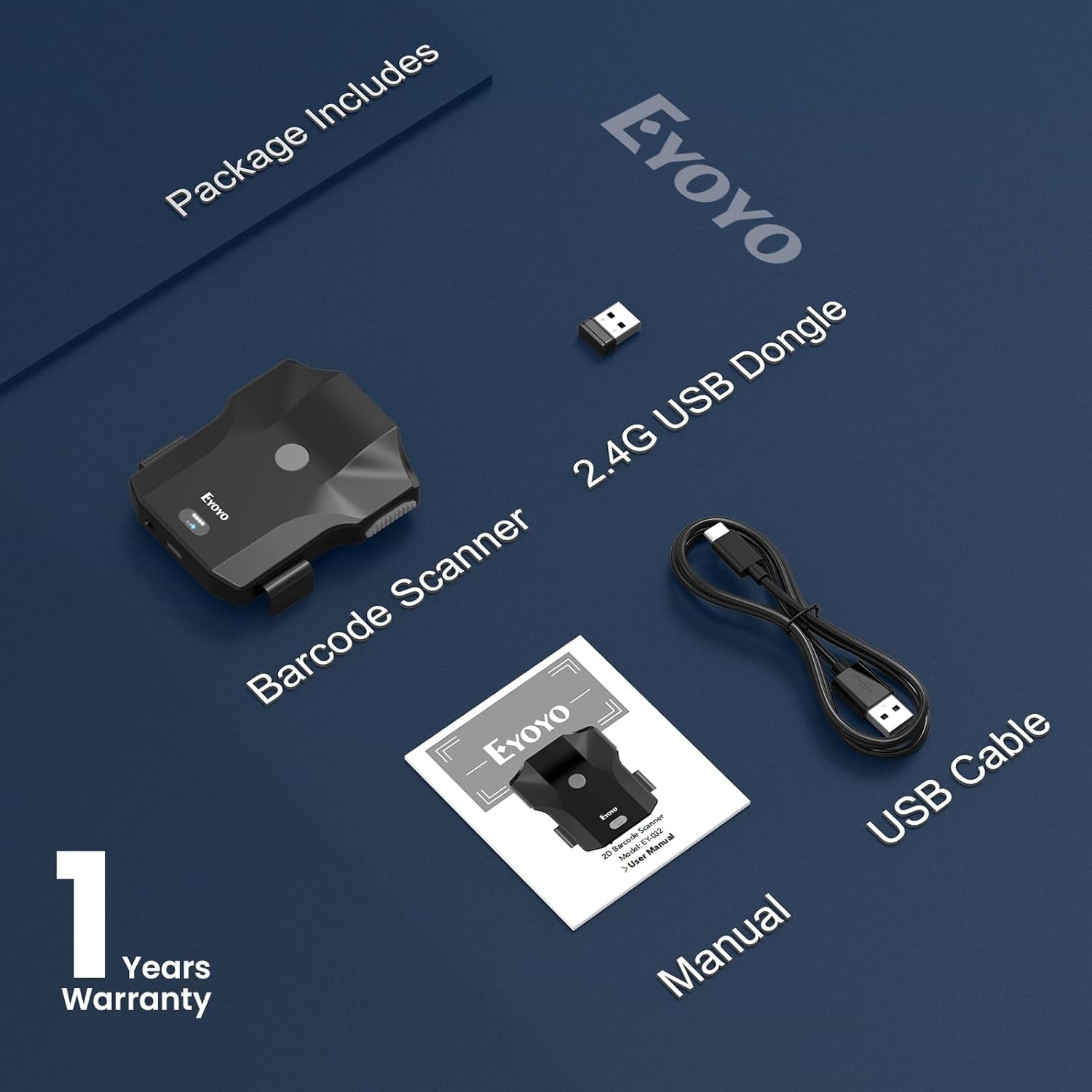
Image 2.1: Contents of the Eyoyo EY-032 scanner package, including the scanner unit, 2.4G USB dongle, USB cable, and user manual.
3. Product Overview
The Eyoyo EY-032 scanner is designed for ergonomic use and features intuitive controls and indicators.
- Scan Buttons: Three distinct buttons for scanning, providing flexibility for left, right, or central operation.
- Battery Indicator: LED lights display the current battery level.
- On/Off Switch: A physical switch to power the device on or off, conserving battery.
- Type-C Charging Port: For convenient charging.
- Retractable Clip: Horizontal design compatible with smartphones from 4.7 to 7.2 inches, and up to 0.5 inches (14mm) thick, including those with cases.

Image 3.1: Overview of the Eyoyo EY-032 scanner, highlighting its three scan buttons, battery indicator, Type-C port, on/off switch, and phone compatibility range.
4. Setup
4.1. Charging the Scanner
Before initial use, fully charge the scanner. Connect the provided USB charging cable to the scanner's Type-C port and a USB power source (e.g., computer, wall adapter). The battery indicator lights will show charging progress.
- Charging Time: Approximately 3 hours for a full charge.
- Working Time: Up to 10 hours of continuous use.
- Standby Time: Up to 720 hours.

Image 4.1: Visual representation of the scanner's 1200mAh battery capacity and its associated working, charging, and standby times.
4.2. Attaching to a Smartphone
The scanner features a horizontal retractable clip designed to securely hold smartphones between 4.7 and 7.2 inches, including those with thick cases (up to 14mm). Ensure the phone is centered in the clip for a stable hold.

Image 4.2: Illustration of the scanner's compatibility with various phone sizes (4.2-7.2 inches) and thickness (up to 14mm).
4.3. Connection Modes
The EY-032 offers three connection options:
- Bluetooth Wireless Connection: For smartphones (Android, iOS) and tablets.
- 2.4G Wireless Connection: Using the included USB dongle for laptops and PCs.
- USB Wired Connection: Direct connection via USB cable to a computer.
To switch between modes, refer to the specific barcode commands in the full user manual (not provided here).

Image 4.3: Depiction of the three available connection methods: Bluetooth, 2.4G wireless via dongle, and USB wired.
5. Operating Instructions
5.1. Power On/Off
Use the physical on/off switch located on the scanner to power the device. Ensure it is in the 'On' position for operation and 'Off' to conserve battery when not in use.
5.2. Scanning Modes
The scanner supports three operational scanning modes:
- Manual Trigger Mode: Press the scan button to initiate each scan.
- Continuous Scanning Mode: The scanner continuously emits a scan beam, ideal for high-volume scanning.
- Auto-Sensing Mode: The scanner automatically detects a barcode in its field of view and scans it without a button press.
To change scanning modes, scan the corresponding setup barcodes found in the complete user manual.

Image 5.1: Visual demonstration of Auto-Sense, Continuous, and Manual Trigger scanning modes in action.
5.3. Data Upload Modes
The scanner offers two methods for data transfer:
- Instant Upload Mode: Scanned data is immediately transmitted to the connected device.
- Storage Mode: Scanned data is stored internally in the scanner's memory and can be uploaded later. This is useful when out of range of a connected device.
Refer to the full user manual for instructions on switching between upload modes and retrieving stored data.

Image 5.2: Illustration comparing Storage Mode, where data is saved internally, and Instant Upload Mode, where data is sent directly to the connected device.
5.4. Customized Settings
The scanner allows for various customizations to optimize workflow:
- Add Prefix/Suffix: Configure the scanner to automatically add specific characters before or after scanned data.
- Sound and Vibration: Adjust the feedback settings for scan confirmation (off, low, medium, high).
- Hide Characters: Option to hide certain characters from the scanned output.
- Insert Keyboard Keys: Ability to insert special keyboard keys like TAB or CR&LF after a scan.
- iOS Keyboard Functionality: For iOS devices, double-clicking the main scan button can toggle the virtual keyboard on or off. Note: This feature is specific to iOS and not supported on Android.
Detailed instructions and configuration barcodes for these settings are available in the complete user manual.

Image 5.3: Examples of customized settings, including adding prefixes/suffixes to barcodes and adjusting sound and vibration levels.

Image 5.4: Demonstrates the iOS-specific feature of double-clicking the scan button to show or hide the virtual keyboard.
6. Maintenance
Proper maintenance ensures the longevity and optimal performance of your scanner:
- Cleaning: Use a soft, dry cloth to clean the scanner's exterior. For the scanning window, use a lens cleaning cloth to avoid scratches. Do not use abrasive cleaners or solvents.
- Storage: Store the scanner in a cool, dry place away from direct sunlight and extreme temperatures.
- Battery Care: Avoid fully discharging the battery frequently. If storing for extended periods, charge the battery to about 50% and recharge every few months.
7. Troubleshooting
If you encounter issues with your Eyoyo EY-032 scanner, refer to the following common problems and solutions:
| Problem | Possible Cause | Solution |
|---|---|---|
| Scanner does not power on. | Low battery; Power switch off. | Charge the scanner; Ensure the power switch is in the 'On' position. |
| Cannot connect via Bluetooth. | Scanner not in pairing mode; Device Bluetooth off; Interference. | Ensure scanner is in Bluetooth pairing mode (refer to manual); Enable Bluetooth on your device; Move away from other wireless devices. |
| Scanner not reading barcodes. | Barcode damaged/unreadable; Incorrect scanning mode; Dirty scanning window. | Try scanning a different barcode; Switch to the appropriate scanning mode; Clean the scanning window. |
| Scanned data is incorrect or incomplete. | Incorrect barcode symbology enabled; Data formatting settings. | Refer to the full manual to enable/disable specific barcode symbologies or adjust data formatting. |
For more complex issues or if the problem persists, please contact customer support.
8. Specifications
| Feature | Detail |
|---|---|
| Model | EY-032 |
| Connectivity Technology | Bluetooth, 2.4G Wireless, USB Cable |
| Compatible Devices | Desktop, Laptop, POS, Smartphone, Tablet (Android, iOS, Windows, Linux, Mac OS) |
| Supported Barcodes (1D) | Code 128, Code 39, Code 93, Code 11, Code 32, Code 39 Full ASCII, Codabar, Industrial 2 of 5, Interleaved 2 of 5, MSI Plessey, EAN-8, EAN-13, UPC-A, UPC-E, ISBN, GS1 DataBar |
| Supported Barcodes (2D) | PDF 417, Micro PDF417, QR Code, Micro QR, Data Matrix, Aztec |
| Battery Capacity | 1200 mAh |
| Working Time | Up to 10 hours |
| Charging Time | Approx. 3 hours |
| Operating Voltage | 5 Volts |
| Item Dimensions (D x W x H) | 4.33" x 3.35" x 1.77" |
| Item Weight | 160 Grams |
| Certifications | CE, FCC, RoHS |
9. Warranty and Support
9.1. Warranty Information
The Eyoyo EY-032 Barcode Scanner comes with a 1-Year Manufacturer's Warranty from the date of purchase. This warranty covers defects in materials and workmanship under normal use. It does not cover damage caused by misuse, accidents, unauthorized modifications, or improper maintenance.
9.2. Customer Support
For technical assistance, warranty claims, or any questions regarding the operation of your scanner, please contact Eyoyo customer support. Refer to the contact information provided on the product packaging or the official Eyoyo website.


