
Introduction
This manual provides comprehensive instructions for the installation, operation, and maintenance of your Generic Wireless Rechargeable Keyboard and Mouse Kit. Please read this manual carefully before use to ensure optimal performance and longevity of your device.
This kit offers a versatile solution for your computing needs, featuring an ultra-thin design, stable connectivity, and rechargeable batteries. It supports both ABNT2 (Portuguese Brazil) and US Layouts, making it suitable for various users and applications, from home office to study.
Package Contents
- 1x Wireless Keyboard (ABNT2 or US Layout)
- 1x Wireless Mouse with 2.4GHz USB Receiver
- 1x USB Charging Cable
- 1x User Manual
Setup
Keyboard Connection (Bluetooth)
- Locate the ON/OFF switch on the top right corner of the keyboard. Slide the switch to the ON position. The indicator LED will light up.
- Press the 'Connect' button (usually near the ON/OFF switch) to activate Bluetooth pairing mode. The indicator light may blink.
- On your computer or device, navigate to Bluetooth settings.
- Search for available devices and select "BT4.0 Keyboard" from the list.
- Confirm the pairing on your device if prompted. The keyboard is now ready for use.
Mouse Connection (2.4GHz USB)
- Locate the 2.4GHz USB receiver (dongle) usually found in the mouse's battery compartment or packaging.
- Insert the USB receiver into an available USB port on your computer.
- Turn on the mouse using its ON/OFF switch (usually on the bottom). The mouse should connect automatically.

Image: Step-by-step guide for connecting the wireless keyboard.
Operating Instructions
Keyboard Layouts
- ABNT2 Brazil Layout: Features the 'Ç' key and dedicated accentuation keys (~ and ´), ideal for typing in Portuguese.
- US Layout: Standard international ANSI layout, without the 'Ç' key, suitable for English typing or programming.
Multimedia Keys
The keyboard includes multimedia keys that can be accessed using the FN function key. These keys allow quick control over volume, play/pause, mute, and other functions.
Energy Saving Mode
Both the keyboard and mouse are designed with an automatic energy-saving mode. If inactive for an extended period, they will enter sleep mode. To reactivate, simply press any key on the keyboard or move/click the mouse.

Image: Wireless keyboard and mouse in use with a laptop.

Image: Keyboard compatibility with different operating systems and devices.
Maintenance
Charging
The keyboard and mouse feature internal rechargeable batteries. Use the provided USB charging cable to recharge them when the battery is low. Connect the cable to a standard USB power source (e.g., computer USB port, USB wall adapter). The indicator light will show charging status.
Cleaning
To clean the devices, gently wipe them with a soft, dry, or slightly damp cloth. Avoid using harsh chemicals or abrasive materials, which can damage the surface. Ensure the devices are turned off before cleaning.
Troubleshooting
- Device not connecting:
- Ensure the keyboard/mouse is turned ON and fully charged.
- For Bluetooth keyboard: Verify your device supports Bluetooth 4.0/5.2. Restart the pairing process.
- For 2.4GHz mouse: Ensure the USB receiver is securely plugged into a working USB port. Try a different USB port.
- Restart your computer/device and try connecting again.
- Lag or delayed response:
- Ensure there are no obstructions between the device and your computer.
- Move closer to your computer to reduce interference.
- Check battery levels; low battery can affect performance.
- Device not waking up from sleep mode:
- Press any key on the keyboard or move/click the mouse to wake it up.
- If it doesn't wake, check the battery level and recharge if necessary.
Specifications
| Feature | Description |
|---|---|
| Brand | Generic |
| Keyboard Connectivity | Bluetooth 4.0/5.2 |
| Mouse Connectivity | 2.4GHz USB (with receiver) |
| Keyboard Layouts | ABNT2 (Portuguese Brazil), US Layout |
| Keyboard Dimensions | Approx. 24.5 cm (9.6 in) L x 15 cm (5.9 in) W x 0.7 cm (0.28 in) H |
| Mouse Dimensions | Approx. 5.5 cm (2.16 in) L x 2.2 cm (0.9 in) H |
| Battery Type | Rechargeable (internal) |
| Number of Keys | Approx. 107 (full layout) |
| Origin | China |
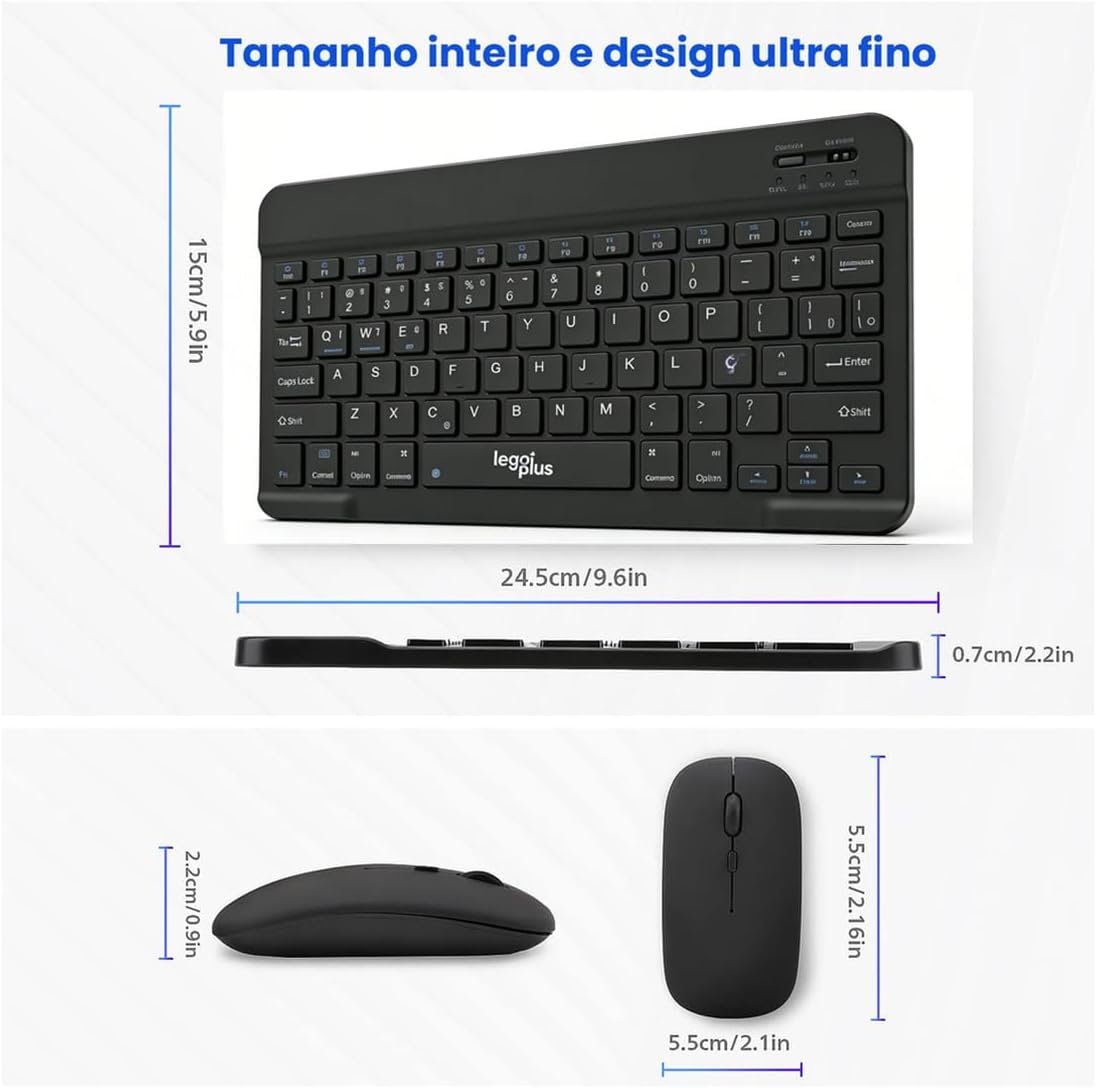
Image: Physical dimensions of the keyboard and mouse.
Warranty
This product comes with a 7-day warranty from the date of purchase, covering manufacturing defects. Please retain your proof of purchase for warranty claims. The warranty does not cover damage caused by misuse, accidents, or unauthorized modifications.
Support
If you encounter any issues not covered in this manual or require further assistance, please contact the seller or manufacturer's customer support. Refer to your purchase documentation for contact details.

