
1. Introduction
The GEEVON-LINK GL-250T13-1-WH-WUS WiFi Thermometer Hygrometer provides real-time temperature and humidity monitoring for various environments. This device features dual Wi-Fi and Bluetooth connectivity, an external probe for precise measurements in liquids or confined spaces, and integration with smart home platforms like Alexa and Google Home. It offers app-based monitoring, smart alerts, and data export capabilities for comprehensive environmental control.

Figure 1: GEEVON-LINK WiFi Thermometer Hygrometer main unit with external probe.
The device is designed for versatile placement and can be used in refrigerators, freezers, fish tanks, basements, wine cellars, and other areas requiring accurate temperature and humidity tracking.

Figure 2: Examples of device placement in a refrigerator, freezer, fish tank, and bathtub.
2. Setup
2.1 Package Contents
- GEEVON-LINK WiFi Thermometer Hygrometer Main Unit
- External Probe
- 2 x AAA Batteries
- Adhesive Suction Cup
- Double-sided Tape
- Self-adhesive Cable Tie
2.2 Battery Installation
- Locate the battery compartment on the back of the main unit.
- Open the battery compartment cover.
- Insert 2 AAA batteries, ensuring correct polarity (+/-).
- Close the battery compartment cover.
2.3 App Installation and Device Pairing
To utilize the full features of your thermometer hygrometer, install the Smart Life app on your smartphone.
- Install the Smart Life App: Download the "Smart Life" app from the App Store (iOS) or Google Play Store (Android).
- Register an Account: Open the app and register for a new account or log in if you already have one.
- Connect to 2.4G Wi-Fi: Ensure your smartphone is connected to a 2.4GHz Wi-Fi network. The device does not support 5G Wi-Fi.
- Add Device: In the Smart Life app, tap the "+" icon or "Add Device". Select "Temperature and Humidity Sensor (BLE+Wi-Fi)" from the sensor list.
- Pairing Mode: Ensure the Wi-Fi symbol on the device's LCD is blinking slowly. If not, press and hold the reset button (usually inside the battery compartment) for approximately 5 seconds until it blinks slowly.
- Complete Pairing: Follow the on-screen instructions in the app to complete the pairing process. The app will guide you through connecting to the device's hotspot (e.g., "SmartLife-XXXX") and then returning to the app interface for final connection.

Figure 3: Step-by-step guide for initial setup and app pairing.
2.4 Physical Placement
The device offers multiple placement options:
- Adhesive Mounting: Use the included adhesive suction cup or double-sided tape for smooth surfaces like windows or tiles.
- Hanging: Utilize the integrated lanyard to hang the unit.
- Probe Management: Use the self-adhesive cable tie to neatly manage the external probe wire.

Figure 4: The external probe can be placed in liquids or enclosed spaces like a refrigerator.

Figure 5: The external probe provides precise readings in various challenging environments.
3. Operating Instructions
3.1 Real-time Monitoring via Smart Life App
Once connected, the Smart Life app allows you to monitor temperature and humidity in real-time from any location. The app displays current readings for both the main unit and the external probe.

Figure 6: Remote monitoring of environmental conditions via the Smart Life app.
3.2 Smart Alerts and Automated Device Control
The device supports intelligent automation and hands-free monitoring through integration with Alexa or Google Home. You can receive instant app alerts for high/low temperature, humidity, and low battery conditions.
- Custom Ranges: Set custom temperature and humidity ranges within the app.
- Automated Scenes: Create automated scenes, such as turning an AC or dehumidifier on/off when preset conditions are met.
- Voice Commands: Use voice commands with Alexa or Google Home to inquire about current readings (e.g., "Alexa, what's the temperature in the living room?").

Figure 7: App interface for real-time notifications and smart home automation.

Figure 8: Device compatibility with Alexa and Google Home for voice control.
3.3 Data Storage and Export
The Smart Life app provides long-term data storage, allowing you to view temperature and humidity trends by hour, day, month, or year. Data from the past year can be exported for analysis.

Figure 9: Data visualization and export options within the Smart Life app.
3.4 Temperature Unit Switching
The device supports switching between Celsius (℃) and Fahrenheit (°F). This option is typically available within the Smart Life app settings for the device.
3.5 Instructional Video
Video 1: A demonstration of how to use the GEEVON-LINK WiFi thermometer hygrometer.
4. Maintenance
4.1 Battery Replacement
The device operates on 2 AAA batteries. A low-battery alert will be sent to the Smart Life app when replacement is needed. Replace batteries promptly to ensure continuous monitoring and accurate data.
4.2 Probe Care
The external probe is waterproof and designed for demanding environments. Regularly inspect the probe and its cable for any signs of damage. Ensure the cable is not pinched or excessively bent, which could affect its durability and accuracy.
4.3 Cleaning
Wipe the main unit and probe with a soft, dry cloth. Do not use abrasive cleaners or immerse the main unit in water.
5. Troubleshooting
5.1 Device Not Connecting to Wi-Fi
- Ensure your Wi-Fi network is 2.4GHz. The device does not support 5G Wi-Fi.
- Verify your smartphone is connected to the 2.4GHz network during setup.
- Check that the Wi-Fi symbol on the device's LCD is blinking slowly. If not, press and hold the reset button for 5 seconds.
- Ensure the device is within range of your Wi-Fi router.
- Restart your router and the device, then attempt pairing again.
5.2 Inaccurate Temperature/Humidity Readings
- Ensure the external probe is correctly positioned and fully submerged if measuring liquids.
- Verify that the main unit and probe are not exposed to direct sunlight, heat sources, or strong drafts, which can affect readings.
- Compare readings with another calibrated thermometer/hygrometer if available.
- If the issue persists, contact customer support.
5.3 Short Battery Life
- Ensure you are using fresh, high-quality AAA batteries.
- Frequent Wi-Fi disconnections and reconnections can consume more power. Ensure a stable Wi-Fi connection.
- Extreme temperatures can affect battery performance.
5.4 App Notifications Not Received
- Check your smartphone's notification settings for the Smart Life app to ensure they are enabled.
- Verify that the alert thresholds are correctly set within the app.
- Ensure your device has a stable internet connection.
6. Specifications
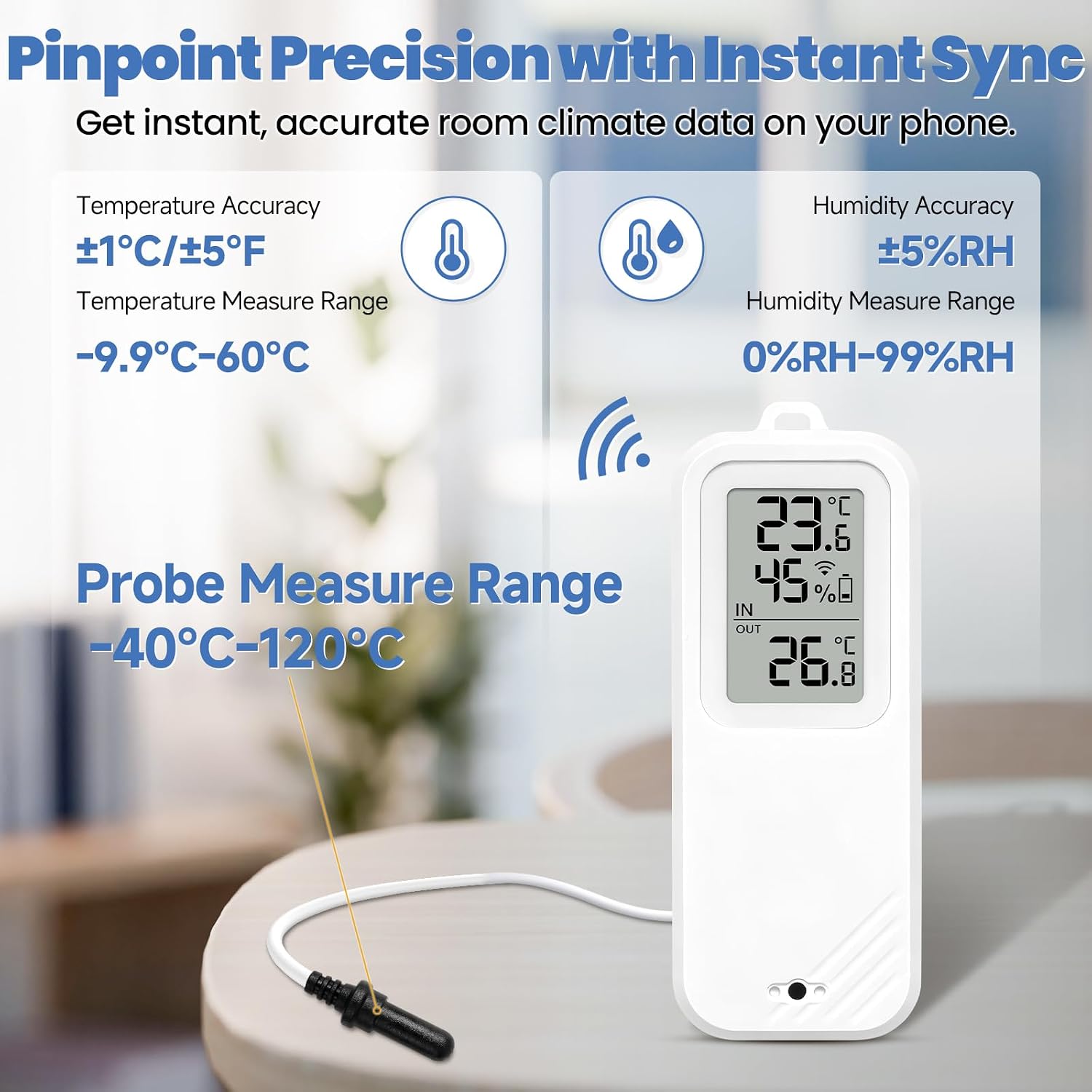
Figure 10: Key accuracy and measurement ranges for the device and probe.
| Feature | Detail |
|---|---|
| Brand | GEEVON-LINK |
| Model Name | GL-250T13-1-WH-WUS |
| Connectivity Technology | Wi-Fi (2.4GHz only), Bluetooth |
| Display Type | LCD |
| Power Source | 2 x AAA Batteries (included) |
| Main Unit Temperature Range | -9.9℃ to 60℃ (14.2°F to 140°F) |
| External Probe Temperature Range | -40℃ to 120℃ (-40°F to 248°F) |
| Humidity Range | 0% to 99% RH |
| Temperature Accuracy | ±1℃ / ±1.8°F (Main Unit); ±0.25°C (-10°C to 50°C) / ±1°C (outside range) (Probe) |
| Humidity Accuracy | ±5% RH |
| Indoor/Outdoor Usage | Indoor |
| Smart Home Compatibility | Alexa, Google Home |
| Certifications | CE, FCC, ISO 9000, RoHS |
7. Warranty & Support
For warranty information and technical support, please refer to the contact details provided with your product packaging or visit the official GEEVON-LINK website. Keep your purchase receipt for warranty claims.