
1. Product Overview
The Jancane WiFi Extender Signal Booster is designed to expand your existing wireless network coverage, eliminate dead zones, and provide a stable internet connection throughout your home or office. It supports high-speed data transmission and offers versatile operating modes to suit various networking needs.

Image: The Jancane WiFi Extender Signal Booster, showcasing its compact design and external antennas.
2. Key Features
- Extended Coverage: Boosts wireless coverage to eliminate dead zones, supporting transmission rates up to 300Mbps for activities like online gaming, video conferencing, and 4K streaming.
- Dual Operating Modes: Functions as both a WiFi Repeater (extending an existing wireless signal) and an Access Point (converting a wired connection to wireless).
- Wide Compatibility: Compatible with 802.11N/B/G wireless network devices, including routers, modems, smartphones, tablets, laptops, and smart TVs.
- Enhanced Security: Maximizes network security with WPA/WPA2 protocols, protecting against unauthorized access and ensuring data privacy.
- Easy Setup: Features a one-touch WPS setup for quick connection or can be configured via a web browser on a smartphone, tablet, or PC.

Image: A visual representation of the extender's core features, including stable chipsets, 2.4GHz support, home WiFi integration, Ethernet port, 300Mbps speed, antenna design, durable and cooling features, and easy setup.
3. Setup Instructions
3.1. WPS One-Touch Setup (Repeater Mode)
- Plug the Jancane WiFi Extender into a power outlet near your existing router.
- Turn on the Extender using the "ON" switch located on the left side of the device.
- Press the WPS button on the Jancane WiFi Extender.
- Within 2 minutes, press the WPS button on your main router.
- Wait for the indicator lights on the extender to show a stable connection (usually solid green or blue).
- Once connected, you can relocate the extender to an optimal position (see Section 3.3).

Image: Visual guide for the WPS setup process, showing the location of the WPS buttons on both the router and the extender.
3.2. Web Browser Setup (Repeater Mode)
- Plug the Jancane WiFi Extender into a power outlet near your existing router and turn it on.
- On your PC or smartphone, open your Wi-Fi settings and connect to the network named "Repeater-xxxx" (where xxxx are the last four digits of the extender's MAC address).
- Once connected, a browser window should automatically open to the extender's settings page. If not, open a web browser and enter
192.168.11.1in the address bar. - Log in using the default credentials (usually 'admin' for both username and password, or as specified in the included quick start guide).
- Select "Repeater Mode Settings" and click "NEXT". The extender will scan for available Wi-Fi networks.
- Select your main router's Wi-Fi network from the list. If your network is hidden, you may need to add it manually.
- Enter the password for your main router's Wi-Fi network. You can choose to keep the same network name or create a new one for the extended network.
- Click "NEXT" and then "Finish" to complete the configuration. The extender will reboot.
- After reboot, reconnect your devices to the new extended network.
Video: A step-by-step guide demonstrating the web browser setup for the Jancane WiFi Extender in Repeater Mode, including connecting to the extender's network, accessing the settings page, selecting the main router's network, and entering the password.
3.3. Optimal Placement
For best performance, place the extender halfway between your router and the area with poor signal. Ensure the extender is within the range of your main router's Wi-Fi signal. Avoid placing it too close to the router (as it won't extend effectively) or too far away (where it cannot receive a strong signal from the router).

Image: A diagram showing correct and incorrect placement of the WiFi extender within a house to achieve optimal signal coverage.
4. Operating Modes
4.1. Repeater Mode
In Repeater Mode, the extender wirelessly connects to your existing router's Wi-Fi network and re-broadcasts it, extending the signal range. This mode is ideal for eliminating Wi-Fi dead zones and improving coverage in larger areas.
4.2. Access Point (AP) Mode
In AP Mode, the extender connects to your router via an Ethernet cable and creates a new wireless network. This mode is useful for converting a wired internet connection into a wireless hotspot, providing Wi-Fi access where only wired connections were previously available.

Image: An illustration differentiating Repeater Mode, where the extender extends an existing Wi-Fi signal, and AP Mode, where it creates a new Wi-Fi network from a wired connection.
5. Security and Compatibility
5.1. Network Security
The Jancane WiFi Extender supports WPA/WPA2 wireless security protocols to protect your network from unauthorized access. This helps safeguard your important data and prevents Wi-Fi interference and privacy issues.
5.2. Device Compatibility
This extender is compatible with a wide range of devices, including smartphones, tablets, laptops, smart TVs, and other Wi-Fi enabled devices that comply with 802.11N/B/G standards.
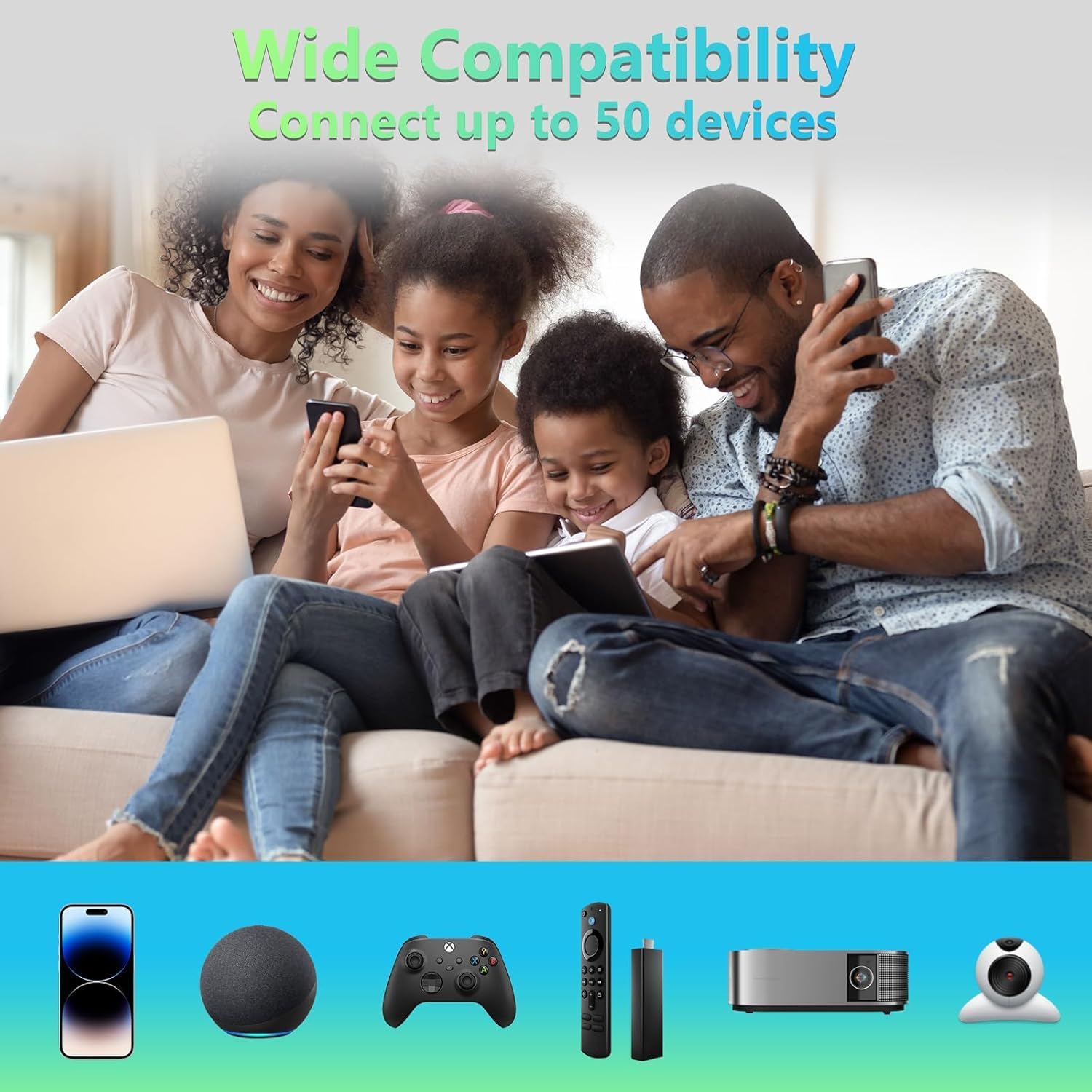
Image: A family using multiple devices, illustrating the wide compatibility of the extender with up to 50 connected devices.
6. Troubleshooting
- No Internet Access After Setup: Ensure the extender is receiving a strong signal from your main router. Relocate the extender to a position halfway between your router and the dead zone. Verify the Wi-Fi password entered during setup is correct.
- Slow Connection Speed: Check the extender's placement. Obstacles like thick walls can degrade signal quality. Ensure there are no excessive devices connected to the extended network that might be saturating bandwidth.
- Cannot Connect to "Repeater-xxxx" Network: If the network does not appear, try unplugging and replugging the extender. If it still doesn't appear, perform a factory reset (see Section 7) and try setup again.
- Login Page Not Opening: If
192.168.11.1does not work, ensure your device is connected to the extender's default Wi-Fi network ("Repeater-xxxx"). Try clearing your browser's cache or using a different browser.
7. Factory Reset
To restore the extender to its factory default settings, locate the Reset button (usually a small pinhole) on the device. With the extender powered on, use a paperclip or similar pointed object to press and hold the Reset button for approximately 5-10 seconds until the indicator lights flash. Release the button, and the extender will reboot with default settings.
8. Specifications
| Feature | Detail |
|---|---|
| Brand | Jancane |
| Model | B0GQ3394QQ |
| Color | Off-White |
| Smart Home Compatibility | Smart Home Compatible |
| UPC | 797507349809 |
| GTIN | 797507349809 |
9. Warranty and Support
Jancane products come with a standard warranty. For specific warranty details, technical support, or customer service inquiries, please refer to the contact information provided in your product packaging or visit the official Jancane website. Keep your purchase receipt for warranty claims.