
1. Introduction
The Earbay JLS-TV966CD Wireless TV Headphones provide a private and immersive audio experience for television viewing. Designed for comfort and ease of use, these over-ear headphones feature a dedicated transmitter charging base, multiple audio modes, and ultra-low latency Bluetooth 5.4 technology to ensure synchronized sound. This manual provides instructions for setup, operation, maintenance, and troubleshooting.

Enjoy private audio without disturbing others, ideal for late-night viewing.
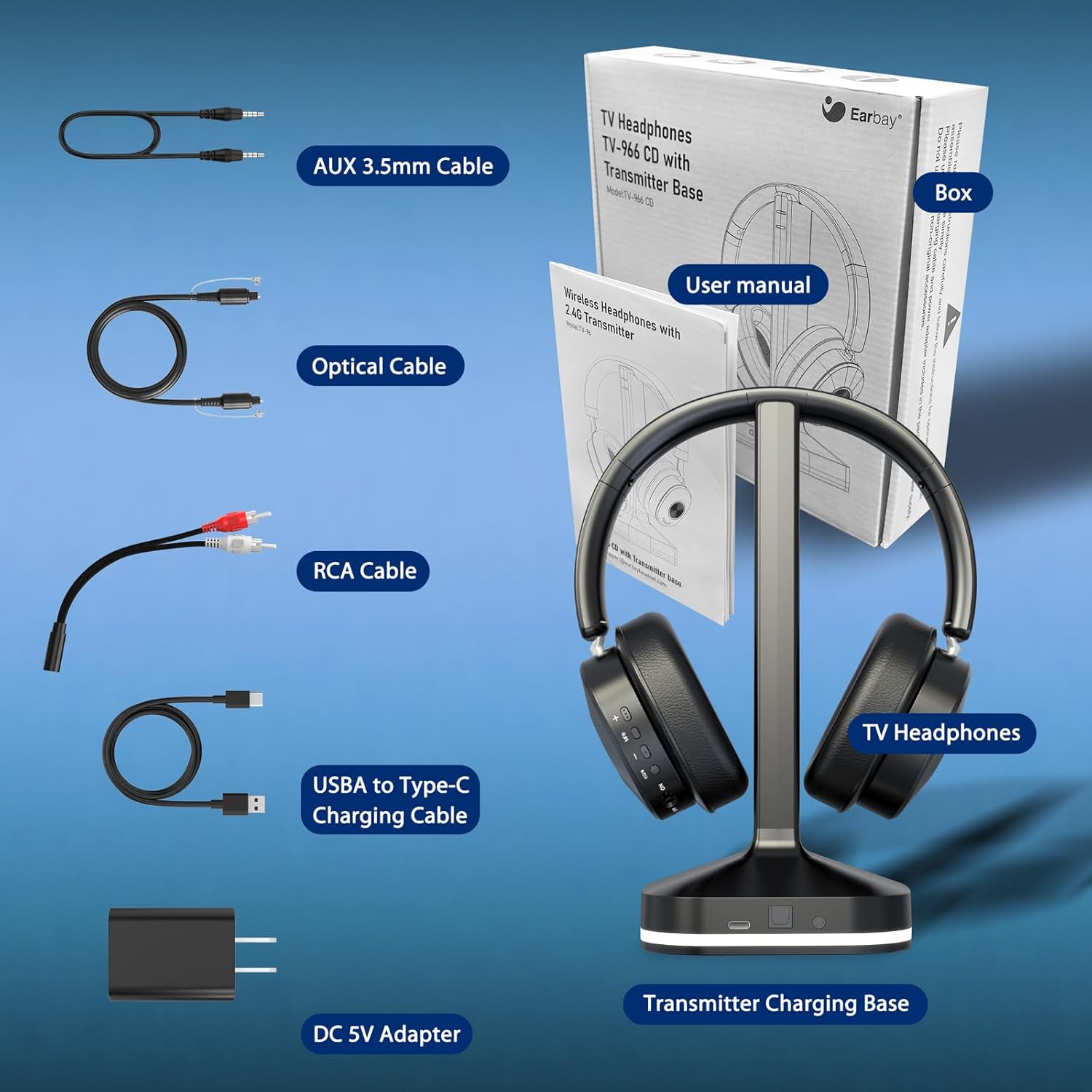
2. What's in the Box
Please check the package contents to ensure all items are present:
- TV-Headphones (1 unit)
- Transmitter - Charging Station (1 unit)
- Optical cable (1 unit)
- AUX 3.5mm cable (1 unit)
- RCA cable (1 unit)
- USB-A to USB-C charging cable (1 unit)
- DC-5V power adapter (1 unit)

All included accessories for connecting and charging your headphones.
3. Product Overview
Headphone Controls
The headphones feature intuitive controls for managing audio and calls:
- Volume Up/Down: Adjust audio level.
- Multi-function Button: Play/pause, answer/end calls.
- EQ Button: Short press to switch between Vocal, Cinema, Bass, and Balanced audio modes.
- Microphone: For calls. Long press the multi-function button for 1 second to mute the mic during a call.

Headphone controls for volume, playback, calls, and EQ modes.
Transmitter / Charging Base
The transmitter serves as both a charging station and an audio hub:
- Power Port: USB-C input for power.
- Optical Input: For digital audio connection.
- AUX Input: For 3.5mm audio connection.
- Mode Switch: Toggle between AUX, OFF, and SPDIF (Optical) modes.
- Charging Pins: Automatically charge headphones when placed on the base.
The transmitter base provides power, audio inputs, and charging functionality.
4. Setup Instructions
Follow these steps to set up your Earbay Wireless TV Headphones with your television.
4.1 Power Connection
- Connect the USB-A to USB-C charging cable to the transmitter's power port.
- Plug the DC-5V power adapter into a wall outlet.
- Place the headphones on the charging base to ensure they are charged and ready for use.

Connect the transmitter to power and your TV using one of the provided audio cables.
4.2 Connecting to Your TV
The transmitter supports three primary connection methods: Optical, RCA, and 3.5mm AUX. Choose the method compatible with your TV. Only one connection method can be used at a time.
Choose the appropriate connection method for your television.
Method 1: Optical Audio Output
- Flip the mode switch on the transmitter to the SPDIF position.
- Use the optical audio cable to connect your TV's Optical Output port to the transmitter's Optical input.
- TV Setup: Navigate to your TV's audio settings. Go to "Settings" > "Sound/Audio" > "Sound Output/Expert Settings/Advanced" > "Audio Digital Output Format" > Select "Optical" or "PCM". Ensure your TV is set to PCM.
Method 2: RCA Audio Output
- Flip the mode switch on the transmitter to the AUX position.
- Assemble the AUX 3.5mm cable and the RCA cable harness.
- Use the assembled cable to connect your TV's Red/White "AUDIO OUT" ports to the transmitter's AUX input. Ensure you use the "AUDIO OUT" ports, not other Red/White ports.
- TV Setup: Navigate to your TV's audio settings. Go to "Settings" > "Sound/Audio" > "Sound Output/Expert Settings/Advanced" > "Audio Digital Output Format" > Select "PCM/Stereo". Set your TV to output to an external speaker.
Method 3: AUX 3.5mm Audio Output
- Flip the mode switch on the transmitter to the AUX position.
- Use the AUX 3.5mm cable to connect your TV's 3.5mm Audio Output port (often labeled Headphone Out) to the transmitter's AUX input.
- TV Setup: Navigate to your TV's audio settings. Go to "Settings" > "Sound/Audio" > "Sound Output/Expert Settings/Advanced" > "Audio Digital Output Format" > Select "PCM/Stereo". Set your TV to output to an external speaker.
Once connected, power on both the transmitter and the headphones. The headphones should automatically pair with the transmitter. You are now ready to enjoy wireless audio.
Video demonstrating how to pair the Earbay TV headphones and transmitter with your TV using Optical, RCA, and AUX 3.5mm connections, including necessary TV audio settings.
5. Operating Instructions
5.1 Wearing the Headphones
Adjust the headband for a comfortable fit. The over-ear ear pads are designed with premium protein leather and high-density memory foam for extended wear without pressure.
5.2 Audio Modes
The headphones offer multiple audio modes to optimize your listening experience. Short press the EQ button on the headphone to cycle through:
- Vocal Mode: Enhances dialogue clarity.
- Cinema Mode: Provides an immersive, cinematic soundstage.
- Bass Mode: Boosts low frequencies for richer bass.
- Balanced Mode: Offers a neutral, well-rounded sound profile.
5.3 Charging the Headphones
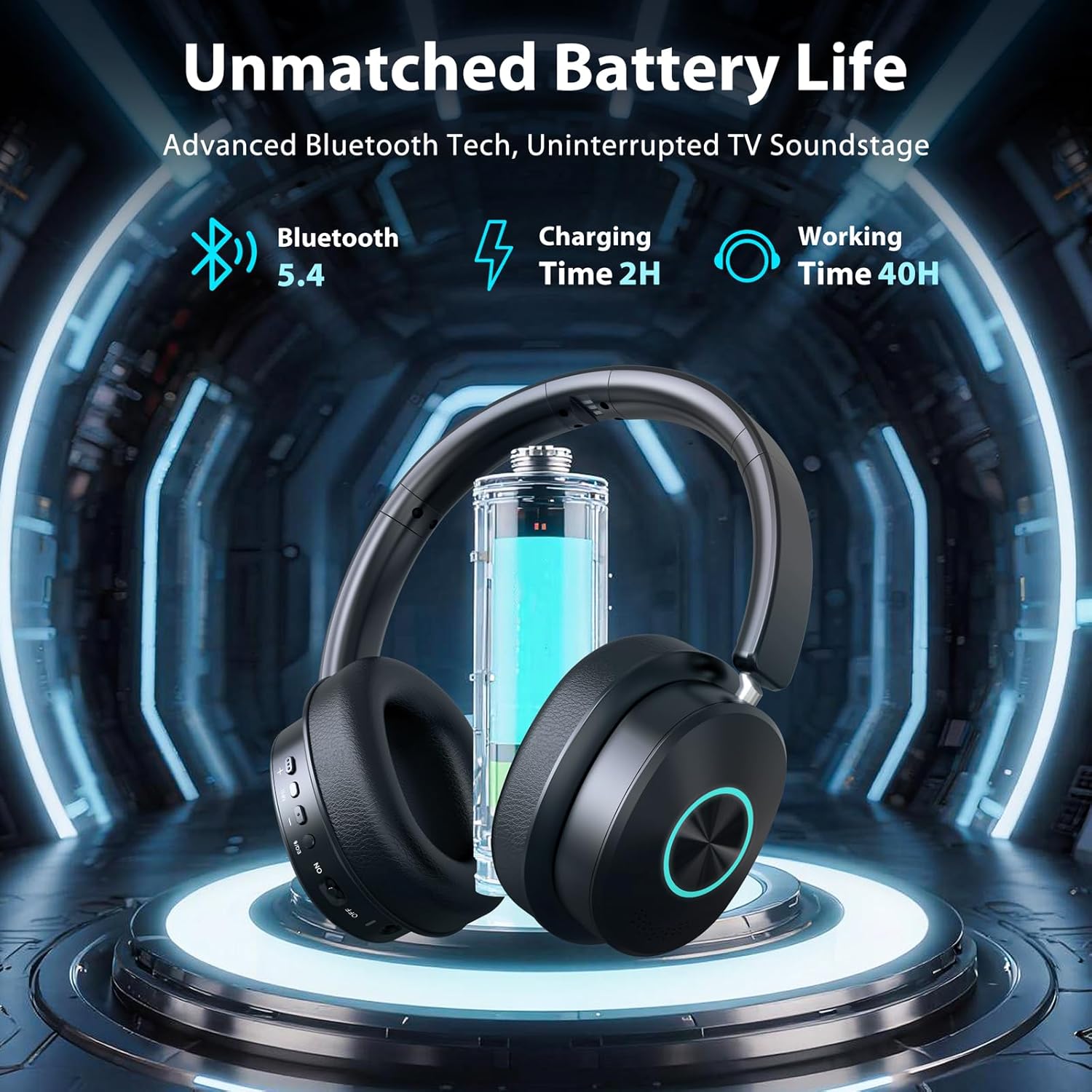
When not in use, simply place the headphones on the transmitter charging base. The headphones will automatically begin charging. A full charge provides up to 40 hours of continuous use. Charging time is approximately 2 hours.

Place headphones on the base for convenient charging and storage.
5.4 Bluetooth Mode (for other devices)
In addition to TV connectivity, the headphones can connect directly to other Bluetooth-enabled devices like smartphones or tablets.
- Ensure the transmitter's mode switch is set to OFF or AUX (if not connected to TV).
- Power on the headphones.
- On your device, enable Bluetooth and search for "Earbay JLS-TV966CD" (or similar).
- Select the headphones to pair.

Switch between TV mode and Bluetooth mode for versatile listening.
5.5 Extended Range
The headphones offer a wireless connection range of up to 30 meters (100 feet), allowing you to move freely around your home without audio interruption.

Enjoy clear audio even when moving away from your TV.
6. Troubleshooting
| Issue | Possible Solution |
|---|---|
| No sound from headphones |
|
| Audio delay/lip-sync issues |
|
| Headphones not charging |
|
| Cannot connect via Bluetooth to phone |
|
7. Specifications
| Feature | Detail |
|---|---|
| Brand | Earbay |
| Model Number | JLS-TV966CD-B-NNEW |
| Color | Black |
| Ear Placement | Over Ear |
| Impedance | 32 Ohms |
| Battery Life | Up to 40 Hours |
| Charging Time | Approx. 2 Hours |
| Noise Control | Environmental Noise Cancellation |
| Frequency Range | 20Hz - 20,000Hz |
| Connectivity Technology | Wireless (Bluetooth) |
| Bluetooth Version | 5.4 |
| Bluetooth Range | Up to 30M / 100 Feet |
| Headphone Jack | Optical / 3.5mm (AUX) / RCA |
| Control Type | Touch Control, Push Button |
| Material | Aluminum, Faux Leather, Plastic, Stainless Steel |
| UPC | 712636394988 |
8. Warranty and Support
The Earbay JLS-TV966CD Wireless TV Headphones come with a 1-Year Warranty from the date of purchase. This warranty covers manufacturing defects and ensures product quality.
For technical support, troubleshooting assistance, or warranty claims, please contact Earbay customer service through the retailer where the product was purchased or visit the official Earbay website for contact information.