
Introduction
This manual provides essential information for setting up, operating, maintaining, and troubleshooting your Roku Hiro 24" 720p HD Smart Flat Screen LED TV. Please read these instructions carefully before using your television to ensure proper function and safety.
What's in the Box
Verify that all components are present before proceeding with setup.
- Hiro Roku 24" 720p HD Smart Flat Screen LED Roku TV
- Remote Control
- TV Stand
- Power Cable
- User Manual (this document)

Image: The Roku Hiro 24-inch TV shown with its dimensions (21.1" width, 12.8" height, 3" depth, 7" stand depth, 1.5" stand height) and a list of included items: 24" HD TV, Roku TV remote, two AAA batteries, and TV stand.
Setup
1. Attaching the TV Stand
- Carefully place the TV screen-down on a soft, clean surface to prevent scratches.
- Align the stand with the mounting holes on the bottom of the TV.
- Secure the stand using the provided screws. Do not overtighten.
2. Connecting Power and External Devices
Connect the power cable to the TV and then to a wall outlet. For external devices such as Blu-ray players, game consoles, or sound systems, use the appropriate ports on the back or side of the TV.
- HDMI Ports: Use for high-definition video and audio from devices like cable boxes, game consoles, or streaming sticks. This TV has 3 HDMI ports.
- USB Port: For connecting USB storage devices to view media.
- Optical Audio Output: For connecting to external audio systems.
- Antenna/Cable Input: For connecting an antenna or cable TV feed.

Image: A close-up view of the rear panel of the Roku Hiro TV, displaying various input ports including HDMI, USB, and antenna input.
3. Initial Power-On and Network Connection
- Plug in the TV and press the power button on the remote control.
- Follow the on-screen instructions to select your language and connect to your Wi-Fi network.
- The TV will guide you through setting up your Roku account. An internet connection and Roku account are required to access smart TV features.
Operating
1. Remote Control Functions
The included remote control provides easy navigation and control over your Roku TV. Familiarize yourself with its buttons:
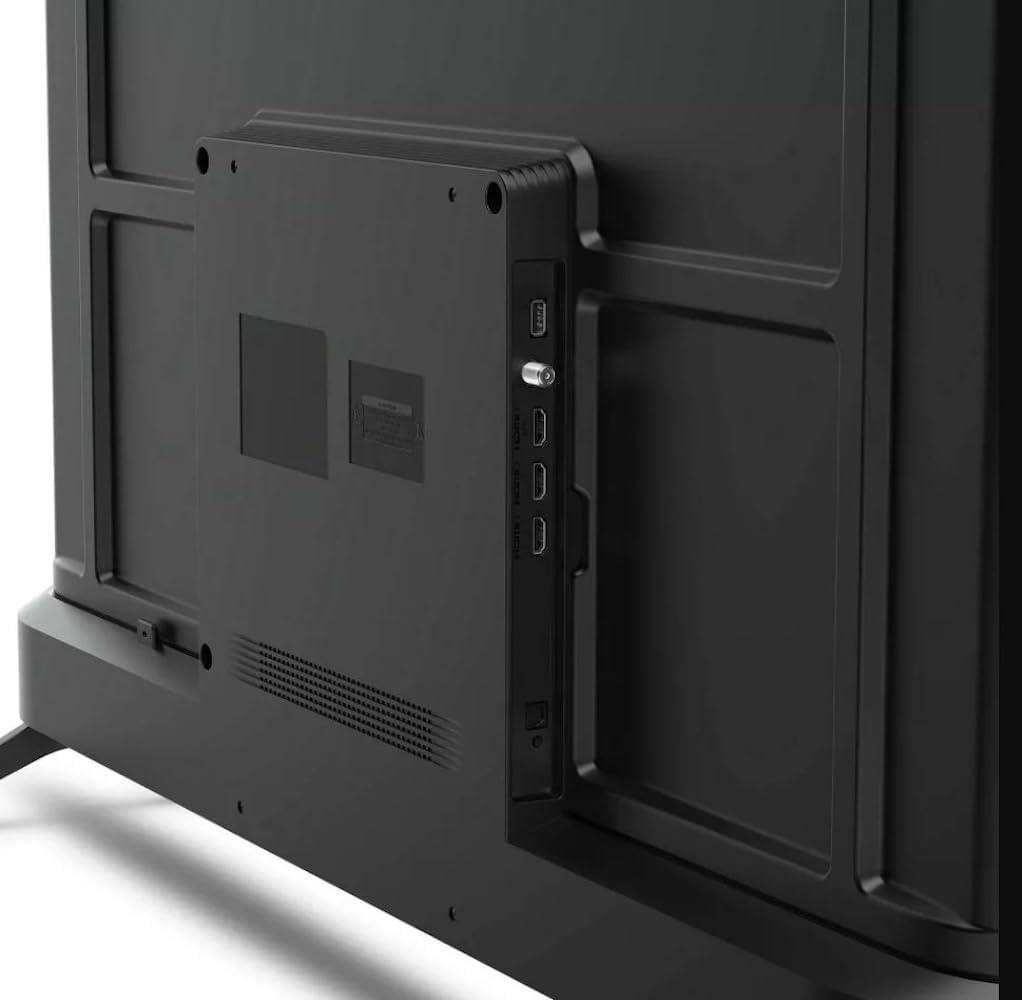
Image: A detailed view of the Roku TV remote control. Key buttons are labeled: TV power, Volume, Mute, Sleep timer, Instant replay, Options, and dedicated app shortcut buttons for Netflix, Prime Video, Hulu, and YouTube.
- Power Button: Turns the TV on or off.
- Directional Pad (D-Pad) and OK Button: Navigate menus and select items.
- Home Button: Returns to the Roku home screen.
- Back Button: Goes back to the previous screen.
- Volume Up/Down: Adjusts the TV volume.
- Mute Button: Mutes or unmutes the sound.
- Instant Replay: Jumps back a few seconds in video playback.
- Options (*): Accesses contextual options within apps or menus.
- App Shortcut Buttons: Direct access to popular streaming services like Netflix, Prime Video, Hulu, and YouTube.
2. Navigating the Roku OS
The Roku operating system provides a user-friendly interface for accessing streaming content and TV settings.

Image: The Roku TV home screen, showing a left-hand menu with options like Home, What to Watch, Featured Free, Live TV, Sports, Search, Streaming Store, and Settings. The main screen displays various app icons including Netflix, Disney+, Apple TV, Roku Channel, Howdy, Paramount+, ESPN, and Prime Video.
- Home Screen: Customize your home screen by moving apps to your preferred order.
- Streaming Store: Browse and add new streaming channels (apps).
- Live TV: Access free live TV channels available through Roku.
- Search: Find movies, TV shows, actors, and directors across various streaming services.
3. Audio Features
Your Roku Hiro TV includes enhanced audio quality with Dolby Audio support. You can also pair Bluetooth headphones for private listening.
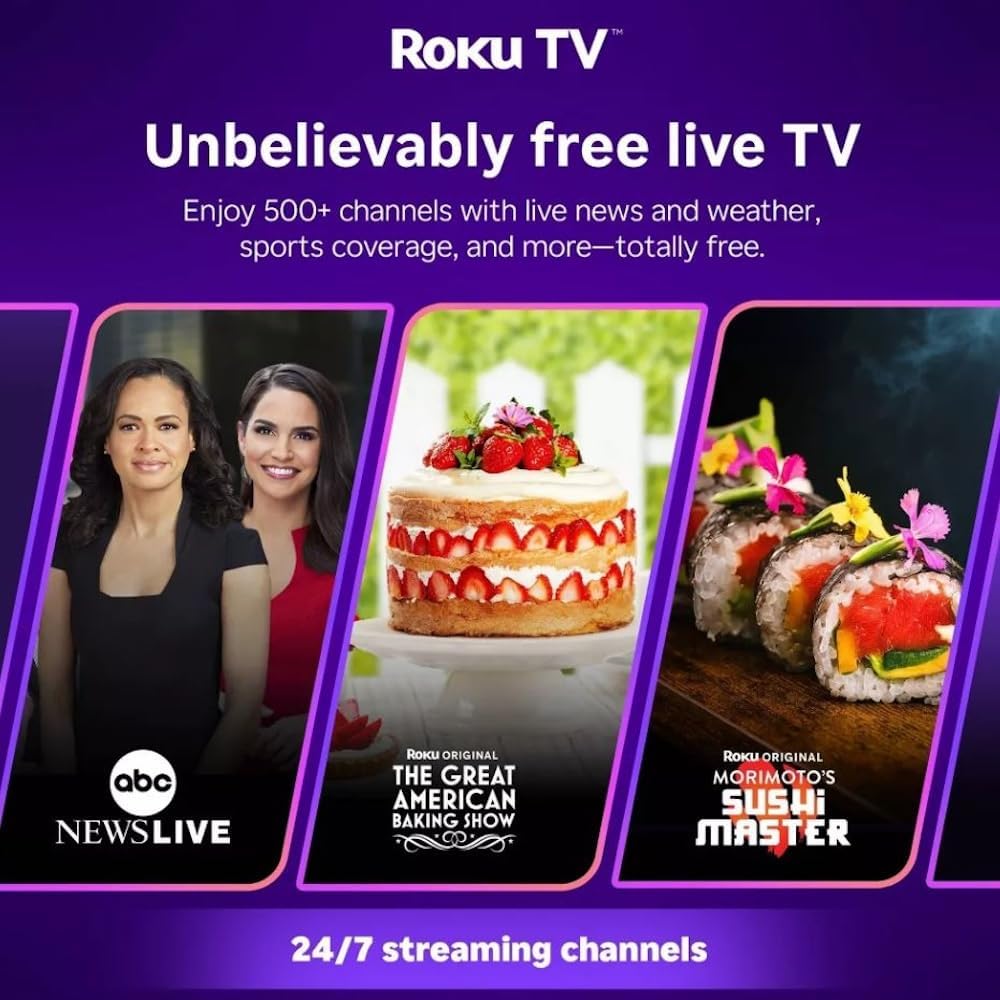
Image: A Roku TV displaying content, with text overlay stating "Booms, whispers, and everything in between. With enhanced audio quality and features, your shows and movies will be extra pleasing to the ears."
Maintenance
Cleaning the TV
- Always unplug the TV before cleaning.
- Use a soft, dry, lint-free cloth to wipe the screen and cabinet.
- For stubborn marks, lightly dampen the cloth with water or a mild, non-abrasive screen cleaner. Do not spray cleaner directly onto the screen.
- Avoid using harsh chemicals, abrasive pads, or solvents.
Software Updates
Your Roku TV automatically checks for and installs software updates when connected to the internet. Ensure your TV remains connected to Wi-Fi for optimal performance and access to the latest features.
Troubleshooting
If you encounter issues with your TV, refer to the following common solutions:
| Problem | Solution |
|---|---|
| No Power | Ensure the power cable is securely plugged into both the TV and a working electrical outlet. Try a different outlet. |
| No Picture / Black Screen | Check that the TV is powered on. Verify the correct input source is selected (e.g., HDMI 1, HDMI 2). Ensure external devices are powered on and connected correctly. |
| No Sound | Check the volume level and ensure the TV is not muted. If using external audio, verify connections and settings. |
| Remote Not Responding | Replace the batteries in the remote control. Ensure there are no obstructions between the remote and the TV's IR sensor. |
| Network Connection Issues | Restart your Wi-Fi router and modem. Go to the TV's network settings to reconnect to your Wi-Fi network. Ensure your Wi-Fi password is correct. |
If problems persist, consider performing a factory reset through the TV's settings menu (Settings > System > Advanced system settings > Factory reset). Note that a factory reset will erase all personal settings and installed apps.
Specifications
| Feature | Detail |
|---|---|
| Model Name | H24C2C4 |
| Screen Size | 24 inches |
| Display Technology | LCD, Direct LED Backlight |
| Resolution | 720p HD |
| Refresh Rate | 60 Hz |
| Operating System | Roku OS |
| Connectivity | Wi-Fi, Bluetooth, 3x HDMI, USB, Optical Audio |
| Audio | Dolby Audio, Enhanced Audio Quality |
| Supported Internet Services | Apple TV, Disney Plus, Hulu, Netflix, Prime Video, and more via Roku Channel Store |
| Item Weight | 5.5 pounds |
| Color | Black |
Warranty
This Roku Hiro TV comes with a 90-day limited warranty. Please retain your proof of purchase for warranty claims. The warranty covers defects in materials and workmanship under normal use. For specific terms and conditions, refer to the warranty documentation included with your product or contact customer support.
Support
For further assistance, technical support, or warranty inquiries, please refer to the contact information provided in your product packaging or visit the official Roku support website. Ensure you have your TV's model number (H24C2C4) and serial number ready when contacting support.


