
Introduction
The Roku Hiro 32-inch 720p HD Smart TV offers an integrated Roku streaming experience. This television features an HD display for clear picture quality and speakers with enhanced audio. It supports Bluetooth for private listening with headphones and includes Wi-Fi for internet connectivity. The Roku operating system provides a customizable home screen, access to numerous streaming channels, and automatic updates, making it suitable for various living spaces.
What's in the Box
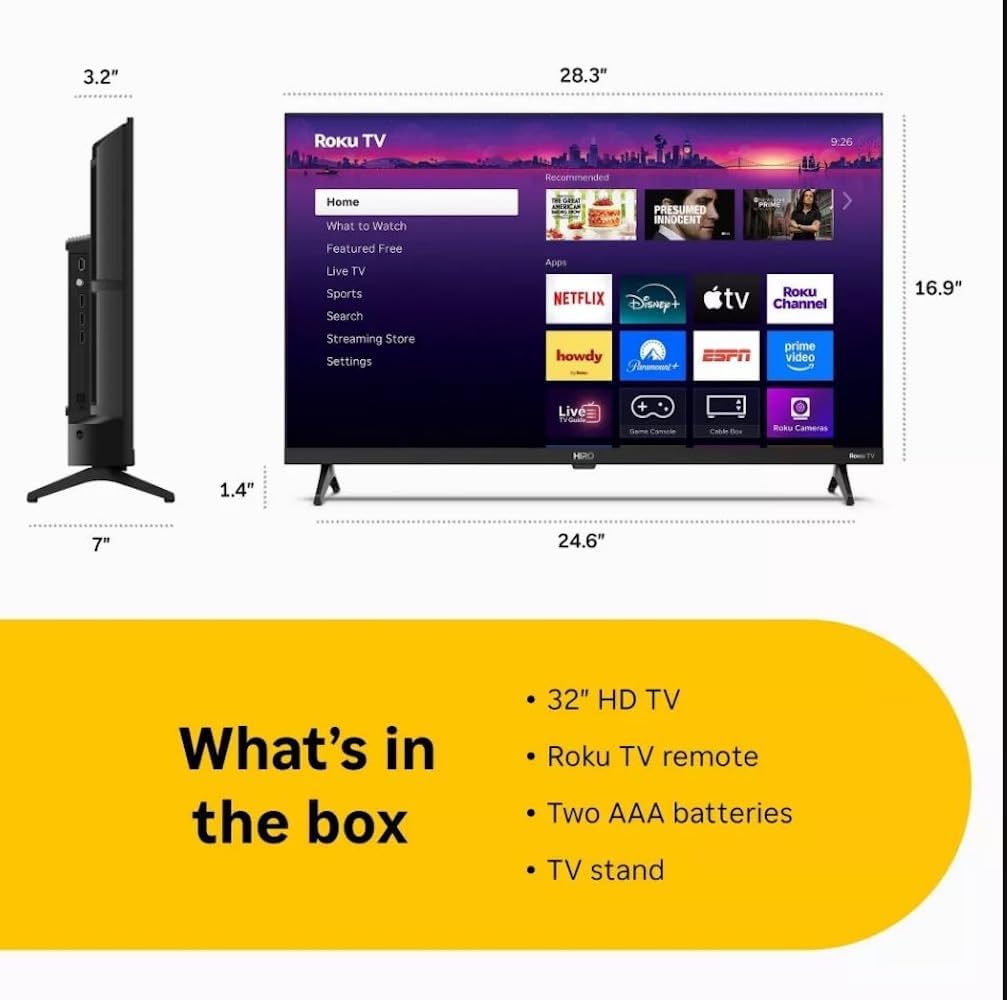
Diagram showing the dimensions of the Roku Hiro 32-inch TV and a list of included accessories: 32-inch HD TV, Roku TV remote, two AAA batteries, and TV stand.
- Hiro 32" 720p HD Smart TV Flat Screen LED Television with Roku TV
- Remote Control
- TV Stand
- Power Cable
- User Guide
Setup
1. Stand Installation
Carefully place the TV screen-down on a soft, clean surface to prevent damage. Align the TV stand with the designated slots on the bottom of the TV. Secure the stand using the provided screws. Ensure the stand is firmly attached before proceeding.
2. Connecting Devices

Rear view of the Roku Hiro TV, showing the input/output ports including USB, HDMI, and antenna connections.
- Power: Connect the power cable to the TV's power input and then to a wall outlet.
- HDMI: Connect external devices such as Blu-ray players, game consoles, or cable boxes to the HDMI ports. This TV features 3 HDMI ports.
- USB: Use the USB port for media playback from a USB drive.
- Optical Audio: Connect an external sound system using an optical audio cable for enhanced sound.
- Antenna/Cable: Connect an antenna or cable TV feed to the RF input for over-the-air or cable channels.
3. Initial Setup
After connecting all necessary cables, power on the TV. Follow the on-screen instructions to:
- Select your language.
- Connect to your Wi-Fi network.
- Activate your Roku account (or create a new one).
- Scan for available channels if an antenna is connected.
Operating Instructions
Remote Control Functions

Close-up of the Roku TV remote control, highlighting buttons for TV power, volume, mute, sleep timer, instant replay, options, and app shortcuts.
- Power Button: Turns the TV on or off.
- Directional Pad (D-Pad): Navigates menus and selects items.
- OK Button: Confirms selections.
- Home Button: Returns to the Roku home screen.
- Back Button: Returns to the previous screen.
- Volume Up/Down: Adjusts the TV volume.
- Mute Button: Mutes or unmutes the TV sound.
- App Shortcut Buttons: Direct access to popular streaming services (e.g., Netflix, Disney+, Apple TV+, Prime Video).
- Sleep Timer: Sets a timer for the TV to turn off automatically.
- Instant Replay: Jumps back a few seconds in supported content.
- Options: Accesses additional settings or information for the current content.
Navigating the Roku OS

The Roku TV home screen interface, showing recommended content and various streaming applications.
The Roku home screen provides access to all your streaming channels, inputs, and settings. Use the D-Pad on your remote to navigate through the menu options on the left and the app grid on the right. You can customize the order of your channels by highlighting an app, pressing the * (Options) button, and selecting 'Move channel'.
Streaming Content
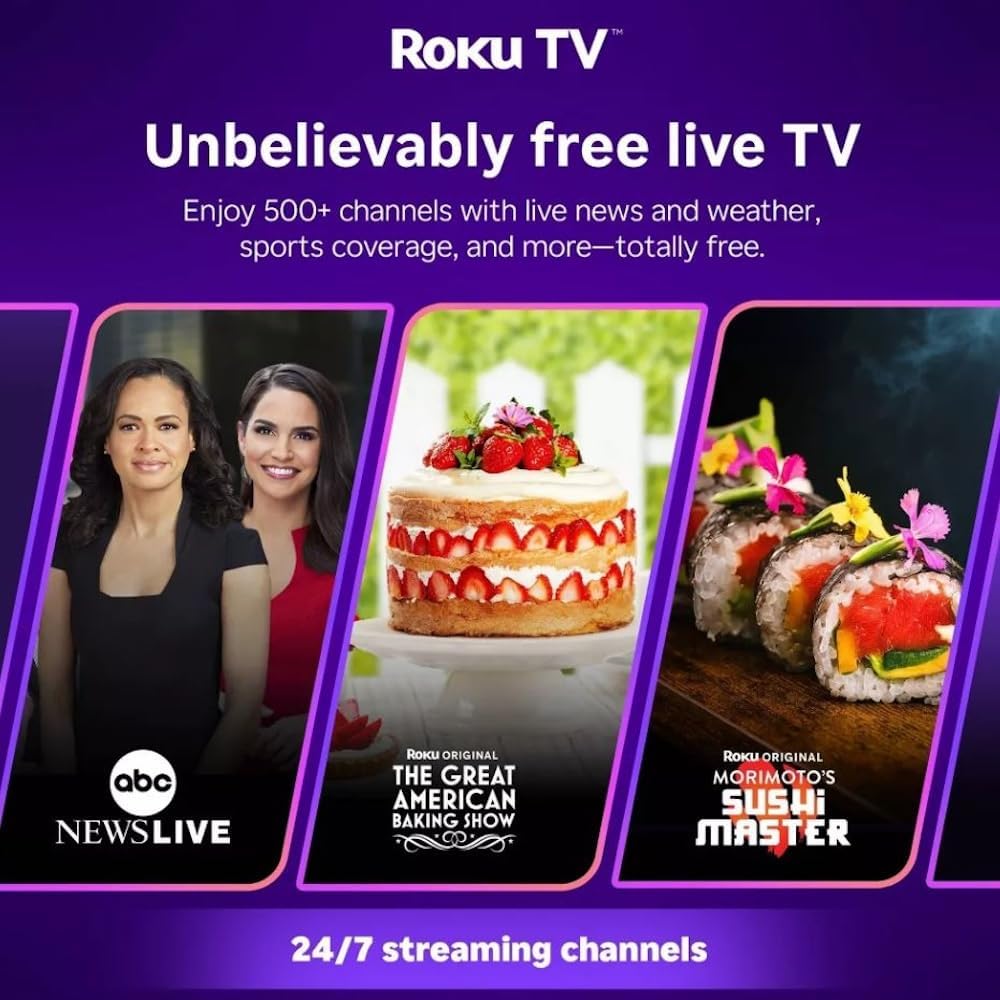
Roku TV interface promoting free live TV channels, featuring examples like ABC News Live, The Great American Baking Show, and Morimoto's Sushi Master.
Access a wide range of streaming services and free content through the Roku Channel Store. The Roku platform offers over 500 free channels, including live television, movies, and news. Use the 'Search' function on the home screen to find specific titles or channels.
Audio Features

Roku Hiro TV displaying the home screen with various streaming apps, emphasizing enhanced audio quality.
The TV features enhanced audio quality. For private listening, you can pair Bluetooth headphones directly with the TV. Navigate to Settings > Remotes & devices > Bluetooth devices > Pair new device to connect your headphones.
Maintenance
Cleaning the TV
- Always unplug the TV before cleaning.
- Use a soft, lint-free cloth to gently wipe the screen and cabinet.
- For stubborn marks, lightly dampen the cloth with water or a mild, non-abrasive screen cleaner. Do not spray cleaner directly onto the screen.
- Avoid using harsh chemicals, abrasive pads, or solvents.
Software Updates
The Roku TV automatically checks for and installs software updates when connected to the internet. To manually check for updates, go to Settings > System > Software update.
Troubleshooting
| Problem | Solution |
|---|---|
| No power | Ensure the power cable is securely connected to both the TV and a working electrical outlet. Try a different outlet. |
| No picture, but sound is present | Check the input source. Press the Home button on the remote and select the correct input. Ensure all HDMI cables are securely connected. |
| No sound, but picture is present | Check the volume level and ensure the TV is not muted. If using external audio, verify connections and settings. |
| Cannot connect to Wi-Fi | Verify your Wi-Fi password. Restart your router and modem. Go to Settings > Network > Set up connection to reconfigure. |
| Remote control not working | Replace the batteries in the remote. Ensure there are no obstructions between the remote and the TV's IR sensor. |
Specifications
| Model Name | H32C2C4 |
| Screen Size | 32 Inches |
| Display Technology | LED |
| Resolution | 720p |
| Refresh Rate | 60 Hz |
| Operating System | Roku OS |
| Connectivity Technology | Bluetooth, HDMI, Optical Audio, USB, Wi-Fi |
| Total Number of HDMI Ports | 3 |
| Total USB Ports | 1 |
| Product Dimensions (D x W x H) | 3.2"D x 28.3"W x 16.9"H |
| Item Weight | 7.5 Pounds |
| Voltage | 120 Volts (AC) |
| Mounting Type | Table Mount |
| Color | Black |
Warranty Information
This Roku Hiro TV is covered by a 90-day Replacement Warranty. Please retain your proof of purchase for any warranty claims. For detailed terms and conditions, refer to the warranty documentation included with your product or visit the official Roku support website.
Support
For further assistance, troubleshooting guides, or to contact customer support, please visit the official Roku support website. You can find comprehensive FAQs and contact information there.


