
1. Introduction
Thank you for purchasing the Samsung 55-Inch Class M70H Series Mini LED Smart TV. This manual provides essential information for setting up, operating, and maintaining your new television. Please read these instructions carefully to ensure optimal performance and safe use of your device. The Samsung M70H Series offers a stunning visual experience with Mini LED technology, 4K resolution, and smart features powered by Samsung Vision AI Companion.
2. What's in the Box
Carefully unpack your TV and ensure all items are present. If any items are missing or damaged, contact your retailer.
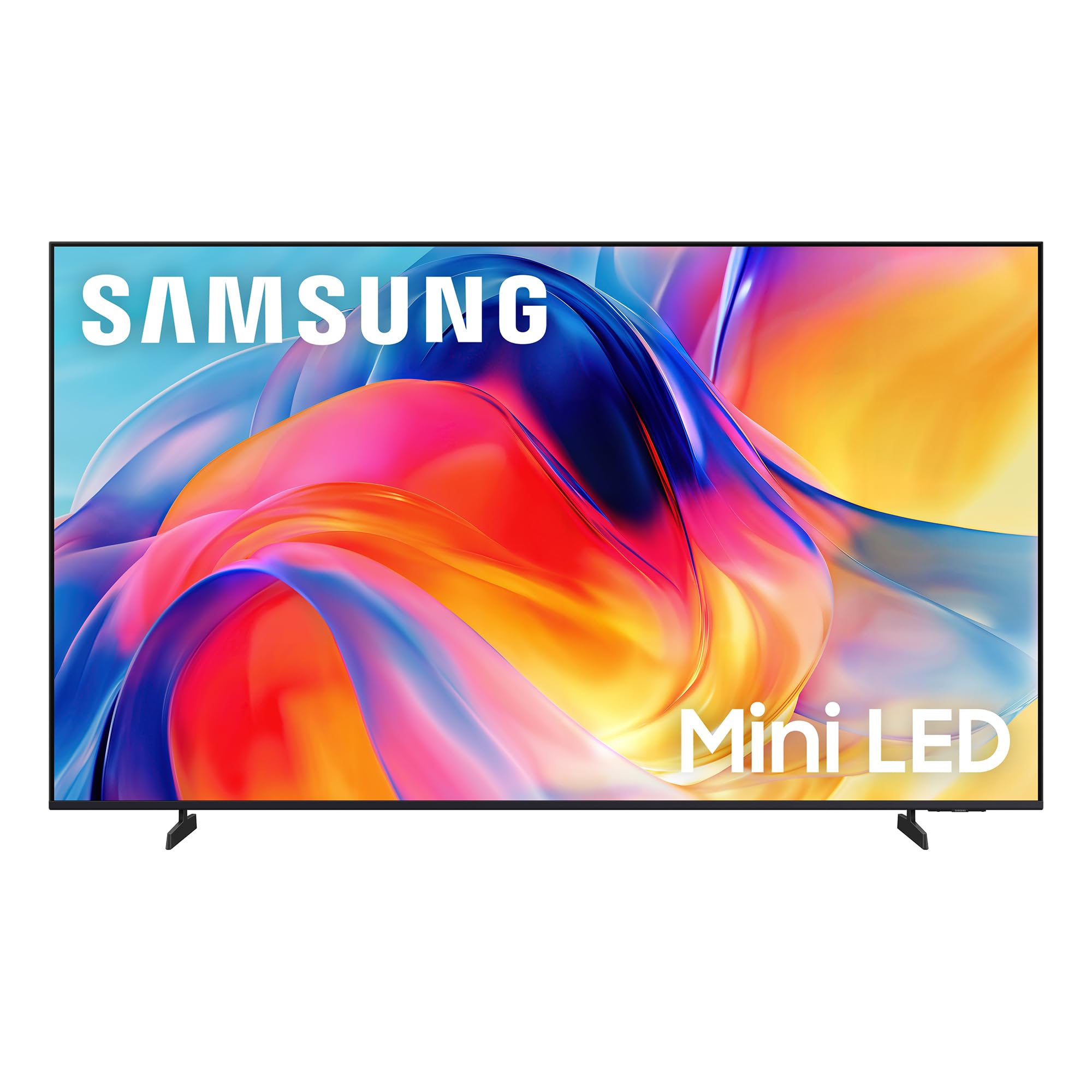
Image: Samsung 55-Inch M70H Series TV with remote, stand, and power cable.
- Samsung 55-Inch Class M70H Series Mini LED Smart TV
- Remote Control
- Power Cable
- TV Stand (2 pieces)
- User Manual (this document)
- Warranty Card
- Batteries for Remote Control (2 AAA)
3. Setup
Follow these steps to set up your new television.
3.1 Attaching the Stand or Wall Mounting
If using the included stand, carefully attach the stand feet to the bottom of the TV using the provided screws. Ensure the TV is placed on a stable, level surface. For wall mounting, use a VESA-compatible wall mount (200 x 200 mm) and follow the wall mount manufacturer's instructions. Always ensure proper ventilation around the TV.

Image: Samsung M70H TV properly set up in a living room environment.
3.2 Connecting Power
Connect the power cable to the TV's power input and then to a wall outlet. Do not plug in the TV until all other connections are made.
3.3 Initial Setup
Once powered on, the TV will guide you through the initial setup process, including language selection, network connection (Wi-Fi or Ethernet), and channel scanning. You will also be prompted to sign in to your Samsung account to access smart features.
4. Connections
The Samsung M70H TV offers various ports for connecting external devices.

Image: Detailed view of the TV's rear connection panel.
| Port | Description |
|---|---|
| HDMI 1 (eARC) | Enhanced Audio Return Channel for high-quality sound and advanced formats. Connect soundbars or AV receivers. |
| HDMI 2, 3 | Connect Blu-ray players, game consoles, or other HDMI devices. |
| USB-A | Standard rectangular port for power or media playback from USB storage devices. |
| Cable/ANT | Connect an over-the-air antenna or cable TV signals. |
| Ethernet (LAN) | Wired internet connection for stable streaming, updates, and smart features. |
5. Operating Instructions
This section details how to use the various features of your Samsung M70H Smart TV.
5.1 Picture Quality Features
Experience superior visual performance with advanced display technologies.
- Mini LED Processor 4K: The advanced processor delivers brighter highlights and deeper blacks, enhancing every detail with stunning clarity. This processor also upscales content to crisp 4K clarity.

Image: The Mini LED Processor 4K, responsible for image optimization.
- Pure Spectrum Color: Enjoy one billion true-to-life colors, powered by advanced color technology and Mini LED precision. This ensures rich reds, deep blues, and vibrant greens for breathtaking realism.

Image: Visual comparison demonstrating the enhanced color range with Pure Spectrum Color.
- Mini LED HDR: Experience HDR picture quality with brighter highlights and deeper blacks than traditional HDR TVs. This technology enhances brightness and contrast, making every image stand out with remarkable depth.

Image: A vibrant sunset scene highlighting the dramatic detail provided by Mini LED HDR.
- Supreme Mini LED Dimming: This feature delivers deep contrast and bright highlights for a truly superb picture by precisely controlling the Mini LEDs.

Image: A tiger in a jungle, showcasing the deep contrast from Supreme Mini LED Dimming.
- Color Booster: Transforms your content into a visual masterpiece by making every color come to life with intensity, from fiery reds to sparkling blues.
5.2 Motion and Gaming Features
Optimized features for smooth action and immersive gaming.
- Motion Xcelerator + DLG 120Hz: Enjoy smooth visuals and fast motion clarity with technology that analyzes and optimizes the refresh rate. Designed for gaming and sports, it keeps every scene sharp and fluid. DLG 120Hz increases the refresh rate up to 120Hz, optimal for fast-paced gaming, though visual quality may vary by title.

Image: A motocross scene demonstrating the smooth motion provided by Motion Xcelerator + DLG 120Hz.
- Gaming Hub: A central hub that brings together your favorite games from consoles, cloud services, and gaming apps, all in one place. It offers personalized recommendations to help you find what to play next.
- Soccer Mode: Enjoy a stadium-like experience with optimized settings for sports. This mode delivers clearer motion and more vibrant greens for realistic turf, putting you right in the stadium.
5.3 Smart Features and AI Companion
Access a world of entertainment and smart home control.
- Endless Free Content (Samsung TV Plus): Watch over 2,700 free streaming options, including 750+ subscription-free channels on Samsung TV Plus. Enjoy news, sports, movies, kids' shows, and reality TV without a subscription.
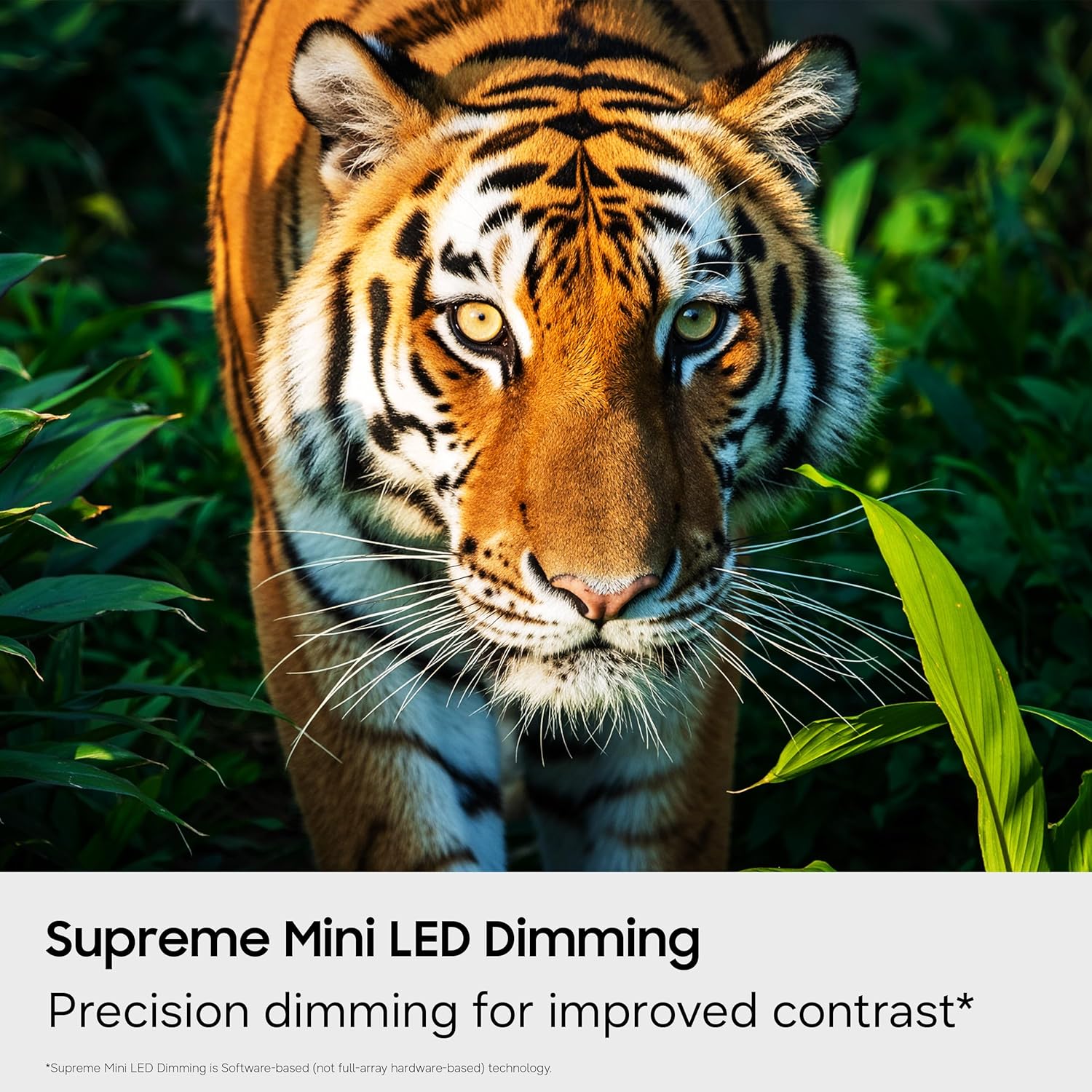
Image: The Smart TV home screen displaying a variety of streaming services and free content options.
- Samsung Vision AI Companion: Ask your TV anything and access powerful AI features. This AI-enhanced system provides personalized experiences, optimizing picture and sound, and allowing deeper engagement with content.

Image: The Vision AI Companion interface showing options like Copilot, Generative Wallpaper, and AI Mode.
- One UI Tizen: Stream, game, and explore all your favorite content on One UI Tizen, an intuitive smart TV platform you can customize.
- Samsung Knox Security: Built-in triple-layer data protection defends against harmful apps and phishing sites, keeping sensitive data like PIN-codes and passwords secure. It also safeguards your IoT devices connected to your TV.
- SmartThings Hub: Connect and control smart devices through your TV to simplify daily life. Get notifications about your devices on screen, including a 3D Map View of your smart home ecosystem.
- Quick Remote: Use your smartphone to change channels, adjust volume, and access key Samsung Tizen TV features such as media, ambient mode, and menu.
- AI Energy Mode: Save energy with intelligent analysis. This mode helps reduce power consumption by auto-adjusting brightness based on the room's lighting and your user activity.
- Karaoke Feature: Have fun with friends and family using the karaoke feature in Samsung Daily+. You can connect your phone as a mic without separate equipment.
5.4 Official Product Video
Watch this official video for an overview of the Samsung Mini LED M70 features.
Video: Official Samsung video highlighting the key features of the Mini LED M70H TV.
6. Maintenance
Proper maintenance ensures the longevity and performance of your TV.
6.1 Cleaning the TV
- Always unplug the TV before cleaning.
- Use a soft, dry microfiber cloth to wipe the screen and cabinet.
- For stubborn marks, lightly dampen the cloth with water or a specialized screen cleaner (avoid harsh chemicals).
- Do not spray liquid directly onto the TV.
6.2 Software Updates
Ensure your TV's software is up to date for the best performance and latest features. You can usually find the update option in the TV's settings menu under 'Support' or 'Software Update'.
7. Troubleshooting
If you encounter issues with your TV, refer to the following common solutions.
7.1 No Power
- Check if the power cable is securely connected to both the TV and the wall outlet.
- Ensure the wall outlet is functioning by plugging in another device.
- Try a different power outlet.
7.2 No Picture or Distorted Picture
- Verify that the correct input source is selected (e.g., HDMI 1, TV).
- Check all cable connections (HDMI, antenna) for looseness or damage.
- Restart the TV and any connected devices.
- Adjust picture settings (brightness, contrast, sharpness) in the TV menu.
7.3 No Sound or Low Sound
- Ensure the volume is not muted and is turned up.
- Check audio cable connections to external sound systems (if applicable).
- Verify audio output settings in the TV menu (e.g., TV Speaker, Optical, HDMI eARC).
7.4 Remote Control Not Working
- Replace the batteries in the remote control.
- Ensure there are no obstructions between the remote and the TV's sensor.
- If it's a Bluetooth remote, try re-pairing it according to the TV's on-screen instructions.
7.5 Network Connection Issues
- Check your Wi-Fi router and modem to ensure they are powered on and working correctly.
- Restart your router and modem.
- Go to the TV's network settings and try reconnecting to your Wi-Fi network or re-establishing a wired connection.
- Ensure the Wi-Fi password is entered correctly.
8. Specifications
Key technical specifications for the Samsung 55-Inch Class M70H Series Mini LED Smart TV.
| Feature | Detail |
|---|---|
| Brand | Samsung |
| Model Name | M70H |
| Model Number | UN55M70HAFXZA |
| Screen Size | 55 Inches |
| Display Technology | Mini-LED |
| Resolution | 4K (3840 x 2160) |
| Refresh Rate | 60 Hz (DLG 120Hz supported) |
| HDR Format Supported | HDR10+ |
| Operating System | Tizen |
| Connectivity Technology | Bluetooth 5.3, HDMI (3 ports), USB (1 port), Wi-Fi, Ethernet |
| Audio Channels | 2.0 Built-in Speaker |
| Product Dimensions (D x W x H) | 7.8"D x 48.2"W x 29.9"H |
| Item Weight | 22.5 Pounds |
| VESA Mount Standard | 200 x 200 mm |
9. Warranty and Support
Your Samsung M70H Series TV comes with a manufacturer's warranty and access to customer support.
9.1 Warranty Information
This product is covered by a 1 Year Manufacturer Limited Warranty. Please refer to the included Warranty Card for detailed terms and conditions, including coverage specifics and how to make a claim. Keep your proof of purchase for warranty validation.
9.2 Customer Support
For technical assistance, troubleshooting beyond this manual, or warranty inquiries, please contact Samsung Customer Support. Visit the official Samsung website for contact information, FAQs, and additional resources.
Online Support: www.samsung.com/us/support/