
Introduction
This manual provides instructions for the Apple AirPods 3rd Generation Replacement Charging Case, model A2566. This refurbished charging case is designed to replace a missing or damaged original charging case, offering seamless connectivity and reliable performance.
Compatibility: This charging case is exclusively compatible with Apple AirPods 3rd Generation (left AirPod A2564 and right AirPod A2565). It will not function with other AirPods models.
Package Contents:
- 1 x Apple AirPods 3rd Generation Replacement Charging Case (Model A2566)
- Pairing Instructions
- 1 x Charging Cable
Setup
Follow these steps to set up and pair your replacement charging case with your existing AirPods 3rd Generation earbuds.
- Charge the Case: Before initial use, ensure the charging case is adequately charged. Connect the provided charging cable to the charging port at the bottom of the case and to a power source. The indicator light on the front of the case will show the charging status.
- Insert AirPods: Place your left AirPod (A2564) and right AirPod (A2565) into the corresponding slots within the charging case. Close the lid.
- Initiate Pairing: With the AirPods inside and the lid closed, open the lid. On your iOS device, navigate to the Home screen. Hold the charging case with your AirPods near your iOS device. A setup animation should appear on your device's screen.
- Complete Pairing: Follow the on-screen instructions to connect your AirPods. If the animation does not appear, press and hold the setup button on the back of the charging case for about 5-10 seconds until the status light flashes white. Then, try the pairing steps again.

Image: Rear view of the AirPods 3rd Generation charging case, highlighting the circular setup button located on the back.

Image: Bottom view of the AirPods 3rd Generation charging case, showing the charging port for connecting the charging cable.
Operating the Charging Case
The charging case serves to charge and protect your AirPods when not in use.
- Charging AirPods: Simply place your AirPods into the case. They will begin charging automatically. The case holds multiple charges for your AirPods, extending their listening time.
- Checking Charge Status:
- Case without AirPods: Open the lid. The status light indicates the case's charge level. Green means fully charged, amber means less than one full charge remains.
- Case with AirPods: Open the lid. The status light indicates the charge status of your AirPods. Green means fully charged, amber means less than one full charge remains.
- Charging the Case: Connect the charging cable to the port at the bottom of the case and to a USB power adapter. The status light will indicate charging.

Image: The AirPods 3rd Generation charging case shown open with both AirPods placed inside, ready for charging or use.
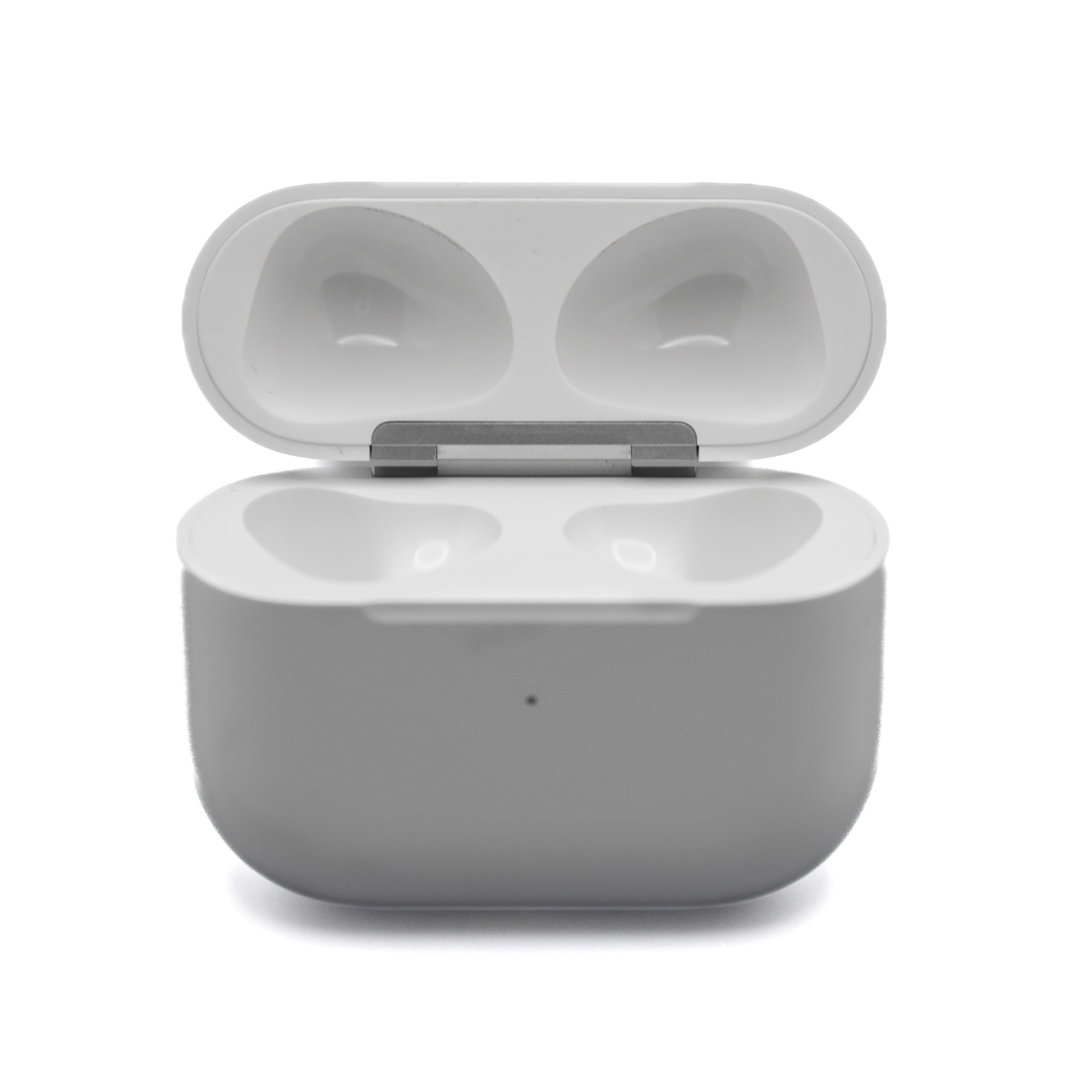
Image: Front view of the closed AirPods 3rd Generation charging case, displaying its sleek, white design.
Maintenance
Proper care ensures the longevity and performance of your charging case.
- Cleaning: Use a soft, dry, lint-free cloth to clean the exterior of the charging case. Avoid using abrasive materials or harsh chemicals.
- Liquid Exposure: The charging case is Not Water Resistant. Avoid exposure to liquids, moisture, or extreme humidity. If the case comes into contact with liquid, wipe it dry immediately.
- Storage: Store the charging case in a cool, dry place away from direct sunlight and extreme temperatures.
Troubleshooting
If you encounter issues with your replacement charging case, try the following solutions:
- AirPods Not Charging:
- Ensure the charging case itself is charged.
- Verify that the AirPods are correctly seated in their slots within the case.
- Clean the charging contacts on both the AirPods and inside the case with a dry cotton swab.
- Unable to Pair/Sync:
- Ensure your iOS device's Bluetooth is enabled.
- Place the charging case with AirPods close to your iOS device.
- Press and hold the setup button on the back of the case until the status light flashes white, then attempt to pair again.
- If issues persist, try resetting your AirPods: Go to Bluetooth settings on your iOS device, tap the "i" icon next to your AirPods, and select "Forget This Device." Then, repeat the pairing process from step 3 in the "Setup" section.
- Indicator Light Not Working:
- Ensure the case is charged.
- Try connecting the case to a different power source or charging cable.
For further assistance, refer to the Customer Support section.
Specifications
| Feature | Detail |
|---|---|
| Brand | Apple |
| Model Number | A2566 |
| Model Name | Apple AirPods 3rd Gen (Charging Case) |
| Compatibility | Apple AirPods 3rd Generation (A2564, A2565) |
| Connectivity Technology | Wireless, Bluetooth |
| Material | Plastic |
| Water Resistance Level | Not Water Resistant |
| Color | White |
Warranty Information
This Apple AirPods 3rd Generation Replacement Charging Case (Model A2566) comes with a 90-day warranty. Please retain your proof of purchase for any warranty claims.
Customer Support
If you require further assistance or have questions not covered in this manual, please contact the seller directly through the platform where the purchase was made. For general information about Apple AirPods, you may also visit the official Apple Support website.


