
Introduction
This manual provides instructions for the RadioShack Mechanical Gaming Keyboard, Model 2607135. This keyboard features a 98-key layout, mechanical switches designed for durability, adjustable rainbow backlighting, 25-key anti-ghosting, and an integrated rotary knob for volume control. It is designed for plug-and-play operation via USB and is compatible with Windows operating systems.
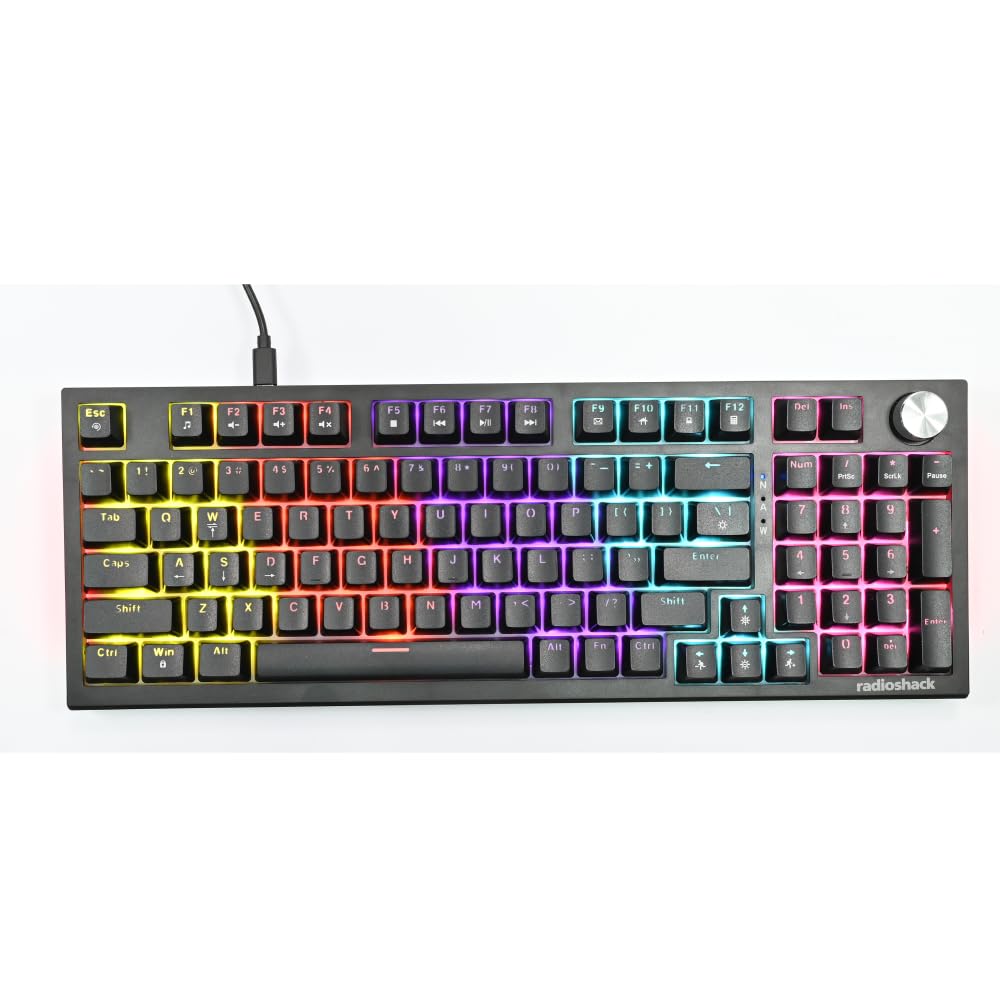
Image: The RadioShack Mechanical Gaming Keyboard, showcasing its 98-key layout and vibrant rainbow backlighting.
Package Contents
Please check the package contents to ensure all items are present:
- 1x RadioShack Mechanical Gaming Keyboard
- 1x USB Cable
- 1x User Manual (this document)

Image: A graphic illustrating the contents of the product package, including the gaming keyboard and user manual.
Setup
- Unpack the Keyboard: Carefully remove the keyboard and USB cable from its packaging.
- Connect to Computer: Insert the USB-A connector of the provided USB cable into an available USB port on your computer.
- Driver Installation: The keyboard is plug-and-play. Your operating system (Windows XP-10 compatible) will automatically detect and install the necessary drivers. No additional software installation is required.
- Placement: Place the keyboard on a stable, flat surface. Adjust the rear feet for your preferred typing angle.

Image: An illustration highlighting key features such as the 1.5m USB cable length and compatibility with Windows XP through 10.
Operating Instructions
Keyboard Layout and Functions
The keyboard features a 98-key layout, providing a compact design while retaining essential keys, including a numeric keypad.
Rotary Knob Functions
The dedicated rotary knob located on the top right of the keyboard controls audio volume.
- Rotate Clockwise: Increases volume.
- Rotate Counter-clockwise: Decreases volume.
- Press Down: Mutes/unmutes audio.

Image: A close-up of a hand interacting with the rotary knob, demonstrating its use for volume adjustment.
Backlighting Control
The keyboard features adjustable rainbow backlighting with multiple modes and side-light effects. Specific key combinations (often Fn + a function key) are used to cycle through lighting modes, adjust brightness, or change speed. Refer to the keycap legends for specific lighting control functions.
- Mode Switching: Typically Fn + Ins, Home, PgUp, Del, End, PgDn.
- Brightness Adjustment: Typically Fn + Up/Down arrow keys.
- Speed Adjustment: Typically Fn + Left/Right arrow keys.

Image: A collage showing the keyboard with various backlighting patterns and side-light effects, illustrating the 17 available lighting modes.
Anti-Ghosting
The keyboard supports 25-key anti-ghosting, ensuring that multiple simultaneous key presses are registered accurately, which is crucial for gaming and fast typing.

Image: A user actively typing on the keyboard during a gaming session, emphasizing the accuracy provided by 25 anti-ghosting keys.
Maintenance
- Cleaning: Use a soft, dry cloth to wipe the surface of the keyboard. For deeper cleaning, use compressed air to remove dust and debris from between the keycaps. Avoid using liquid cleaners directly on the keyboard.
- Storage: When not in use for extended periods, store the keyboard in a clean, dry environment away from direct sunlight and extreme temperatures.
- Avoid Spills: Liquids can damage the internal components. Exercise caution to prevent spills on the keyboard.
Troubleshooting
Keyboard Not Responding
- Ensure the USB cable is securely connected to both the keyboard and the computer.
- Try connecting the keyboard to a different USB port on your computer.
- Restart your computer.
- Test the keyboard on another computer to determine if the issue is with the keyboard or the computer's USB port/drivers.
Backlighting Not Working
- Check if the backlighting has been turned off using the keyboard's function keys (e.g., Fn + brightness down key).
- Cycle through the lighting modes to see if it reactivates.
Keys Not Registering / Ghosting Issues
- Ensure the keyboard is clean and free of debris that might be obstructing key switches.
- The keyboard features 25-key anti-ghosting. If more than 25 keys are pressed simultaneously, some inputs may not register.
Specifications
| Model Number | 2607135 |
| Brand | RadioShack |
| Keyboard Type | Mechanical Gaming Keyboard |
| Key Layout | 98-Key |
| Connectivity | USB-A (Corded Electric) |
| Switch Durability | Up to 50 million keystrokes |
| Backlighting | Rainbow (Adjustable modes, brightness, speed) |
| Anti-Ghosting | 25-Key |
| Special Features | Rotary Volume Knob, Ergonomic Design |
| Compatible Devices | Laptop, PC (Windows XP-10) |
| Included Components | USB Cable |

Image: A detailed view of a mechanical switch, illustrating the 50-million keystroke life for long-term reliability.
Support
For further assistance or inquiries, please refer to the official RadioShack support channels or website.