
1. Introduction
Thank you for choosing the Yunseity 4K/1080P Dual Dash Cam. This device is designed to provide reliable video evidence for your journeys, featuring a 4K front camera and a 1080P rear camera. It includes essential functions such as G-Sensor, loop recording, 2.4G WiFi connectivity, and parking monitoring. Please read this manual carefully before use to ensure proper installation and operation.
2. Product Features
- 4K Front & 1080P Rear Dual Recording: Captures clear video evidence from both front and rear perspectives.
- 3.0 Inch Display: Provides a clear view for real-time monitoring and playback.
- Built-in 2.4G WiFi & Smart App: Allows for easy connection to your smartphone for video management and settings adjustment.
- G-Sensor: Automatically detects collisions and locks important video footage.
- Loop Recording: Ensures continuous recording by overwriting the oldest files when the memory card is full.
- Parking Monitoring: Provides security for your vehicle even when parked, detecting impacts and recording.
- Wide Angle Lenses: Front 170° and Rear 120° lenses reduce blind spots for comprehensive coverage.
- Night Vision: Enhanced capability to capture clear footage in low-light environments.

Image: The Yunseity Dash Cam providing 4K front and 1080P rear dual recording, capturing both the road ahead and behind.

Image: Diagram illustrating the wide-angle coverage of the dash cam's front and rear lenses, minimizing blind spots.

Image: The Yunseity Dash Cam mounted on a car windshield, showing its compact design and clear display.
3. Package Contents
Please check the package for the following items:
- Yunseity 4K Dash Cam (Front Unit)
- 1080P Rear Camera
- Car Charger (Cigar Lighter Power Supply)
- Rear Camera Cable
- Suction Cup Mount
- Adhesive Mounts
- User Manual
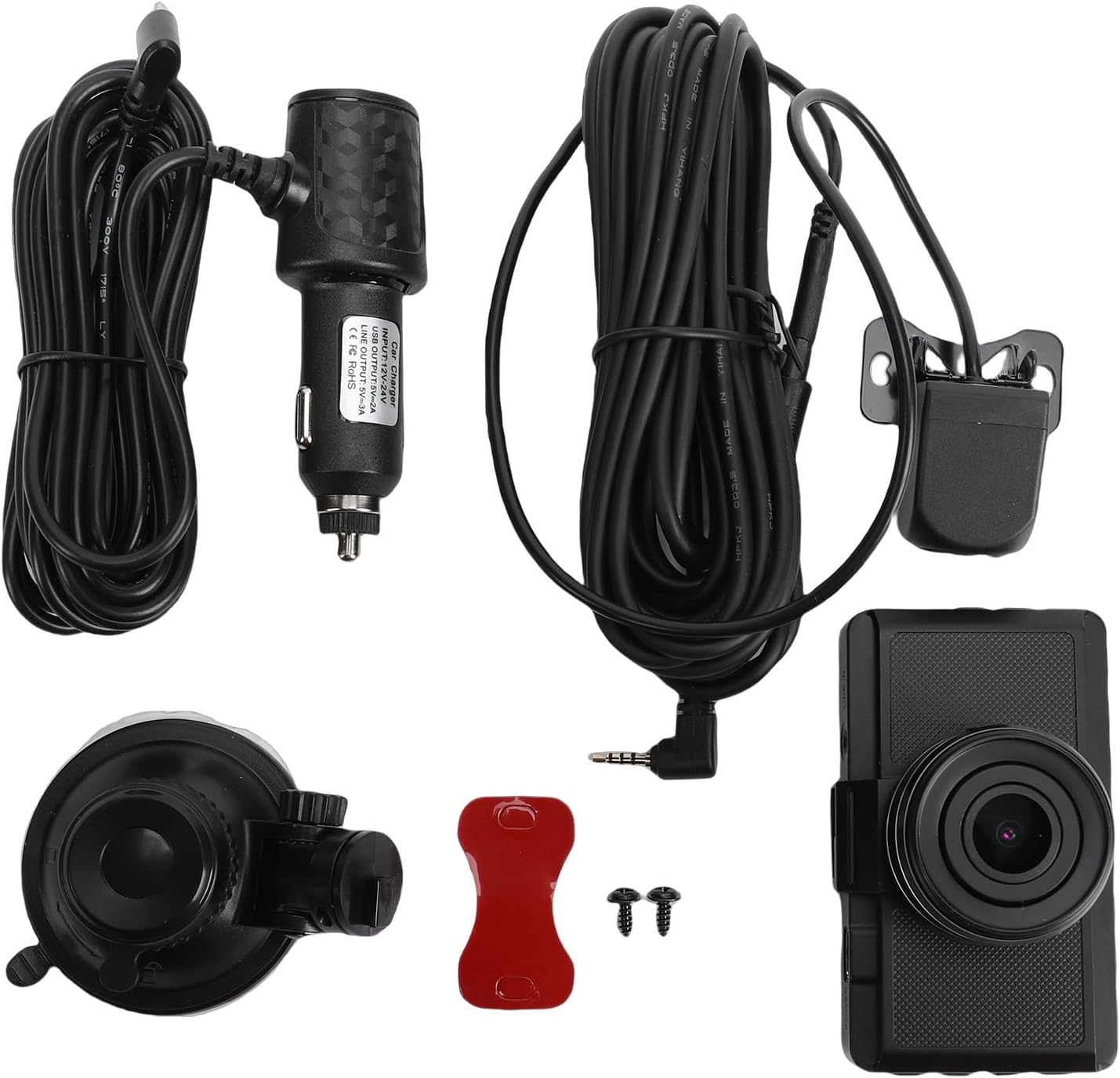
Image: All components included in the Yunseity Dash Cam package, including the front camera, rear camera, car charger, and mounting accessories.
4. Product Overview
Familiarize yourself with the main components and controls of your dash cam.
Front Camera Unit
- Lens: Main recording lens.
- Display Screen: 3.0-inch screen for live view and playback.
- Power Button: Turns the device on/off.
- Menu Button: Accesses settings and options.
- Up/Down Buttons: Navigates through menus and options.
- OK Button: Confirms selections or starts/stops recording.
- MicroSD Card Slot: Insert memory card (up to 256GB, not included).
- USB Power Port: Connects to the car charger.
- Rear Camera Input: Connects the rear camera cable.

Image: A close-up view of the dash cam's front lens, highlighting its design.
5. Setup & Installation
Follow these steps for proper installation of your dash cam:
- Prepare the MicroSD Card: Insert a high-speed Class 10 or higher MicroSD card (up to 256GB, not included) into the dash cam's MicroSD card slot. Format the card in the dash cam's settings menu before first use.
- Mount the Front Camera: Attach the suction cup mount to the front camera. Clean your windshield thoroughly. Press the suction cup firmly onto the windshield, preferably behind the rearview mirror, ensuring it does not obstruct your view. Adjust the camera angle to capture the road ahead clearly.
- Install the Rear Camera: Mount the rear camera on the rear windshield using the adhesive mount. Route the rear camera cable neatly along the vehicle's headliner and pillars to the front camera unit. Connect the rear camera cable to the designated input port on the front camera.
- Connect Power: Plug the car charger into your vehicle's cigar lighter socket. Connect the other end of the power cable to the USB power port on the front dash cam. Route the cable neatly to avoid interference with driving controls.
- Power On: Start your vehicle. The dash cam should automatically power on and begin recording. If not, press the Power button.

Image: The Yunseity Dash Cam mounted on the windshield, with a view of the road and the rear camera's perspective.
6. Operating Instructions
Basic Operation
- Power On/Off: The dash cam automatically powers on/off with your vehicle's ignition. You can also manually press and hold the Power button.
- Recording: Once powered on, the dash cam automatically starts loop recording. A red indicator light or icon on the screen typically confirms recording is active.
- Menu Navigation: Press the Menu button to enter the settings menu. Use the Up/Down buttons to navigate through options and the OK button to select.
- Playback: In standby mode (not recording), press the Mode button (if available, or navigate via Menu) to switch to playback mode. Use Up/Down to select videos and OK to play.
Loop Recording
The dash cam records video in continuous loops (e.g., 1, 3, or 5-minute segments). When the memory card is full, the oldest unlocked files are automatically overwritten to make space for new recordings. This ensures continuous monitoring without manual intervention.
G-Sensor (Gravity Sensor)
The built-in G-Sensor detects sudden impacts or collisions. When triggered, it automatically locks the current video segment, preventing it from being overwritten by loop recording. These locked files are stored in a separate folder on the MicroSD card.

Image: The dash cam displaying a collision event, indicating the G-Sensor has been triggered and the footage is locked.
7. WiFi & App Control
The dash cam features built-in 2.4G WiFi for seamless connection with your smartphone via a dedicated app.
- Download the App: Search for the official Yunseity Dash Cam app (or specified app name in your product packaging) on your smartphone's app store (iOS or Android) and install it.
- Enable WiFi on Dash Cam: Turn on the dash cam. Navigate to the WiFi settings in the dash cam's menu and enable WiFi. The screen will display the WiFi network name (SSID) and password.
- Connect Your Phone: On your smartphone, go to WiFi settings, find the dash cam's SSID, and connect using the provided password.
- Open the App: Launch the dash cam app on your phone. You should now be able to see a live preview, browse recorded videos, download files to your phone, and adjust dash cam settings directly from the app.

Image: A smartphone screen displaying the live feed from the Yunseity Dash Cam via the dedicated mobile application, demonstrating WiFi connectivity.
8. Parking Monitoring
The parking monitoring feature provides surveillance for your vehicle when it is parked and the engine is off. This feature requires a continuous power supply (e.g., a hardwire kit, sold separately, or the dash cam's internal battery if applicable).
- Impact Detection: When an impact is detected while parked, the dash cam will automatically power on and record a short video segment, then lock it to prevent overwriting.
- Motion Detection (Optional): Some models may offer motion detection, recording when movement is detected around the vehicle. Refer to your dash cam's specific settings for this option.

Image: Illustration of the dash cam's parking monitoring feature, showing how it detects and records events around a parked car.
Image: Visual representation of the dash cam's parking monitoring capabilities and enhanced night vision for clear recording in low light.
9. Maintenance
- MicroSD Card: Format the MicroSD card regularly (e.g., once a month) to prevent data corruption and ensure optimal performance. Back up any important files before formatting.
- Cleaning: Use a soft, dry cloth to clean the camera lenses and screen. Avoid using abrasive cleaners or solvents.
- Temperature: Avoid exposing the dash cam to extreme temperatures for extended periods, as this can affect battery life and device performance.
- Firmware Updates: Check the manufacturer's website periodically for firmware updates. Updating firmware can improve performance and add new features.
10. Troubleshooting
If you encounter issues with your dash cam, refer to the following common problems and solutions:
- Dash Cam Not Powering On:
- Ensure the car charger is properly connected to both the dash cam and the vehicle's cigar lighter.
- Check if the vehicle's cigar lighter socket is receiving power.
- Try a different power source or cable if available.
- Dash Cam Stops Recording:
- The MicroSD card may be full. Format the card (back up important files first).
- The MicroSD card may be faulty or too slow. Use a high-speed Class 10 or U3 card.
- Check loop recording settings in the menu.
- Video Footage is Blurry:
- Clean the camera lenses with a soft cloth.
- Ensure the protective film has been removed from the lenses.
- Check if the camera is securely mounted and not vibrating.
- WiFi Connection Issues:
- Ensure WiFi is enabled on the dash cam and your smartphone.
- Verify you are connecting to the correct SSID and entering the correct password.
- Restart both the dash cam and your smartphone.
- G-Sensor Too Sensitive/Not Sensitive Enough:
- Adjust the G-Sensor sensitivity setting in the dash cam's menu.
11. Specifications
| Brand | Yunseity |
| Model Name | Yunseitycg5jryzu0h |
| Front Camera Resolution | 4K (2160P) |
| Rear Camera Resolution | 1080P |
| Display Screen | 3.0 Inch |
| Connectivity Technology | 2.4G WiFi |
| Special Features | G-Sensor, Loop Recording, Parking Monitoring, Night Vision, APP Control |
| Storage | Supports up to 256GB MicroSD card (Class 10 or higher, not included) |
| Power Supply | Car Cigar Lighter |
| Product Dimensions | 6.3"D x 4.72"W x 3.15"H |
12. Warranty & Support
This Yunseity product comes with a manufacturer warranty for 90 days from the date of purchase. Please retain your proof of purchase for warranty claims.
For technical support, troubleshooting assistance, or warranty inquiries, please contact Yunseity customer service through the retailer's platform or the official Yunseity website.