
Introduction
The Cosmic Byte Lumora Tri-Mode Controller is designed to provide a versatile and high-performance gaming experience across multiple platforms. This manual offers detailed instructions for setting up, operating, and maintaining your controller, ensuring you can fully utilize its advanced features.

Image: The Cosmic Byte Lumora controller showcasing its RGB-reveal design.
Product Features
The Lumora controller integrates several key features for enhanced gameplay:
- Stealth Black Finish with RGB-Reveal Artwork: The controller features a stealth black appearance when RGB lighting is off, revealing a vibrant graphic design when RGB is activated.
- Hall Effect Joysticks & Triggers: Advanced Hall Effect technology provides precise, drift-free control for joysticks and offers both analog and digital modes for triggers.
- Tri-Mode Connectivity: Supports 2.4GHz wireless, Bluetooth, and wired USB-C connections with a 1000Hz polling rate for low-latency input.
- 6-Axis Gyroscope: Built-in motion sensor for gyro-based input in compatible games, enhancing aiming and motion control.
- Dedicated Windows Software: Allows comprehensive customization of button mapping, macros, RGB lighting, vibration, trigger sensitivity, and joystick response.
- Mechanical Buttons with Macro & Turbo Support: Crisp mechanical ABXY buttons and D-Pad provide tactile feedback. Turbo mode and on-board macro recording are available.
- 3.5mm Audio Jack & Adjustable Trigger Travel: Integrated audio jack for wired headsets and a rear switch to adjust trigger pull distance.
- 1300mAh Battery, Replaceable Caps & Ergonomic Design: Offers up to 10 hours of playtime (RGB off), features replaceable joystick caps and D-Pad, ergonomic grips, and dual vibration motors.

Image: Visual representation of the RGB-reveal feature and Hall Effect components.
Setup
1. Initial Charging
Before first use, fully charge the controller using the provided USB-C cable. Connect the USB-C end to the controller and the USB-A end to a power source (e.g., PC, USB wall adapter). The charging indicator will show status and turn off when fully charged.
2. Connecting via Wired USB-C
- Connect the USB-C cable to the controller's port.
- Connect the other end of the cable to a USB port on your PC or compatible device.
- The controller will be automatically detected and ready for use.
3. Connecting via 2.4GHz Wireless
- Insert the 2.4GHz wireless dongle into a USB port on your PC or compatible device.
- Power on the controller.
- Press and hold the 2.4GHz pairing button (refer to controller diagram for location) until the indicator light flashes rapidly.
- The controller will automatically pair with the dongle. The indicator light will become solid when connected.
4. Connecting via Bluetooth
- Power on the controller.
- Press and hold the Bluetooth pairing button (refer to controller diagram for location) until the indicator light flashes rapidly.
- On your device (PC, Android, iOS, Mac), go to Bluetooth settings and search for new devices.
- Select "Cosmic Byte Lumora" from the list of available devices.
- The indicator light on the controller will become solid when successfully paired.

Image: Illustration of the tri-mode connectivity options: wired, 2.4GHz wireless, and Bluetooth.
Operating Instructions
1. Power On/Off
- To Power On: Press the Home button.
- To Power Off: Press and hold the Home button for 3-5 seconds. The controller will also automatically power off after a period of inactivity.
2. RGB Lighting Control
The RGB lighting can be toggled on or off, revealing or concealing the artwork. Specific lighting modes and colors can be customized via the dedicated Windows software.

Image: The controller demonstrating its appearance with RGB lighting off and on.
3. Hall Effect Joysticks and Triggers
The Hall Effect joysticks provide precise, smooth movement without drift. The Hall Effect triggers can operate in two modes:
- Analog Mode: For gradual input, ideal for racing games or precise acceleration.
- Digital Mode: For instant on/off input, suitable for shooting games where quick response is critical.

Image: Close-up view of the Hall Effect triggers on the controller.
4. 6-Axis Gyroscope
The integrated 6-axis gyroscope enables motion-based controls in games that support this feature. This can be used for aiming, steering, or other interactive movements.
5. Macro and Turbo Functions
- Macro: Record a sequence of button presses to a dedicated macro button for complex actions with a single press. Refer to the Windows software section for detailed setup.
- Turbo: Activate Turbo mode on specific buttons to enable rapid, continuous input when held down.

Image: The controller highlighting the macro buttons and the turbo function indicator.
6. Adjustable Trigger Travel
A switch on the rear of the controller allows you to adjust the physical travel distance of the triggers. This enables quick toggling between a short pull for faster response and a longer pull for more nuanced control.
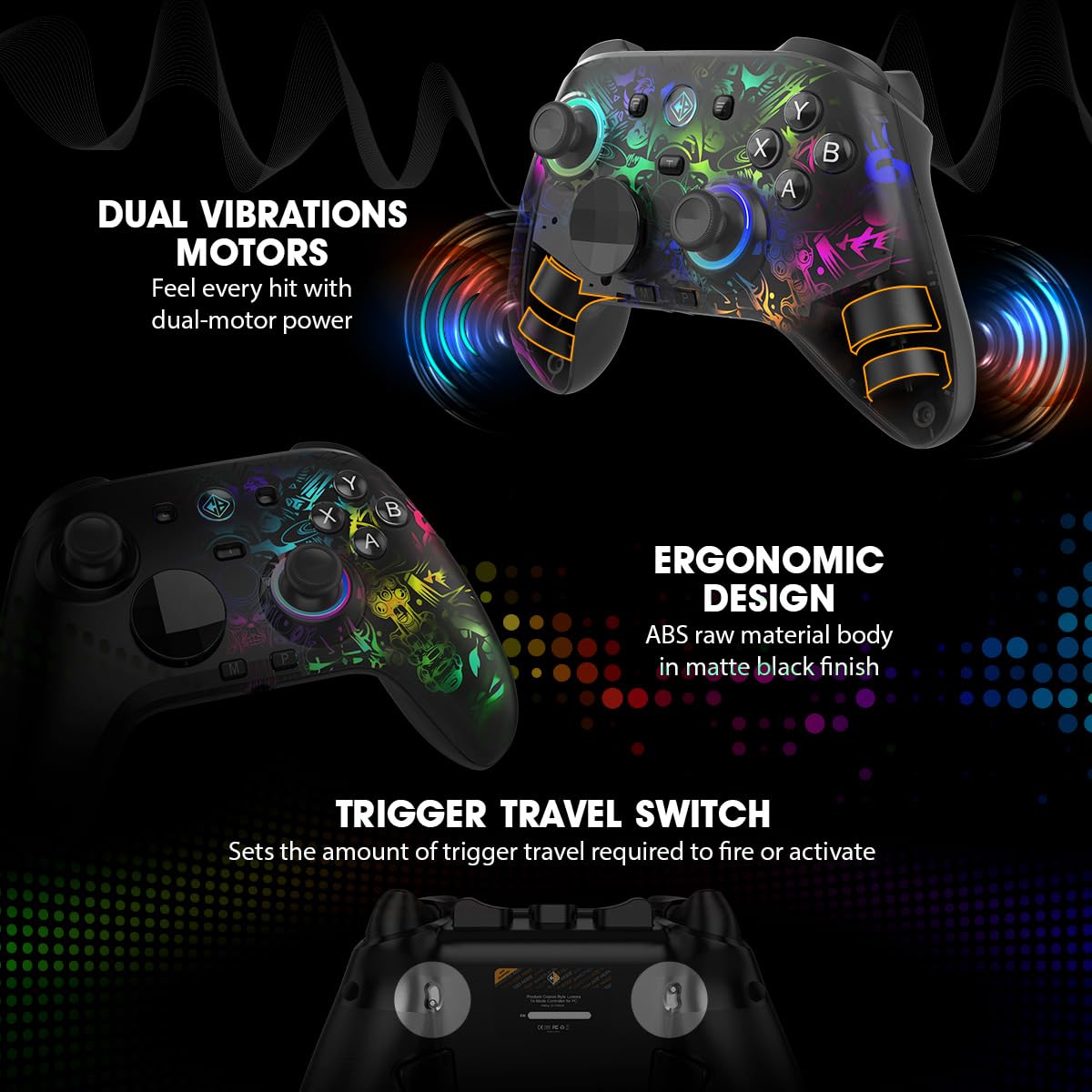
Image: The controller's rear view, illustrating the trigger travel switch.
7. 3.5mm Audio Jack
Connect a wired headset to the 3.5mm audio jack for direct audio output and microphone input in supported connection modes (e.g., wired USB-C, 2.4GHz wireless).

Image: The controller's bottom view, highlighting the 3.5mm audio jack and USB-C port.
Windows Software Customization
The dedicated Windows software allows for in-depth customization of your Lumora controller.
1. Downloading and Installation
Visit the official Cosmic Byte website to download the latest Lumora controller software. Follow the on-screen instructions for installation.
2. Customization Options
- Button Mapping: Reassign functions to any button.
- Macro Configuration: Create and assign complex macro sequences.
- RGB Lighting: Adjust colors, effects, and brightness of the RGB lighting.
- Vibration Intensity: Customize the strength of the dual vibration motors.
- Trigger Sensitivity: Fine-tune the response curve of the Hall Effect triggers.
- Joystick Response: Adjust dead zones and response curves for joysticks.
- Firmware Updates: Keep your controller updated with the latest performance improvements and features.

Image: The controller alongside a depiction of its Windows software interface.
Maintenance
1. Cleaning
Wipe the controller regularly with a soft, dry cloth. For stubborn dirt, use a slightly damp cloth and ensure the controller is completely dry before use. Avoid using harsh chemicals or abrasive materials.
2. Battery Care
- Avoid fully discharging the battery frequently.
- Store the controller in a cool, dry place if not used for extended periods.
- Use only the provided USB-C cable or a certified equivalent for charging.
3. Replacing Joystick Caps and D-Pad
The joystick caps and D-Pad are replaceable. Gently pull the existing caps/D-Pad upwards to remove them and press the new ones firmly into place until they click.
Troubleshooting
1. Connection Issues
- Wired: Ensure the USB-C cable is securely connected to both the controller and the device. Try a different USB port or cable.
- 2.4GHz Wireless: Ensure the dongle is properly inserted. Re-pair the controller by holding the 2.4GHz pairing button. Check for interference from other wireless devices.
- Bluetooth: Ensure Bluetooth is enabled on your device. Forget the device in your Bluetooth settings and re-pair. Ensure the controller is in Bluetooth pairing mode.
2. Joystick Drift or Incorrect Input
- Calibrate the joysticks using the dedicated Windows software.
- Ensure the controller's firmware is up to date.
- Clean around the base of the joysticks to remove any debris.
3. RGB Lighting Not Working
- Check RGB settings in the Windows software.
- Ensure the controller has sufficient battery charge.
4. Battery Not Charging
- Verify the USB-C cable and power source are functional.
- Ensure the charging port on the controller is clean and free of debris.
5. Software Not Detecting Controller
- Ensure the controller is connected to the PC via wired USB-C or 2.4GHz wireless.
- Restart the software and the controller.
- Reinstall the Windows software.
Specifications
| Brand | Cosmic Byte |
| Model Name | Lumora |
| Compatible Devices | Android, iOS, Mac, PC |
| Controller Type | Gamepad |
| Connectivity Technology | Bluetooth, USB-C, 2.4GHz Wireless |
| Product Features | Ergonomic, Rumble, Wireless, Hall Effect Joysticks & Triggers, Mechanical Buttons, 6-Axis Gyro, Macro & Turbo, RGB Lighting |
| Hardware Platform | Desktop, Laptop, Smartphone |
| Power Source Type | Battery Powered |
| Item Weight | 0.2 Kilograms |
| Item Dimensions | 10 x 8 x 5 Centimeters |
| Battery Capacity | 1300mAh |
| Polling Rate | 1000Hz (Wired & 2.4GHz Wireless) |
| Audio Jack | 3.5mm |
| Country of Origin | China |
Warranty Information
The Cosmic Byte Lumora Tri-Mode Controller comes with a 1-Year Warranty against manufacturing defects from the date of purchase. This warranty covers defects in materials and workmanship under normal use. It does not cover damage caused by misuse, accidents, unauthorized modifications, or normal wear and tear. Please retain your proof of purchase for warranty claims.
Support
For further assistance, technical support, or warranty claims, please visit the official Cosmic Byte website or contact their customer service. You can typically find contact details and support resources on the manufacturer's website.
Manufacturer Contact Information: Cosmic Byte, Prakash Warehousing, S. No.163, Hissa No 1-2-3-4-5A-5B/2/1, Phursungi, Pune 412308, Maharashtra, India.

