
DIGIQUEST Q99 4K
DIGIQUEST Q99 4K Combo Decoder User Manual
Model: Q99 4K (RICD1251) | Brand: DIGIQUEST
Introduction
The DIGIQUEST Q99 4K Combo Decoder is a versatile receiver designed to provide access to both satellite (tivùsat) and digital terrestrial television channels. Featuring 4K Ultra HD resolution, HbbTV interactive services, and the ability to activate recording functions, this decoder offers a complete entertainment experience. This manual will guide you through the installation, operation, and maintenance of your new device.
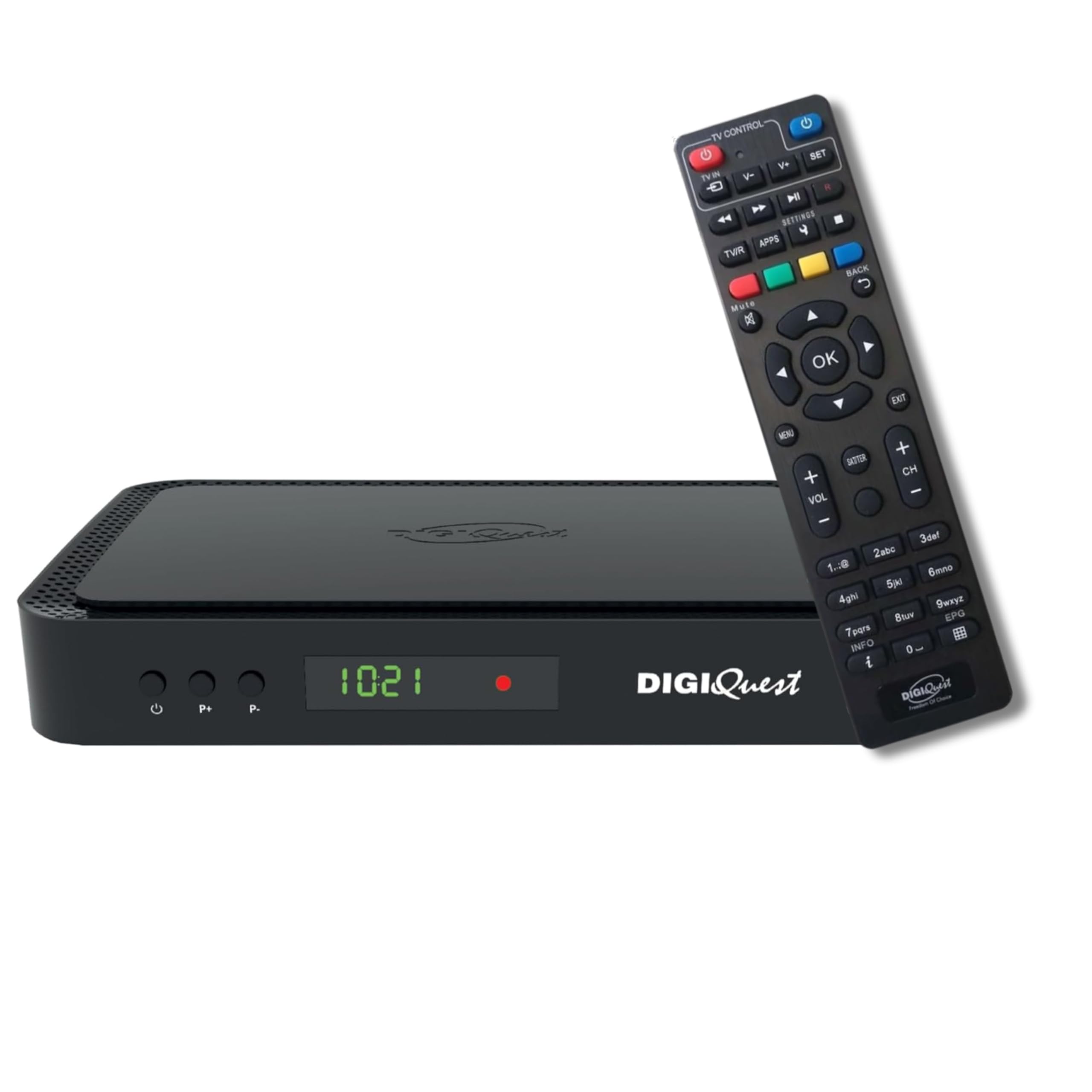
Front view of the DIGIQUEST Q99 4K Combo Decoder, showing the display and control buttons.
What's in the Box
Please check the package contents to ensure all items are present:
- DIGIQUEST Q99 4K Combo Decoder
- 2-in-1 Remote Control
- Power Adapter
- HDMI Cable
- tivùsat Smartcard
- User Manual (this document)

The package includes the receiver, remote, power adapter, HDMI cable, and tivùsat smartcard.
Setup Guide
1. Unpacking and Placement
Carefully remove the decoder from its packaging. Place the decoder on a flat, stable surface near your television, ensuring adequate ventilation around the unit to prevent overheating.
2. Smartcard Insertion
The tivùsat smartcard is essential for accessing encrypted tivùsat channels. Insert the smartcard into the designated slot on the decoder with the chip facing downwards and towards the decoder's interior.

The tivùsat 4K smartcard included with your decoder.

Follow the diagram to correctly insert the smartcard into the decoder's slot.
3. Connecting the Decoder
Ensure your television and decoder are turned off before making any connections.
- Satellite Antenna: Connect your satellite dish cable to the 'SAT IN' port on the rear of the decoder.
- Terrestrial Antenna: Connect your digital terrestrial antenna cable to the 'RF IN' port.
- HDMI Connection: Use the provided HDMI cable to connect the 'HDMI OUT' port on the decoder to an available HDMI input on your television.
- Power: Connect the power adapter to the 'DC IN 12V' port on the decoder, then plug the adapter into a wall outlet.
- Optional Connections:
- USB: For media playback or activating recording, connect a USB storage device to one of the USB ports.
- LAN: For internet connectivity and HbbTV services, connect an Ethernet cable to the 'LAN' port.
- Audio Output: For external audio systems, use the 'AV' (analog) or 'S/PDIF' (optical) audio outputs.
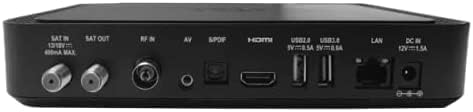
Overview of the rear panel connections on the DIGIQUEST Q99 4K decoder.

Detailed diagram labeling each connection port on the rear of the decoder.
4. Initial Setup and Channel Scan
After connecting all cables, turn on your television and select the correct HDMI input. Then, power on the DIGIQUEST Q99 4K decoder. The first-time setup wizard will appear:
- Language Selection: Choose your preferred language.
- Country Selection: Select your country.
- Channel Search: The decoder will prompt you to perform an automatic channel scan for both satellite and terrestrial signals. Follow the on-screen instructions to complete this process. This may take several minutes.
- Smartcard Activation: Ensure your tivùsat smartcard is activated. You can usually do this online via the tivùsat website.
Operating Instructions
1. Remote Control
The included 2-in-1 remote control can operate both your DIGIQUEST Q99 4K decoder and your television, simplifying your viewing experience. Refer to the remote control section in the full manual for programming instructions for your TV.

The multi-functional 2-in-1 remote control.

This diagram shows how the 2-in-1 remote can control both your TV and the decoder.
2. Basic TV Functions
- Channel Navigation: Use the 'P+' and 'P-' buttons to change channels. Enter channel numbers directly using the numeric keypad.
- Volume Control: Use the 'VOL+' and 'VOL-' buttons.
- Menu Access: Press the 'MENU' button to access the main menu for settings, channel lists, and other features.
- Electronic Program Guide (EPG): Press the 'EPG' button to view program schedules.
3. HbbTV and On-Demand Content
The DIGIQUEST Q99 4K supports HbbTV (Hybrid Broadcast Broadband TV), allowing access to interactive services and on-demand content like RaiPlay and Mediaset Infinity, provided the decoder is connected to the internet via the LAN port.
- When watching a compatible channel, an on-screen prompt may appear to access HbbTV services. Press the indicated colored button (usually red) on your remote to launch.
- Navigate HbbTV menus using the remote's arrow keys and 'OK' button.

Enjoy interactive content and on-demand services with HbbTV.

Access popular streaming platforms directly through HbbTV.
4. Recording and Timeshift (Optional Activation)
The recording and Timeshift functions require a USB storage device (not included) and may need to be activated. Connect a USB stick or external hard drive to one of the decoder's USB ports.
- Activating Recording: The recording function can be activated once. Refer to the decoder's on-screen menu or the full manual for specific activation steps.
- Recording Programs: Once activated, you can record programs by pressing the 'REC' button on the remote control or scheduling recordings via the EPG.
- Timeshift (Pause Live TV): Press the 'PAUSE' button during live TV to temporarily pause the broadcast. Press 'PLAY' to resume.

Record your favorite shows and pause live TV with the optional recording function.

The recording function can be activated once for permanent use.
5. Media Player
The decoder supports media playback from a connected USB storage device. Access the Media Player function through the main menu to view photos, play music, or watch videos.
6. Parental Control
Set up parental control features through the decoder's menu to restrict access to certain channels or programs based on age ratings.
Maintenance
Cleaning
To clean the decoder, disconnect it from the power supply. Use a soft, dry cloth to wipe the exterior. Do not use liquid cleaners or abrasive materials.
Software Updates
The decoder may receive software updates to improve performance or add new features. These updates can be performed automatically over the air (OTA) or via USB. Check the system settings menu for update options.
Troubleshooting
| Problem | Possible Cause | Solution |
|---|---|---|
| No picture/No signal | Incorrect HDMI input selected on TV; Loose cable connections; Antenna/dish issue. | Check TV input; Ensure all cables are securely connected; Verify antenna/dish alignment. |
| Remote control not working | Dead batteries; Obstruction between remote and decoder; Remote not paired (if applicable). | Replace batteries; Remove obstructions; Refer to remote control section for pairing. |
| No sound | TV/decoder volume too low or muted; Incorrect audio output settings. | Increase volume, unmute; Check audio settings on TV and decoder. |
| Cannot access tivùsat channels | Smartcard not inserted correctly or not activated. | Reinsert smartcard; Ensure smartcard is activated on the tivùsat website. |
Specifications
| Feature | Detail |
|---|---|
| Brand | DIGIQUEST |
| Model Number | RICD1251 |
| Product Dimensions (DxWxH) | 15.3P x 21l x 4H cm |
| Connectivity Technology | HDMI, USB |
| Total USB Ports | 2 |
| Audio Output Mode | Stereo |
| Total HDMI Ports | 1 |
| Compatible Devices | Television |
| Voltage | 240 Volts |
| Satellite Service Description | tivùsat |
| Total Video Output Ports | 1 |
| Video Output Resolution | 2160p pixels (4K UHD) |
| Supported Standards | DVB-S2, DVB-T2, HbbTV, HEVC Main 10 (10 bit) |
| Screen Format | 16:9 |

Product label with model and power information.
Warranty and Support
Warranty
This DIGIQUEST product comes with a 24-month warranty from the date of purchase, covering manufacturing defects.
Customer Support
DIGIQUEST offers dedicated customer support throughout Italy. For assistance, please visit the official DIGIQUEST website or their social media channels for contact information and support resources.
Website: www.digiquest.it (Please check the official website for the most current contact details.)
Related documentsQ99 4K


Ask a question about this manual
Ask about setup, troubleshooting, compatibility, parts, safety, or missing instructions. Manuals+ will review the question and use this page’s manual context to help answer it.