
1. Product Overview
The UNIONE UC-500M is a desktop scientific calculator designed for clarity and ease of use. It features a large 2-line display and 240 functions, making it suitable for various academic and professional applications, including general math, pre-algebra, algebra 1 and 2, geometry, trigonometry, statistics, science, biology, and finance.
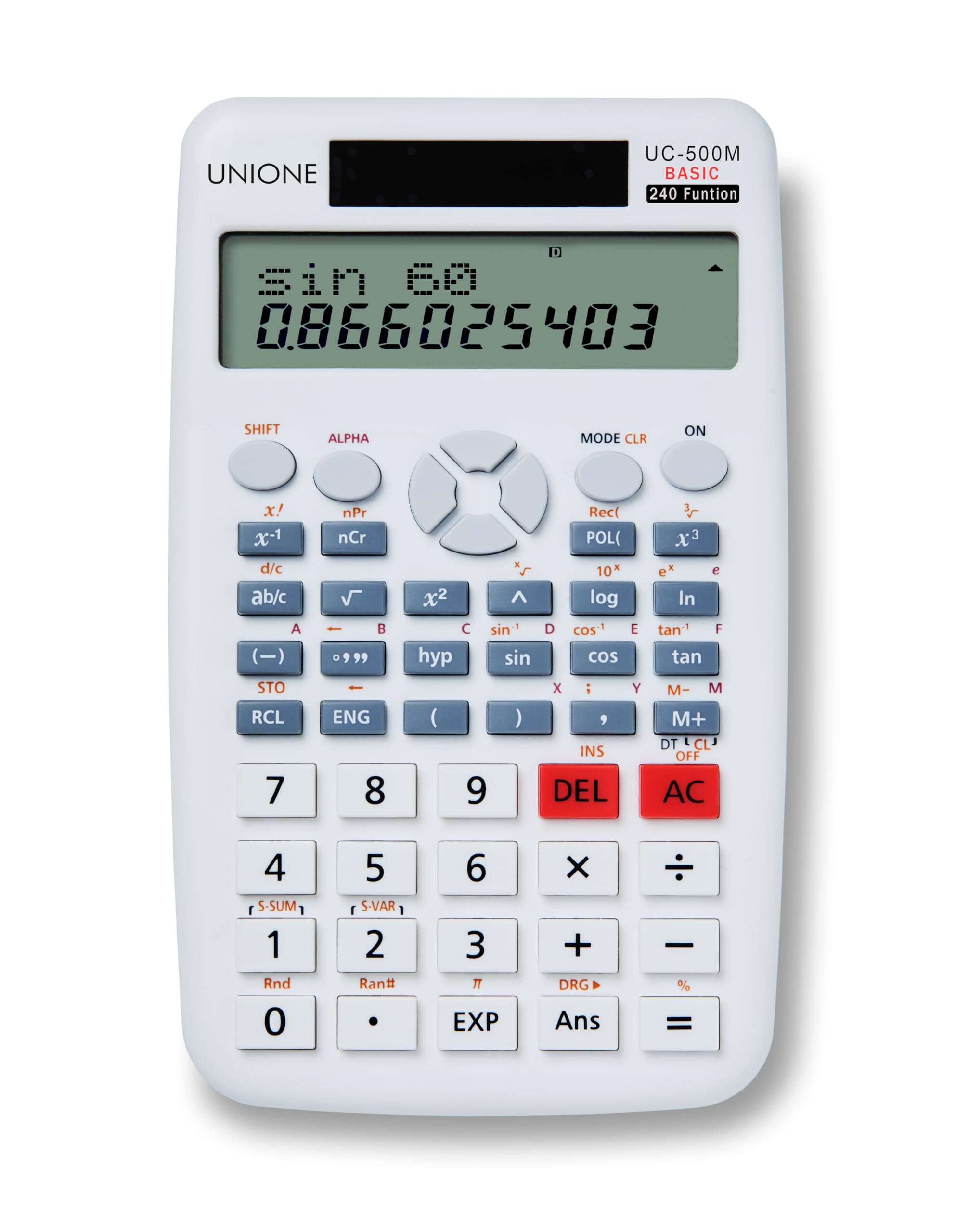
Image: The UNIONE UC-500M scientific calculator, showcasing its large display and key layout.
Key Features:
- 2-Line Display: Allows simultaneous viewing of expressions and results.
- 240 Functions: Comprehensive set of scientific functions for diverse calculations.
- Large Keypad: Designed for comfortable and accurate input, reducing typos.
- Ergonomic Design: Features a 15-degree tilt for improved readability and reduced wrist strain during extended use.
- Dual Power: Operates on both solar power and a single AAA battery (included).
- Dimensions: Approximately 110 x 180 x 35mm (4.3 x 7 x 1.3 inches).
2. Setup
Battery Installation:
The UNIONE UC-500M calculator requires one AAA battery, which is included. The calculator also features solar power for extended battery life.
- Locate the battery compartment cover on the back of the calculator.
- Slide the cover open in the direction indicated by the arrow.
- Insert one AAA battery, ensuring the positive (+) and negative (-) terminals are correctly aligned as shown inside the compartment.
- Replace the battery compartment cover by sliding it back into place until it clicks securely.

Image: View of the battery compartment on the back of the calculator, showing where to insert the AAA battery.
Power On/Off:
- To turn on the calculator, press the [ON] button.
- The calculator will automatically turn off after a period of inactivity to conserve power.
3. Operating Instructions
Basic Calculations:
Enter numbers and operations using the numeric keypad and function keys. The 2-line display shows the input expression on the top line and the result on the bottom line.
- Addition, Subtraction, Multiplication, Division: Use the [+], [-], [×], [÷] keys.
- Equals: Press [=] to display the result.
- Clear Entry/All Clear: Press [DEL] to delete the last entry. Press [AC] to clear all entries and reset the calculation.

Image: The calculator's 2-line display showing a trigonometric calculation (sin 60) and its numerical result.
Scientific Functions:
The UC-500M includes 240 diverse functions. Many functions are accessed by pressing the [SHIFT] key followed by the desired function key.
- Fractions: Use the [d/c] or [ab/c] key for easy entry and conversion of fractions and mixed numbers.
- Trigonometric Functions: [sin], [cos], [tan] and their inverse functions ([SHIFT] + function key).
- Logarithmic Functions: [log], [ln].
- Powers and Roots: [x²], [√], [x³], [³√].
- Parentheses: Use [(] and [)] for complex expressions.

Image: A detailed view of the calculator's keypad, highlighting the scientific function keys like sin, cos, tan, log, and fraction buttons.
Mode Switching:
The calculator offers 6 representative modes for quick switching between calculation functions. Press the [MODE] key to cycle through available modes.
- COMP (Compute): Standard calculation mode.
- SD (Standard Deviation): Single-variable statistics.
- REG (Regression): Two-variable statistics.
To change angle units (Degrees, Radians, Grads), double-click the [MODE] key and select the desired unit.
4. Maintenance
General Care:
- Keep the calculator clean by wiping it with a soft, dry cloth. Avoid using abrasive cleaners or solvents.
- Do not expose the calculator to extreme temperatures, humidity, or direct sunlight for prolonged periods.
- Avoid dropping the calculator or subjecting it to strong impacts.
Battery Replacement:
When the display becomes dim or unresponsive, it may be time to replace the AAA battery. Follow the battery installation steps outlined in Section 2. Ensure proper disposal of old batteries according to local regulations.
5. Troubleshooting
Common Issues and Solutions:
- Display is blank or dim:
- Check if the calculator is turned on by pressing [ON].
- Ensure sufficient light for solar panel operation, or replace the AAA battery if necessary. - Incorrect calculation results:
- Verify the input expression on the top line of the display.
- Ensure the calculator is in the correct mode (e.g., COMP for standard calculations, correct angle unit for trigonometric functions).
- Clear previous calculations by pressing [AC] and re-enter the calculation. - Keys are unresponsive:
- Clean the keypad area to remove any debris.
- If the issue persists, try removing and reinserting the battery to perform a soft reset.
Resetting the Calculator:
If the calculator behaves erratically, a full reset may resolve the issue. To perform a reset, turn off the calculator, then remove the AAA battery. Wait for approximately 30 seconds before reinserting the battery and turning the calculator back on. Note that this will clear any stored memory or settings.
6. Specifications
| Brand | UNIONE |
| Model | UC-500M |
| Calculator Type | Scientific |
| Display Type | 2-Line LCD |
| Number of Functions | 240 |
| Power Source | Solar Powered, 1 AAA Battery (included) |
| Item Dimensions (L x W x H) | 180 x 110 x 35mm (7 x 4.3 x 1.3 inches) |
| Screen Size | 9 Centimeters |
| Manufacturer | UNIONE COMMERCE |

Image: The UNIONE UC-500M calculator displayed alongside a table of its key product specifications.
7. Warranty and Support
Warranty Information:
The UNIONE UC-500M Scientific Calculator comes with a 2-year warranty from the date of purchase. This warranty covers manufacturing defects and malfunctions under normal use. Please retain your proof of purchase for warranty claims.
Customer Support:
For technical assistance, troubleshooting, or warranty inquiries, please contact UNIONE customer support through the retailer where the product was purchased or refer to the official UNIONE website for contact information.