
Introduction
This manual provides essential information for setting up, operating, and maintaining your SKYWORTH 32E5520H QLED+ HD Google Smart TV. Please read these instructions carefully before using your television to ensure proper function and safety.
The SKYWORTH 32E5520H offers a premium viewing experience with its QLED+ display, HDR10 support, and integrated Google TV features, including Google Assistant and Chromecast built-in. Enjoy vivid colors, enhanced contrast, and immersive audio with Dolby Audio technology.
Product Features
- QLED+ Display: Full HD (1920×1080) resolution with 90% DCI-P3 color gamut for vibrant colors and lifelike picture quality.
- HDR10 Enhancer: Improves brightness and contrast for dynamic viewing.
- Google Smart TV: Powered by Google TV OS, offering access to the Google Play Store and built-in Google Assistant for voice control.
- Chromecast Built-in: Enables direct streaming from mobile devices.
- Dolby Audio: Dual 10W speakers deliver clear, balanced, and immersive sound.
- Eye Care Technology: Reduces blue light and visual fatigue for extended viewing comfort.
- Connectivity: Dual-band WiFi, Bluetooth 5.1, multiple HDMI and USB ports.
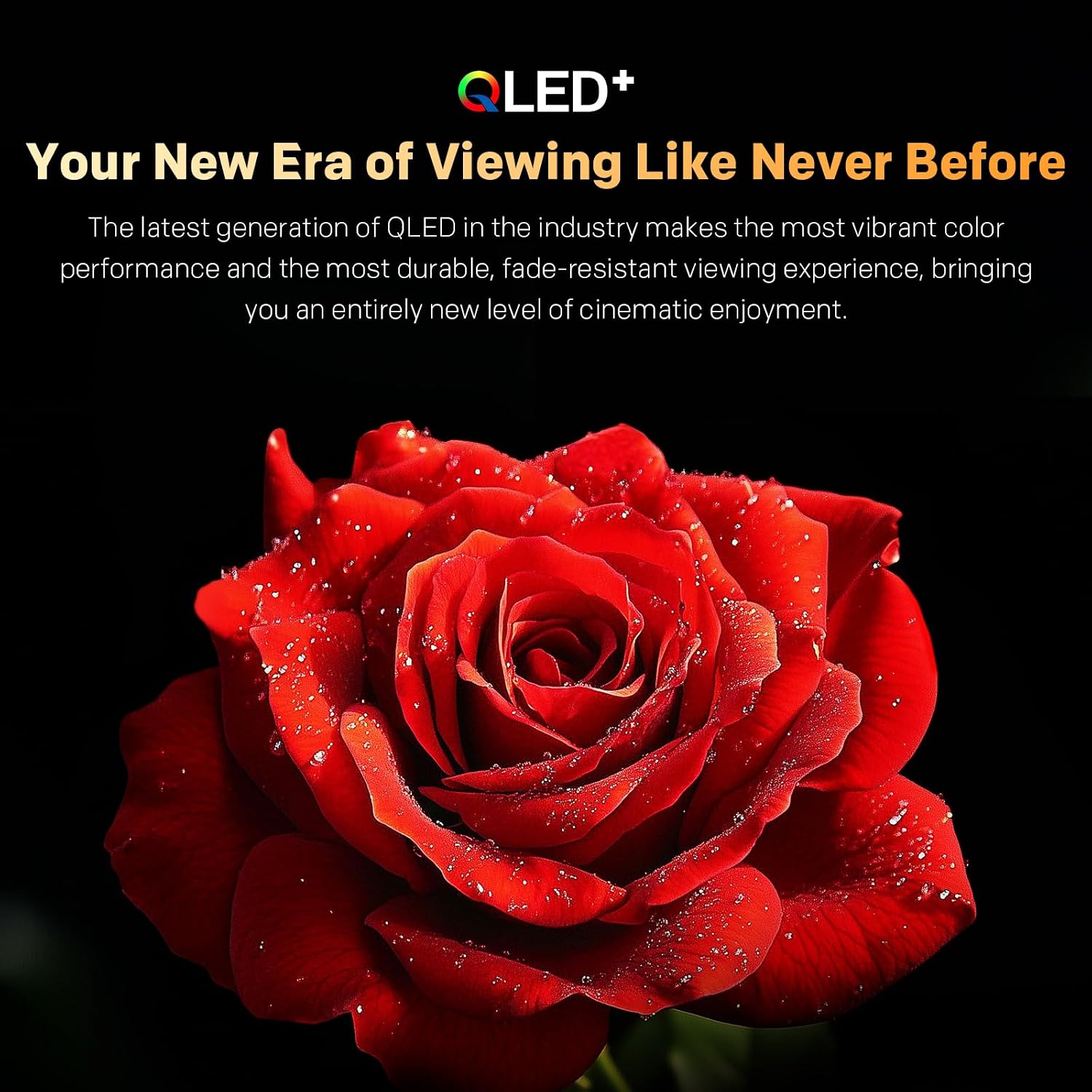
Image: The QLED+ display technology provides vibrant colors and a wide color gamut for an enhanced viewing experience.

Image: HDR10 technology enhances visual experience by providing greater contrast and brightness.

Image: Dolby Audio provides immersive sound for movies, music, and TV shows.

Image: Eye Care technology reduces blue light exposure and visual fatigue for comfortable viewing.
Setup Guide
1. Unpacking and Assembly
Carefully remove the TV and all accessories from the packaging. Ensure all components are present:
- SKYWORTH 32E5520H TV
- Remote Control
- Power Cable
- TV Stand (2 pieces)
- Screws for Stand
- User Manual (this document)
To attach the stand:
- Place the TV face down on a soft, flat surface to prevent screen damage.
- Align each stand piece with the corresponding slots on the bottom of the TV.
- Secure the stands with the provided screws.
- Carefully lift the TV to its upright position on a stable surface.
For wall mounting, refer to the instructions provided with your wall mount kit. The VESA mount standard for this TV is 200 x 100 mm.
2. Connecting Power
Connect the power cable to the TV's power input and then plug it into a wall outlet. The TV supports a line voltage of 100-240 VAC, 50-60 Hz.
3. Initial Setup (Google TV)
Upon first power-on, the TV will guide you through the initial setup process:
- Language Selection: Choose your preferred language.
- Network Connection: Connect to your Wi-Fi network. The TV supports dual-band Wi-Fi.
- Google Account Sign-in: Sign in with your Google account to access Google TV features, apps, and personalized recommendations.
- Google Assistant Setup: Follow the prompts to set up Google Assistant for voice control.
- Channel Scan: If using an antenna, perform a channel scan to find available broadcasts (DVB-T2 tuner type).
- Privacy Settings: Review and adjust privacy settings as desired.
Operating Instructions
1. Remote Control
The included remote control uses Bluetooth technology. Ensure two AA batteries are inserted correctly. Pair the remote during initial setup or via the TV's settings menu if needed.
- Power Button: Turns the TV on or off.
- Navigation Buttons: Use the directional pad and OK button to navigate menus.
- Volume +/-: Adjusts the volume level.
- Channel +/-: Changes TV channels.
- Google Assistant Button: Activates voice control.
- Home Button: Returns to the Google TV home screen.
- Input Button: Selects input sources (HDMI, USB, etc.).
- App Shortcut Buttons: Quick access to popular streaming services (e.g., Netflix, YouTube).

Image: The "Find My Remote" feature helps locate a misplaced remote control by emitting a sound.
2. Google Assistant Voice Control
Press the Google Assistant button on your remote and speak into the microphone to:
- Search for movies, shows, or information.
- Control TV functions (e.g., "Turn up the volume," "Switch to HDMI 1").
- Control compatible smart home devices.
- Get answers to questions.

Image: Voice control allows easy interaction with the TV using Google Assistant.
3. Chromecast Built-in
Cast content directly from your smartphone, tablet, or computer to your TV. Ensure your device is connected to the same Wi-Fi network as the TV. Look for the Cast icon within compatible apps (e.g., YouTube, Netflix, Spotify).
4. Connecting External Devices
The TV features multiple input options:
- HDMI Ports (x2): Connect gaming consoles, Blu-ray players, set-top boxes, etc.
- USB 2.0 Ports (x2): Connect USB drives for media playback.
- Ethernet Port: For wired internet connection.
- Optical Audio Output: For connecting to external sound systems.
- Composite Video Input (x1): For older devices.
- 3.5mm Audio Jack: For headphones or external speakers.
To switch input sources, press the "Input" button on your remote and select the desired source.
5. Smart TV Features (Google TV)
The Google TV interface provides access to:
- Streaming Apps: Download and use apps like Netflix, Disney+, Prime Video, YouTube from the Google Play Store.
- Personalized Recommendations: Content suggestions based on your viewing habits.
- Live TV: Access live channels through integrated services or connected antennas.
- Parental Controls: Manage content access for children.
Maintenance
Cleaning the TV
- Always unplug the TV before cleaning.
- Use a soft, dry, lint-free cloth to wipe the screen and cabinet.
- For stubborn marks on the screen, lightly dampen the cloth with water or a specialized screen cleaner. Do not spray cleaner directly onto the screen.
- Avoid using abrasive cleaners, waxes, or solvents as they can damage the TV's finish.
Remote Control Battery Replacement
Replace the two AA batteries in the remote control when its performance degrades. Ensure correct polarity when inserting new batteries.
Troubleshooting
If you encounter issues with your TV, refer to the following common solutions before contacting support.
No Power
- Check if the power cable is securely plugged into both the TV and the wall outlet.
- Verify that the wall outlet is functioning by plugging in another device.
- Press the power button on the TV itself, not just the remote.
No Picture / Poor Picture Quality
- Ensure the correct input source is selected (e.g., HDMI 1, TV).
- Check all cable connections (HDMI, antenna) for looseness or damage.
- If using an antenna, try rescanning for channels.
- Adjust picture settings (brightness, contrast, color) in the TV menu.
- If connected to a device, try connecting it to another HDMI port or another TV to rule out the source device.
No Sound / Poor Sound Quality
- Check the volume level and ensure the TV is not muted.
- If using external audio devices, ensure they are properly connected and powered on.
- Check audio output settings in the TV menu (e.g., internal speakers, optical out).
- If using an HDMI source, ensure the audio format is compatible.
Remote Control Not Working
- Replace the batteries with new AA batteries.
- Ensure there are no obstructions between the remote and the TV.
- Try re-pairing the Bluetooth remote in the TV's settings menu.
- Use the "Find My Remote" feature if available (check TV settings).
Network Connection Issues
- Check your Wi-Fi router and modem to ensure they are working correctly.
- Restart your router and modem.
- Go to the TV's network settings and try reconnecting to your Wi-Fi network.
- If using a wired connection, ensure the Ethernet cable is securely connected.
Specifications
| Feature | Detail |
|---|---|
| Model Number | 32E5520H |
| Screen Size | 32 Inches |
| Display Technology | QLED |
| Resolution | 1920x1080 (Full HD) |
| Refresh Rate | 60 Hz |
| HDR Format Supported | HDR10 |
| Operating System | Google TV |
| Audio Output Mode | Surround (Dolby Audio) |
| Speaker Max Output Power | 20 Watts (2 x 10W) |
| Connectivity | Wi-Fi (Dual-band), Bluetooth 5.1, HDMI (x2), USB 2.0 (x2), Ethernet, Optical Audio Out, Composite Video In, 3.5mm Audio |
| Dimensions (D x W x H) | 21.4D x 71.5W x 47.5H centimetres |
| Item Weight | 3.37 Kilograms |
| VESA Mount Standard | 200 x 100 mm |
| Power Consumption | 60 Watts |
| Memory Storage Capacity | 8 GB |
Warranty and Support
Warranty Information
This SKYWORTH 32E5520H TV comes with a 3 Year Manufacturer Warranty. Please retain your proof of purchase for warranty claims. The warranty covers manufacturing defects under normal use. For specific terms and conditions, refer to the warranty card included with your product or contact SKYWORTH customer service.
Customer Support
For technical assistance, troubleshooting beyond this manual, or warranty inquiries, please contact SKYWORTH customer support. Contact details can typically be found on the manufacturer's official website or on the warranty documentation.
When contacting support, please have your TV model number (32E5520H) and serial number ready. The serial number is usually located on a sticker on the back of the TV.


