
1. Introduction
This manual provides comprehensive instructions for the safe and efficient use of your OPPO A6X smartphone. Please read this manual carefully before using your device to ensure optimal performance and longevity. Keep this manual for future reference.
2. Device Setup
2.1. Unboxing and Initial Inspection
Carefully unpack your OPPO A6X smartphone and check for all included accessories. The standard package typically contains:
- OPPO A6X Smartphone
- USB Cable
- Power Adapter
- SIM Ejector Tool
- Quick Start Guide
- Safety Information
2.2. Inserting SIM Cards and microSD Card
To install your SIM card(s) and an optional microSD card:
- Locate the SIM card tray on the side of your device.
- Insert the SIM ejector tool into the small hole next to the tray and press firmly until the tray pops out.
- Place your Nano-SIM card(s) and/or microSD card into the designated slots on the tray, ensuring the gold contacts face down. The OPPO A6X supports Dual SIM functionality.
- Carefully push the tray back into the device until it clicks into place.
2.3. Charging the Device
Before first use, fully charge your OPPO A6X. Connect the USB cable to the phone's charging port and the power adapter, then plug the adapter into a power outlet. The battery indicator will show charging status.
2.4. Powering On and Initial Configuration
Press and hold the Power button until the OPPO logo appears. Follow the on-screen prompts to select your language, connect to a Wi-Fi network, and set up your Google account. This process will guide you through essential settings to personalize your device.
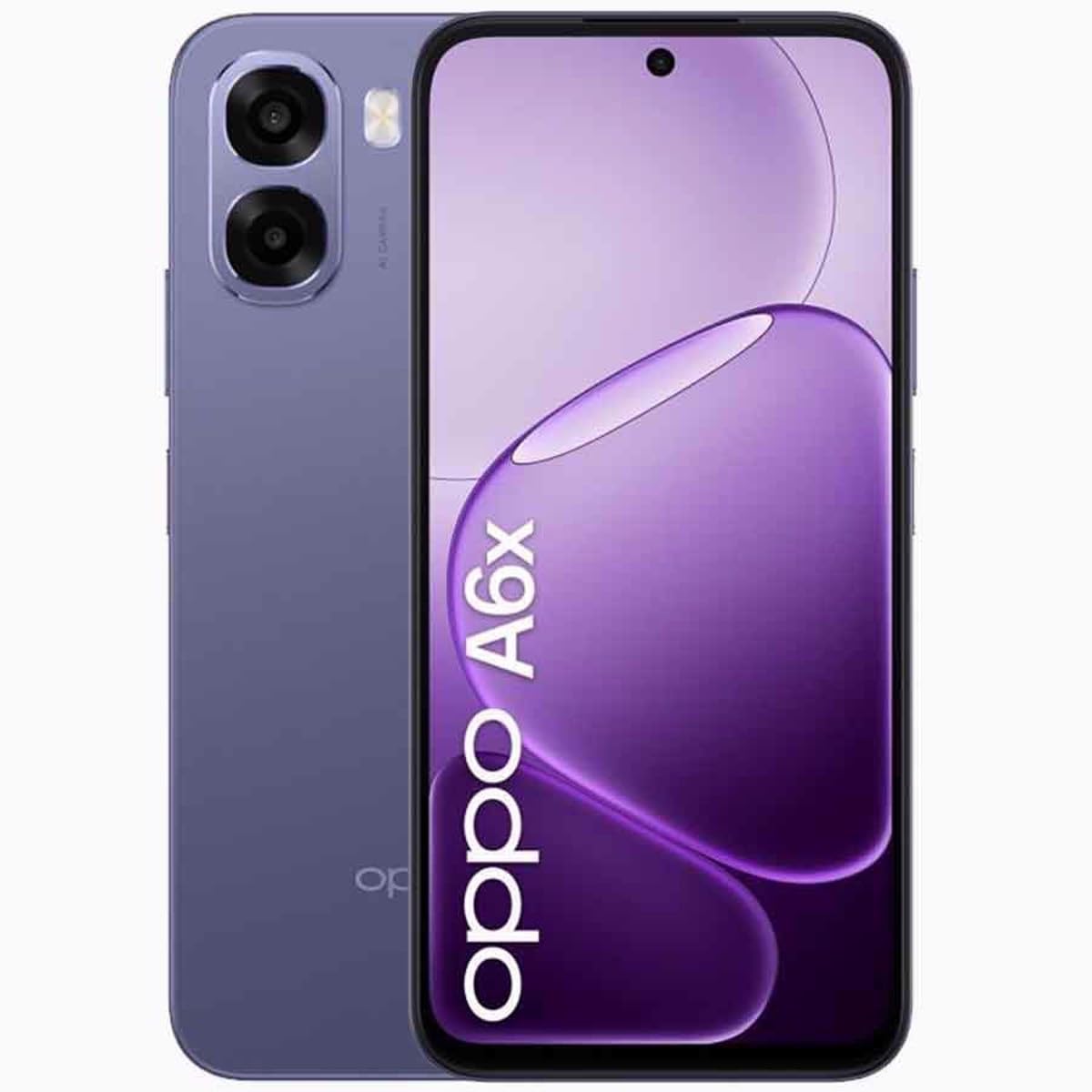
Image 1: Front and back view of the OPPO A6X smartphone, illustrating its design and camera placement.
3. Operating Your Device
3.1. Basic Navigation
Your OPPO A6X features an intuitive Android operating system. Use touch gestures such as tap, swipe, pinch, and spread to navigate the interface. The physical buttons include:
- Power Button: Press to turn the screen on/off, press and hold to power on/off or restart.
- Volume Buttons: Adjust media volume, call volume, and ringtone volume.
3.2. Making Calls and Sending Messages
To make a call, open the Phone app, enter the number, and tap the call icon. To send a message, open the Messages app, tap the new message icon, enter the recipient's number or select from contacts, type your message, and send.
3.3. Using the Camera
The OPPO A6X is equipped with a 13 MP rear camera and a 5 MP front camera. Open the Camera app to capture photos and videos. Tap the shutter button to take a picture or the record button to start/stop video recording. Swipe left or right to switch between different camera modes.
3.4. Connectivity
Your device supports 4G cellular technology for mobile data and calls. It also includes Wi-Fi and Bluetooth for wireless connections. Access these settings via the Quick Settings panel (swipe down from the top of the screen) or through the Settings app.
3.5. Storage Management
The OPPO A6X comes with 128 GB of internal storage. You can expand this storage using a microSD card. Regularly manage your files and applications to ensure sufficient free space for optimal performance. Check storage usage in Settings > Storage.
4. Maintenance
4.1. Cleaning Your Device
Use a soft, lint-free cloth to clean the screen and body of your phone. Avoid using harsh chemicals or abrasive materials, as these can damage the device's finish and screen coating. The device is resistant to water, but it is not waterproof; avoid submerging it in liquids.
4.2. Software Updates
Regularly check for and install software updates to ensure your device has the latest features, security patches, and performance improvements. You can check for updates in Settings > About Phone > Software Update.
4.3. Battery Care
To prolong battery life, avoid exposing your phone to extreme temperatures. It is recommended to keep the battery charge between 20% and 80% for daily use. Use only original or certified chargers and cables.
5. Troubleshooting
5.1. Common Issues and Solutions
- Device not turning on: Ensure the battery is charged. Press and hold the Power button for at least 10 seconds.
- Apps crashing or freezing: Close the app and reopen it. Clear the app's cache in Settings > Apps. Restart the device.
- Poor network connectivity: Check if Airplane Mode is off. Restart the device. Ensure your SIM card is properly inserted and your plan is active.
- Battery draining quickly: Reduce screen brightness, close background apps, disable unnecessary features like GPS or Bluetooth when not in use.
5.2. Factory Reset
If you encounter persistent software issues, a factory reset may resolve them. Warning: A factory reset will erase all data on your phone. Back up important data before proceeding. To perform a factory reset, go to Settings > System > Reset options > Erase all data (factory reset).
6. Specifications
| Feature | Specification |
|---|---|
| Brand | OPPO |
| Model Name | A6X |
| Operating System | Android |
| RAM | 4 GB |
| Internal Storage | 128 GB |
| Screen Size | 6.75 Inches |
| Resolution | 720 x 1570 |
| Refresh Rate | 120 Hz |
| Cellular Technology | 4G |
| SIM Card Slots | Dual SIM |
| Water Resistance Level | Water Resistant |
| Front Camera Resolution | 5 MP |
| Rear Camera Resolution | 13 MP |
| Item Dimensions | 8.5 x 7.9 x 4 cm |
7. Warranty and Support
7.1. Product Warranty
Your OPPO A6X smartphone comes with a three-year warranty against manufacturing defects. Please retain your proof of purchase for warranty claims. The warranty does not cover damage caused by misuse, accidents, unauthorized modifications, or normal wear and tear.
7.2. Customer Support
For technical assistance, warranty service, or further inquiries, please visit the official OPPO support website or contact their customer service. Refer to the warranty card or OPPO's official website for specific contact details and service center locations.


