
1. Introduction
This manual provides detailed instructions for the safe and effective use of your Anykit Two-Way Articulating Borescope. This industrial inspection camera features a 0.22-inch (5.5mm) articulating probe with 210° two-way articulation, 1080P HD clarity, and 8 adjustable LED lights. It is designed for inspecting hard-to-reach areas in various applications, including automotive maintenance, HVAC systems, and plumbing.
Please read this manual thoroughly before operating the device and retain it for future reference.
2. Product Overview
The Anykit Two-Way Articulating Borescope is a versatile diagnostic tool. Its key features include:
- Two-Way Articulation: The 0.22-inch probe can bend up to 210° in two directions, allowing for a 360° inspection view without rotating the entire cable.
- High-Definition Imaging: Captures 1920P/1080P HD photos and videos.
- Adjustable LED Lights: Equipped with 8 high-intensity, brightness-adjustable LED lights for clear visibility in dark environments.
- USB-C Connectivity: Plug & Play compatibility with iPhone 15/16 series, USB-C iPads, and Android 8.0+ devices (with OTG support).
- Flexible Semi-Rigid Cable: A 5-foot cable designed for navigating narrow spaces.
- Durable Design: IP67 waterproof and oil-resistant, suitable for harsh industrial environments.

Figure 2.1: Anykit Two-Way Articulating Borescope with phone holder.
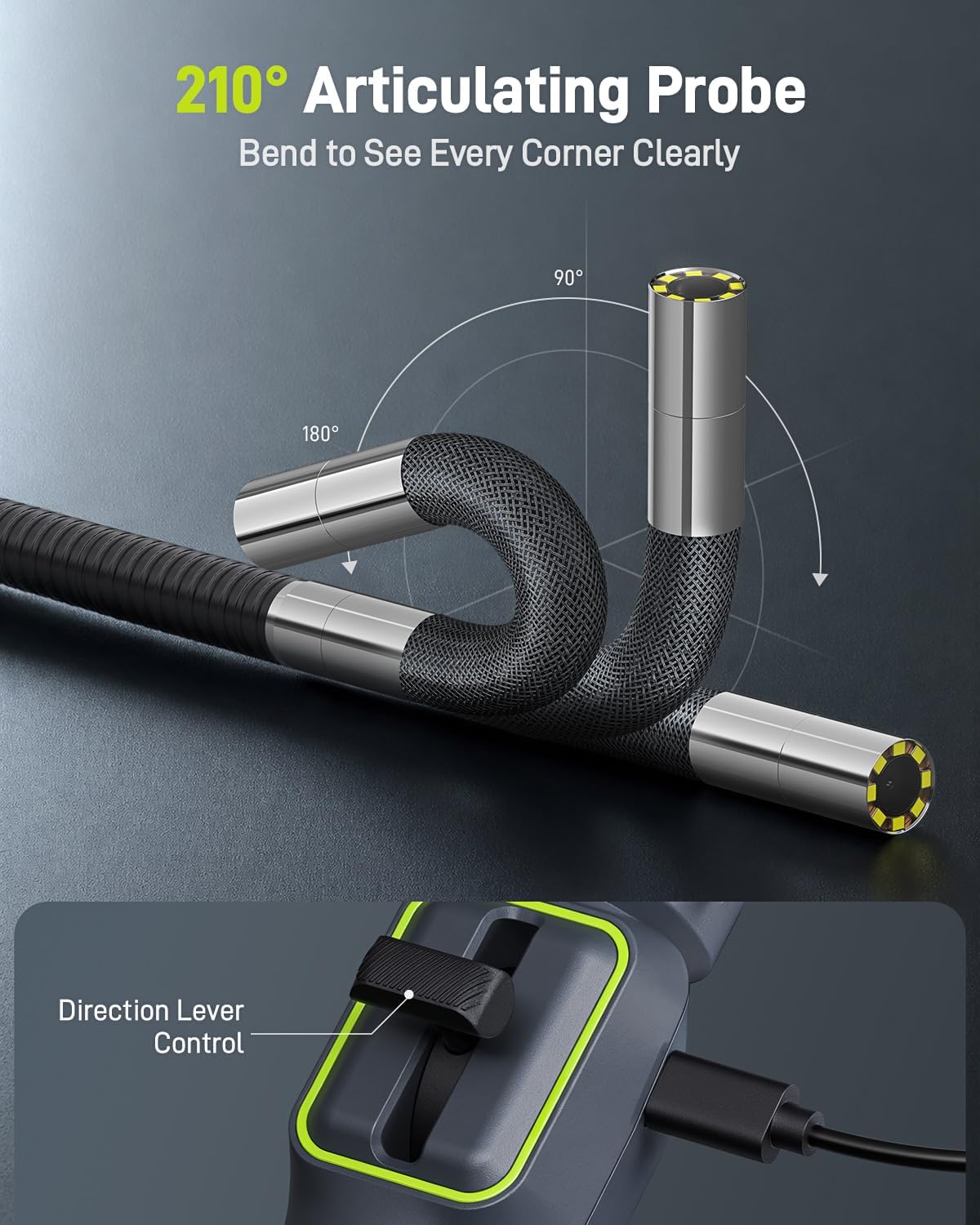
Figure 2.2: The borescope probe demonstrating its 210° two-way articulation capability.

Figure 2.3: Close-up view of the 5.5mm tiny camera head, designed for tight spaces.
3. Setup Instructions
Follow these steps to set up your Anykit borescope for first use:
- Download the App: Search for and download the "Xscope" application from the App Store (for iOS) or Google Play Store (for Android).
- Connect the Borescope:
- Mount your smartphone onto the borescope handle's phone holder.
- Connect the borescope's USB-C cable directly to your smartphone's USB-C port. Ensure your device supports OTG if it's an Android phone.
- Launch the App: Open the "Xscope" app. The device should be recognized automatically, and you will see a live feed from the camera.

Figure 3.1: Steps for downloading the app, connecting the device, and launching the application.

Figure 3.2: The borescope offers plug-and-play functionality with no Wi-Fi, Bluetooth, or external charging required.

Figure 3.3: Compatibility overview for iOS (iPhone 15/16 series) and Android (8.0+ with OTG) devices.
Video 3.1: Official guide on how to set up the Anykit Articulating Borescope with a smartphone.
4. Operating Instructions
Once the borescope is connected and the app is running, you can begin your inspection:
- Probe Insertion: Carefully insert the flexible semi-rigid probe into the area you wish to inspect. The 5-foot cable allows for access to deep or intricate spaces.
- Articulating the Probe: Use the steering wheel or direction lever control on the handle to bend the probe tip up to 210° in two directions. This allows you to navigate around obstacles and view different angles.
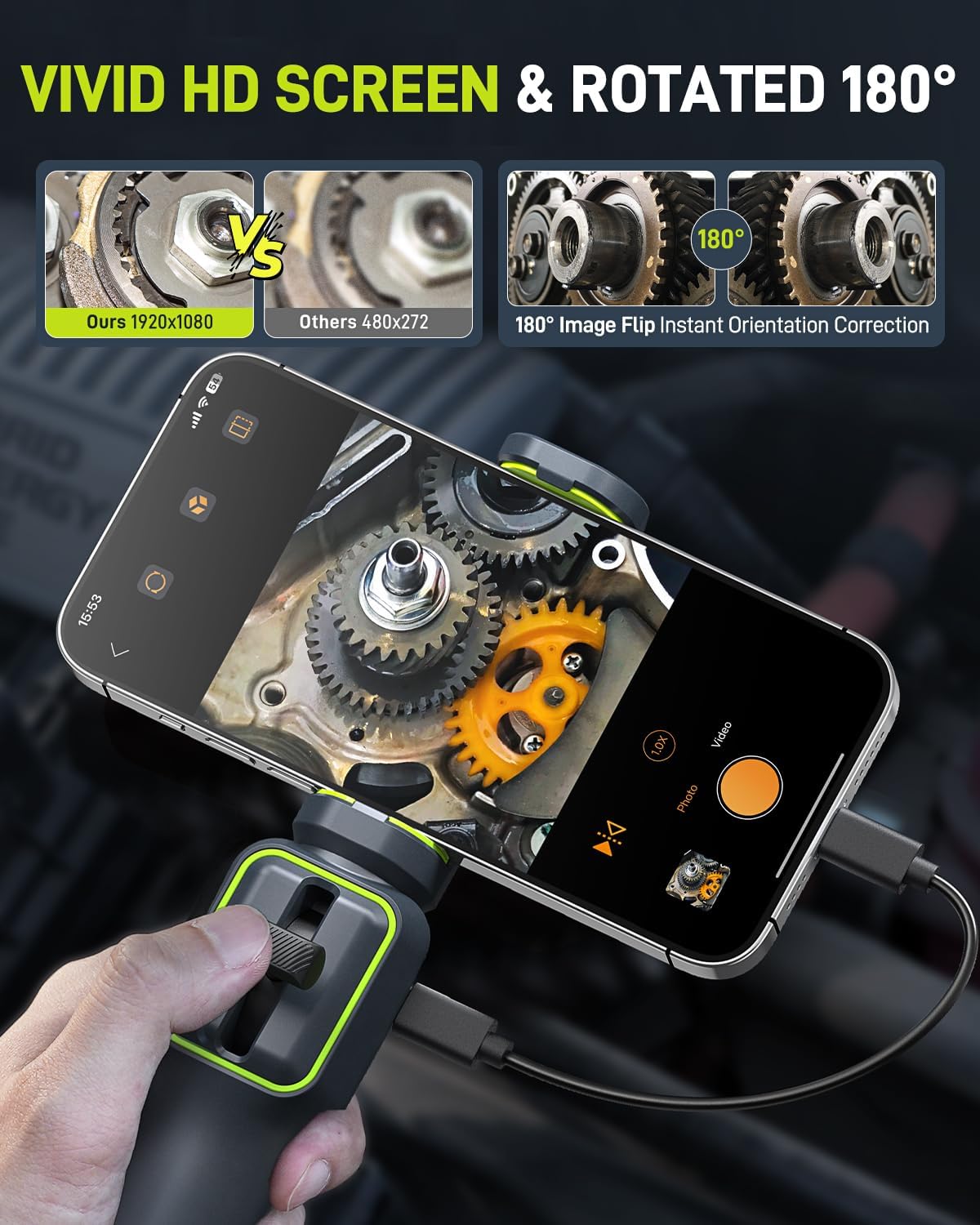
Figure 4.1: Operating the direction lever control for probe articulation.
- Adjusting LED Lights: Long-press the photo button on the handle to cycle through the 8 adjustable LED brightness levels: bright, medium, dim, and off. Adjust as needed for optimal visibility.
- Capturing Images and Videos:
- Press the photo button briefly to capture a still image.
- Press and hold the video button (if available, or use the app interface) to start/stop video recording.
- All captured media will be saved directly to your connected smartphone via the app.
- Image Orientation: The app may offer an 180° image flip function for instant orientation correction, ensuring you always have a correctly oriented view.

Figure 4.2: Example of the borescope in use for automotive engine inspection.

Figure 4.3: The 5-foot flexible semi-rigid cable is useful for tasks like fishing electrical wires through walls.
5. Maintenance
Proper maintenance ensures the longevity and optimal performance of your borescope:
- Cleaning the Probe: After each use, especially in dirty or oily environments, gently wipe the camera probe with a soft, damp cloth. For stubborn grime, a mild, non-abrasive cleaner can be used. Ensure no liquid enters the camera lens.
- Waterproof Rating: The probe is IP67 waterproof, meaning it can withstand immersion in water up to 1 meter for 30 minutes. However, avoid prolonged submersion or use in corrosive liquids. The main handle unit is not waterproof.
- Storage: Store the borescope in its provided carrying case in a cool, dry place, away from direct sunlight and extreme temperatures. Avoid kinking or sharply bending the flexible cable during storage.
- Temperature Protection: The camera has built-in high-temperature protection. If the temperature hits 85°C or higher, the device will alarm and shut down. It will restart automatically once the temperature drops below 60°C.

Figure 5.1: The IP67 waterproof probe is built for wet and dirty environments.

Figure 5.2: Smart sensor for temperature protection, indicating shutdown at 85°C and restart below 60°C.
6. Troubleshooting
If you encounter issues with your Anykit borescope, refer to the following common problems and solutions:
| Problem | Possible Cause | Solution |
|---|---|---|
| No image on screen / "Device not connected" |
|
|
| Poor image quality / Dark image |
|
|
| Probe articulation not responding |
|
|
| Device shuts down unexpectedly | Overheating. | Allow the device to cool down. It will restart automatically once the temperature drops below 60°C. |
7. Specifications
| Feature | Detail |
|---|---|
| Model Number | AD100D55L1.5US |
| Probe Diameter | 0.22 inches (5.5mm) |
| Articulation Angle | Up to 210° (two-way) |
| Video Capture Resolution | 1080p (1920x1080) |
| Effective Still Resolution | 1.94 MP (1940000 Pixels) |
| Lights | 8 adjustable LED lights |
| Water Resistance Level | IP67 (probe only) |
| Cable Length | 5 feet |
| Connectivity | USB-C (compatible with iPhone 15/16 series, USB-C iPads, Android 8.0+ with OTG) |
| Macro Focus Range | 1 Centimeter |
| File Format (Photo) | JPEG |
| File Format (Video) | MP4 |
| Color | Black |
| Brand | Anykit |
| Manufacturer | Anykit |
| UPC | 860012040155 |
8. Warranty and Support
Anykit products are designed for reliability and performance. For warranty information, please refer to the documentation included with your purchase or visit the official Anykit website. If you experience any issues or require technical assistance, please contact Anykit customer support through their official channels.
Contact Information:
- Visit the Anykit Store on Amazon for product information and support resources.
- Refer to your product packaging for direct contact details.


