
1. Introduction
Welcome to the Choyong WT2 Multi-Band Smart Internet Radio. This device offers a comprehensive listening experience, combining traditional AM/FM/SW radio with modern internet radio capabilities via Wi-Fi or 4G. It also features Bluetooth connectivity, TF card playback, and an intercom function. This manual provides detailed instructions for setup, operation, and maintenance to ensure optimal performance.
2. Package Contents
- Choyong WT2 Multi-Band Smart Internet Radio Unit
- External Antenna
- USB-C Charging Cable
- Lanyard
- User Manual (this document)
3. Product Overview
The Choyong WT2 is a compact and versatile radio designed for both portable and stationary use. It features a clear display and intuitive controls for easy navigation across its various functions.

Figure 3.1: Front view of the Choyong WT2 radio, highlighting the display and control buttons.
3.1 Key Features
- Multi-Band Reception: Internet Radio (Wi-Fi/4G), AM, FM, and Shortwave (SW).
- Advanced Connectivity: Bluetooth 5.2 for audio streaming and TF card slot for local media playback.
- Smart Functions: GPT-powered voice search for radio stations and podcasts, direct URL input for custom stations.
- Intercom Capability: Supports analog intercom (400-470MHz) and Push-to-Talk over Cellular (PoC) via 4G/Wi-Fi.
- High-Quality Components: Utilizes a car-grade TEF6686 chip for enhanced signal reception.
- Portable Design: Compact size with a replaceable 2500mAh battery for extended use.
4. Setup
4.1 Charging the Battery
Before first use, fully charge the radio using the provided USB-C cable. Connect the USB-C end to the radio's charging port and the other end to a compatible USB power adapter (not included) or a computer USB port. The charging indicator on the display will show the charging status.
4.2 Attaching the Antenna
Screw the external antenna clockwise into the antenna port located at the top of the radio. For optimal reception, especially for FM, MW, and SW bands, ensure the antenna is fully extended.
4.3 Initial Power On
Press and hold the power button (usually located on the side or top) for a few seconds until the display illuminates. The radio will boot up and show the main interface.
4.4 Connecting to Wi-Fi
To access internet radio features, connect the device to a 2.4 GHz Wi-Fi network:
- Navigate to the 'Settings' menu on the radio's display.
- Select 'Wi-Fi' and enable it.
- Choose your desired Wi-Fi network from the list.
- Enter the Wi-Fi password using the on-screen keyboard and the physical keypad. Note that entering complex passwords with mixed characters may require careful navigation using the directional buttons.
- Confirm the password to establish the connection.

Figure 4.1: The Choyong WT2 supports both 4G (via eSIM) and Wi-Fi connectivity for internet access.
5. Operating Instructions
5.1 Internet Radio (Wi-Fi/4G)
The WT2 provides access to over 40,000 internet radio stations worldwide. Stations are categorized by continent, country, state, city, type, and popularity.
- Browsing Stations: Use the navigation buttons to browse through categories and select stations.
- GPT-Powered Search: Utilize the integrated GPT feature for direct on-demand audio playback across radio stations and podcasts. This allows for natural language search.
- Adding Custom Stations: The radio supports direct URL input within its interface to add custom radio stations. It is compatible with audio formats including MP3, AAC, and M3U8.
- Bookmarks: Bookmark your favorite stations for quick access with a single click.

Figure 5.1: The Choyong WT2 provides access to a vast array of global internet radio stations.

Figure 5.2: The GPT-powered voice search feature allows for quick discovery of content.
5.2 Traditional Radio (FM/MW/SW)
The WT2 can receive conventional radio stations across FM, MW (AM), and SW (Shortwave) bands.
- Band Selection: Use the dedicated buttons or menu options to switch between FM, MW, and SW bands.
- Tuning: Manually tune to frequencies or use the auto-scan function to find available stations.
- Bandwidth Adjustment: The device allows adjustment of the reception bandwidth for improved clarity.
- Signal Information: The display shows signal strength and signal-to-noise ratio to aid in tuning.
- External Antenna: For enhanced reception, especially on SW and MW, connect an external antenna to the SMA female connector.
5.3 Bluetooth Connectivity
Connect your Bluetooth-enabled devices (e.g., headphones, speakers) to the WT2 for audio playback.
- Enable Bluetooth on the WT2 via the 'Settings' menu.
- Put your external Bluetooth device into pairing mode.
- Select your device from the list on the WT2's display to pair.
5.4 TF Card Playback
Insert a micro SD (TF) card into the designated slot to play stored audio files. The radio supports various audio formats.
5.5 Clock, Alarm, and Timer Functions
The WT2 includes a clock, alarm clock, and timer playback features. Access these functions through the main menu to set your preferences.
5.6 Intercom / Walkie-Talkie Function
The WT2 offers both analog and network-based intercom capabilities.
- Analog Intercom: Operates on the 400-470MHz band. Ensure the antenna is attached and extended for best range.
- Push-to-Talk over Cellular (PoC): Utilizes 4G (with integrated eSIM) or Wi-Fi for long-range communication within defined groups.
- Activation: Press the '0' button to toggle the intercom function on or off. Ensure the screen is active before pressing the PTT button for transmission.
Video 5.3: Demonstration of the CHOYONG WT2 network intercom feature, showing how to use the device for group communication.
Video 5.4: An introduction to the WT2 Walkie-Talkie functionality, explaining its basic operation.
6. Maintenance
6.1 Battery Care
The WT2 is equipped with a replaceable 2500mAh battery. To prolong battery life:
- Avoid fully discharging the battery frequently.
- Charge the device regularly, especially if it will be stored for an extended period.
- If the intercom function is not in use, turn it off to conserve battery power.
6.2 Cleaning
Wipe the radio with a soft, dry cloth. Do not use liquid cleaners or abrasive materials, as these can damage the device.
6.3 Firmware Updates
Periodically check for firmware updates to improve performance and add new features. Updates are typically performed via Wi-Fi. Follow the on-screen prompts or refer to the manufacturer's website for specific instructions.
Video 6.1: Instructions on how to upgrade the CHOYONG WT2 firmware.
7. Troubleshooting
- Difficulty Connecting to Wi-Fi:
Ensure you are connecting to a 2.4 GHz network. Entering complex Wi-Fi passwords can be challenging due to the interface; use the numerical keypad for digits and carefully navigate character selection. Try simplifying your Wi-Fi password temporarily if possible for initial setup. - Poor FM/AM/SW Reception:
Fully extend the external antenna. Try repositioning the radio. For AM, screen interference can occur; try blanking the screen with the power button or allowing the screen to time out for clearer reception. Consider connecting a specialized external antenna for specific bands. - Intercom (Walkie-Talkie) Not Transmitting:
Ensure the screen is active before pressing the Push-to-Talk (PTT) button. The intercom function might be inadvertently turned off or require re-activation via the '0' button. - Rapid Battery Drain:
The intercom function, especially when running in the background, can consume significant battery power. Turn off the intercom when not in active use. - Voice Search Not Working as Expected:
Ensure a stable internet connection. Speak clearly and directly into the radio's microphone. The system may require specific phrasing; try different commands. - Favorite Stations Not Saving:
Verify that the bookmarking process was completed correctly. If the issue persists, check for available firmware updates, as this may be a software-related issue.
8. Specifications
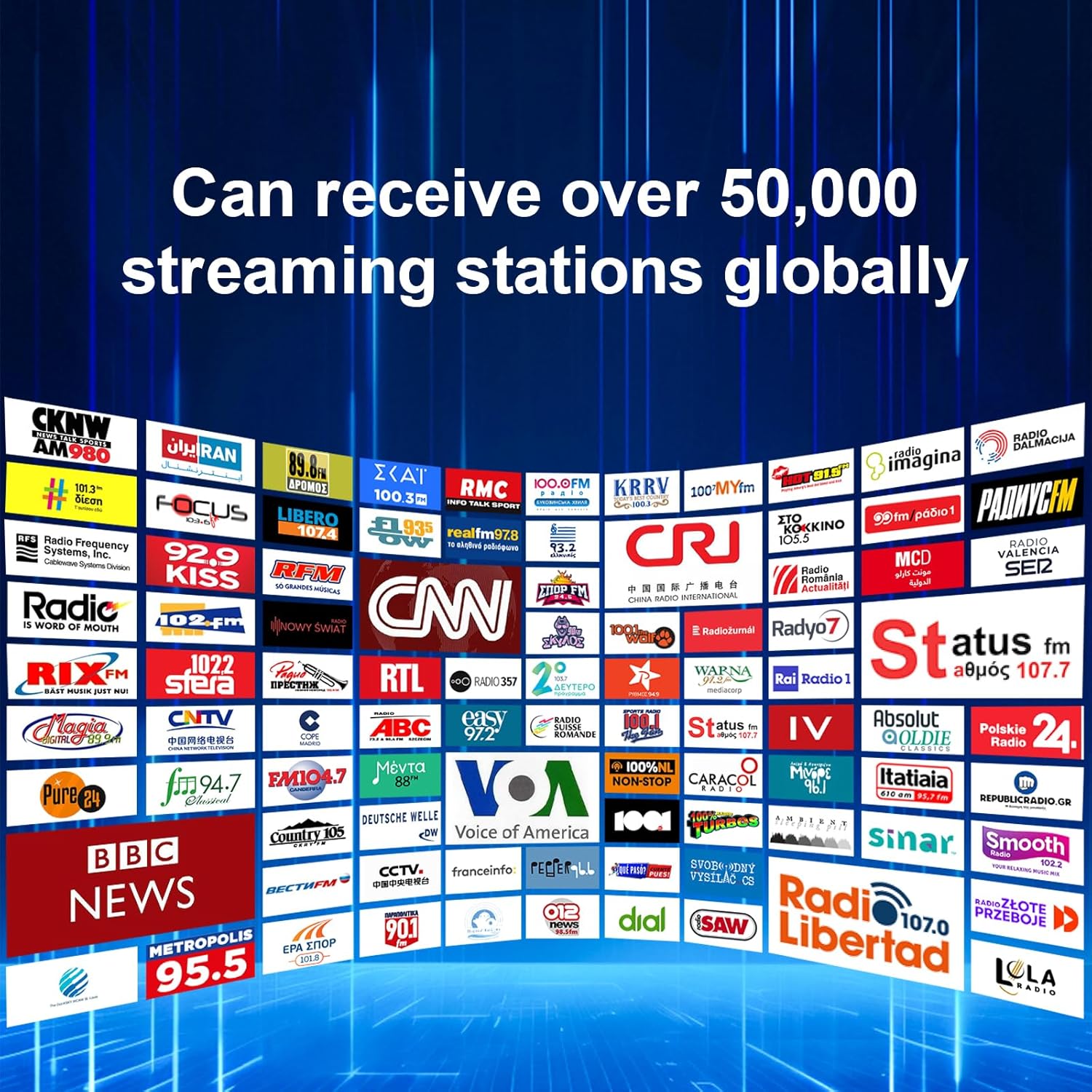
Figure 8.1: The Choyong WT2 features an ultra-sensitive TEF6686 chip for superior reception.
| Feature | Detail |
|---|---|
| Brand | CHOYONG |
| Model Number | WT2 |
| Color | Black |
| Connectivity Technology | Wi-Fi, 4G (eSIM), Bluetooth |
| Tuner Technology | FM, AM (MW), Shortwave (SW) |
| Product Dimensions | 2.36"L x 0.98"W x 4.92"H |
| Speaker Maximum Output Power | 5 Watts |
| Battery | 1 Nonstandard Battery (2500 mAh, replaceable) |
| Display Type | LCD or LED |
| Compatible Devices | Smartphone, Headphone, MP3 Player, Tablet, Laptop |
| Manufacturer | Shenzhen Chaoyuan Technology Co., Ltd. |
9. Warranty and Support
For warranty information and technical support, please refer to the documentation included with your purchase or visit the official CHOYONG website. Contact customer service for assistance with any issues not covered in this manual.


