
1. Setup
Follow these steps to set up your ATTACK SHARK R68HE wired gaming keyboard:
- Unpack the Keyboard: Carefully remove the keyboard and all accessories from the packaging.
- Connect the USB-C Cable: Locate the USB-C port on the back of the keyboard. Connect one end of the provided USB-C cable to the keyboard and the other end to an available USB port on your computer, laptop, or compatible gaming console.
- Driver Installation (Optional): For advanced customization and features, download the official driver software from the ATTACK SHARK website. The driver link is typically provided in the product packaging or can be found at www.QMK.TOP. Follow the on-screen instructions for installation.

Image: The ATTACK SHARK R68HE keyboard connected to a device using its coiled USB-C cable, illustrating the wired connection.
The keyboard is compatible with various devices including PCs, notebooks, tablets, and gaming consoles.
2. Operating Instructions
The ATTACK SHARK R68HE keyboard features a 68-key QWERTY layout with Magnetic Hall Effect Switches and Rapid Trigger technology for precise and responsive input.

Image: The ATTACK SHARK R68HE keyboard, emphasizing its 8000Hz polling rate and 256K scan rate for instant response and ultimate precision.
Key Features:
- Magnetic Hall Effect Switches: These switches offer adjustable actuation points and rapid trigger functionality, allowing for quick key resets and repeated inputs.
- High Performance: Features an 8000Hz polling rate, 256K scanning sampling rate, and 16K global sampling rate for minimal latency.
- Dynamic RGB Backlighting: Customize your keyboard's appearance with over 20 preset lighting effects.
- Durable Construction: Built with CNC aluminum alloy and carbon fiber composite material for enhanced durability.
- Sound Quality: Incorporates a six-layer padding system for improved acoustic performance.
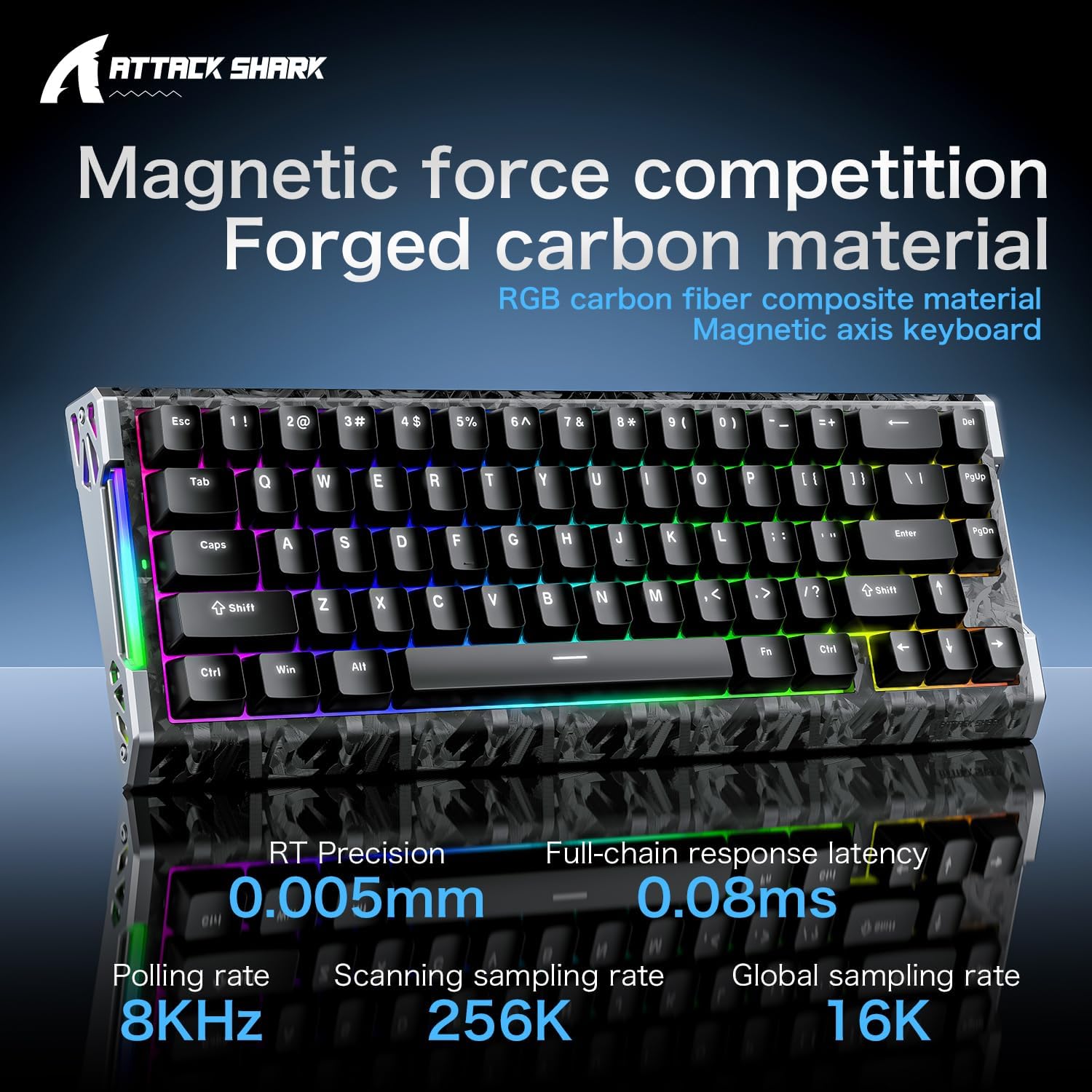
Image: The ATTACK SHARK R68HE keyboard showcasing its magnetic force competition features, including 0.005mm RT precision and 0.08ms full-chain response latency.
RGB Lighting Control:
Use the Function (Fn) key in combination with other keys to control the keyboard's lighting:
- Fn + Z: Switch light effects for the side RGB lighting strips.
- Fn + X: Switch light color for the side RGB lighting strips.
- Fn + C: Turn the side RGB lighting strips on/off.
- Fn + Enter: Switch backlight color for the keycaps.
- Fn + \|: Switch backlight effects for the keycaps.
- Fn + Tab: Activate white light backlight for the keycaps.

Image: A detailed view of the ATTACK SHARK R68HE keyboard's CNC aluminum alloy frame and RGB lighting strips, with key combinations for controlling the side lights.

Image: The ATTACK SHARK R68HE keyboard displaying its dynamic RGB backlighting with over 20 preset light effects, along with key combinations for controlling the keycap backlights.
Magnetic Hall Effect Switches and Rapid Trigger:
The keyboard features linear magnetic switches with an actuation range of 0.005-3.4mm and a lifespan of 100 million clicks. The Rapid Trigger function allows for instant key reset upon release, providing a competitive edge in fast-paced applications.

Image: An illustration explaining the Magnetic Hall Effect Switches and the Rapid Trigger mechanism, comparing it to a regular switch's activation and reset points.
Customization Software:
Utilize the dedicated software (available via the driver link mentioned in Setup) to tailor your gaming setup. This software allows for:
- RGB Lighting Settings
- Programmable Key Functions
- FN Layer Settings
- Macro Settings
- Advanced Key Mapping

Image: A screenshot of the ATTACK SHARK keyboard's web driver interface, showing options for RGB lighting, key settings, macro creation, and advanced key mapping.
3. Maintenance
Proper maintenance ensures the longevity and optimal performance of your keyboard.
- Cleaning: Regularly clean the keyboard with a soft, dry cloth. For dust and debris between keycaps, use compressed air. Avoid using harsh chemicals or abrasive materials.
- Liquid Exposure: Keep liquids away from the keyboard. In case of accidental spills, immediately disconnect the keyboard and allow it to dry completely before reconnecting.
- Keycap and Switch Removal: The keyboard is hot-swappable, meaning switches can be replaced. A 'DIY tool' is typically provided for safe removal of keycaps and switches. Exercise caution to avoid damaging the components.
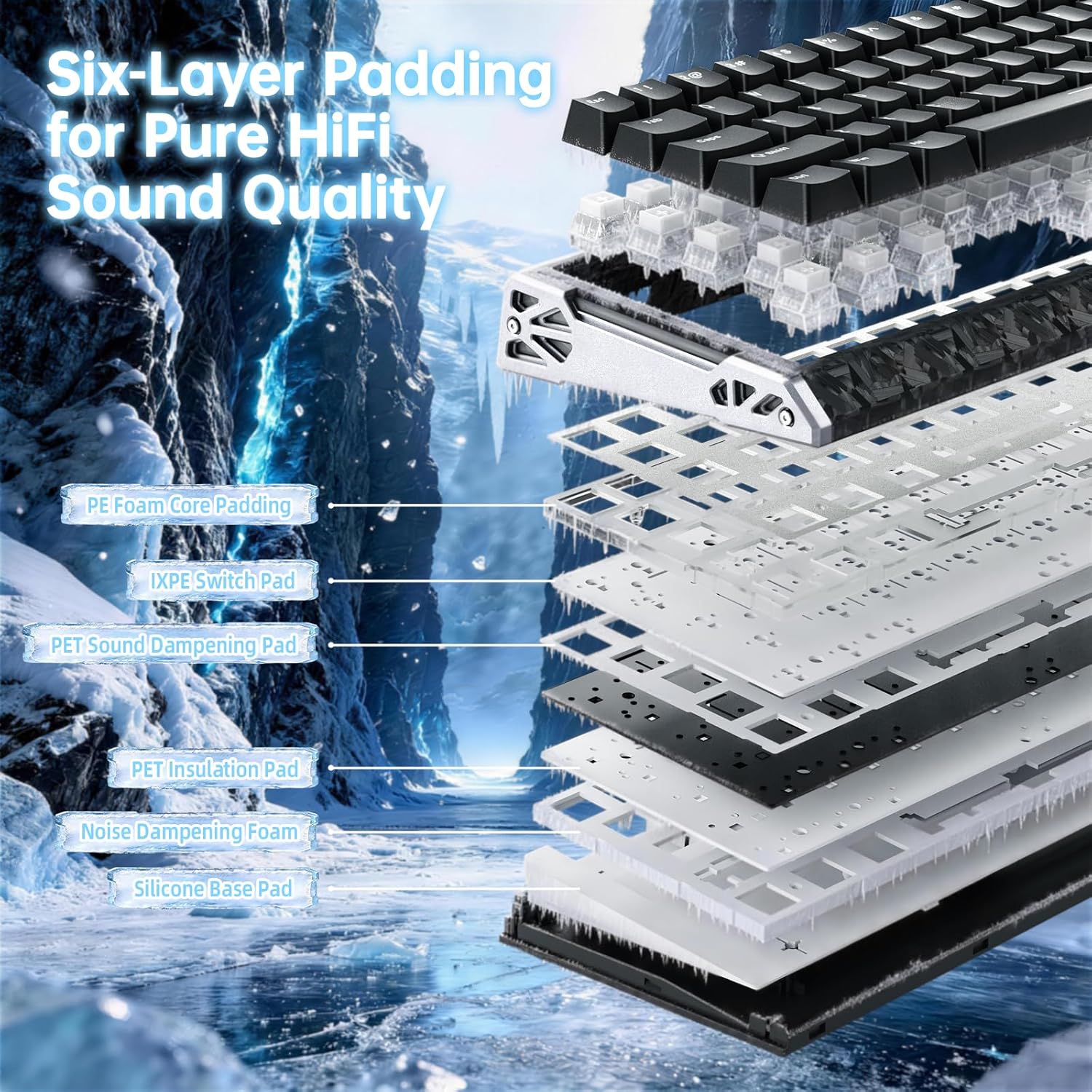
Image: An exploded view of the ATTACK SHARK R68HE keyboard, illustrating its internal six-layer padding structure designed for pure HiFi sound quality, including PE foam, IXPE switch pad, and sound dampening layers.
4. Troubleshooting
If you encounter issues with your ATTACK SHARK R68HE keyboard, refer to the following common solutions:
- Keyboard Not Responding:
- Ensure the USB-C cable is securely connected to both the keyboard and your device.
- Try connecting the keyboard to a different USB port on your device.
- Test the keyboard on another computer to rule out a device-specific issue.
- RGB Lighting Not Working:
- Check if the lighting is turned off using the Fn + C key combination.
- Ensure the brightness is not set to minimum.
- If using the customization software, verify that lighting effects are enabled and configured correctly.
- Keys Not Registering or Double-Typing:
- This can sometimes be resolved by updating the keyboard firmware via the official software.
- If a specific switch is faulty, it can be replaced due to the hot-swappable design.
- Software Issues:
- Ensure you have the latest version of the ATTACK SHARK driver software installed.
- Try reinstalling the software if problems persist.
For further assistance, consult the official ATTACK SHARK support resources.
5. Specifications
| Brand | ATTACK SHARK |
| Model | R68HE |
| Connectivity Technology | USB-C (Wired) |
| Compatible Devices | PC, Notebook, Tablet, Gaming Console |
| Keyboard Layout | QWERTY |
| Number of Keys | 68 |
| Switch Type | Magnetic Hall Effect Switches (Linear) |
| Actuation Range | 0.005 - 3.4 mm |
| Polling Rate | 8000Hz |
| Scanning Sampling Rate | 256K |
| Global Sampling Rate | 16K |
| Backlight | RGB (20+ preset effects) |
| Special Features | Ergonomic, Rapid Trigger, Hot-swappable switches |
| Material | Carbon Fiber, Aluminum |
6. Warranty and Support
Warranty Information:
Specific warranty details for the ATTACK SHARK R68HE keyboard are not provided in this manual. Please refer to the product packaging, the official ATTACK SHARK website, or your point of purchase for comprehensive warranty terms and conditions.
Customer Support:
For technical support, troubleshooting assistance, or inquiries regarding your ATTACK SHARK R68HE keyboard, please visit the official ATTACK SHARK website. The driver software portal at www.QMK.TOP may also provide support resources and FAQs.


