
1. Introduction
Welcome to the user manual for your ATTACK SHARK R68 HE Carbon Fiber 8000Hz Rapid Trigger Keyboard. This manual provides detailed instructions for setting up, operating, customizing, and maintaining your keyboard to ensure optimal performance and a superior gaming experience.

Image: The ATTACK SHARK R68 HE Wired Forged Carbon Fiber Keyboard, showcasing its design and vibrant RGB lighting.
2. Key Features
The ATTACK SHARK R68 HE keyboard is engineered for high-performance gaming and typing, incorporating advanced technologies:
- Premium Construction: Features a compact 60% layout with CNC-machined aluminum alloy side trims and advanced carbon fiber composite materials for durability and aesthetics.
- Magnetic Switches: Equipped with Hall effect magnetic switches for ultra-sensitive operation and a silky smooth feel.
- Rapid Trigger (RT) Functionality: Adjustable 0.005mm RT accuracy with a global actuation range of 0.005mm to 3.4mm, allowing for precise and instant key responses.
- High Polling Rate: An 8000Hz polling rate delivers 8x faster response times than traditional gaming keyboards, with ultra-low 0.08ms latency.
- Advanced Key Functions: Supports Dynamic Keystroke (DKS), Mod Tap (MT), Toggle Key (TGL), and Snap Tap (SOCD) for enhanced gaming precision.
- Customizable RGB Lighting: Dual-sided dynamic RGB light strips and individual key RGB lighting with 16.8 million colors, featuring 20+ preset light effects.
- QMK Web-Based Driver: Offers comprehensive customization for key remapping, macros, lighting effects, and magnetic switch settings.
- C01 Ultra RGB Coiled Cable: Designed for stable data transfer and fast charging.
- Compatibility: Fully compatible with Windows and Mac operating systems.

Image: Visual representation of the keyboard's high performance metrics, including 8000Hz polling rate and 256K scan rate, emphasizing instant response and precision.
3. Package Contents
Verify that all items are present in your package:
- ATTACK SHARK R68 HE Keyboard
- C01 Ultra RGB Coiled Cable
- 2-in-1 Key Puller
- Keyboard Cover
- 2 x Spare Magnetic Switches
- 2 x ATTACK SHARK Stickers
- User Manual (this document)

Image: An overview of all items included in the ATTACK SHARK R68 HE keyboard retail box, neatly arranged.
4. Setup
4.1 Connecting the Keyboard
The R68 HE is a wired keyboard. Connect it to your computer using the provided C01 Ultra RGB Coiled Cable.
- Insert the USB-C end of the coiled cable into the port on the back of the keyboard.
- Connect the USB-A end of the coiled cable to an available USB port on your computer.
- The keyboard will automatically be recognized by your operating system (Windows or Mac).

Image: The keyboard connected to a coiled USB-C cable, emphasizing the wired connection and high polling rate for stable data transfer.
4.2 Initial Calibration
For optimal performance, especially with Rapid Trigger features, it is recommended to perform an initial calibration using the web driver software.
- Open the QMK web-based driver (www.qmk.top) or the downloaded software.
- Navigate to the "Keyboard Setting" panel.
- Locate and click "Travel calibration" on the right side.
- In the pop-up window, select "Start Calibration."
- Follow the on-screen instructions, then click "Calibration Complete" to finish.
Image: A visual guide demonstrating the steps for performing a quick calibration using the keyboard's web driver software interface.
5. Operating Instructions
5.1 Basic Keyboard Functions
The R68 HE features a 68-key ANSI layout. Standard key functions operate as expected. Utilize the Function (Fn) key for secondary key actions, typically indicated by legends on the keycaps.
5.2 RGB Lighting Control
The keyboard features dynamic RGB backlighting and side light bars. You can control these directly from the keyboard or through the customization software.
Keyboard Backlight Controls:
- Fn + \ |: Switch Light Effects
- Fn + Enter: Switch Light Color
- Fn + Backspace: Light On/Off
- Fn + Tab: White Light
- Fn + + / -: Adjust Backlight Speed
- Fn + ↑ / ↓: Adjust Backlight Brightness
Side Light Bar Controls:
- Fn + Z: Switch Side Light Effects
- Fn + X: Switch Side Light Color
- Fn + C: Side Light On/Off

Image: The keyboard displaying various RGB lighting effects, accompanied by a guide to onboard lighting controls for both key backlights and side light bars.
5.3 Magnetic Switch Features (Rapid Trigger, DKS, MT, TGL, SOCD)
The magnetic switches allow for advanced functionalities crucial for competitive gaming:
- Rapid Trigger (RT): Allows a key to activate and deactivate based on movement rather than a fixed actuation point. This means a key can register a press as soon as it moves down and reset as soon as it moves up, enabling extremely fast repeated inputs.
- Adjustable Actuation: Customize the actuation point for each key individually from 0.005mm to 3.4mm via the software, tailoring sensitivity to your preference.
- Dynamic Keystroke (DKS): Assign up to four different actions to a single key based on how far it is pressed.
- Mod Tap (MT): A key can perform one action when tapped and a different action when held.
- Toggle Key (TGL): Press and hold a key to activate a continuous action, release to stop.
- Snap Tap (SOCD - Simultaneous Opposite Cardinal Directions): Optimizes directional inputs in games by neutralizing opposing inputs (e.g., pressing both 'A' and 'D' simultaneously results in no horizontal movement).

Image: A detailed explanation of magnetic Hall Effect switches and the Rapid Trigger mechanism, comparing its dynamic actuation to standard switches.

Image: Visual guides for advanced magnetic switch features including Toggle Key (TGL), Snap Tap (SOCD), and Dynamic Keystroke (DKS).
6. Customization
The ATTACK SHARK R68 HE keyboard offers extensive customization through its QMK web-based driver or downloadable software. This allows you to personalize your keyboard experience to a high degree.
Customization Options:
- Key Remapping: Reassign any key to a different function.
- Macro Settings: Create and assign complex macros for single-key execution.
- RGB Lighting Settings: Fine-tune lighting effects, colors, and brightness beyond onboard controls.
- Magnetic Switch Settings: Adjust actuation points, Rapid Trigger sensitivity, and configure DKS, MT, TGL, and SOCD functions.
- Music Visualization: Synchronize lighting with audio output.
- Zone Wake-up & Screen Lighting Rhythm: Advanced lighting synchronization features.
Access the web driver at: www.qmk.top

Image: The user interface of the QMK web driver, demonstrating options for customizing lighting, magnetic switch behavior, and key functions.
7. Maintenance
Proper maintenance ensures the longevity and performance of your keyboard.
- Cleaning: Use a soft, dry cloth to wipe the keyboard surface. For deeper cleaning, use the provided key puller to remove keycaps and clean dust or debris with compressed air. Avoid using harsh chemicals or abrasive materials.
- Storage: When not in use, store the keyboard in a clean, dry environment. The included keyboard cover can help protect it from dust.
- Cable Care: Avoid sharp bends or excessive pulling on the coiled cable to prevent damage.
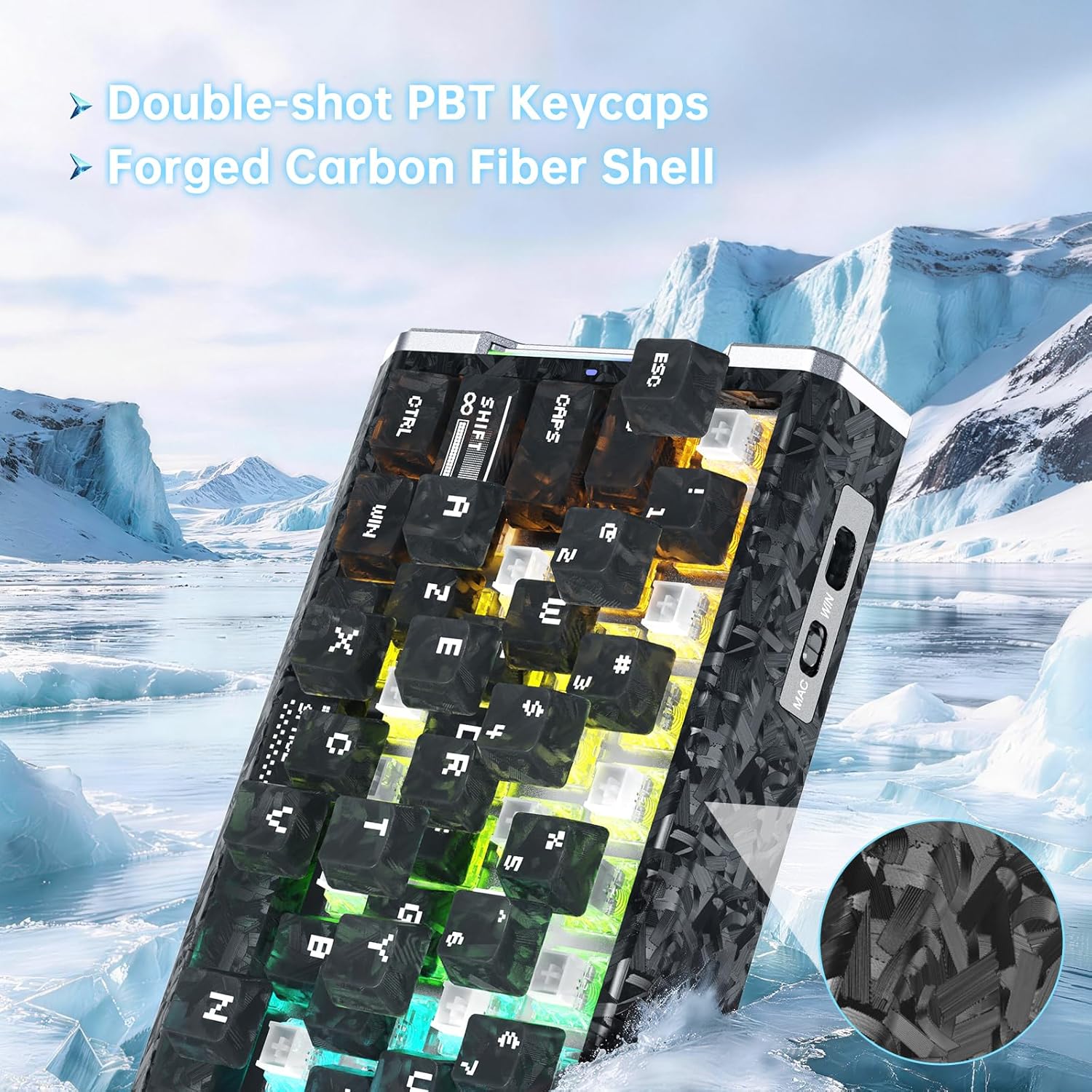
Image: A detailed view of the keyboard's forged carbon fiber keycaps and shell material, alongside accessories like spare switches and a key puller, relevant for maintenance.
8. Troubleshooting
If you encounter issues with your ATTACK SHARK R68 HE keyboard, refer to the following common solutions:
| Problem | Possible Cause | Solution |
|---|---|---|
| Keyboard not responding | Loose cable connection, incorrect USB port, driver issue. | Ensure the USB-C cable is securely connected to both the keyboard and the computer. Try a different USB port. Restart your computer. Check device manager for driver issues. |
| RGB lighting not working or incorrect | Lighting settings misconfigured, software conflict. | Use the onboard Fn key combinations to cycle through effects and colors (see Section 5.2). Check the QMK web driver for detailed lighting settings. Ensure no other lighting software is conflicting. |
| Keys not registering or double-typing | Dust/debris under keycap, magnetic switch calibration needed, software issue. | Remove the keycap and clean the switch area. Perform a "Travel calibration" using the QMK web driver (see Section 4.2). Update or reinstall the keyboard software/driver. |
| Advanced features (RT, DKS, etc.) not working | Features not enabled or configured in software. | Ensure these features are properly configured and enabled within the QMK web driver software (see Section 6). |
| Computer lagging or freezing after connecting keyboard | Potential software conflict or system resource issue (rare). | Ensure your operating system and drivers are up to date. Try connecting the keyboard to a different computer to isolate the issue. If the problem persists, contact customer support. |
9. Specifications
Detailed technical specifications for the ATTACK SHARK R68 HE Keyboard:
| Feature | Detail |
|---|---|
| Brand | ATTACK SHARK |
| Model | R68 HE |
| Connectivity Technology | USB-C (Wired) |
| Keyboard Layout | 68-Key ANSI (60% Layout) |
| Switch Type | Magnetic Hall Effect Switches (Linear) |
| Actuation Range | 0.005mm to 3.4mm (Adjustable) |
| Rapid Trigger Accuracy | 0.005mm |
| Polling Rate | 8000Hz |
| Latency | 0.08ms |
| Scan Rate | 256KHz |
| Keycap Material | PC Matte Forged Carbon |
| Enclosure Material | Carbon Fiber, Aluminum Alloy |
| RGB Lighting | 16.8 Million Colors, Dynamic Backlight & Side Strips |
| Compatible Operating Systems | Windows, Mac OS 14 Sonoma and above |
| Dimensions | 325mm x 122mm x 20mm (approx. 12.8in x 4.8in x 0.79in) |
| UPC | 707630517426 |
Image: A technical diagram illustrating the ANSI layout and physical dimensions of the R68 HE keyboard.
10. Warranty and Support
10.1 Manufacturer's Warranty
The ATTACK SHARK R68 HE keyboard comes with a 1-Year Manufacturer's Warranty from the date of purchase. This warranty covers defects in materials and workmanship under normal use. It does not cover damage caused by misuse, accidents, unauthorized modifications, or normal wear and tear.
Please retain your proof of purchase for warranty claims.
10.2 Customer Support
For technical assistance, warranty claims, or any questions regarding your ATTACK SHARK R68 HE keyboard, please contact ATTACK SHARK customer support through their official channels or the retailer where the product was purchased.
You may also refer to the official brand store on Amazon: ATTACK SHARK Store
11. Product Videos
ATTACK SHARK R68 HE Carbon Fiber 8000Hz Rapid Trigger Keyboard Overview
Video: An official overview of the ATTACK SHARK R68 HE Carbon Fiber 8000Hz Rapid Trigger Keyboard, highlighting its features and design.
R68HE Carbon Fiber Rapid Trigger Keyboard with Magnetic Switch Features
Video: A demonstration of the R68HE Carbon Fiber Rapid Trigger Keyboard, focusing on its magnetic switch technology and rapid trigger capabilities.


