
1. Introduction
Thank you for choosing the ACEMAGIC LX16PRO Gaming Laptop. This manual provides essential information for setting up, operating, maintaining, and troubleshooting your new device. The LX16PRO is designed for performance and productivity, featuring an AMD Ryzen 7 7730U processor, a 16-inch IPS display, 16GB DDR4 RAM, and a 512GB NVMe SSD, running on Windows 11 Pro.

Image: Overview of the ACEMAGIC LX16PRO laptop, highlighting its AMD Ryzen 7 7730U processor, AMD Radeon Graphics, 16-inch FHD IPS display, up to 64GB DDR4 RAM, up to 4TB NVMe SSD, WiFi 6, and backlit keyboard.
2. Setup
2.1 Initial Power-On
- Unpack: Carefully remove the laptop and all accessories from the packaging.
- Connect Power: Plug the power adapter into the DC jack on the laptop and then into a power outlet.
- Power On: Open the laptop lid and press the power button, usually located on the keyboard deck.
- Windows Setup: Follow the on-screen instructions to complete the Windows 11 Pro initial setup, including language, region, network connection, and user account creation.
2.2 Connecting Peripherals
The LX16PRO offers various ports for connecting external devices:
- USB 3.2: Connect USB devices such as mice, keyboards, or external storage drives.
- Type-C (Full Function): Use for data transfer, video output, or charging compatible devices.
- HDMI: Connect to external monitors or TVs for extended display.
- 3.5mm Headphone Jack: Connect headphones or external speakers.
- TF Card Socket: Insert a TF (microSD) card for additional storage or data transfer.

Image: Right side view of the laptop, displaying the DC power input, a full-function Type-C port, an HDMI port, and a USB 3.2 port.
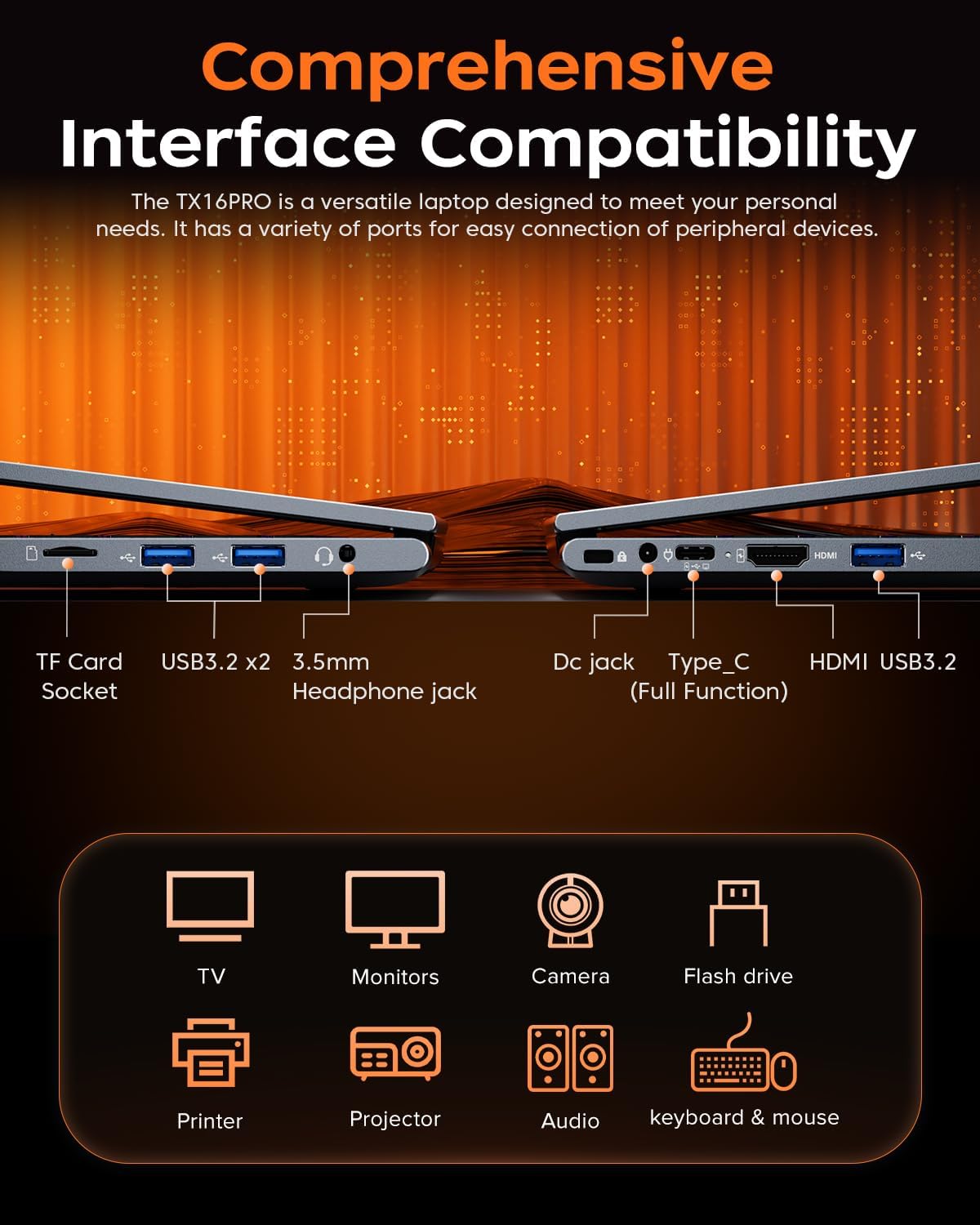
Image: Left side view of the laptop, showing the TF card socket, two USB 3.2 ports, and the 3.5mm headphone jack.
3. Operating Instructions
3.1 Keyboard and Touchpad
The laptop features a backlit keyboard and a responsive touchpad with multi-touch capabilities. The backlit keyboard enhances visibility in low-light conditions, and the numeric keypad provides convenience for data entry.
- Backlight Control: Use the dedicated function keys (e.g., Fn + Fx) to adjust keyboard backlight brightness or toggle it on/off.
- Touchpad Gestures: Utilize multi-touch gestures for navigation, zooming, and other functions within Windows 11 Pro.

Image: Close-up of the laptop's backlit keyboard and large touchpad, illustrating its design and functionality.
3.2 Display
The 16-inch IPS display offers Full HD (1920x1200) resolution for clear and vibrant visuals. Adjust display settings through Windows settings for optimal viewing experience.

Image: The laptop screen showcasing vivid graphics, emphasizing the 16-inch display with Full HD (1920x1200) resolution and IPS technology.
3.3 Wireless Connectivity
The LX16PRO supports WiFi 6 and Bluetooth 5.2 for fast and reliable wireless connections.
- WiFi 6: Connect to high-speed wireless networks for internet access and online activities.
- Bluetooth 5.2: Pair with Bluetooth-enabled devices such as headphones, speakers, or other peripherals.

Image: A visual comparison demonstrating the improved transfer speeds and reduced latency of WiFi 6 over WiFi 5, beneficial for gaming and streaming.
3.4 Power Modes
Optimize performance and battery life by adjusting power modes in Windows settings (Settings > System > Power & battery).
- Best Performance: Maximizes system speed for demanding tasks like gaming.
- Balanced: Offers a good compromise between performance and power efficiency for everyday use.
- Best Power Efficiency: Conserves battery life for extended usage, suitable for light tasks.

Image: The laptop displayed alongside three power modes, indicating their respective performance levels and recommended uses for gaming, work, and extended battery life.
4. Maintenance
4.1 Battery Care
- Avoid fully discharging the battery frequently.
- Store the laptop in a cool, dry place when not in use for extended periods.
- For optimal battery longevity, avoid exposing the laptop to extreme temperatures.

Image: An internal view of the laptop highlighting the 54Wh battery, indicating its capacity for extended use.
4.2 Storage Management
- Regularly clean up unnecessary files and applications to maintain optimal performance of the 512GB NVMe SSD.
- Consider external storage or cloud services for large files to free up internal drive space.

Image: A visual representation of the laptop's memory (16GB DDR4 RAM, upgradable to 64GB) and storage (512GB NVMe SSD, upgradable to 4TB) capabilities.
4.3 Cleaning
- Use a soft, lint-free cloth to clean the screen and exterior surfaces.
- Avoid harsh chemicals or abrasive materials.
- Periodically clean the cooling vents to ensure proper airflow and prevent overheating.

Image: An illustration of the laptop's internal cooling system, featuring dual copper pipes and a dedicated fan designed to maintain low temperatures during operation.
5. Troubleshooting
If you encounter issues with your ACEMAGIC LX16PRO laptop, refer to the following common solutions:
- No Power: Ensure the power adapter is securely connected to both the laptop and a working power outlet. Check the power indicator light.
- Display Issues: If the screen is blank, try connecting an external monitor via HDMI to check if the issue is with the laptop's display or graphics output. Adjust display settings in Windows.
- Connectivity Problems: For WiFi issues, restart your router and the laptop. For Bluetooth, ensure the device is discoverable and within range.
- Slow Performance: Close unnecessary applications, check for background processes, and ensure your system is up to date. Consider running a disk cleanup.
- System Freeze: If the system becomes unresponsive, press and hold the power button for 10-15 seconds to force a shutdown. Restart the laptop.
For further assistance, please contact ACEMAGIC customer support.
6. Specifications
Below are the detailed specifications for the ACEMAGIC LX16PRO Gaming Laptop:
| Feature | Detail |
|---|---|
| Model Name | LX16PRO |
| Processor | AMD Ryzen 7 7730U (8 Cores, 16 Threads, up to 4.5 GHz) |
| Graphics | AMD Radeon™ Graphics |
| RAM | 16GB DDR4 (2666 MHz), Max 64GB |
| Storage | 512GB NVMe SSD (PCIE x 4), Max 4TB |
| Display | 16-inch IPS, 1920x1200 (FHD), 60 Hz |
| Operating System | Windows 11 Pro |
| Connectivity | WiFi 6 (802.11ax), Bluetooth 5.2 |
| Ports | 1x HDMI, 1x Type-C (Full Function), 3x USB 3.2, 1x 3.5mm Audio Jack, 1x TF Card Socket, 1x DC Jack |
| Keyboard | Backlit Keypad, QWERTY Layout |
| Touchpad | Multi-touch |
| Webcam | Yes (Front) |
| Battery | 1 Lithium Ion, 55 Watt Hours (approx. 4 hours life) |
| Dimensions | 35.73 x 22.86 x 1.67 cm |
| Weight | 1.78 kg |
7. Warranty and Support
ACEMAGIC provides customers with a one-year limited warranty and 30-day returns. Lifetime technical support and offline maintenance are also available. For any issues or inquiries, please feel free to contact ACEMAGIC customer support.
8. Product Overview Video
Video: A brief overview of the ACEMAGIC TX16PRO Laptop, showcasing its 16-inch FHD display, 180-degree hinge, backlit keyboard, and various connectivity ports including DC jack, Type-C, HDMI, USB 3.2, TF card socket, and 3.5mm headphone jack. This video highlights the physical features and design of the laptop.


