
Introduction
This manual provides essential information for the safe operation and maintenance of your CHUBORY F89 4K Drone. Please read this guide thoroughly before operating the drone to ensure proper function and to prevent damage or injury. Keep this manual for future reference.
Product Overview
The CHUBORY F89 is a foldable drone equipped with a 2K HD camera, brushless motors, and multiple intelligent flight modes. It is designed for ease of use, making it suitable for beginners.
Key Features:
- Brushless Motors: Provides strong wind resistance, faster, quieter, and more powerful flight, with increased durability.
- 2K HD Camera: 120° wide-angle front camera and bottom optical flow camera for capturing high-quality photos and videos.
- Extended Flight Time: Equipped with 3 batteries, offering up to 60 minutes of total flight time (approximately 20 minutes per battery).
- Flight Modes: Optical Flow Positioning, Altitude Hold, First Person View (FPV), One-key Take-off & Landing, One-key Flip & Roll, Follow Me, Trajectory Flight, Headless Mode, Speed Adjustment, Gesture Selfie.
- Foldable Design: Compact and portable for easy transport.

Image: The CHUBORY F89 drone in its unfolded state, ready for flight.

Image: Detail of the drone's 4K camera, highlighting its wide field of view and remote adjustability.
Setup
1. Unfolding the Drone
- Gently unfold the front arms of the drone until they lock into place.
- Unfold the rear arms. Ensure all arms are fully extended and secure.
2. Battery Installation and Charging
The drone uses rechargeable Lithium-Ion batteries. Ensure batteries are fully charged before each flight.
- Insert a charged battery into the drone's battery compartment until it clicks securely.
- To charge, connect the battery to the provided USB charging cable and plug it into a suitable USB power source (e.g., computer, USB wall adapter).
- Charging indicator lights will show charging status. Refer to the battery for specific light patterns.

Image: Three drone batteries, illustrating the charging process and their contribution to extended flight time.
3. Remote Controller Setup
- Install 3 AA batteries (not included) into the remote controller.
- Extend the phone holder on the remote controller and securely place your smartphone.
4. App Installation and Connection
- Download the official CHUBORY drone app from your smartphone's app store (iOS or Android).
- Turn on the drone and the remote controller.
- On your smartphone, connect to the drone's Wi-Fi network (usually named 'CHUBORY-XXXX').
- Open the app to establish a connection and view the live FPV feed.
5. Propeller Installation (if needed)
- Ensure propellers are installed correctly according to their markings (A and B) on the corresponding motor arms.
- Use the provided screwdriver to secure the propellers with screws.

Image: All components included with the CHUBORY F89 drone, such as the drone, remote controller, batteries, spare propellers, and charging cables.
Operating Instructions
1. Pre-Flight Checklist
- Ensure drone and remote controller batteries are fully charged.
- Check that propellers are securely attached and undamaged.
- Verify a stable Wi-Fi connection between the drone and your smartphone.
- Choose an open area free from obstacles, people, and animals.
2. Calibration
- Place the drone on a flat, level surface.
- Follow the calibration instructions in the app or remote controller to calibrate the gyroscope and compass. This is crucial for stable flight.
3. Take-off and Landing
- One-key Take-off: Press the one-key take-off button on the remote or in the app. The drone will automatically ascend and hover at a safe altitude.
- Manual Take-off: Push both joysticks down and outwards simultaneously to start the motors. Then, gently push the left joystick up to ascend.
- One-key Landing: Press the one-key landing button. The drone will automatically descend and land.
- Manual Landing: Gently pull the left joystick down to descend. Once landed, push both joysticks down and inwards to stop the motors.
4. Flight Controls
- Left Joystick: Controls altitude (up/down) and rotation (left/right).
- Right Joystick: Controls forward/backward and left/right movement.
5. Intelligent Flight Modes
- Altitude Hold: The drone maintains a stable altitude, allowing easier control of horizontal movement.
- Headless Mode: The drone's orientation is relative to the pilot, eliminating the need to adjust for the drone's front direction. Ensure the drone's head orientation is consistent with the controller during connection and calibration for this mode.
- Follow Me: The drone will automatically follow the remote controller or the connected smartphone.
- Trajectory Flight: Draw a path on your smartphone screen, and the drone will fly along the specified route.
- Gesture Selfie: Perform specific hand gestures to trigger photo or video capture.
- One-key Flip & Roll: When the drone is more than 5 meters high, press the 360° flip button and push the right joystick in the desired direction to perform a flip.
- Speed Adjustment: Adjust flight speed (low, medium, high) to suit your skill level and environmental conditions.

Image: The drone showcasing its versatile flight capabilities, including Master-mode, Tap fly, and Palm Gesture Photo.

Image: Visual guide to essential drone functions: One-key start/landing, Headless mode, Altitude hold, and Low battery warning.

Image: Explanation of the Smart Follow feature, where the drone tracks a target figure approximately 2 meters away.

Image: Description of Trajectory Flight, allowing the drone to fly along a path drawn on the screen.
6. Camera Operation
- Use the dedicated buttons on the remote controller or the app interface to take photos or record videos.
- The camera angle can be adjusted remotely up to 90 degrees.
7. Flight Range
The CHUBORY F89 drone offers an image transmission range of up to 2650 feet (approximately 800 meters) and a maximum control range of 3280 feet (approximately 1000 meters).
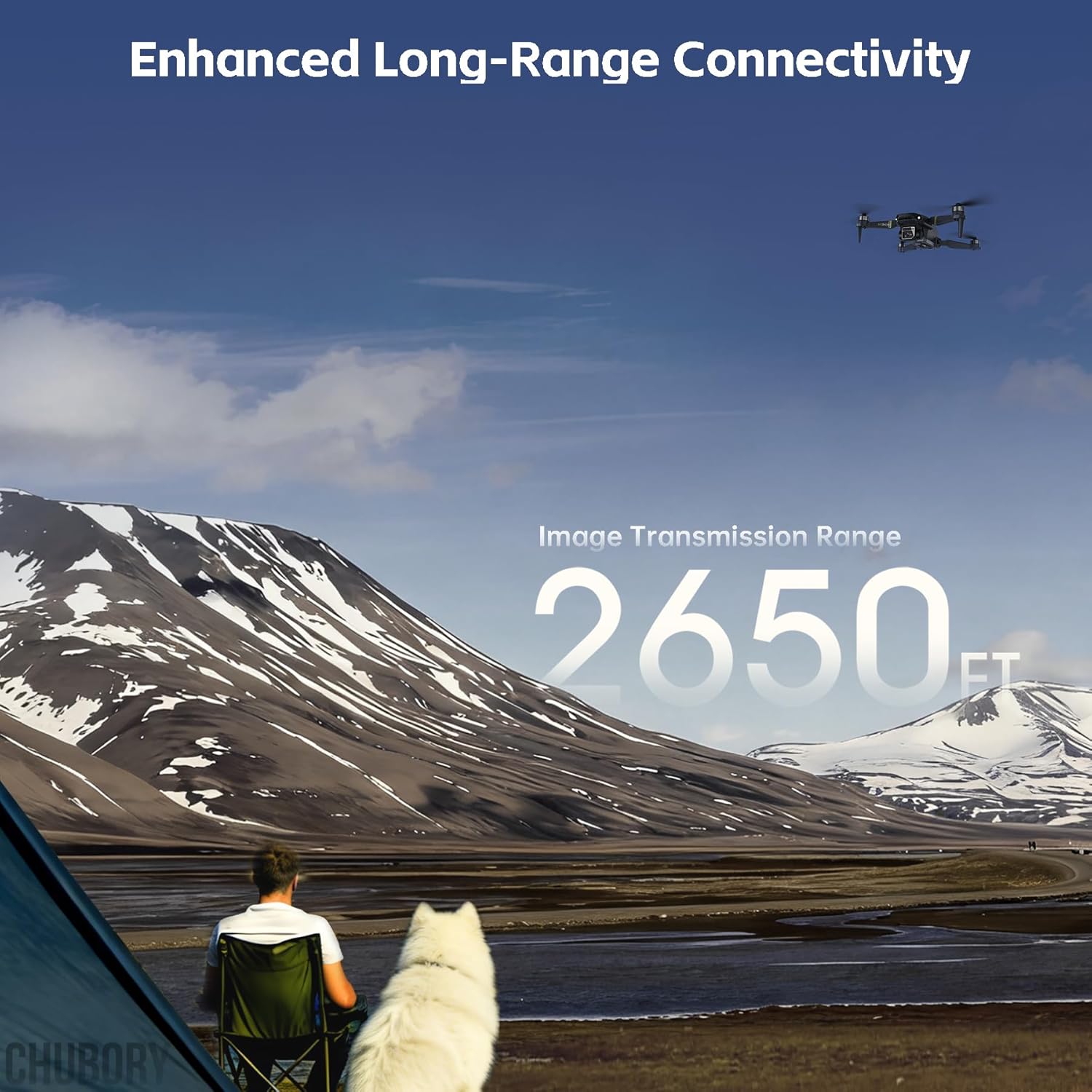
Image: The drone flying high above a scenic landscape, demonstrating its enhanced long-range connectivity up to 2650 feet.
Maintenance
1. Battery Care
- Do not overcharge or over-discharge batteries.
- Store batteries in a cool, dry place away from direct sunlight and extreme temperatures.
- If not used for extended periods, charge batteries to about 50% capacity every three months.
2. Cleaning
- Use a soft, dry cloth to clean the drone body and camera lens.
- Avoid using harsh chemicals or solvents.
3. Propeller Replacement
- Inspect propellers for cracks or damage before each flight.
- Replace damaged propellers immediately using the provided spare parts and screwdriver. Ensure correct A/B propeller orientation.
Troubleshooting
| Problem | Possible Cause | Solution |
|---|---|---|
| Drone does not respond to controller | Not paired; low battery; interference | Re-pair drone and controller; charge batteries; move to an area with less interference. |
| Unstable flight/Drifting | Improper calibration; damaged propellers; strong wind | Recalibrate the drone; replace damaged propellers; fly in calm conditions. |
| No FPV feed | No Wi-Fi connection; app issue | Ensure Wi-Fi is connected to the drone; restart the app and drone. |
| Short flight time | Battery not fully charged; old battery | Fully charge batteries; consider replacing old batteries. |
| Motors not spinning | Drone not armed; low battery | Perform manual take-off gesture to arm motors; charge battery. |
Specifications
| Feature | Detail |
|---|---|
| Brand | CHUBORY |
| Model Name | F89 |
| Video Capture Resolution | 2K |
| Effective Still Resolution | 2 MP |
| Connectivity Technology | Wi-Fi |
| Control Type | Remote Control, App Control |
| Maximum Control Range | 3280 Feet (approx. 1000 meters) |
| Image Transmission Range | 2650 Feet (approx. 800 meters) |
| Item Weight | 115.7 Grams |
| Battery Capacity | 1600 Milliamp Hours (per battery) |
| Battery Cell Composition | Lithium Ion |
| Material | Composite |
| Item Dimensions (L x W x H) | 3.74"L x 3.74"W x 1.18"H (folded) |
Official Product Videos
F89 Drone User Guide Video
This video provides a comprehensive user guide for the CHUBORY F89 drone, covering various operational aspects.
CHUBORY F89 Flight Test
Watch the CHUBORY F89 drone in action during a flight test, demonstrating its stability and maneuverability.
CHUBORY F89 Foldable Drone with 84mins Flight Time
This video highlights the extended flight capabilities of the CHUBORY F89 foldable drone, showcasing its 84-minute total flight time with multiple batteries.
CHUBORY F89 Beginner Drone with 84 Minutes of Flight Time
An overview of the CHUBORY F89, emphasizing its beginner-friendly features and impressive 84-minute flight duration.
Warranty and Support
The CHUBORY F89 drone comes with a one-year warranty, ensuring peace of mind for your purchase. We are committed to providing permanent support for our products.
Contact Support:
- Email Assistance: For any inquiries or technical support, please contact us at chubory@qq.com. We offer 24/7 email assistance.
- Official Website: Visit our official website for additional resources and information: www.chubory.com.

Image: Visual representation of available support resources, including the user manual, quick start guide, operation videos, and email assistance.


