
Introduction
Thank you for choosing the UGREEN M785DR Wireless Trackball Mouse. This manual provides detailed instructions for setting up, operating, maintaining, and troubleshooting your device. Please read this manual thoroughly before use to ensure optimal performance and longevity of your trackball mouse.
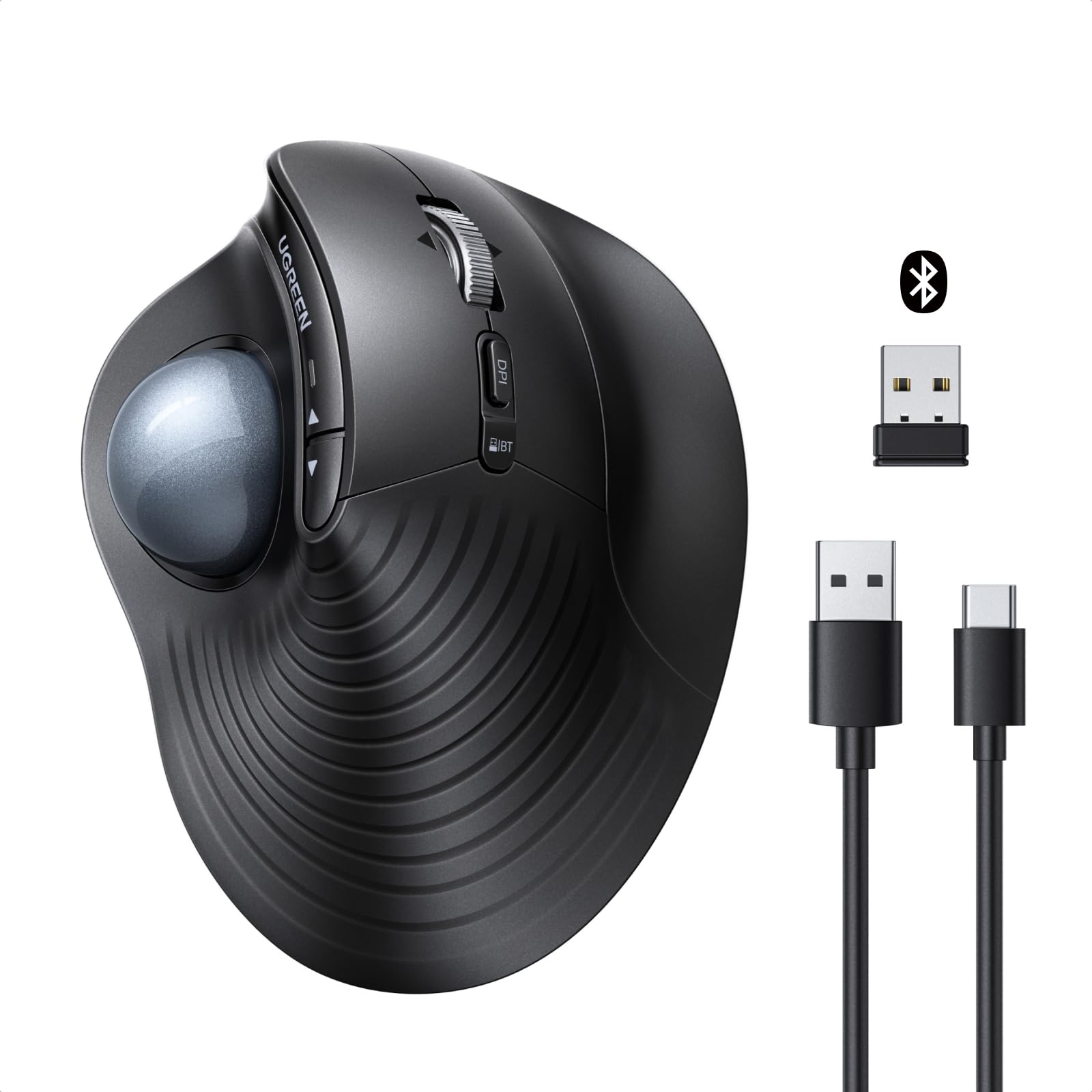
Image: Overview of the UGREEN M785DR Wireless Trackball Mouse, highlighting its ergonomic design, trackball, and various buttons. Icons indicate Bluetooth & 2.4G connectivity, USB-C charging, 5 DPI levels, 4D scroll wheel, silent operation, customizable buttons, and simultaneous connection to up to 3 devices.
Product Overview
Familiarize yourself with the components and controls of your UGREEN M785DR Trackball Mouse.

Image: Detailed diagram illustrating the various buttons and ports on the UGREEN M785DR Trackball Mouse. Labels include Left button, Scroll wheel, Right button, DPI toggle button, Connection toggle button, USB-C port for charging, Power button, Trackball, Back button, Forward button, Battery/Mode indicator, and the location of the USB receiver.
Key Components:
- Trackball: For precise cursor control with your thumb.
- Left/Right Buttons: Standard mouse click functions.
- Scroll Wheel: 4D scrolling for vertical and horizontal navigation.
- Back/Forward Buttons: For quick navigation in web browsers and file explorers.
- DPI Toggle Button: Adjusts cursor sensitivity.
- Connection Toggle Button: Switches between 2.4G and Bluetooth connections.
- Battery/Mode Indicator: Displays battery status and connection mode.
- USB-C Charging Port: For recharging the internal battery.
- Power Button: Turns the mouse on or off.
- USB Receiver: Stored inside the mouse for 2.4G wireless connection.
Setup
1. Charging the Mouse
Before initial use, ensure the mouse is fully charged. A USB-A to USB-C charging cable is included.
- Connect the USB-C end of the charging cable to the mouse's USB-C port.
- Connect the USB-A end to a power source (e.g., computer USB port, USB wall adapter).
- The battery/mode indicator light will show the charging status. It takes approximately 1.5-2 hours for a full charge.

Image: The UGREEN M785DR mouse connected via a USB-C cable to a laptop for charging. The image indicates the charging process and fully charged states with color codes.
2. Connecting the Mouse
The UGREEN M785DR supports dual-mode connectivity: 2.4G wireless via USB receiver and Bluetooth. It can connect to up to three devices simultaneously.
2.1. 2.4G Wireless Connection
- Locate the USB receiver inside the mouse's bottom compartment.
- Plug the USB receiver into an available USB port on your computer.
- Turn on the mouse using the power button.
- Press the connection toggle button until the indicator light shows the 2.4G mode (usually a specific color or blink pattern). The mouse should connect automatically.
2.2. Bluetooth Connection
The mouse supports two Bluetooth channels (BT1 and BT2).
- Turn on the mouse using the power button.
- Press the connection toggle button to select either BT1 or BT2 mode. The indicator light will blink rapidly, indicating pairing mode.
- On your device (PC, Mac, tablet, etc.), go to Bluetooth settings and search for new devices.
- Select "UGREEN M785DR" from the list of available devices to pair.
- Once paired, the indicator light will stop blinking and remain solid for a few seconds.

Image: The UGREEN M785DR mouse positioned between a monitor, laptop, and tablet, illustrating its ability to connect to three devices simultaneously via Bluetooth (BT1, BT2) and 2.4G wireless. Compatible operating systems are listed below the image.
3. Switching Between Connected Devices
To switch between connected devices, simply press the connection toggle button on the mouse. The indicator light will change to reflect the active connection mode (2.4G, BT1, or BT2).
4. Compatibility
The UGREEN M785DR is compatible with a wide range of operating systems:
- Windows
- macOS
- Linux
- Android
- ChromeOS
Operating Instructions
1. Ergonomic Design and Usage
The vertical ergonomic shape and thumb-controlled trackball are designed to reduce forearm rotation and wrist strain, promoting a more natural hand posture during extended use. Cursor movement is achieved by rolling the trackball with your thumb, eliminating the need to move the entire mouse.

Image: A comparison showing the hand posture with a conventional mouse (requiring wrist movement) versus the UGREEN M785DR trackball mouse (enabling intuitive thumb operation without moving the mouse, reducing wrist twisting).
2. DPI Adjustment
The mouse features 5 adjustable DPI levels to suit various tasks and preferences. Press the DPI toggle button to cycle through the sensitivity settings.
- 400 DPI: One blink of the indicator light.
- 800 DPI: Two blinks of the indicator light.
- 1200 DPI: Three blinks of the indicator light.
- 1600 DPI: Four blinks of the indicator light.
- 2000 DPI: Five blinks of the indicator light.

Image: Diagram illustrating the 5 DPI levels (400, 800, 1200, 1600, 2000) and their corresponding indicator light blinks. A low battery warning is also shown.
3. 4D Hyper-Fast Scroll Wheel
The scroll wheel supports both vertical and horizontal scrolling. It also features speed switching for efficient navigation through long documents or wide spreadsheets. Simply tilt the scroll wheel left or right for horizontal scrolling.
4. Customizable Buttons
The product buttons can be customized to assign frequently used functions (e.g., copy, paste, task switching). This requires downloading and installing the corresponding software from the UGREEN official website.
5. Space-Saving Operation
Since the mouse does not need to be moved, it is ideal for small desks, cluttered workspaces, or even use on your lap. It operates reliably on almost any surface without requiring a mouse pad.
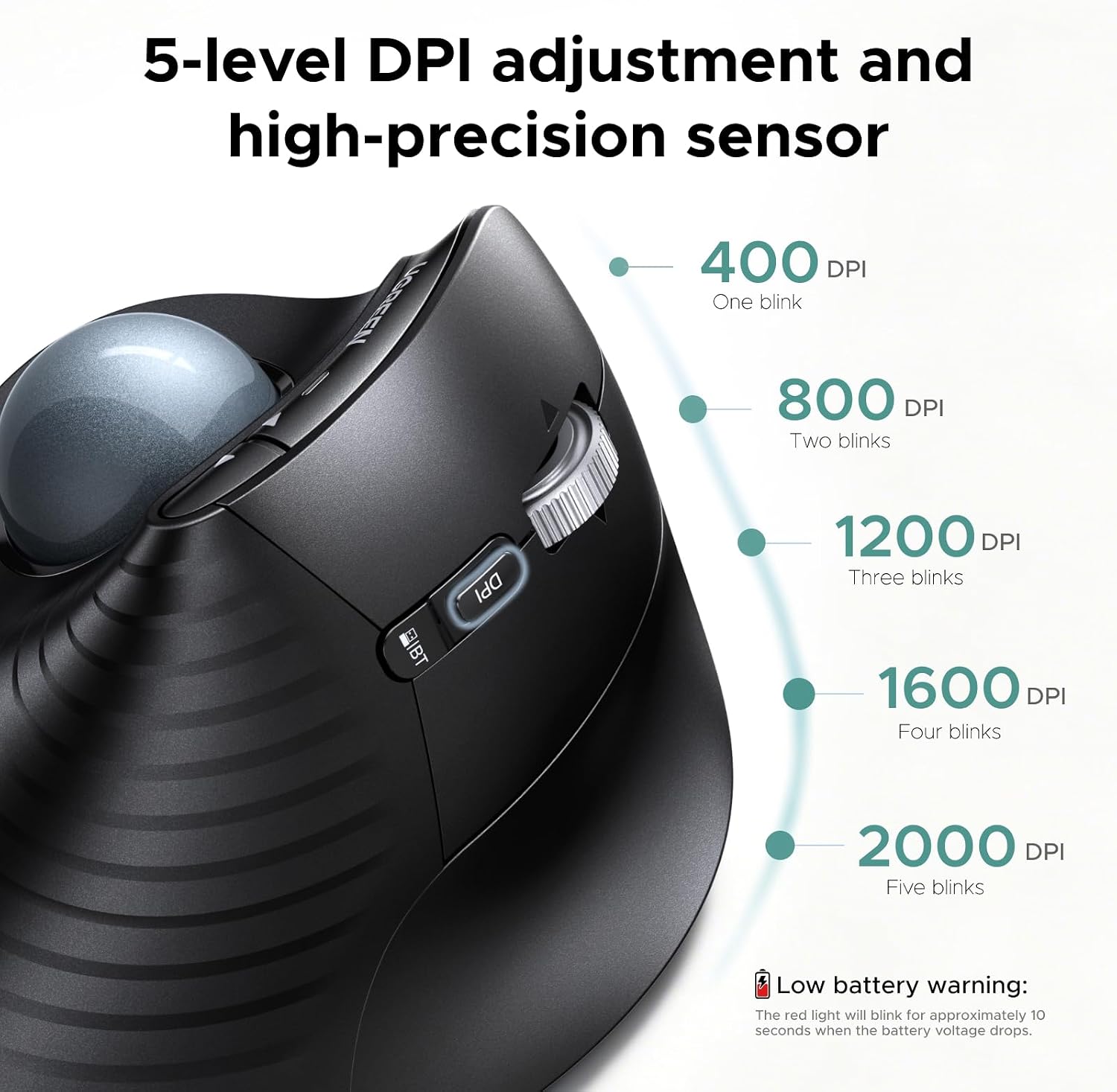
Image: Three scenarios demonstrating the UGREEN M785DR mouse being used in limited spaces: on a train tray table, on a small desk, and resting on a user's lap, highlighting its versatility.
Maintenance
Cleaning the Trackball
For optimal performance and smooth tracking, regularly clean the trackball. Dust and debris can accumulate and affect its movement.
- Turn off the mouse.
- Gently push the trackball out from the bottom of the mouse.
- Wipe the trackball with a soft, lint-free cloth.
- Use a cotton swab or a small brush to clean the inner socket where the trackball rests, removing any accumulated dust or debris.
- Reinsert the trackball into its socket.
Monthly cleaning is recommended to maintain smooth and responsive tracking.
Troubleshooting
Common Issues and Solutions:
- Mouse not responding:
- Ensure the mouse is powered on.
- Check battery level; recharge if necessary.
- For 2.4G connection, ensure the USB receiver is securely plugged in and the mouse is in 2.4G mode.
- For Bluetooth connection, ensure Bluetooth is enabled on your device and the mouse is correctly paired and in the selected BT mode (BT1/BT2). Try re-pairing if necessary.
- Try connecting to a different USB port or device to rule out port/device issues.
- Cursor movement is erratic or not smooth:
- Clean the trackball and its socket as described in the Maintenance section.
- Adjust the DPI sensitivity using the DPI toggle button.
- Low Battery Warning:
- The red indicator light will blink for approximately 10 seconds when the battery voltage drops. Recharge the mouse promptly.
- Buttons not functioning correctly:
- If buttons are customized, ensure the customization software is running and configured correctly.
- Test the mouse on another device to determine if the issue is with the mouse or the host device's settings.
Specifications
| Brand | UGREEN |
| Model Number | 85892 (M785DR) |
| Connectivity Technology | Bluetooth, 2.4G Wireless |
| Movement Detection Technology | Trackball |
| Number of Buttons | 8 |
| DPI Levels | 400, 800, 1200, 1600, 2000 (Adjustable) |
| Battery | 500mAh Rechargeable (1 Nonstandard Battery included) |
| Charging Port | USB-C |
| Hand Orientation | Ambidextrous |
| Compatible Devices | Personal Computer |
| Operating System | Windows, macOS, Linux, Android, ChromeOS |
| Item Weight | 155 g |

Image: A size guide for the UGREEN M785DR mouse, comparing it to small, medium, and large hand sizes. Dimensions of the mouse (6.7cm width, 12cm length, 6.5cm height) are also provided, indicating it is specifically designed for medium to large hands.
Warranty and Support
Warranty Information
The UGREEN M785DR Wireless Trackball Mouse comes with a 2-Year Manufacturer Warranty. Please retain your proof of purchase for warranty claims.
Customer Support
For further assistance, technical support, or to download customization software, please visit the official UGREEN website or contact UGREEN customer service.
Website: www.ugreen.com