
1. Introduction
The YUNZII C98 is a 98-key wireless mechanical keyboard designed for versatility and a premium typing experience. It features a compact 96% layout, tri-mode connectivity (Bluetooth 5.0, 2.4GHz wireless, and USB-C wired), a gasket-mounted structure for enhanced acoustics, and hot-swappable switches for easy customization. The keyboard also includes vibrant RGB backlighting and durable PBT MOA keycaps. This manual provides detailed instructions for setting up, operating, and maintaining your YUNZII C98 keyboard.
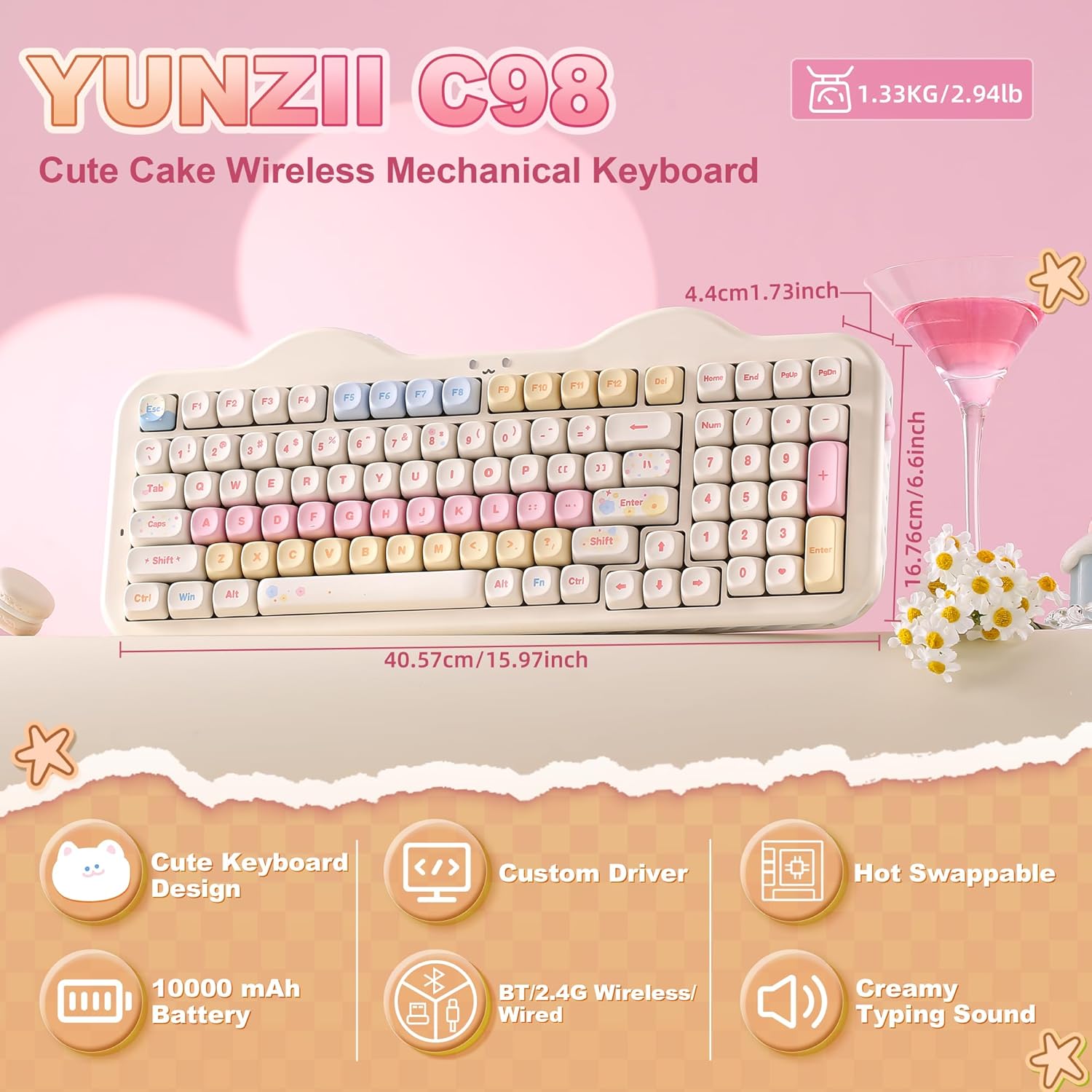
Image: YUNZII C98 Wireless Mechanical Keyboard showcasing its compact 96% layout and overall design with dimensions.
Video: An overview of the YUNZII C98 Wireless Mechanical Keyboard, highlighting its design and features.
2. Package Contents
Please ensure all the following items are included in your package:
- YUNZII C98 Keyboard
- 2.4G Dongle
- Extra Keycaps and Switches
- Keycap Puller
- USB Cable (Type-C)
- User Manual
- Mouse Pad
- Greeting Card
- Dust Cover
- Cute Cat Stickers

Image: A visual representation of all items included in the YUNZII C98 keyboard package.
3. Setup & Connectivity
The YUNZII C98 keyboard supports three connection modes: Bluetooth 5.0, 2.4GHz wireless, and USB-C wired. It is compatible with PC, Mac, iOS, and Android systems.
3.1. Wired Mode (USB-C)
Connect the provided USB-C cable from the keyboard to your computer's USB port. The keyboard will automatically switch to wired mode and begin charging.
3.2. 2.4GHz Wireless Mode
- Locate the 2.4G dongle, typically stored in a dedicated slot on the keyboard.
- Toggle the mode switch on the keyboard to the 2.4G position.
- Plug the 2.4G dongle into an available USB port on your device.
- The keyboard will automatically pair. RGB backlights will restore to normal mode upon successful pairing.

Image: Step-by-step guide for connecting the YUNZII C98 keyboard using 2.4G wireless mode.
3.3. Bluetooth 5.0 Mode
The keyboard can connect to up to 3 Bluetooth devices.
- Toggle the mode switch on the keyboard to the Bluetooth (BT) position.
- Short press Fn + 1/2/3 to select a Bluetooth channel. The selected channel key will flash blue slowly, indicating pairing mode.
- On your device, search for Bluetooth devices and select "YUNZII C98 BT3.0" or "YUNZII C98 BT5.0" to pair.
- Upon successful pairing, the RGB backlights will return to normal mode.

Image: An illustration of the three connectivity modes: Bluetooth, 2.4GHz wireless, and USB-C wired.

Image: Step-by-step instructions for connecting the YUNZII C98 keyboard via Bluetooth.
3.4. System Compatibility
To switch between Windows and macOS layouts:
- For Windows: Press Fn + A
- For macOS: Press Fn + S

Image: The YUNZII C98 keyboard supporting various operating systems and devices, including PC, laptop, tablet, Switch, Xbox, PlayStation, and phone.
4. Operating Instructions
4.1. RGB Backlight Customization
The YUNZII C98 features 16.8 million RGB backlight colors and various effects. Use the following Fn key combinations to customize your lighting:
- Fn + Backspace: Backlight ON/OFF
- Fn + Enter: Change Backlight Color
- Fn + \|: Change Backlight Effect
- Fn + ↑: Increase Brightness
- Fn + ↓: Decrease Brightness
- Fn + ←: Decrease Blinking Speed
- Fn + →: Increase Blinking Speed
Additionally, control the Smiley Light and Side Light:
- Fn + Pause: Smiley Light ON/OFF
- Fn + Print: Change Smiley Light Effect
- Fn + Right Shift: Change Smiley Light Color
- Fn + Del: Side Light ON/OFF
- Fn + Home: Change Side Light Effect
- Fn + End: Change Side Light Color
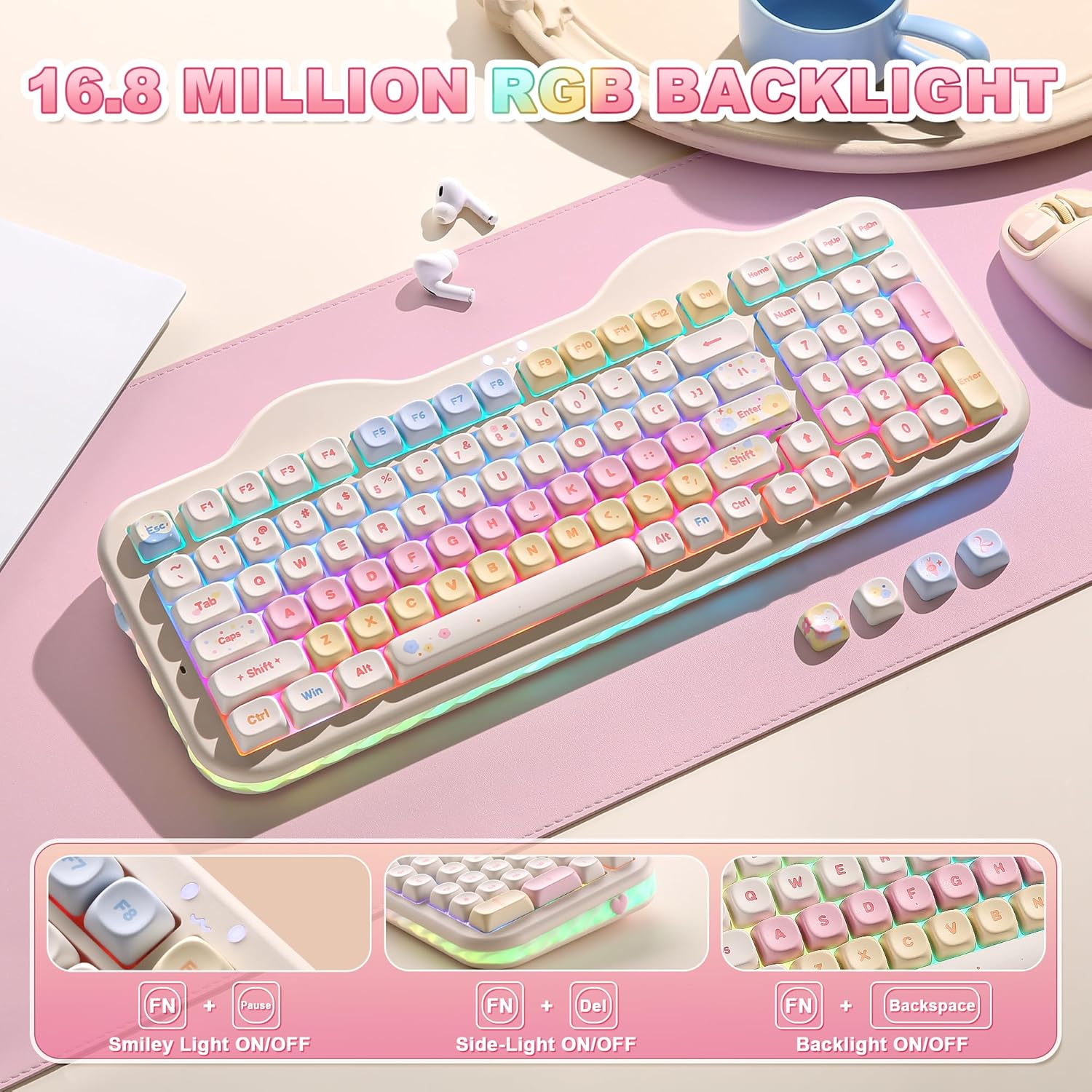
Image: The YUNZII C98 keyboard displaying various RGB backlight effects.

Image: Visual guide to RGB backlight control functions using Fn key combinations.

Image: Visual guide to Smiley Light and Side Light control functions using Fn key combinations.
Video: Demonstrates how to switch RGB lighting effects on a YUNZII keyboard (C75 model shown, similar functionality for C98).
4.2. Multimedia and System Functions
Use the Fn key in combination with the F-row keys for various functions:
- Windows (Fn + A) Functions:
- Fn+F1 = Computer
- Fn+F2 = Browser
- Fn+F3 = Email
- Fn+F4 = Calculator
- Fn+F5 = Player
- Fn+F6 = Stop
- Fn+F7 = Previous Track
- Fn+F8 = Play/Pause
- Fn+F9 = Next Track
- Fn+F10 = Mute
- Fn+F11 = Volume Down
- Fn+F12 = Volume Up
- macOS (Fn + S) Functions:
- F1 = Screen Brightness Down
- F2 = Screen Brightness Up
- F3 = Mission Control
- F4 = Launchpad
- F5 = No Function
- F6 = No Function
- F7 = Previous Track
- F8 = Play/Pause
- F9 = Next Track
- F10 = Mute
- F11 = Volume Down
- F12 = Volume Up

Image: A comprehensive list of Fn key combinations for both Windows and macOS operating systems.
5. Advanced Features
5.1. Gasket Mount Structure
The YUNZII C98 features a premium gasket mount design, incorporating multiple sound-absorbing layers, stabilizers, and silicone padding. This construction effectively minimizes unwanted noise and rattle, providing a quiet, consistent, and exceptionally smooth typing experience with a creamy acoustic profile.

Image: An exploded view diagram illustrating the multi-layer gasket mount structure of the YUNZII C98 keyboard.
Video: A sound test of the YUNZII C75 keyboard with Milk V2 switches, demonstrating the creamy typing sound (similar to C98).
5.2. Hot-Swappable Switches
The C98 keyboard features a hot-swappable PCB, allowing you to easily change mechanical switches without soldering. It supports both 3-pin and 5-pin switches, offering flexibility for personalizing your typing feel and sound.

Image: Close-up view of the hot-swappable sockets and switches on the YUNZII C98 keyboard.
5.3. PBT MOA Keycaps
The keyboard comes with durable PBT MOA keycaps, known for their resistance to shine and wear, ensuring a long-lasting aesthetic and comfortable typing experience.

Image: Details of the comfortable PBT MOA keycaps and the 96% layout of the YUNZII C98 keyboard.
6. Battery Management
The YUNZII C98 is equipped with a large 10000mAh battery for extended use. It supports fast charging and features an auto-sleep function to conserve power.
- Battery Capacity: 10000mAh
- Brightest Light Usage: Up to 62 hours
- Backlight Off Usage: Up to 34 days
- Auto Sleep: After 5 minutes of inactivity
- Charging Time: Approximately 19 hours for a full charge

Image: Visual information regarding the keyboard's 10000mAh battery capacity and usage times.

Image: Details on the fast charging capability and battery life indicators (low, charging, full).
7. Customization Software
The YUNZII C98 supports intuitive web-based software (compatible with Windows and Mac) for advanced customization. This software allows you to:
- Remap keys
- Assign macros
- Customize dynamic lighting profiles
Note: The customization software and driver can only be used when the keyboard is connected in wired (USB-C) mode.

Image: An illustration of the custom web driver interface for key remapping, macro recording, and backlight customization.
8. Maintenance
To ensure the longevity and optimal performance of your YUNZII C98 keyboard, follow these maintenance guidelines:
- Cleaning Keycaps: Use the provided keycap puller to remove keycaps. Clean them with a soft cloth dampened with mild soap and water. Ensure they are completely dry before reattaching.
- Cleaning Keyboard Body: Use a soft, dry cloth to wipe down the keyboard body. For stubborn dirt, a slightly damp cloth can be used, but avoid excessive moisture.
- Dust Prevention: Use the included dust cover when the keyboard is not in use to prevent dust and debris accumulation.
- Avoid Liquids: Keep liquids away from the keyboard to prevent damage to internal components.
- Handle with Care: Avoid dropping or subjecting the keyboard to strong impacts.
9. Troubleshooting
If you encounter issues with your YUNZII C98 keyboard, try the following solutions:
- Keyboard Not Responding:
- Ensure the keyboard is charged.
- Check the connection mode switch (wired, 2.4G, Bluetooth) is set correctly.
- For 2.4G, ensure the dongle is securely plugged in.
- For Bluetooth, re-pair the device.
- Try connecting via USB-C cable to rule out wireless issues.
- Keys Not Working:
- Remove the keycap and switch using the puller. Reinsert the switch firmly to ensure proper contact.
- Test with a different switch if available.
- Backlight Not Working/Incorrect:
- Ensure the backlight is turned ON using Fn + Backspace.
- Adjust brightness using Fn + ↑/↓.
- Reset RGB settings via the customization software if issues persist.
- Connectivity Issues (Lag/Disconnection):
- Ensure the keyboard is within range of the receiver (2.4G) or paired device (Bluetooth).
- Minimize interference from other wireless devices.
- Ensure the keyboard battery is sufficiently charged.
10. Specifications
| Feature | Detail |
|---|---|
| Brand | YUNZII |
| Model Number | C98 |
| Connectivity Technology | Bluetooth/2.4G/USB-C |
| Compatible Devices | Mac/PC/Laptop/Tablet/Smartphone |
| Number of Keys | 99 |
| Switch Type | Linear (Milk V2 Linear Switch) |
| Keyboard Layout | QWERTY |
| Keyboard Backlight | RGB |
| Special Features | Backlit, Ergonomic, 3 Modes, Customizable Display Keys, Hot-Swappable |
| Item Weight | 1.1 Kilograms |
| Material | Plastic |
| Power Source | Battery Powered |

Image: Detailed specifications for the Milk V2 Linear Switch, including operating force, pretravel, end force, and total travel.
11. Warranty and Support
The YUNZII C98 Wireless Mechanical Keyboard comes with a 1 Year Manufacturer Warranty.
For technical support, warranty claims, or further assistance, please refer to the contact information provided in your product packaging or visit the official YUNZII website.


