
Introduction
This manual provides essential information for the proper setup, operation, and maintenance of your Samsung HW-Q800H Q-Series Soundbar with Wireless Subwoofer. Please read these instructions carefully before using the product to ensure optimal performance and safety. The Samsung HW-Q800H delivers immersive audio with side-firing speakers and wireless Dolby Atmos, creating a spatial sound experience. It features automatic sound calibration tailored to your environment and a compact wireless subwoofer for enhanced bass.
What's in the Box
Verify that all components are present in the packaging:
- Samsung HW-Q800H Soundbar
- Wireless Subwoofer
- Remote Controller with Batteries (2 AAA batteries required)
- HDMI Cable
- Wall Mount Kit
- Rubber Foot

Image: The Samsung HW-Q800H Soundbar and its wireless subwoofer, along with the remote control and a diagram illustrating product dimensions and package contents.
Setup
1. Placement
Place the soundbar centrally below your television. Position the wireless subwoofer in a location that provides optimal bass distribution, typically near the soundbar or in a corner of the room. Ensure both units have adequate ventilation.
2. Connections
Connect the soundbar to your television using one of the following methods:
- HDMI eARC/ARC: For the best audio quality and control, connect an HDMI cable from the soundbar's HDMI OUT (TV eARC/ARC) port to your TV's HDMI IN (ARC/eARC) port. This allows your TV remote to control the soundbar's basic functions.
- Optical Digital Audio: Connect an optical cable from the soundbar's DIGITAL AUDIO IN (OPTICAL) port to your TV's optical digital audio output.
- Wireless TV Connection: For compatible Samsung TVs, you can connect wirelessly via Wi-Fi or Bluetooth. Refer to your TV's settings for pairing instructions.
Connect the power cables to the soundbar and subwoofer, then plug them into a wall outlet. The subwoofer will automatically pair with the soundbar.

Image: The rear panel of the soundbar, highlighting the Digital Audio In (Optical), Service (USB), HDMI to TV (eARC/ARC), HDMI, and Power Source ports.
3. App Installation (SmartThings)
For advanced control and settings, download the Samsung SmartThings app on your smartphone or tablet. The app will guide you through connecting your soundbar to your home Wi-Fi network and accessing additional features. Ensure your device is connected to a 2.4 GHz Wi-Fi network during initial setup if you encounter connection issues.
Operating the Soundbar
Basic Controls
Use the included remote control to power on/off, adjust volume, and select input sources. The soundbar also has integrated buttons for basic control.
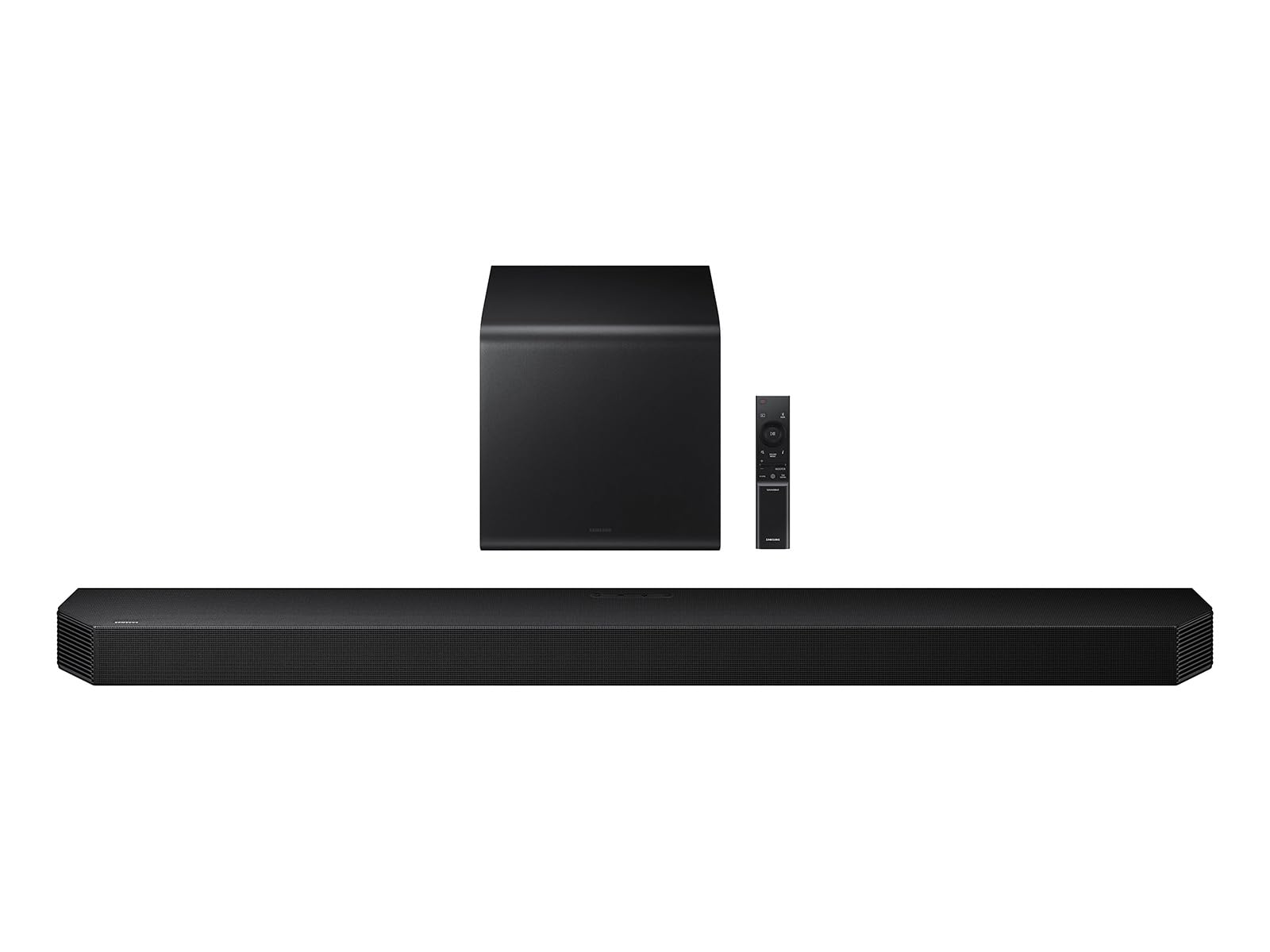
Image: The sleek black remote control for the Samsung HW-Q800H Soundbar, featuring power, volume, input, and sound mode buttons.
Sound Modes
The soundbar offers various sound modes to optimize your listening experience:
- Standard: Delivers original sound without effects.
- Surround: Expands the soundstage for a more enveloping experience.
- Game: Optimizes audio for gaming, enhancing effects and dialogue.
- AI Adaptive Sound: Analyzes the content and automatically adjusts sound settings for clarity.
Advanced Audio Features
- True 5.1.2 Channel Sound: Experience multi-dimensional audio with side and up-firing speakers.
- Wireless Dolby Atmos: Enjoy immersive 3D sound without an HDMI cable, compatible with select 2022-2026 Samsung TVs. Requires Dolby Atmos source content.
- Q-Symphony: Synchronizes the soundbar with compatible Samsung TVs (2020 or later) and up to five other Samsung audio devices for a richer, more detailed sound. AI-enhanced audio is available with compatible 2023-2026 Samsung AI TVs.
- SpaceFit Sound Pro: Utilizes built-in sensors to analyze your room's acoustics and automatically calibrate the soundbar's audio, including bass, for optimal performance.

Image: A visual representation of True 5.1.2 Channel Sound, showing sound waves emanating from the soundbar and subwoofer to create a 3D audio field.

Image: A diagram depicting Wireless Dolby Atmos, with sound waves projecting upwards and outwards from the soundbar to create an overhead audio effect.
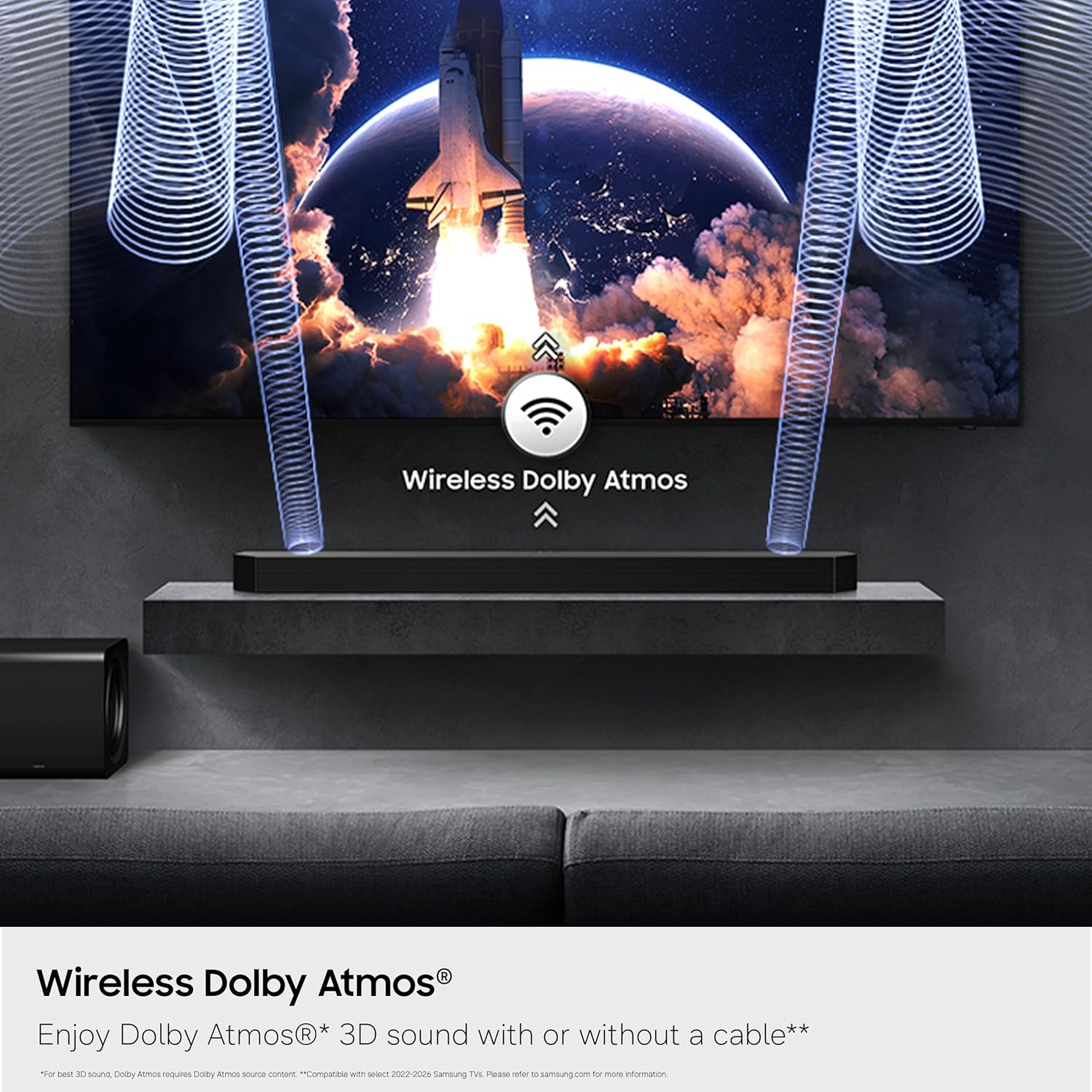
Image: A visual explanation of Q-Symphony, showing how sound from the TV and soundbar speakers combine to create a unified audio experience.

Image: A diagram demonstrating SpaceFit Sound Pro, where the soundbar analyzes the room's layout and adjusts audio output for optimal sound delivery.
Smart Integration
The soundbar supports various smart services and voice assistants:
- Alexa Built-in: Control your soundbar and other smart home devices using voice commands.
- Google Cast: Stream audio from compatible apps on your mobile device.
- AirPlay 2: Stream audio from compatible Apple devices (iOS 11.4 or later).
Maintenance
To ensure the longevity and optimal performance of your soundbar system, follow these maintenance guidelines:
- Cleaning: Gently wipe the surfaces of the soundbar and subwoofer with a soft, dry cloth. Avoid using abrasive cleaners, waxes, or solvents.
- Ventilation: Ensure that the ventilation openings on the soundbar and subwoofer are not blocked. Proper airflow prevents overheating.
- Power Cord: Regularly check the power cords for any damage. If damaged, discontinue use and contact customer support.
- Storage: If storing the unit for an extended period, disconnect it from the power outlet and store it in a cool, dry place away from direct sunlight and extreme temperatures.
Troubleshooting
If you encounter issues with your Samsung HW-Q800H Soundbar, refer to the following common solutions:
| Problem | Solution |
|---|---|
| No sound from soundbar. | Check power connections. Ensure the correct input source is selected on the soundbar. Verify the TV's audio output settings are configured to external speakers (HDMI ARC/Optical). |
| Subwoofer not producing sound or not connecting. | Ensure the subwoofer is powered on and within range of the soundbar. Check for any obstructions. If issues persist, manually re-pair the subwoofer by following the instructions in the full user manual. |
| Remote control not working. | Replace the batteries (2 AAA). Ensure there are no obstructions between the remote and the soundbar. |
| Cannot connect to SmartThings app. | Ensure your smartphone is connected to a 2.4 GHz Wi-Fi network during the initial setup process. Some multi-frequency routers may require temporary adjustment. Restart both the soundbar and your smartphone. |
| Sound is distorted or unclear. | Check the audio source quality. Adjust sound modes or EQ settings via the SmartThings app. Ensure speaker placement is not obstructed. |
Specifications
| Feature | Detail |
|---|---|
| Brand | Samsung |
| Model Number | HW-Q800H/ZA |
| Speaker Maximum Output Power | 400 watts |
| Frequency Response | 20 hertz |
| Connectivity Technology | Bluetooth, HDMI, Wi-Fi |
| Audio Output Mode | Surround |
| Mounting Type | Wall Mount |
| Speaker Type | Soundbar |
| Additional Features | Dolby Enabled |
| Subwoofer Diameter | 6.5 inches |
| Color | Black |
| Control Method | Remote |
| Speaker Size (Soundbar) | 43.71 inches |
| Bluetooth Range | 10 meters |
| Specific Uses For Product | Home Theatre |
| Number of Audio Channels | 5.1.2 |
| Subwoofer Connectivity | Wireless |
| Audio Driver Type | Upward Firing Driver |
| Item Dimensions (D x W x H) | 4.72"D x 43.71"W x 2.38"H |
| Item Weight | 27.1 pounds |
| Compatible Devices | Television |
| Power Source | Corded Electric |
Warranty and Support
Warranty Information
This Samsung HW-Q800H Soundbar is covered by a 1 Year Manufacturer Limited Warranty. Please retain your proof of purchase for warranty claims. The warranty covers defects in materials and workmanship under normal use.
Customer Support
For technical assistance, troubleshooting beyond this manual, or warranty service, please contact Samsung Customer Support. You can find contact information on the official Samsung website or in the documentation included with your product.
Online resources, including FAQs and updated software, may also be available on the Samsung support website.


