
1. Introduction
Thank you for choosing the InnoView 15.6" 2K QHD Portable Monitor. This ultra-slim and lightweight monitor is designed to enhance your productivity and entertainment experience on the go. Featuring a vibrant 2560x1440 resolution, 100% sRGB color gamut, and versatile connectivity options, it serves as an ideal second screen for laptops, smartphones, gaming consoles, and more. This manual provides essential information for setting up, operating, maintaining, and troubleshooting your new portable monitor.
2. What's in the Box
Please check the package contents to ensure all items are present:
- 1x InnoView 15.6" 2K Portable Monitor
- 1x USB-C Full-Featured Cable
- 1x Standard HDMI Cable
- 1x User Manual
- 1x Protective Sleeve (doubles as a stand)
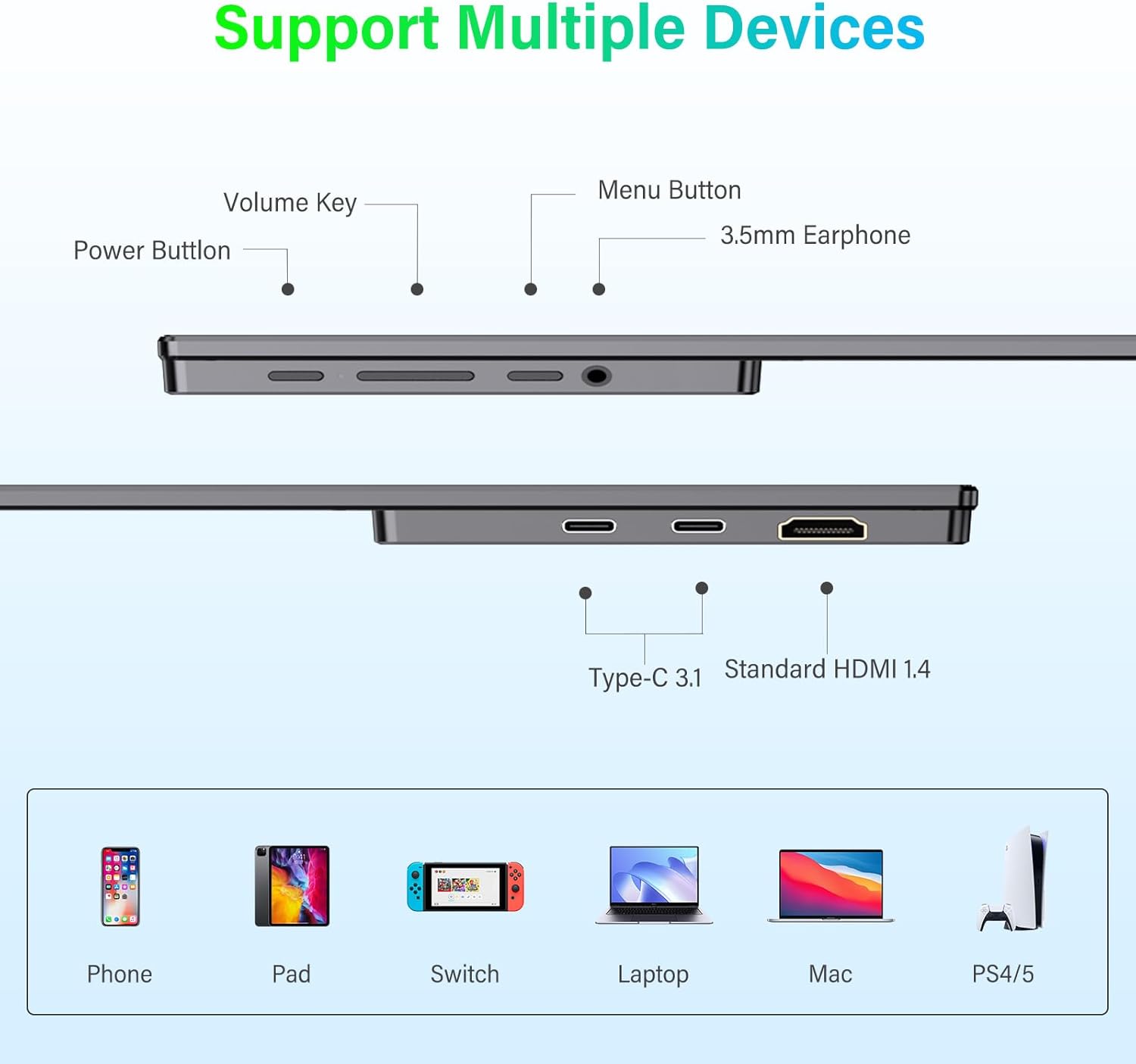
Figure 2.1: Package Contents. The image displays the InnoView 15.6" 2K Portable Monitor, a USB-C cable, a Standard HDMI cable, a user manual, and a protective sleeve.
3. Setup Guide
3.1 Connecting to Your Device
The InnoView portable monitor offers flexible connectivity options. Ensure your device supports video output via USB-C (DisplayPort Alternate Mode) or HDMI.
USB-C Connection (Single Cable Solution)
- Connect one end of the provided USB-C full-featured cable to the monitor's USB-C port (ensure it's the video/power input port, often labeled with a display icon).
- Connect the other end of the USB-C cable to your laptop, smartphone, or compatible device's USB-C port that supports video output and power delivery.
- Note: For optimal performance, especially if your device cannot provide sufficient power, connect the monitor to an external 30W power adapter (not included) via the second USB-C port.
HDMI Connection (Requires External Power)
- Connect one end of the provided Standard HDMI cable to the monitor's HDMI port.
- Connect the other end of the HDMI cable to your device's HDMI output port.
- Connect the monitor to an external 30W power adapter (not included) using the provided USB-C full-featured cable plugged into one of the monitor's USB-C ports. This is required for HDMI connections.

Figure 3.1: Portable Monitor Connection Guide. The image illustrates two connection scenarios: one using a single USB-C cable for both video and power, and another using an HDMI cable for video with a separate USB-C cable for power.
3.2 Device Compatibility
The InnoView portable monitor is compatible with a wide range of devices:
- Laptops/MacBooks: Connect via USB-C (DisplayPort Alt Mode) or HDMI.
- Smartphones: Compatible with phones supporting USB-C video output (e.g., Samsung DeX, Huawei EMUI Desktop).
- Gaming Consoles: Connect to PS4/PS5, Xbox, and Nintendo Switch via HDMI.
- Tablets: Connect via USB-C or HDMI if supported.
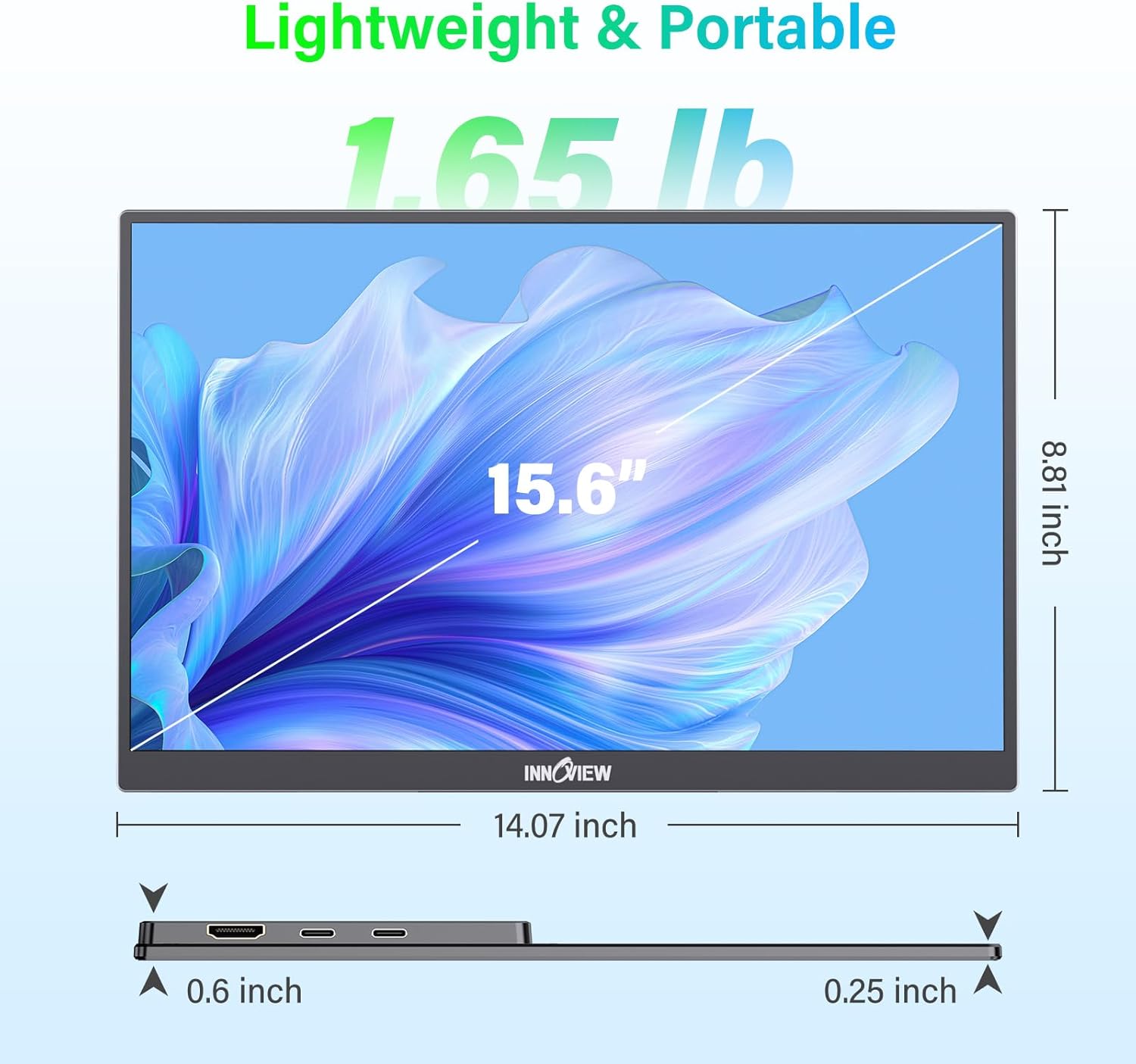
Figure 3.2: Supported Multiple Devices. The image displays icons for Phone, Pad, Switch, Laptop, Mac, and PS4/5, indicating broad compatibility.
3.3 Identifying USB-C Port Capabilities
To ensure proper functionality with a single USB-C cable, verify that your device's USB-C port supports video output (DisplayPort Alternate Mode) and power delivery. Look for specific symbols next to your computer's USB-C port:
- DisplayPort Alt Mode: Often indicated by a 'D' symbol or a lightning bolt (Thunderbolt).
- Power Delivery: Indicated by a battery or power icon.
If you see the Thunderbolt symbol, your port is fully compatible. If unsure, consult your device's manufacturer website or technical specifications.

Figure 3.3: Quick Guide for USB-C Port Symbols. The image displays various USB-C port symbols, helping users identify ports with video and power capabilities.
4. Operating Instructions
4.1 Powering On/Off
- To power on the monitor, press the Power button located on the side.
- To power off, press and hold the Power button for a few seconds until the screen turns off.
4.2 Display Modes
The monitor supports multiple display modes to suit your needs:
- Duplicate Mode: Mirrors your primary screen, showing the same content on both displays.
- Extend Mode: Extends your desktop workspace, allowing you to drag windows between screens for increased productivity.
- Second Screen Only: Displays content only on the portable monitor, turning off your primary screen.
These modes can typically be configured through your operating system's display settings (e.g., Windows Display Settings, macOS System Preferences).

Figure 4.1: Double Your Output, Wherever You Work. The image visually explains the benefits of using the portable monitor in both duplicated and extended display modes.
4.3 On-Screen Display (OSD) Menu
The OSD menu allows you to adjust various display settings. Use the Menu button and Volume keys (often multi-functional) on the side of the monitor to navigate and select options.
- Brightness/Contrast: Adjust for optimal viewing in different lighting conditions.
- Color Settings: Fine-tune color temperature, hue, and saturation.
- Input Source: Manually select between USB-C and HDMI inputs.
- Volume: Control the output of the built-in speakers.
4.4 Touchscreen Functionality
The monitor features 10-point touchscreen capabilities, allowing for intuitive interaction with compatible devices. When connected via USB-C to a device that supports touch input (e.g., certain Windows laptops, Samsung DeX), you can use gestures, taps, and swipes directly on the monitor screen.
4.5 Built-in Speakers
The monitor includes dual stereo speakers for audio output. Volume can be adjusted via the OSD menu or your connected device's volume controls.
5. Maintenance
To ensure the longevity and optimal performance of your InnoView portable monitor, follow these maintenance guidelines:
- Cleaning the Screen: Use a soft, lint-free cloth lightly dampened with water or a non-abrasive screen cleaner. Avoid harsh chemicals or abrasive materials.
- Cleaning the Casing: Wipe the monitor's casing with a soft, dry cloth.
- Storage: When not in use, store the monitor in its protective sleeve to prevent scratches and damage. Avoid placing heavy objects on top of the monitor.
- Handling: Handle the monitor with care. Avoid dropping it or subjecting it to strong impacts.
6. Troubleshooting
If you encounter issues with your InnoView portable monitor, please refer to the following common solutions:
- No Signal/Black Screen:
- Ensure all cables are securely connected.
- Verify your device's USB-C port supports video output (DisplayPort Alt Mode) or that the HDMI cable is connected and the monitor is externally powered.
- Try a different cable or port on your device.
- Check your device's display settings to ensure the monitor is detected and the correct display mode (Extend/Duplicate) is selected.
- No Power:
- If using a single USB-C cable, ensure your device provides sufficient power. Try connecting an external 30W power adapter to the monitor.
- If using HDMI, external power via USB-C is always required. Ensure the power adapter is connected and functional.
- Touchscreen Not Responding:
- Ensure the USB-C cable is fully functional and supports data transfer for touch input.
- Verify your connected device supports touch input to external displays.
- Restart both the monitor and the connected device.
- Image Quality Issues (Flickering, Distorted Colors):
- Check cable connections.
- Adjust display settings (brightness, contrast, color) via the OSD menu.
- Ensure your device's graphics driver is up to date.
7. Specifications
Key technical specifications for the InnoView 15.6" 2K QHD Portable Monitor:
| Feature | Description |
|---|---|
| Brand | InnoView |
| Model Number | INVPM406-20Black |
| Screen Size | 15.6 Inches |
| Resolution | 2560 x 1440 Pixels (QHD Wide 1440p) |
| Aspect Ratio | 16:9 |
| Screen Finish | Matte |
| Contrast Ratio | 1000:1 |
| Refresh Rate | 60 Hz |
| Viewing Angle | 178 Degrees |
| Brightness | 250 Candela |
| Color Gamut | 100% sRGB |
| Picture Quality Enhancement | HDR |
| Response Time | 3 Milliseconds |
| Connectivity Technology | HDMI, USB-C (2 ports) |
| Adaptive Sync | FreeSync |
| Item Dimensions (DxWxH) | 0.26"D x 14"W x 8.8"H |
| Built-In Media | Dual Stereo Speakers |
8. Warranty and Support
The InnoView 15.6" 2K QHD Portable Monitor comes with a 1.5 Year Manufacturer Warranty (18 Months). For warranty claims, technical support, or any inquiries, please contact InnoView customer service through their official website or the platform where you purchased the product.
You can visit the InnoView Store on Amazon for more information and support resources.


